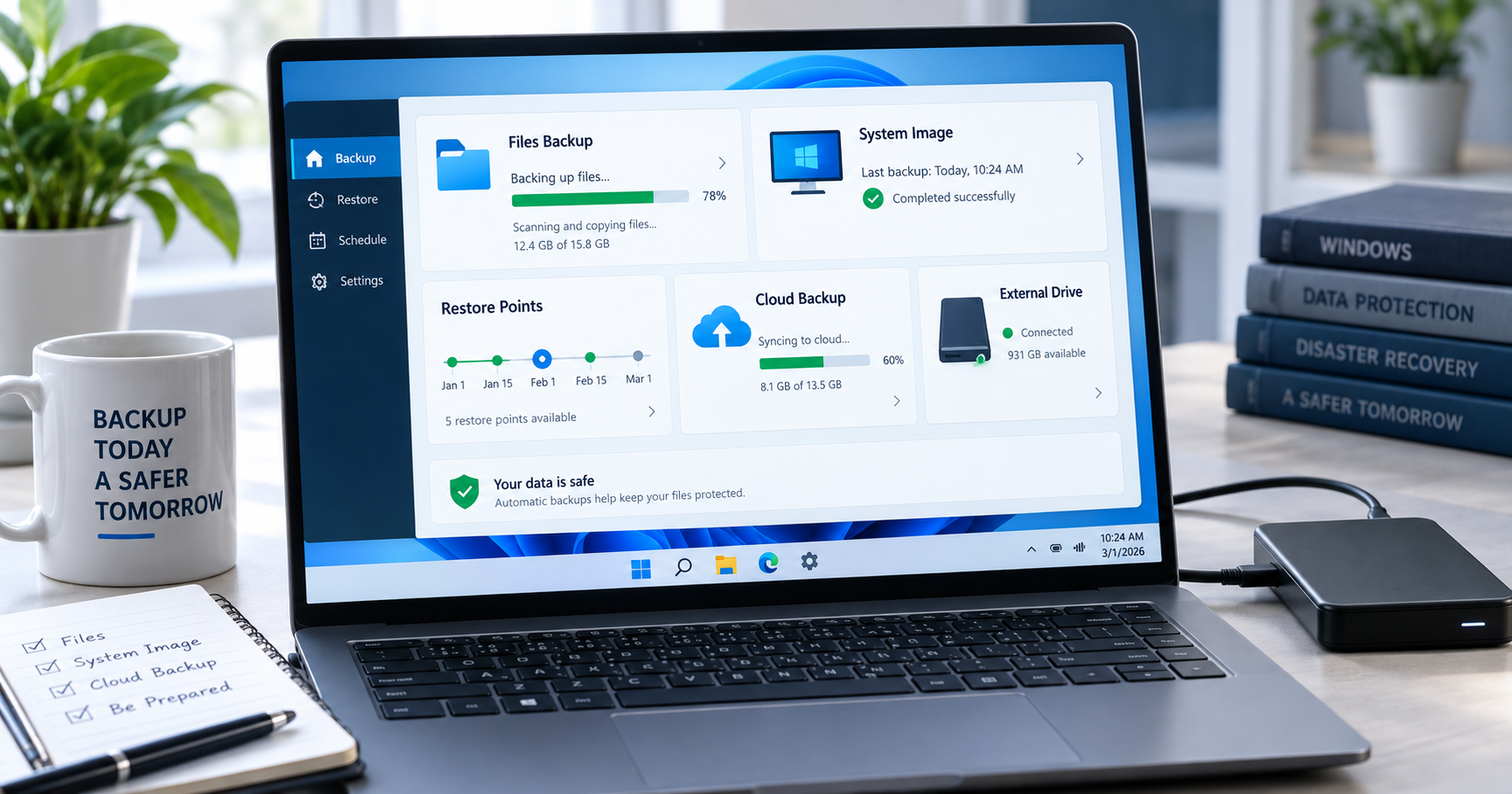
best free backup software for Windows should help you protect files, recover from a failed drive, and test restores without turning backup into a complicated project. For most readers, the best choice is not the tool with the longest feature list; it is the one you will actually schedule, monitor, and test.
Quick answer
Use Windows File History for a simple built-in file backup, Veeam Agent or Hasleo for stronger system-image workflows, AOMEI or EaseUS for guided backup jobs, and FBackup when you mainly need scheduled file backups. Always test a restore before trusting any backup plan.
Best choice by use case
For most Windows users, the safest choice depends on what you need to restore. Use File History for simple personal files, Veeam Agent or Hasleo when system recovery matters, AOMEI or EaseUS for guided backup jobs, and FBackup when you only need straightforward file backups.
- Best for simple file backup: Windows File History
- Best for full Windows PC recovery: Veeam Agent for Microsoft Windows Free
- Best free all-in-one backup suite: Hasleo Backup Suite Free
- Best guided backup interface: AOMEI Backupper Standard or EaseUS Todo Backup Free
- Best lightweight scheduled file backup: FBackup
What to know first
A backup is only useful if you can restore from it. Before choosing software, decide what you need to recover: one document, a folder, a whole Windows installation, or a PC after a drive failure. Those are different jobs and they do not need the same tool.
For important data, follow a simple 3-2-1 habit: keep three copies, use two types of storage, and keep one copy away from the main PC. A free backup app can be part of that workflow, but it cannot protect you if every copy is on the same computer or the same external drive left plugged in all day.
Comparison table
| Tool | Best for | AI/workflow strength | Learning curve | Pricing note | Human review risk |
|---|---|---|---|---|---|
| Veeam Agent for Microsoft Windows Free | Full Windows PC backup and recovery planning. | Strong for a repeatable backup workflow with image-level recovery options. | Medium | Free edition available; business editions are paid. | Restores must be tested before you trust the plan. |
| Hasleo Backup Suite Free | Free system backup, disk backup, clone, and restore tasks. | Good all-in-one workflow for home PCs and small-office machines. | Medium | Free personal and commercial use according to the vendor page. | Wrong disk selection can cause data loss, so review every step. |
| AOMEI Backupper Standard | File, system, disk, and partition backups for Windows users. | Useful for scheduled backups and simple restore workflows. | Easy to medium | Free Standard edition; some features require paid plans. | Check which features are free before building your workflow around them. |
| EaseUS Todo Backup Free | Simple backup jobs for files, folders, and systems. | Helpful for users who want a guided backup workflow. | Easy | Free version available; advanced options may require paid plans. | Watch for upgrade prompts and confirm restore options. |
| FBackup | Straightforward file backup jobs to local or external storage. | Good for basic scheduled file backup workflows. | Easy | Freeware; paid Backup4all has more features. | Not the best fit for full system-image recovery. |
| Windows File History | Built-in backup for personal files on Windows. | Useful as a low-friction baseline workflow for documents and desktop files. | Easy | Included with Windows. | It does not replace a full system image or offsite backup. |
6 best free backup software for Windows in 2026
1. Veeam Agent for Microsoft Windows Free
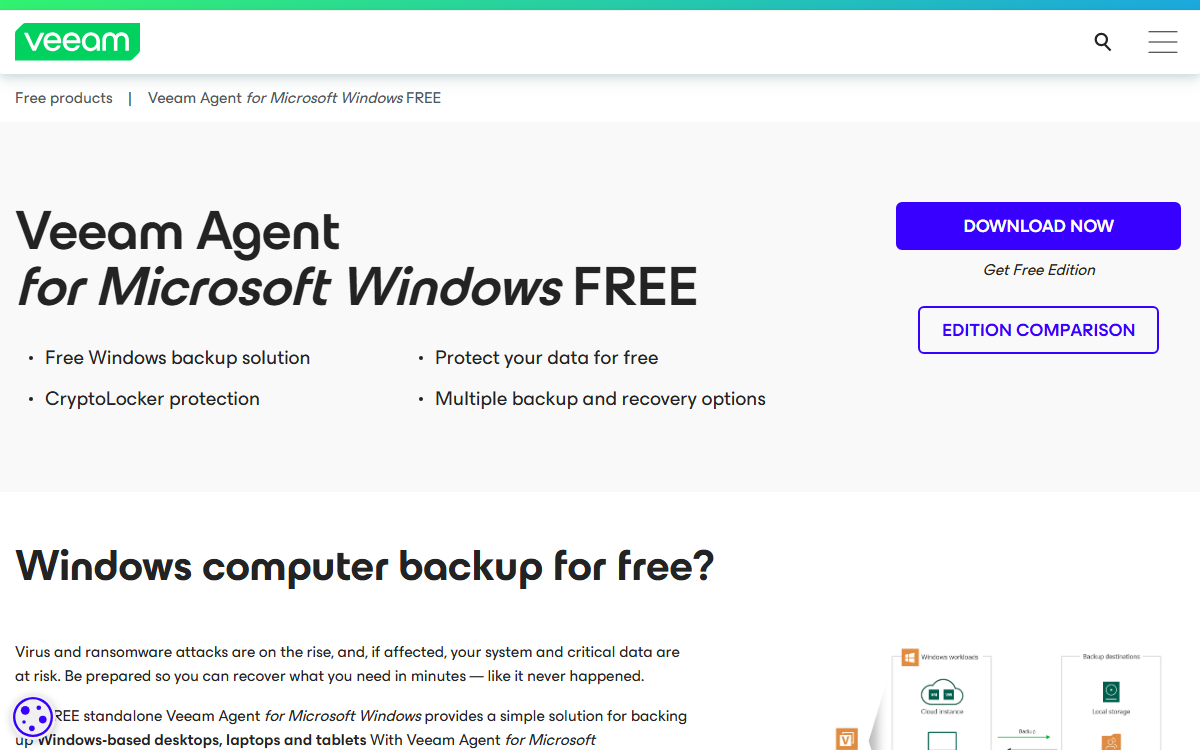
Best for: Full Windows PC backup and recovery planning.
What it does: Veeam Agent for Microsoft Windows Free helps with full windows pc backup and recovery planning. It fits best when the reader has a specific job to complete instead of collecting tools without a workflow.
Where it helps: Strong for a repeatable backup workflow with image-level recovery options.
Limitation or risk: Restores must be tested before you trust the plan.
Official link: Veeam Agent for Microsoft Windows Free
2. Hasleo Backup Suite Free
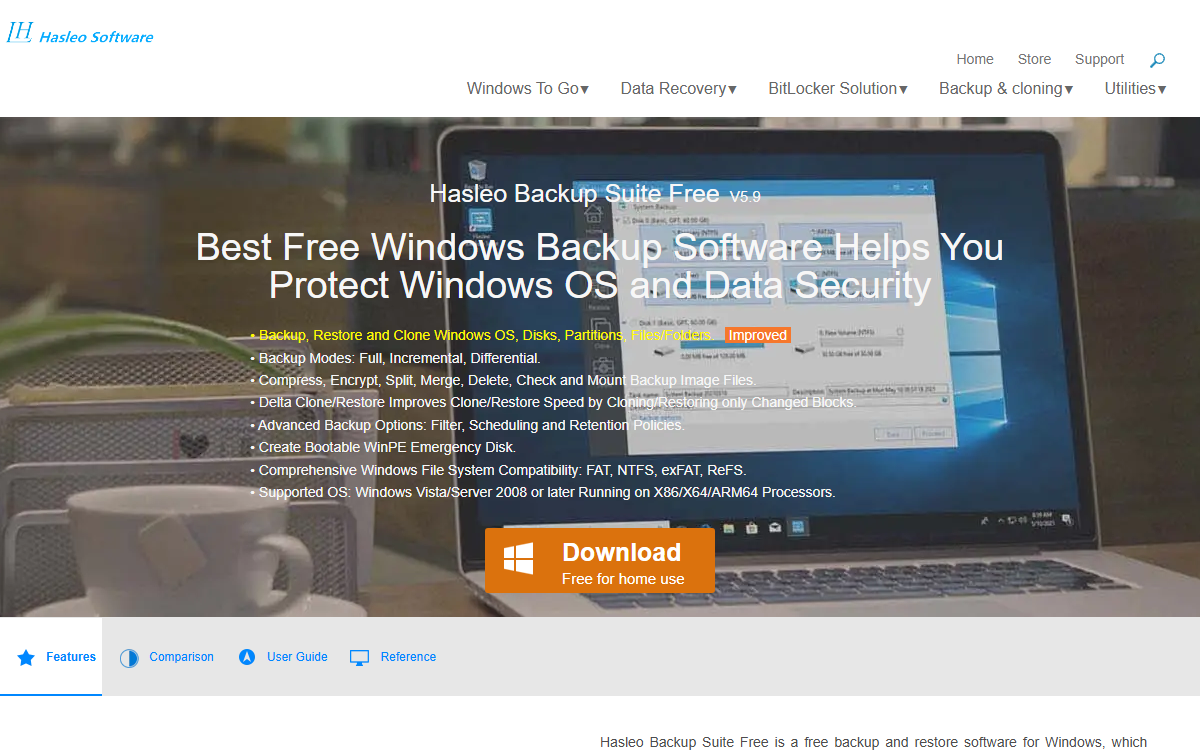
Best for: Free system backup, disk backup, clone, and restore tasks.
What it does: Hasleo Backup Suite Free helps with free system backup, disk backup, clone, and restore tasks. It fits best when the reader has a specific job to complete instead of collecting tools without a workflow.
Where it helps: Good all-in-one workflow for home PCs and small-office machines.
Limitation or risk: Wrong disk selection can cause data loss, so review every step.
Official link: Hasleo Backup Suite Free
3. AOMEI Backupper Standard
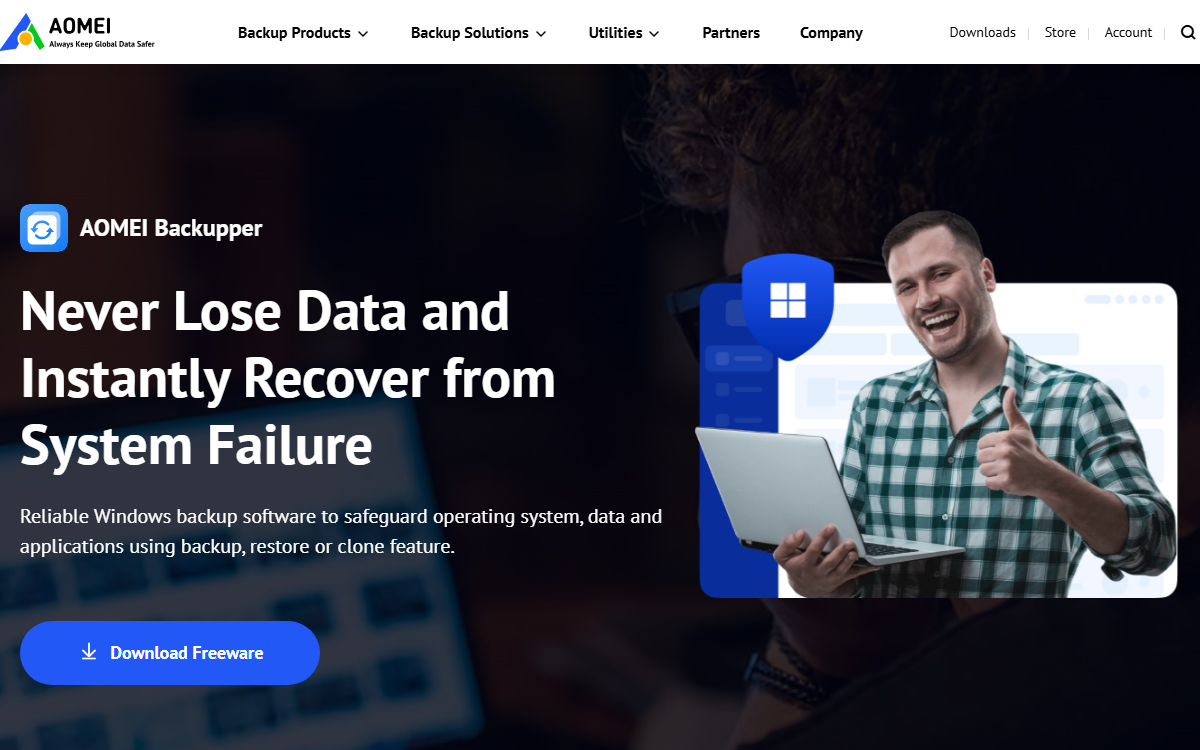
Best for: File, system, disk, and partition backups for Windows users.
What it does: AOMEI Backupper Standard helps with file, system, disk, and partition backups for windows users. It fits best when the reader has a specific job to complete instead of collecting tools without a workflow.
Where it helps: Useful for scheduled backups and simple restore workflows.
Limitation or risk: Check which features are free before building your workflow around them.
Official link: AOMEI Backupper Standard
4. EaseUS Todo Backup Free
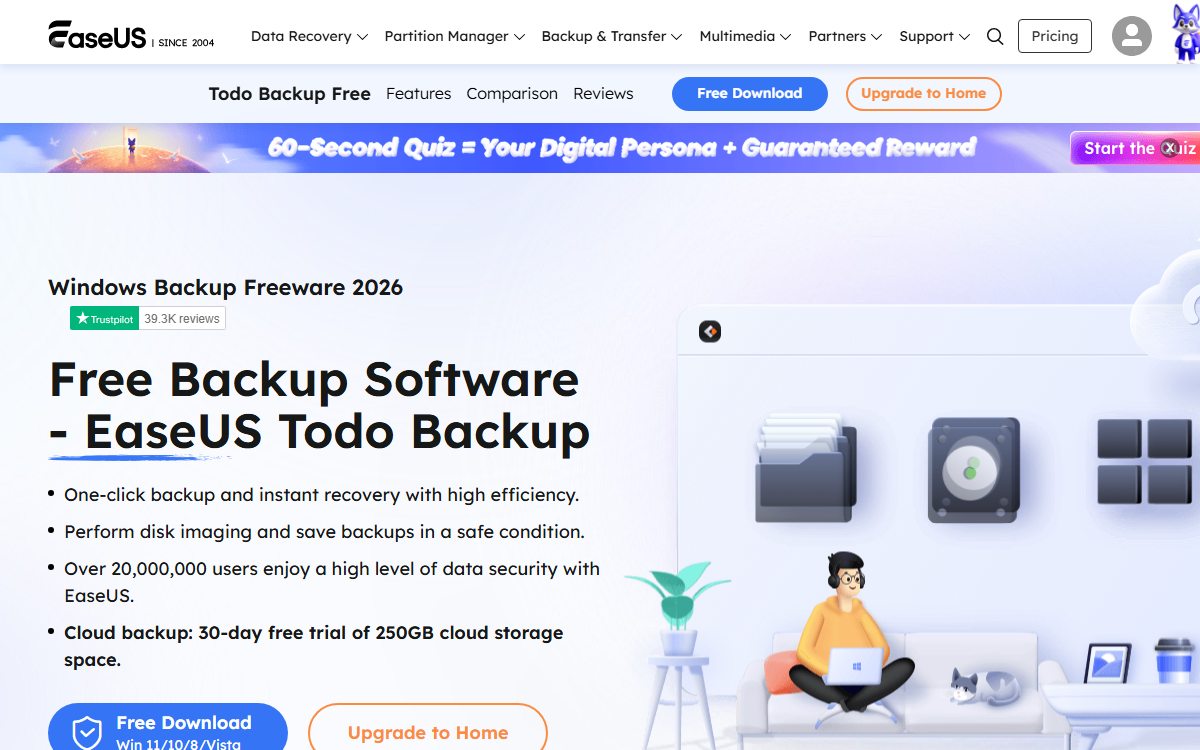
Best for: Simple backup jobs for files, folders, and systems.
What it does: EaseUS Todo Backup Free helps with simple backup jobs for files, folders, and systems. It fits best when the reader has a specific job to complete instead of collecting tools without a workflow.
Where it helps: Helpful for users who want a guided backup workflow.
Limitation or risk: Watch for upgrade prompts and confirm restore options.
Official link: EaseUS Todo Backup Free
5. FBackup
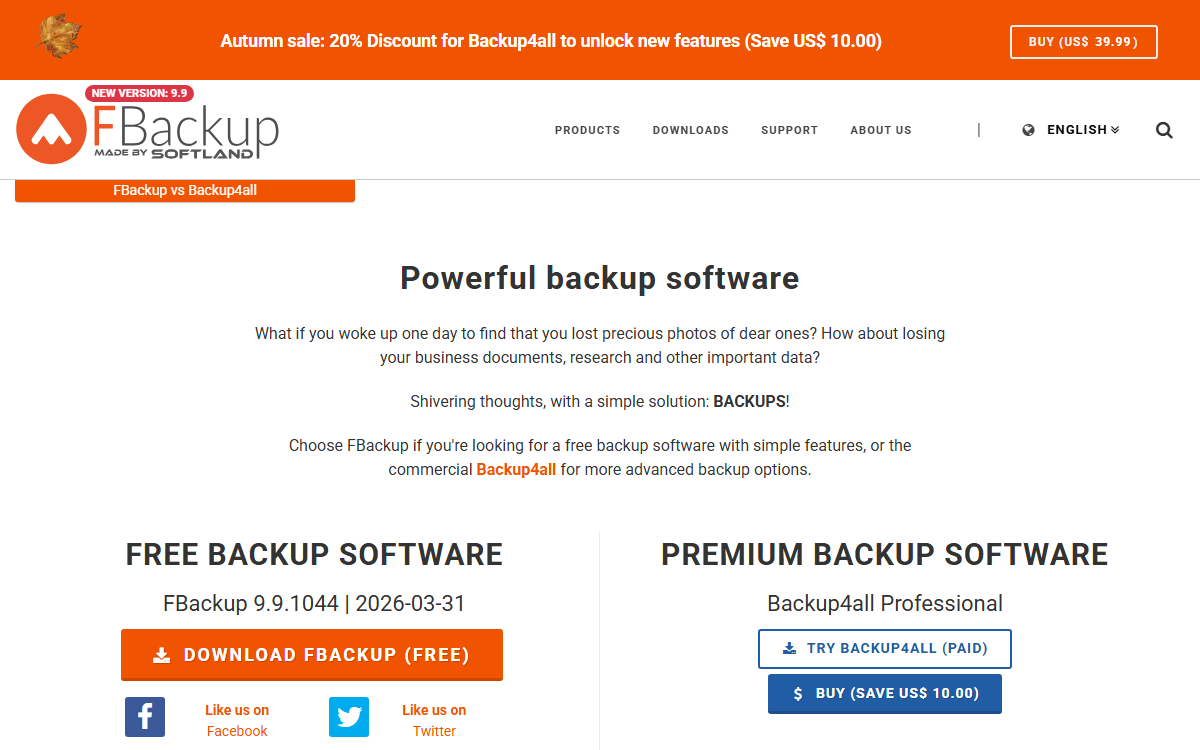
Best for: Straightforward file backup jobs to local or external storage.
What it does: FBackup helps with straightforward file backup jobs to local or external storage. It fits best when the reader has a specific job to complete instead of collecting tools without a workflow.
Where it helps: Good for basic scheduled file backup workflows.
Limitation or risk: Not the best fit for full system-image recovery.
Official link: FBackup
6. Windows File History
Best for: Built-in backup for personal files on Windows.
What it does: Windows File History helps with built-in backup for personal files on windows. It fits best when the reader has a specific job to complete instead of collecting tools without a workflow.
Where it helps: Useful as a low-friction baseline workflow for documents and desktop files.
Limitation or risk: It does not replace a full system image or offsite backup.
Official link: Windows File History
Practical backup workflows
For a home laptop
Use File History or FBackup for documents, pictures, and desktop files, then add a monthly system image if the laptop contains software that would be hard to reinstall. Keep at least one backup disconnected when not in use.
For a small office PC
Use Veeam Agent, Hasleo, or AOMEI for scheduled image backups, then test a restore to spare storage before assuming the plan works. Make one person responsible for checking backup logs every week.
For ransomware protection
Keep one backup offline or in a protected cloud location. If the backup drive is always attached and writable, ransomware can sometimes damage the backup as well. Human review still matters because alerts and failed backup jobs are easy to ignore.
How to choose
- Choose File History if you only need simple file versioning and want to avoid extra software.
- Choose Veeam or Hasleo if a full system restore matters.
- Choose AOMEI or EaseUS if you want a guided interface with common backup tasks.
- Choose FBackup if your main need is scheduled file backup to local or external storage.
Related Techmixer guides
- Backup and Sync Software Hub
- Free Online Storage and Backup Tools
- Free File Synchronization Software
- Software Guides
- Best Tools
- Fix Guides
FAQ
Is free backup software enough for Windows?
It can be enough for home users and small teams if the workflow includes scheduled backups, disconnected or offsite copies, and restore testing. Paid tools may be worth it when support, centralized management, or advanced recovery matters.
Should I use sync instead of backup?
Sync is useful for keeping files available across devices, but it can also sync accidental deletions or corrupted files. Backup should keep recoverable versions.
How often should I test a restore?
Test after setup, after major changes, and at least every few months for important machines. A backup that has never been restored is only a guess.
Our take
Techmixer keeps backup software guides practical: what the reader should try first, what should be checked against official sources, where privacy or data-loss risk appears, and when human review matters more than a tool score.
Last reviewed: 14 September 2026.