If you need free antivirus software for a supported Windows PC, start by checking whether Microsoft Defender Antivirus is already active in Windows Security. There is no separate Defender Antivirus download for Windows 10 or 11. If you searched for the older AntiVir name, Avira lists its current free antivirus on its official download page.
Choose by what you need to protect
- Ongoing protection: use one active real-time antivirus. On a supported Windows installation, check the built-in protection before adding another product.
- A specific file or link: see the Techmixer antivirus and scanner guide for when a local scan or public file check makes sense. Keep private files and indicators out of public scanners.
- Suspected infection: start with the scan options in Windows Security. Defender Offline restarts the machine, so save work before using it. Follow your IT team’s process on a managed computer.
Check the free antivirus software already in Windows
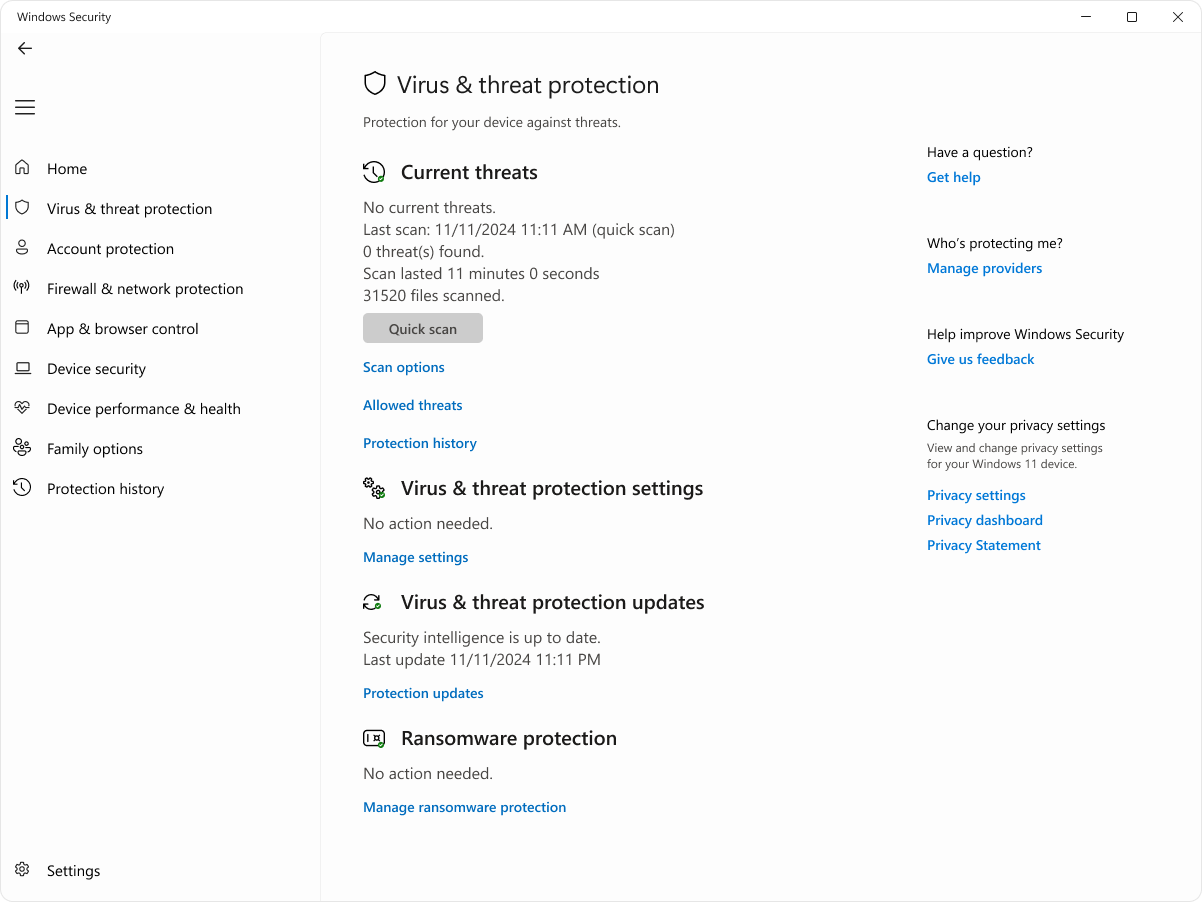
Open Windows Security, select Virus & threat protection, and check which antivirus provider is active. If Defender is active, check its protection updates, then run a quick scan if you want a basic check. Look for the scan result or review Protection history. Microsoft advises against running multiple real-time products together. See Microsoft’s antivirus FAQ.
Where to download Avira Free Antivirus
Use Avira’s official download page and confirm the product name and compatibility before starting. Avira lists free and paid products on the same site, so check the selected edition and any optional components in the installer. Once installed, reopen Windows Security and verify which provider is active. Avoid old AntiVir installers from download mirrors.

An antivirus download cannot restore security updates for an unsupported Windows release. Check the operating system’s support status separately. On a managed PC, a missing control or an unfamiliar provider can reflect organization policy, so confirm with IT before switching software.
If you’re deciding whether to switch free antivirus software, write down why first. A slow scan, repeated notifications and a missing feature are different problems. Note your current provider and check whether its settings already address the issue. After a switch, compare the same ordinary tasks you do every day, such as opening a document or copying a folder, before deciding whether the new setup fits. Use Windows Security to check active protection; a tray icon on its own doesn’t prove which provider is handling scans.
Check for a protection gap after switching
After you install or remove a security app, reopen Windows Security and check that an antivirus provider is active. If the previous app still appears, use the publisher’s removal guidance and restart if instructed. Check again before treating the switch as complete. On a managed device, ask IT to confirm the expected provider and policy.
Our take: If Windows Security already shows active protection, you have a starting point without another installer. Compare a third-party product only when it solves a specific need. This update checks official product documentation and does not rank detection rates.