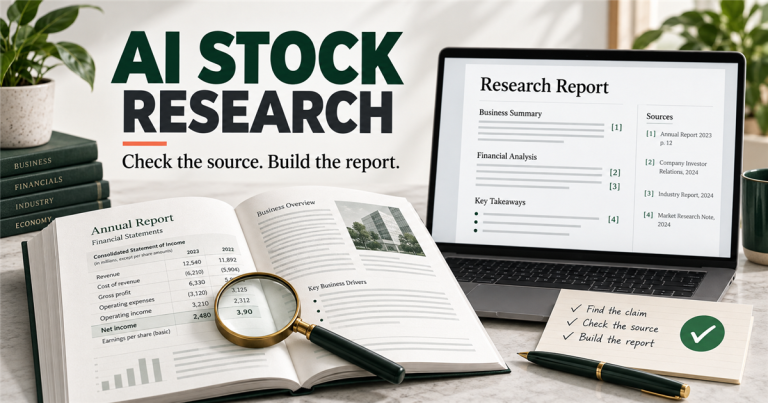
No-code AI workflow automation tools are useful when a small team is spending too much time moving information between apps. The problem is usually not one big task. It is the repeated admin around forms, email, CRM updates, spreadsheets, project tools, support replies, meeting notes, and follow-ups.
For this guide, no-code AI workflow automation tools means software that lets a non-developer connect apps, trigger actions, and use AI to draft, summarize, classify, or route work while still leaving room for human review.
The best tool is not always the one with the most AI features. For a small team, the better question is simpler: can this tool remove a repeated step without making the workflow harder to manage?
The right no-code AI workflow automation tools should feel boring in a good way: clear triggers, visible logs, simple approvals, and workflows that the team can explain.
Quick answer
- Best overall for most small teams: Zapier, because it is fast to set up and connects with many everyday business apps.
- Best visual workflow builder: Make, because its scenario canvas is easier to understand when workflows need branches and filters.
- Best for Microsoft 365 teams: Microsoft Power Automate, because it fits Teams, Outlook, SharePoint, Excel, and approval workflows.
- Best for database-driven work: Airtable, because records, views, forms, and automations can live in the same operating base.
- Best for documentation workflows: Notion AI, because it helps turn notes, SOPs, and project context into reusable team knowledge.
- Best for technical control: n8n, because teams can build deeper workflows and decide how much they want to self-host or customize.
What to know first
A no-code AI workflow should not start as a fully autonomous system. It should start as a small workflow where a person can see what happened, review the output, and fix the process if something goes wrong. That matters more than adding another “AI agent” label to the stack.
For most teams, the safest first workflow is one of these: summarize a form submission, draft a support reply, classify a lead, create a task from an email, clean a spreadsheet row, route a customer request, or prepare a weekly status summary.
These are the places where no-code AI workflow automation tools can save time without handing over final decisions too early.
Best no-code AI workflow automation tools for small teams
| Tool | Best for | AI/workflow strength | Learning curve | Pricing note | Where human review matters |
|---|---|---|---|---|---|
| Zapier | Fast no-code automations across many apps | Broad app triggers, AI steps, summaries, routing, and alerts | Low | Free tier is useful for testing; paid plans matter as tasks grow | Customer replies, lead qualification, payment-related actions |
| Make | Visual workflows with branches, filters, and data cleanup | Scenario canvas, routers, webhooks, and multi-step logic | Medium | Can be cost-effective, but complex scenarios need monitoring | Complex branching, data cleanup, exception handling |
| Microsoft Power Automate | Teams already using Microsoft 365 | Approvals, Outlook, Teams, Excel, SharePoint, and business data flows | Medium | Best value when Microsoft 365 is already part of the stack | SharePoint, Teams, approvals, business data permissions |
| Airtable | Database-style operations, lightweight CRM, and content pipelines | Record-based automations, forms, views, and team workflow tracking | Low to medium | Pricing depends on seats, data volume, and workflow complexity | Record changes, customer data, automated status updates |
| Notion AI | Knowledge workflows, SOPs, meeting notes, and team documentation | Summaries, writing assistance, Q&A over workspace context, and notes | Low | Useful when Notion is already the team workspace | Old documents, source accuracy, policy content |
| n8n | Technical teams that want more control over workflows | Workflow editor, code-friendly nodes, API workflows, and self-hosting options | Medium to high | Best when the team can manage setup, credentials, and maintenance | Credentials, self-hosting, workflow ownership |
1. Zapier for quick no-code AI automations across many apps
Best for: Fast setup, broad integrations, and simple no-code AI workflow automation tools for everyday business apps.
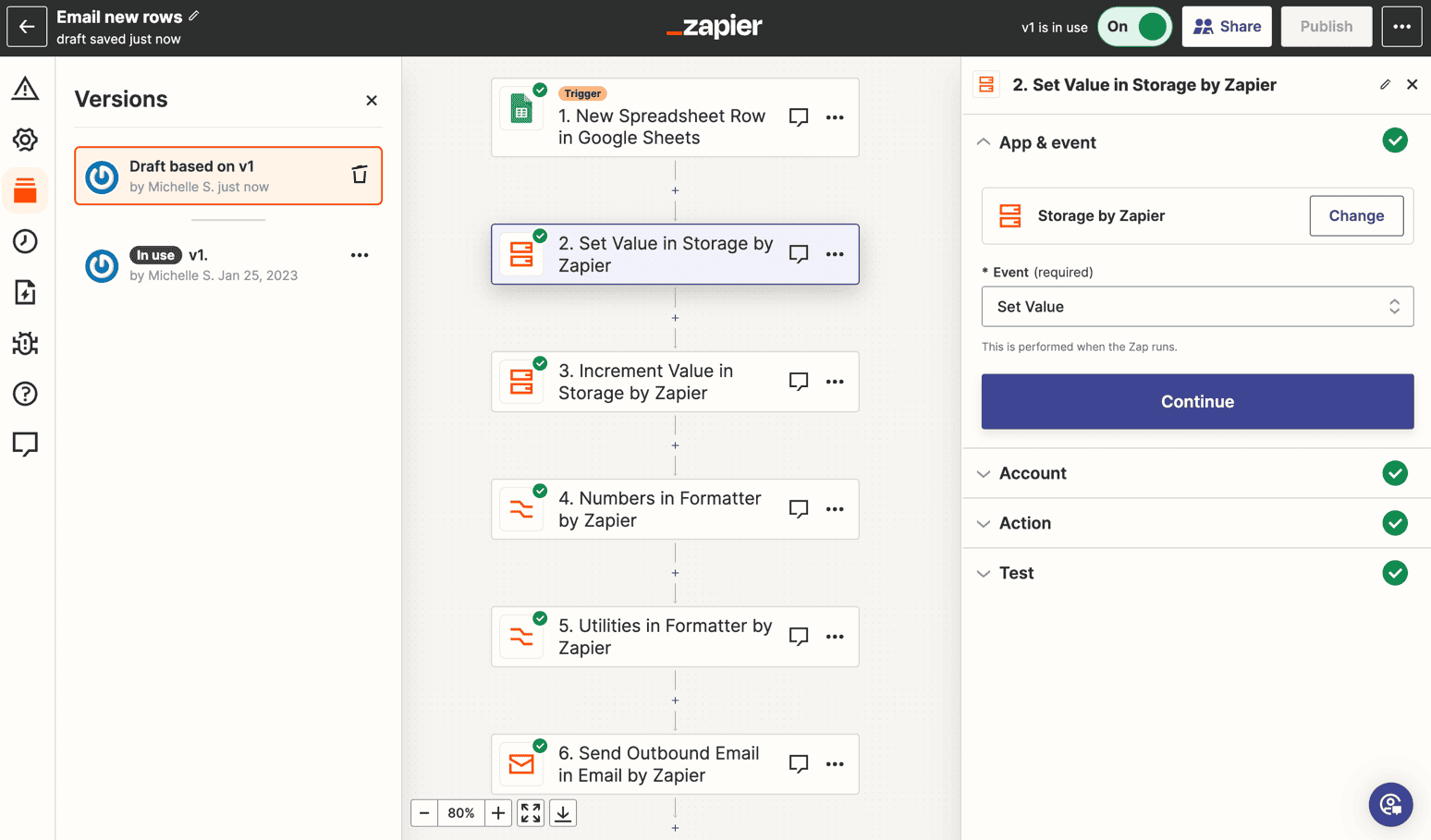
Zapier is a strong starting point for small teams because it connects many common business apps and does not require the team to design the whole automation system from scratch. It works well when the first goal is practical: when a form arrives, create a task; when a deal changes stage, notify the team; when an email comes in, summarize it and route it.
Zapier also publishes AI workflow and orchestration resources around no-code automation, which makes it easier for non-technical teams to start with templates and then improve the workflow later.
- Good for: form-to-task workflows, lead routing, email alerts, CRM updates, AI summaries, simple approval reminders.
- Watch out for: duplicate records, automations that run too often, and workflows that send AI-written messages without review.
2. Make for visual workflows with branches and filters
Best for: Small teams that need a visual scenario builder with branches, filters, and clearer workflow logic.
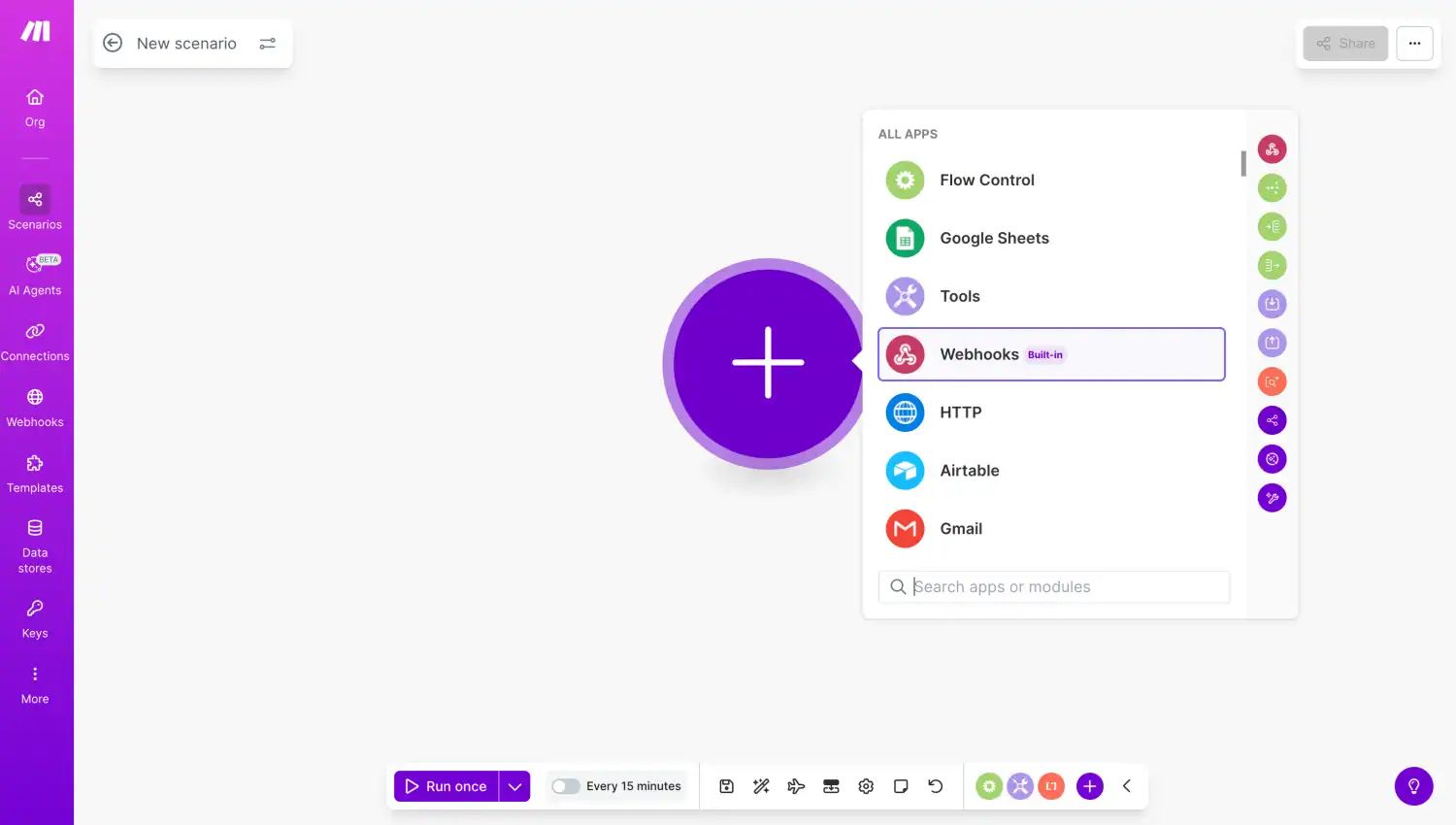
Make is useful when a team wants to see the workflow as a visual map. That matters when the automation has conditions: if the customer is new, do one thing; if the request is urgent, notify someone; if the form is missing information, create a follow-up task instead of sending a reply.
Small teams can use Make for customer intake, content operations, ecommerce admin, reporting, and AI-assisted data cleanup. It is especially useful when the workflow needs a few checks before the final step happens.
- Good for: visual scenarios, multi-step automations, branching workflows, data formatting, operations tasks.
- Watch out for: workflows becoming too clever before the basic process is stable.
3. Microsoft Power Automate for teams already using Microsoft 365
Best for: Teams already working in Microsoft 365, Outlook, Teams, SharePoint, Excel, or approval workflows.
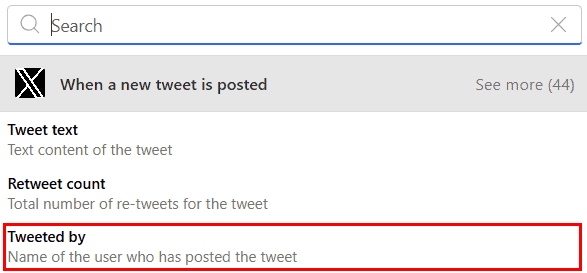
Microsoft Power Automate makes sense when the team already lives in Outlook, Teams, SharePoint, Excel, OneDrive, and Microsoft 365. A workflow can connect approvals, files, spreadsheet rows, team notifications, and business process steps inside the Microsoft ecosystem.
For a small team, this can be cleaner than adding a separate automation platform if most work already happens in Microsoft tools. It can also pair naturally with Microsoft 365 Copilot adoption resources for small and medium business when the team is trying to use AI inside existing office workflows.
- Good for: approvals, Teams alerts, SharePoint lists, Excel flows, internal operations, Microsoft-first businesses.
- Watch out for: permissions, admin controls, connector limits, and workflows that depend on messy shared folders.
4. Airtable for database-style workflows without a full app build
Best for: Database-driven workflows such as lightweight CRM, content operations, approvals, and status tracking.
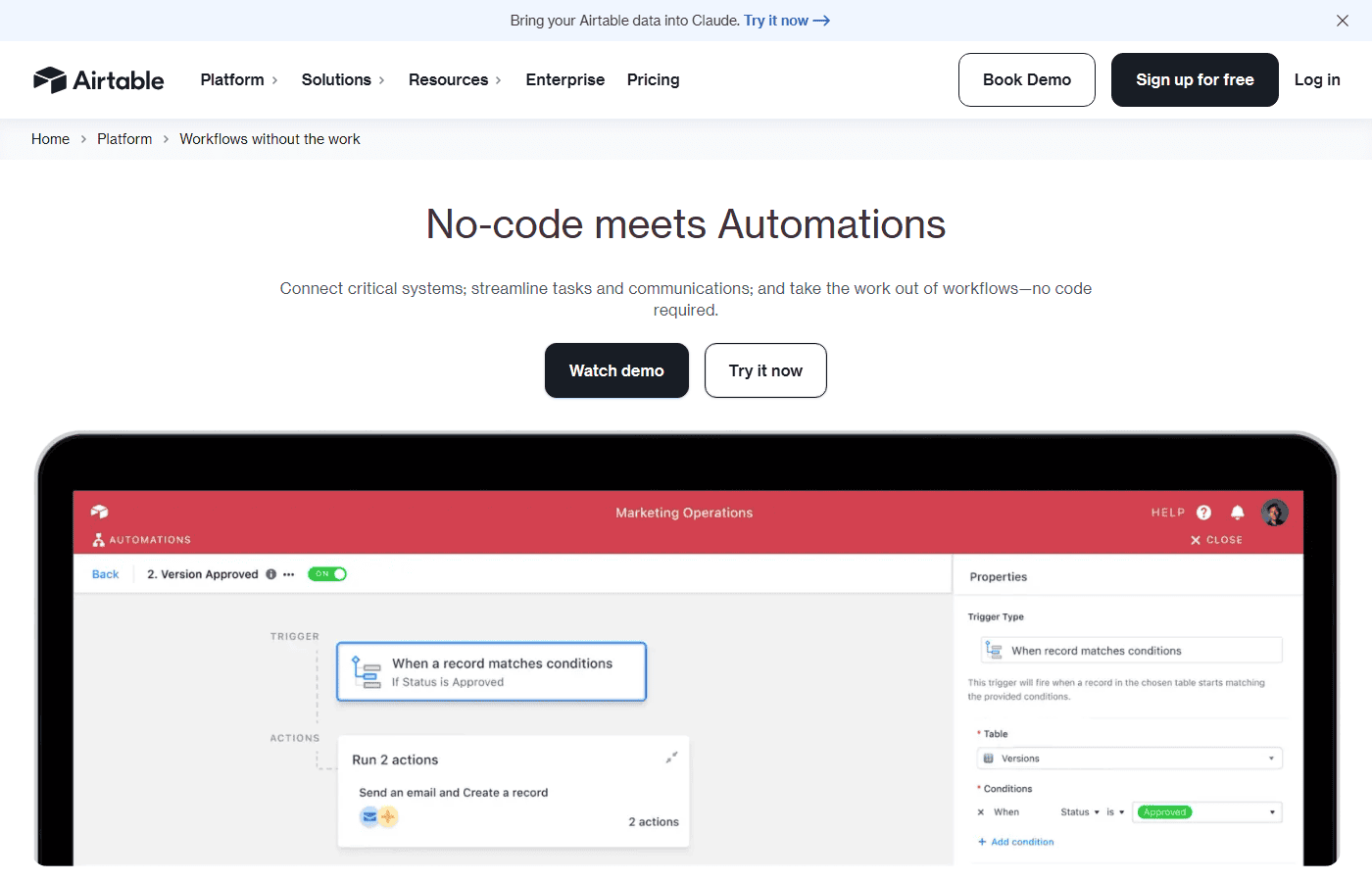
Airtable Automations can work well when a small team needs more structure than a spreadsheet but does not want to build custom software. It is useful for lightweight CRM, content calendars, job tracking, inventory lists, client onboarding, and internal request systems.
The advantage is that the data and the workflow can sit close together. A record changes status, a task is created, a notification is sent, or a follow-up reminder is triggered. AI can help summarize, classify, or draft content, but the team still sees the database record behind the action.
- Good for: structured team operations, content pipelines, lightweight CRM, request tracking, status-based workflows.
- Watch out for: unclear field ownership, too many views, and automations that update records without review.
5. Notion AI for knowledge and process documentation
Best for: Teams that want AI help inside notes, SOPs, project docs, meeting summaries, and internal knowledge.
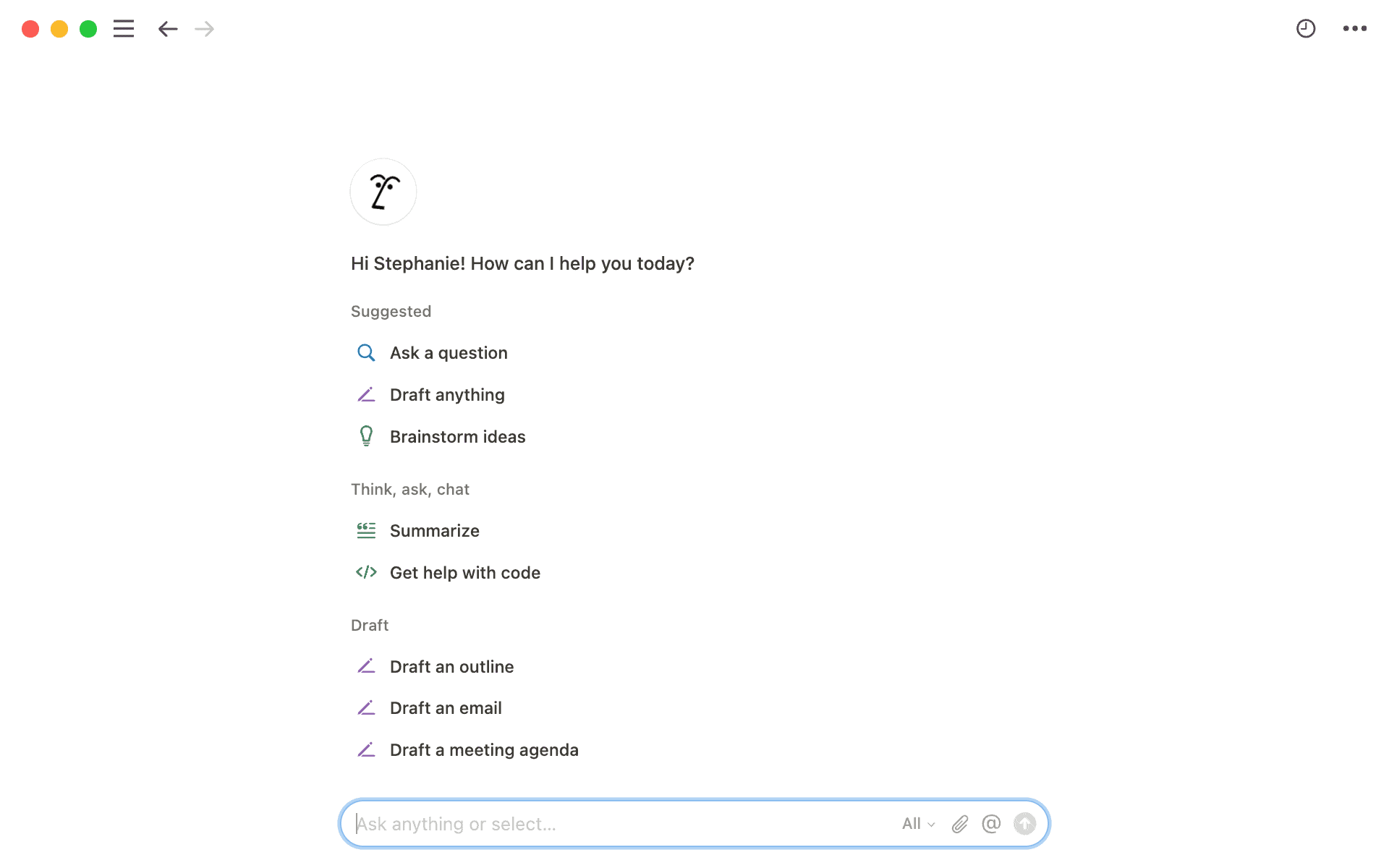
Notion AI is not always the tool that moves data between every app, but it is useful for team knowledge. A small team can use it to summarize meeting notes, draft SOPs, prepare project updates, turn rough notes into checklists, and find context inside a workspace.
This matters because many small-team automations fail for a simple reason: nobody has written down the actual process. A knowledge hub makes automation easier because the team can define what should happen before connecting tools together.
- Good for: SOPs, project context, meeting notes, internal documentation, reusable answers.
- Watch out for: outdated pages, unclear sources, and AI answers based on messy workspace content.
6. n8n for technical teams that want more control
Best for: Technical teams that want deeper control, API workflows, custom nodes, or self-hosting flexibility.
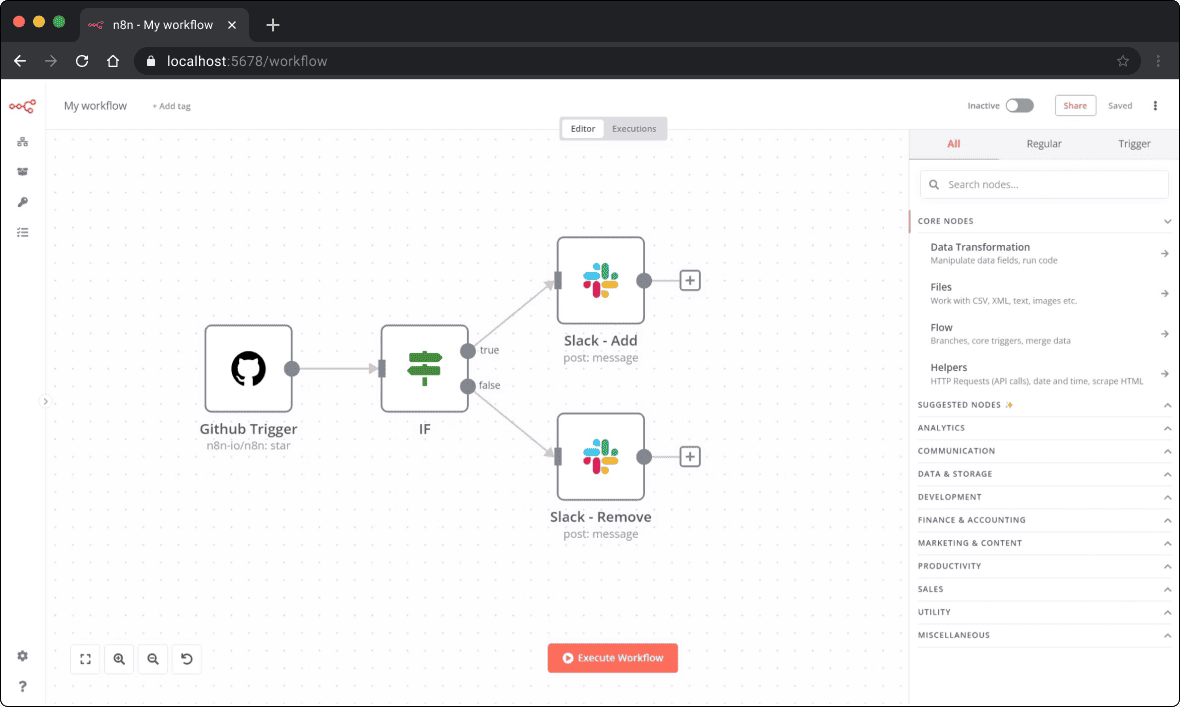
n8n is worth considering when the team has some technical confidence or wants more control over workflows, credentials, hosting, and custom logic. It can be used visually, but it is usually a better fit for teams that are comfortable thinking through APIs, credentials, webhooks, and error handling.
For a very small non-technical team, Zapier or Make may feel easier. For a small technical agency, internal ops team, or product team, n8n can be attractive because the workflow can become more customized over time.
- Good for: custom workflows, technical operations, API-heavy tasks, self-hosting preferences.
- Watch out for: maintenance, credentials, ownership, and workflow debugging.
What small teams should automate first
The best first automation is boring, visible, and easy to reverse. Start with work that has clear inputs and clear review points:
- New lead form comes in ? summarize request ? create CRM record ? assign task.
- Support email arrives ? classify topic ? draft reply ? human approves before sending.
- Meeting ends ? summarize notes ? create action items ? send team recap.
- Customer onboarding form is submitted ? create checklist ? notify the owner.
- Weekly spreadsheet is updated ? summarize changes ? prepare a report draft.
Do not start with anything that moves money, makes legal decisions, approves refunds, changes customer status permanently, or sends sensitive data into tools the business has not reviewed.
How to choose the right tool
Use this simple decision path:
- Need the fastest setup across many apps? Start with Zapier.
- Need visual branching and multi-step scenarios? Look at Make.
- Already use Microsoft 365 for most work? Check Power Automate and Copilot workflows.
- Need a database for team operations? Consider Airtable.
- Need better internal documentation first? Start with Notion AI.
- Have technical confidence and want control? Consider n8n.
Internal Techmixer guides worth reading next
These Techmixer guides connect this topic to broader AI and software decisions:
- AI Tools for the main AI software hub.
- Best Tools for comparison-style roundups.
- Software Guides for practical software utilities and productivity tools.
- Best AI Tools for Office Work for email, documents, meetings, and office tasks.
- Top AI Productivity Tools for Business and Entrepreneurs in 2026 for broader productivity choices.
- Free AI Employee Tools Transforming Work for testing AI assistant workflows before committing to a full stack.
Questions readers usually ask
What is a no-code AI workflow automation tool?
A no-code AI workflow automation tool lets a small team connect apps, trigger actions, summarize information, draft responses, classify requests, or move data between systems without writing custom code. The best setup still keeps a human review step for important customer, financial, or operational decisions.
Which no-code AI automation tool is best for a small team?
Zapier is often easiest for broad app connections, Make is strong for visual multi-step workflows, Microsoft Power Automate fits Microsoft 365 teams, Airtable works well for database-driven operations, Notion AI helps with team knowledge, and n8n can suit technical teams that want more control.
What should a small team automate first?
Start with low-risk repeatable work such as lead routing, customer reply drafts, meeting summaries, form-to-task workflows, CRM updates, content repurposing, or weekly report summaries. Avoid fully automating payments, hiring, legal, medical, or sensitive customer decisions until the workflow is tested and reviewed.
Are no-code AI automations safe for customer data?
They can be safe when configured carefully, but small teams should check permissions, data retention, audit logs, vendor security pages, workspace access, and whether private customer information is being sent to an AI model. Sensitive workflows should include human review and clear ownership.
Our take
No-code AI automation is most useful when it removes repeated admin work without hiding the decision-making process. Small teams should start with one workflow, keep a human approval step, document who owns it, and review failures before adding more automation.
Last reviewed: 12 September 2026.