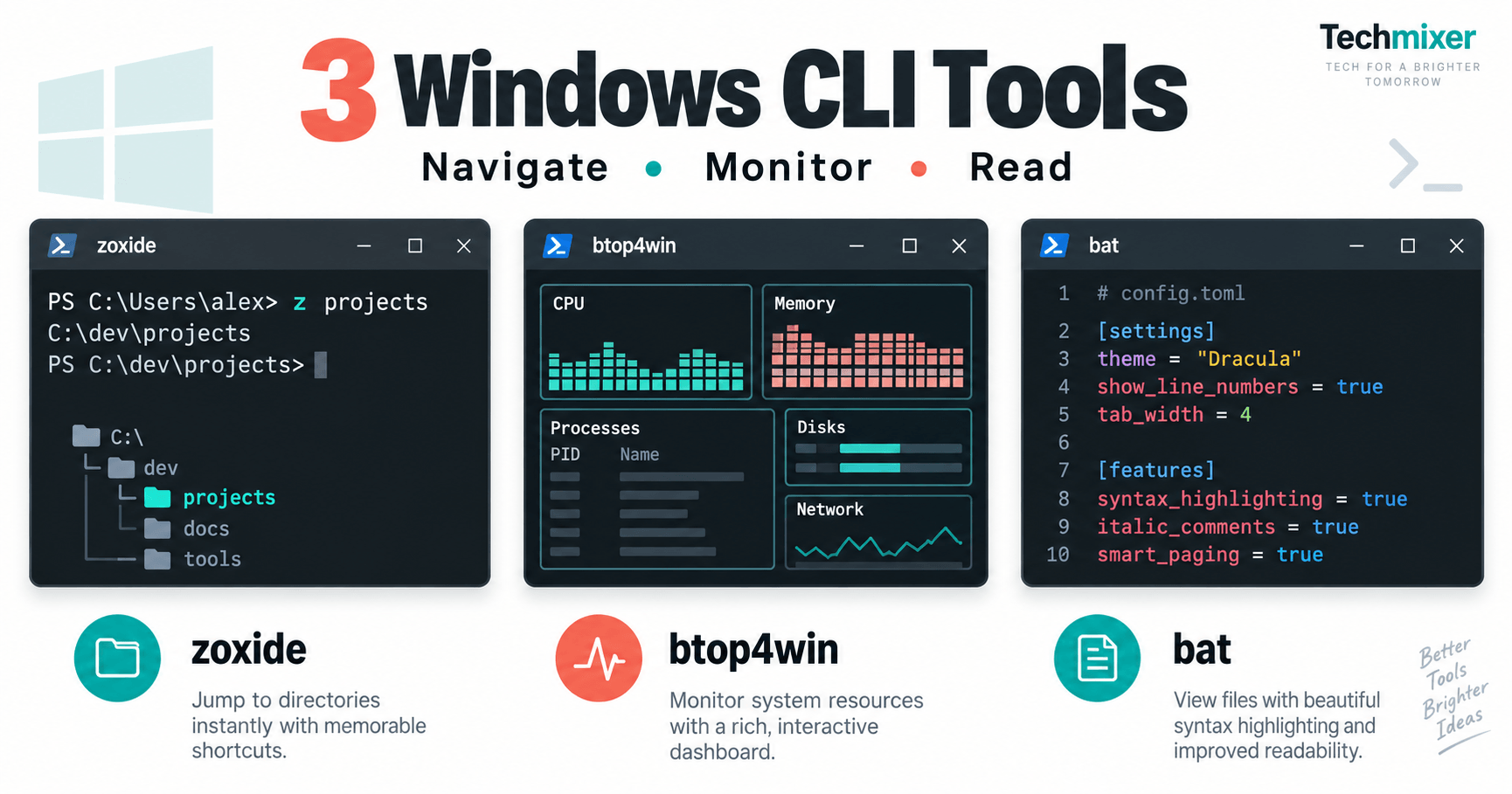
Windows CLI tools can make familiar jobs less repetitive: zoxide jumps between folders, btop4win shows resource activity, and bat displays text files in the terminal. They are free, open-source utilities, but they do not make File Explorer, Task Manager or Notepad unnecessary. The useful change is choosing a shorter route for a task you already understand, not replacing every graphical app.
Quick answer: which tool should you try first?
Start with bat if you often open a configuration file just to read it. Try zoxide if you repeatedly navigate to the same project folders. Choose btop4win if you want a terminal resource dashboard. Keep the Windows apps installed, and judge the result on your own workflow: this guide does not claim measured speed or memory savings.
What to know first
This walkthrough is aimed at Windows 11 with PowerShell inside Windows Terminal. Terminal is the window; PowerShell is the shell running inside it. Opening a Command Prompt or WSL tab instead changes which commands and configuration files apply. Check the active shell before pasting a setup snippet.
Use a normal user session for the first tests. Download from the official repositories or use the exact WinGet package identifiers below. Installation can still request permission for a dependency; read the publisher and prompt rather than accepting an unexpected installer. On a managed work PC, ask your administrator before changing profiles or installing software.
All three projects provide free code. zoxide uses the MIT license, btop4win uses Apache-2.0, and bat is dual-licensed under MIT/Apache-2.0. Those licenses do not make every packaged dependency or redistribution scenario identical. For ordinary personal use, no paid AI API or subscription is part of these workflows. The official repositories linked below are the place to check updates and license terms.
If you are new to this environment, keep our Software Guides open alongside the instructions. For broader Windows problems rather than terminal setup, use the Fix Guides directory.
Compare the 3 Windows CLI tools
| Tool | Best for | Windows task it complements | Setup effort | Main limitation |
|---|---|---|---|---|
| zoxide | Returning to familiar folders | File Explorer navigation / cd | Install plus shell initialization | A jump changes location; it is not a file manager |
| btop4win | A terminal resource overview | Task Manager monitoring | Package or portable release; check runtime | Not every Windows diagnostic view or hardware reading is covered |
| bat | Inspecting readable text | Opening Notepad only to read a file | Install, then call bat by name | Viewer, not an editor |
Setup effort is an editorial comparison, not a timed installation test. For example, an already configured PowerShell user may find zoxide straightforward, while someone blocked by a company policy should stop rather than work around it.
Check WinGet before installing anything
Open a PowerShell tab and check whether the Windows package manager is available:
winget --versionYou should see a version string. If Windows cannot find the command, use Microsoft’s WinGet installation guidance, which explains its connection to App Installer. Do not fetch a random executable with the same name from a download mirror.
Before installing a package, inspect its identifier and publisher. The command below is a check, not an installation:
winget show --id sharkdp.bat --exact --source wingetThe --exact flag avoids choosing a loosely matching package name, while --source winget selects that source. Microsoft documents these options in its WinGet install reference. If the source requests acceptance of terms, review them yourself. An error here is a reason to investigate, not to remove verification from the command.
1. zoxide: return to project folders without typing the full path
Best for: people who already use PowerShell and keep returning to a handful of working directories. What it does: zoxide remembers visited directories and lets you select one with a short query. Where it helps: moving between a source folder, a notes folder and a downloads folder during a repetitive job. See the official zoxide repository for its commands and Windows setup.

Install and try zoxide in the current session
winget install --id ajeetdsouza.zoxide --exact --source wingetOpen a new PowerShell tab after installation, then verify the executable:
zoxide --version
Get-Command zoxide
If both checks work, run the project’s documented initializer in that tab:
Invoke-Expression (& { (zoxide init powershell | Out-String) })This evaluates initialization code emitted by the installed zoxide binary. Check which executable Get-Command resolves before using it; it is not permission to evaluate an unrelated downloaded script. Trying the initializer once keeps the first experiment separate from a permanent profile change.
Visit an existing folder with Set-Location, let the prompt return, then try a distinctive fragment of its final folder name:
Set-Location -LiteralPath "$HOME\Downloads"
Set-Location -LiteralPath $HOME
z Downloads
Get-Location
This example assumes a Downloads directory exists at that path. If your folders are redirected or renamed, substitute an actual path first. The check at the end matters: confirm where you landed before running commands that create, move or delete files. A short query is convenient, but similar folder names can make your intended destination ambiguous.
Make the shortcut available in future sessions
After the temporary test succeeds, inspect the profile for the shell you are actually using:
$PROFILE
if (!(Test-Path -LiteralPath $PROFILE)) {
    New-Item -ItemType File -Path $PROFILE -Force
}
notepad $PROFILE
If a profile already exists, make a backup before editing it. Add the initializer line once, without replacing the rest of the file. Save it and open another tab to check Get-Command z. Microsoft’s PowerShell profile documentation explains why different shells and hosts can load different profiles.
Limitation: zoxide helps with location changes, not thumbnails, file previews or visual drag-and-drop. Its interactive zi picker also needs the separate fzf dependency. Leave that optional improvement until ordinary jumps work. If the profile causes startup errors, reopen it in Notepad and remove only the line you added; do not wipe existing customizations.
2. btop4win: inspect resource activity from a terminal dashboard
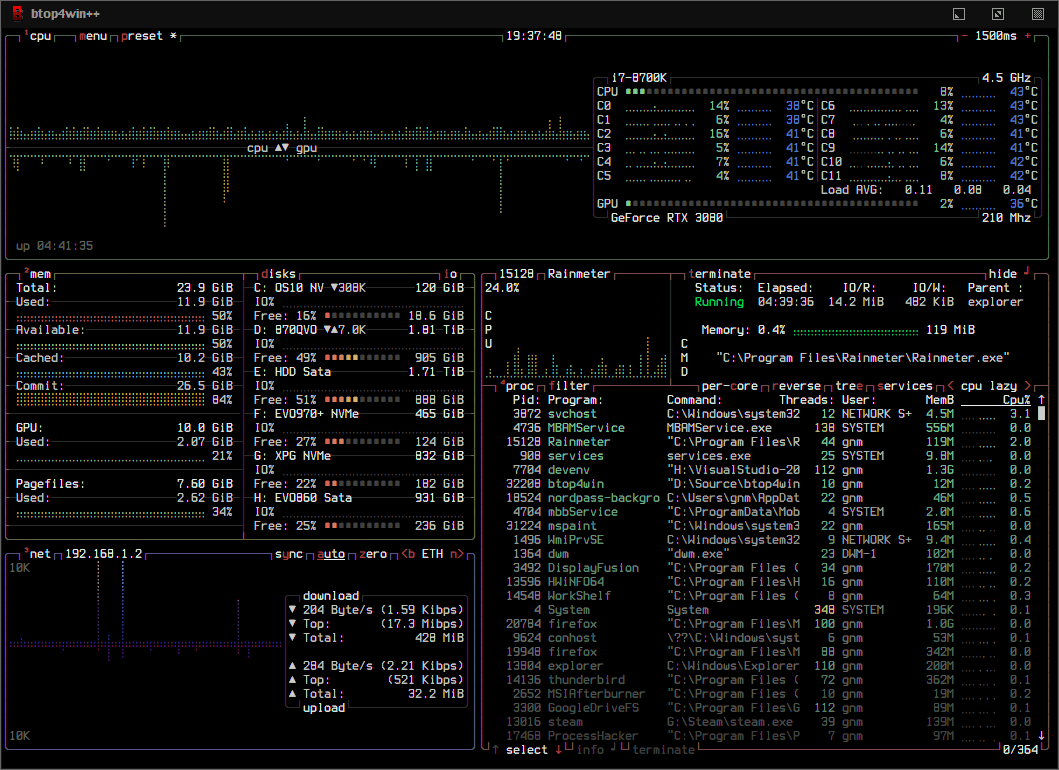
Best for: a quick resource overview while you are already working in the terminal. What it does: btop4win presents processor, memory, disk, network and process information in a text-based interface. It is the Windows port of btop++, not the Linux program running through WSL. Its official repository documents the monitor and available builds.
Choose the package or portable installation
The WinGet route is:
winget show --id aristocratos.btop4win --exact --source winget
winget install --id aristocratos.btop4win --exact --source winget
The checked Microsoft WinGet manifest for version 1.0.5 maps the portable executable to the command alias btop. Open a new tab and try:
Get-Command btop
btop --version
btop
For a direct download, use the project’s official releases, choose the appropriate build and extract the full archive. From its extracted folder, the documented executable is:
.\btop4win.exeThese two launch names are not a contradiction: one is the package alias and one is the underlying filename. The checked WinGet package is x64; do not assume it proves native ARM64 availability. The project also lists the Microsoft Visual C++ runtime as a prerequisite. Follow its official dependency link if a missing-runtime error prevents startup.
Use the monitor to investigate, not to terminate at random
Where it helps: suppose a file conversion starts and your laptop fan gets louder. Observe which process is active, whether memory is under pressure, and whether disk or network activity changes. Then compare that observation with the job you launched. High usage during real work can be expected; one busy graph does not establish malware or a fault.
For the first session, leave process and service controls alone. Closing a process can lose unsaved work; stopping a service can disrupt Windows or an application. If you need to investigate an unfamiliar program, identify its source first. Our antivirus and scanner hub provides a separate route for security checks.
Limitation: hardware monitoring differs by build, and enhanced sensor builds may need administrator rights. Keep Task Manager for Windows-specific inspection and situations where a built-in tool is preferable. No performance comparison in this article establishes that btop4win itself uses less CPU or launches faster on your PC.
3. bat: read scripts and configuration files without opening an editor
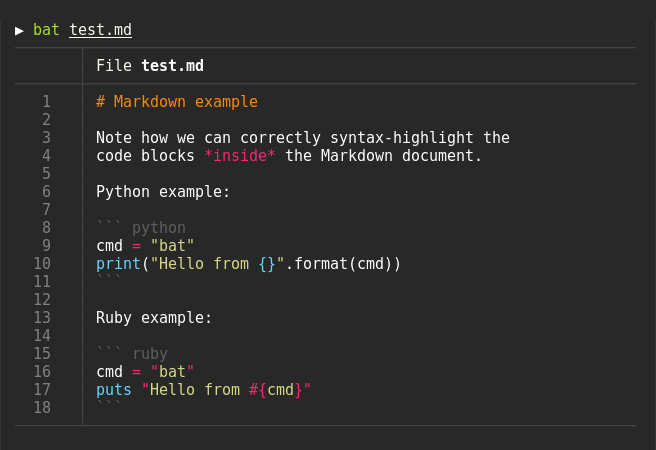
Best for: looking at a text file when you do not need to change it. What it does: bat displays text with syntax highlighting and optional line numbers; its Windows instructions are in the official bat repository. Where it helps: checking a script before execution, reviewing a small configuration file, or examining a log excerpt beside another command.
Install bat and inspect one known file
winget install --id sharkdp.bat --exact --source wingetOpen another tab, then check the command and read an existing file:
bat --version
bat --paging=never -- "$PROFILE"
The profile example only works if that file exists. Substitute a harmless text file you recognize when it does not. --paging=never keeps output in the terminal for this first check, and -- separates options from the filename. Quote paths containing spaces.
For a longer file, narrow the output rather than flooding the screen:
bat --line-range 1:40 --paging=never -- "C:\YourFolder\settings.json"Replace the illustrative path with a file on your machine. Expected result: only the selected lines appear; the file stays unchanged. For undecorated output, use bat --plain --paging=never -- "filename.txt". These options are documented upstream, but the examples here are not a claim of a completed Windows test.
Limitation: bat is not an editor or a security validator. Highlighting a script does not make the script safe, and a configuration file may reveal API keys if you share the terminal screen. Do not create a cat alias just to imitate Linux: calling bat explicitly avoids changing existing PowerShell habits. Keep Notepad or your editor for actual modifications; our VS Code setup guide for Linux and macOS covers an editor workflow on those platforms.
A practical workflow: use only the shortcut that helps
Consider a hypothetical local project folder. You want to find it, inspect one configuration file and see what happens when the application starts. After zoxide has learned that folder, jump to it, confirm the current path, read the file with bat, then open btop in another tab while the application runs. Each tool handles one small part of the job.
That workflow is more useful than installing three programs and trying to force every task through them. A folder containing mostly photos still benefits from Explorer thumbnails. A document requiring edits still needs an editor. A Windows diagnostic issue may still need Task Manager or a dedicated support workflow.
Try the same routine a few times and note how many actions you repeat or mistakes you make. This is a personal workflow check, not a benchmark of application internals. If the terminal setup adds more friction than it removes, keeping the graphical tool is a sensible outcome.
Best choice by use case
- Repeated directory changes: zoxide, after checking its destination before file operations.
- Reading a file without editing: bat, called explicitly by name.
- Watching a local workload: btop4win, starting with observation rather than process termination.
- Visual file management, editing or Windows-specific diagnostics: retain Explorer, Notepad and Task Manager.
When setup fails: check these before changing Windows
- Installed command is missing: open a fresh terminal tab, check the exact package with
winget list --id PACKAGE.ID --exact, and useGet-Commandto inspect resolution. Do not guess by downloading another similarly named binary. - zoxide exists but z does not: its shell initializer has not loaded in that session. Confirm the active PowerShell profile and check the initializer for typing errors.
- z reports no match: visit the intended directory normally, let the prompt return, then try a distinctive folder-name query. A destination never learned is not automatically searchable.
- btop works after WinGet but btop4win does not: inspect the documented package alias. A portable release instead uses the executable in its extracted folder.
- Graph characters look broken: check the terminal font and the monitor’s display options before assuming the computer is faulty.
- A profile is blocked by company policy: stop and ask the administrator. Do not disable protections or apply a blanket execution-policy bypass to make a convenience feature work.
When you no longer want a tool, inspect the matching installed package and use its normal uninstall route. For zoxide, remove its initializer from the profile you edited as well; otherwise startup can call a command that no longer exists. Do not delete unrelated profile settings or project files.
FAQ
Do these CLI tools replace the Windows apps completely?
No. zoxide changes directories, bat reads text without editing it, and btop4win provides a resource dashboard. Keep File Explorer for visual file management, Notepad or another editor for changes, and Task Manager for Windows-specific inspection.
Do I have to replace PowerShell cat with bat?
No. Call bat explicitly by name. Changing an existing alias is optional and can surprise other commands or habits; the setup in this guide does not require it.
Should I install the Windows tools inside WSL instead?
Only if the task belongs in your Linux environment. This guide uses Windows packages from Windows PowerShell. Linux packages, shell initialization files and monitored processes are a different setup; do not treat a WSL monitor as proof of a complete Windows host diagnosis.
Will these tools automatically make my PC faster?
No. A shorter task workflow is different from a faster computer or lower resource consumption. This guide has no benchmarks proving speed improvements. Try one recurring job and keep the tool only when it makes that job easier.
Related Techmixer guides
- Software Guides directory
- Windows and software Fix Guides
- Free Windows SSH clients for remote connections
- Free FTP and SFTP tools for file transfers
- Install VS Code on Linux and macOS
Our take
For most terminal-curious Windows users, bat is the smallest change in habit; zoxide becomes useful when folder navigation is genuinely repetitive. btop4win is better treated as an additional view of your system than a reason to discard Task Manager. Start with one real task, keep the fallback app, and spend the setup effort only where it removes recurring friction.
Review method: Techmixer checked upstream documentation, release information and the WinGet btop4win manifest. The project images are official demos, not screenshots from Techmixer’s own Windows installation. We did not execute these installs, benchmark the programs or validate every hardware sensor. Commands and package behavior should be checked on your own supported system before relying on them.
Last reviewed: 8 October 2026.