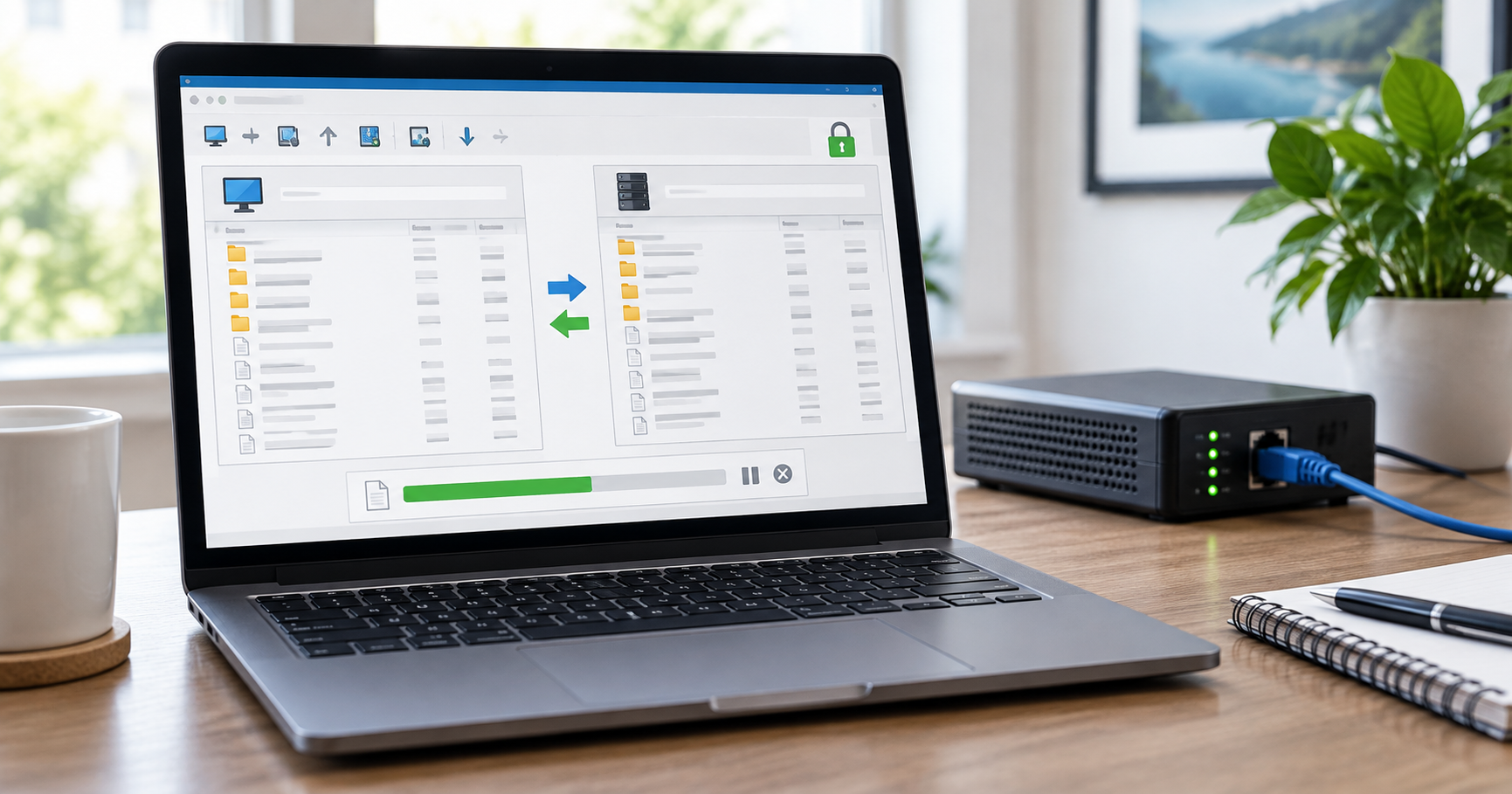
Free FTP software remains useful for moving files between a computer and a hosting server, but plain FTP is rarely the right default for new connections. Ask your host for SFTP first, or FTPS when that is what the server supports. On Windows, WinSCP is a strong choice for routine SFTP transfers and scripting. Cyberduck works well across Windows and macOS, while FileZilla provides a familiar cross-platform two-pane client. For repeatable command-line jobs, rclone adds FTP and SFTP remotes plus logging and automation controls. Every option still requires you to verify the server and remote folder before uploading.
Quick answer
Choose WinSCP for Windows SFTP and scripting, Cyberduck for a simple Mac/Windows connection browser, FileZilla for a conventional cross-platform two-pane client, or rclone for repeatable command-line transfers. Do not choose the protocol by the app name alone: SFTP uses SSH, FTPS adds TLS to FTP, and plain FTP does not provide the same protection for credentials and data.
What to know first
An FTP client is the program on your computer; the server determines which transfer protocols you can use. Your hosting provider should give you a host name, username, authentication method, protocol, port, and permitted remote directory. SFTP and FTPS are different protocols, not two spellings of the same setting. WinSCP’s connection guide explains where those details belong.
For ordinary WordPress pictures and articles, use the WordPress Media Library or editor rather than a server-file client. SFTP makes sense for a controlled server task such as retrieving a backup, editing a theme in staging, or transferring a file your host specifically asks you to place outside the media library. If you are unsure which directory is live, stop before uploading. A wrong overwrite can take a site offline.
SFTP, FTPS and plain FTP in one minute
- SFTP: file transfer over an SSH connection. You verify the server host key when connecting and may use a password or SSH key.
- FTPS: FTP protected by TLS. It uses a server certificate, and the server must be configured for it.
- FTP: the older unencrypted protocol. Avoid it for credentials or private files unless you have a specific controlled legacy requirement.
Your server has to support the protocol you select. A port number alone does not convert FTP into SFTP. If the certificate or host key changes unexpectedly, verify the change with your host through a separate channel rather than dismissing the warning. WinSCP documents both supported protocols and secure connections.
Compare the free clients
| Tool | Best for | AI/workflow strength | Learning curve | Pricing note | Human review risk |
|---|---|---|---|---|---|
| WinSCP | Windows SFTP, server maintenance and automation | Two-pane transfer, sync and scripting; no AI feature claimed | Moderate | Free, open-source Windows client | Check host key, direction, destination and overwrite prompt |
| Cyberduck | Mac/Windows browsing across servers and clouds | Bookmarks and queued transfers; no AI feature claimed | Low to moderate | Free direct download; donation prompt may appear | Check protocol and remote path before upload |
| FileZilla | A familiar GUI on Windows, macOS and Linux | Site Manager, transfer queue and two-pane browsing; no AI feature claimed | Low to moderate | Free, open-source client; paid FileZilla Pro is a separate product | Quickconnect and saved sites still require protocol, host and path checks |
| rclone | Scripted FTP/SFTP jobs and mixed storage workflows | Strong command-line automation, filters, logs and Web GUI; no AI feature claimed | High | Free, open-source tool | A wrong copy or sync command can affect many files; test with dry runs and narrow paths |
Best choice by use case
- Managing a Windows server folder: WinSCP makes the local-versus-remote distinction visible and has documented automation options.
- Moving between Mac, Windows and cloud accounts: Cyberduck keeps different connections in one browser.
- Using the same traditional client across Windows, macOS and Linux: FileZilla provides a familiar local-and-remote layout and visible transfer queue.
- Scheduling repeatable transfers: rclone is the stronger fit for users who can test command-line jobs, read logs and control path filters.
- Uploading a normal WordPress image: use the WordPress Media Library instead of an FTP client.
WinSCP: a Windows-first SFTP client
Best for: administrators and site owners who need a reliable view of local and remote files. WinSCP describes itself as a free open-source SFTP, FTP, WebDAV, S3 and SCP client for Windows. Its Commander layout shows two panes, making it easier to see which direction a file will move. It also documents scripting for repeatable transfers, but that should follow a successful manual transfer and a tested restore plan.
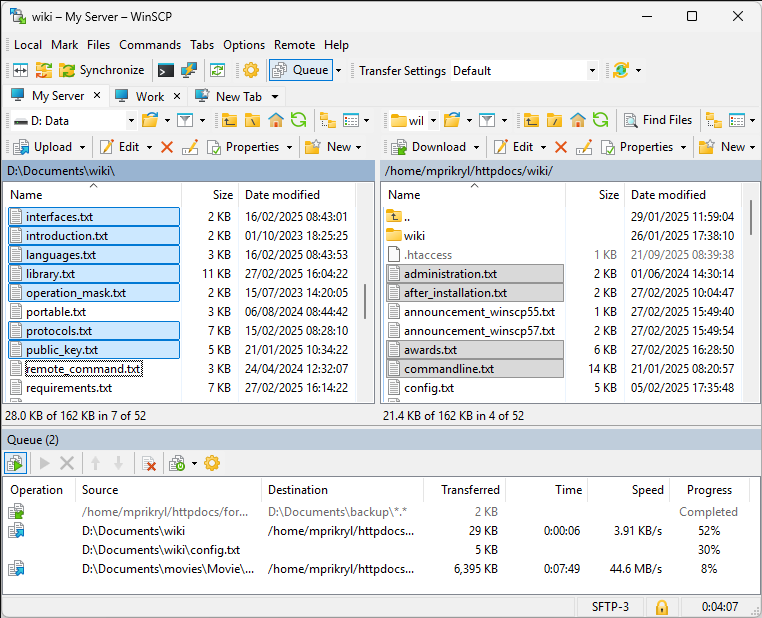
Where it helps: download a server-side backup to a named local folder, upload a reviewed configuration file to staging, or synchronize a known directory after confirming the direction. Limitation: its many controls create more ways to overwrite the wrong file. Keep a copy of the remote file before replacing it. Get the app and setup information from WinSCP’s official introduction; read its automation guide before scheduling a transfer.
Cyberduck: a cross-platform connection browser
Best for: readers who switch between Mac and Windows, or who need a single browser for SFTP, FTPS and cloud storage. Cyberduck lists support for SFTP and FTP over TLS alongside cloud services. Its direct download is free; the vendor explains that a donation or store purchase removes the donation prompt. That is a different proposition from a paid subscription.
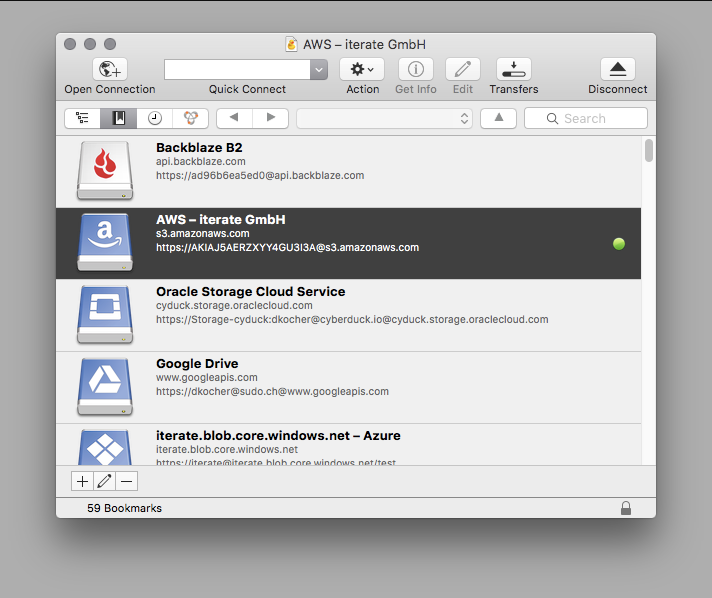
Where it helps: save a correctly configured server bookmark, browse a remote folder, and move a small number of files without building an automation script. Limitation: the screenshot above is the macOS interface, so Windows controls may not match exactly. Verify the selected protocol and remote path every time. Check Cyberduck’s feature page, its download terms, and its SFTP documentation.
FileZilla: a familiar cross-platform FTP client
Best for: readers who want a conventional two-pane client on Windows, macOS or Linux. FileZilla Client is free and open source, with support for FTP, FTP over TLS and SFTP. Its Site Manager stores connection profiles, while the transfer queue makes pending, successful and failed jobs visible.
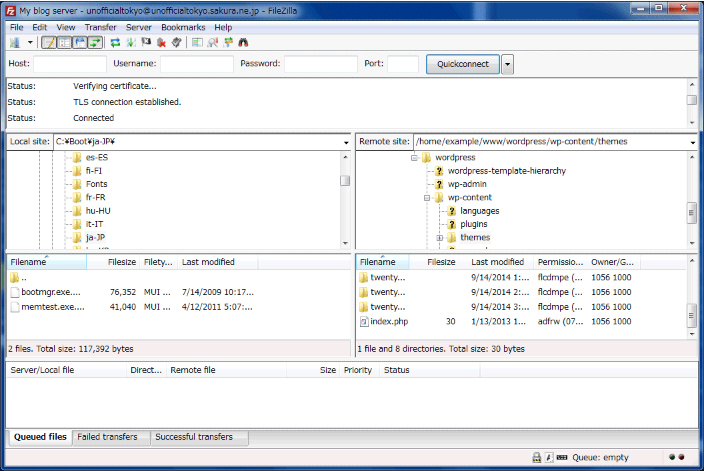
Where it helps: manage several hosting connections, watch a visible transfer queue, and use the same general interface across operating systems. Limitation: Quickconnect makes it easy to start quickly but does not remove the need to confirm SFTP or FTPS, the host, and the remote folder. Download it only from the official FileZilla Client page; review the official features page and the WordPress project’s FileZilla setup guide.
rclone: a stronger option for repeatable transfers
Best for: technical users who need scripted transfers, detailed logs, filters, or the same workflow across FTP, SFTP and other storage systems. rclone is command-line first, although recent releases include a local Web GUI. It is not the easiest choice for a one-off hosting upload.
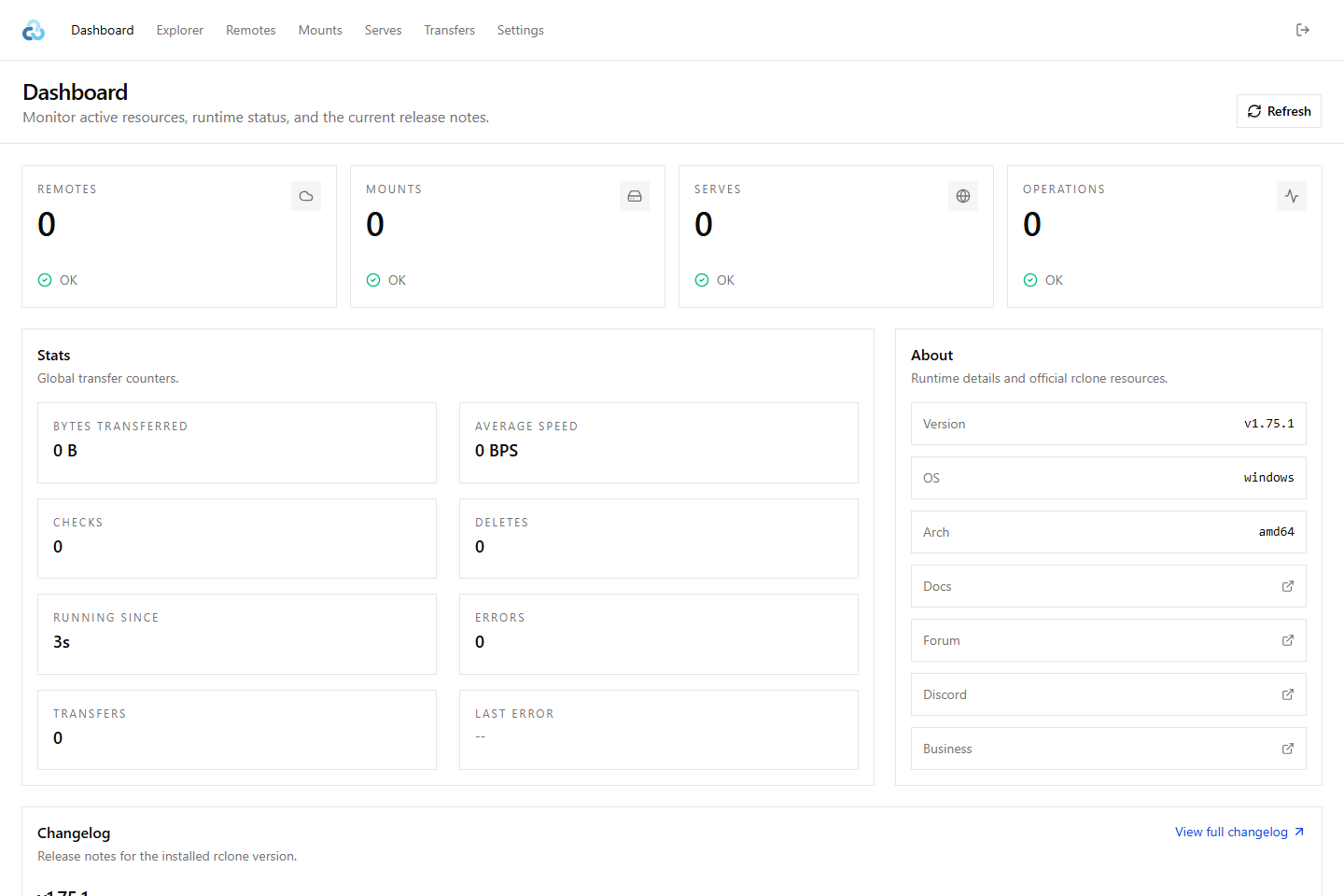
Where it helps: copy a known directory on a schedule, include or exclude specific file types, keep logs, and use a configuration that can be reviewed before automation. Limitation: commands such as copy and sync are not interchangeable; a broad destination or filter mistake can affect many files. Configure a test remote, use a non-production folder, inspect the command output, and consider a dry run before scheduling. Start with the official installation guide, then read the FTP backend, SFTP backend, and Web GUI documentation.
A safer first-transfer workflow
Imagine your web host asks you to retrieve a 20 MB log archive from a staging server. You know the permitted folder but have never connected with this laptop. This is a good first job because it downloads a file without changing the server. Ask the host for SFTP details rather than guessing from an old FTP bookmark.
- Collect the connection details. Record the host, protocol, port, account name and expected server fingerprint from your host.
- Connect and verify identity. Compare the first host-key or certificate prompt with the host’s information. Do not accept an unexpected change just to proceed.
- Navigate before transferring. Open the named remote folder and a clearly labeled local destination.
- Download one non-sensitive test file. Confirm its name and size locally, then open it only if it is a trusted file type.
- Review the result. Check the transfer log for errors. Do not schedule or bulk-copy the folder until the simple transfer is understood.
For an upload, add a second gate: make a local backup of the remote file, upload to staging first where possible, and confirm how to roll back. A successful transfer message means bytes moved; it does not prove the site still works. If the goal is keeping two local folders matched, see our file synchronization guide. If the goal is recoverability, use the Backup and Sync Software hub instead of treating a transfer as a backup.
What this guide verifies
Techmixer checked the vendors’ product and support pages on 21 September 2026. The WinSCP and Cyberduck images are vendor-provided; the FileZilla image comes from the official WordPress administration handbook. We locally launched rclone v1.75.1 and its Web GUI on Windows, but did not configure a remote. We did not sign in to a test server, benchmark transfers, inspect every installer, or test all authentication methods. Treat this as a workflow comparison, not a hands-on speed or security ranking. Confirm current download and protocol requirements on the official sites before connecting.
FAQ
Is SFTP the same as FTPS?
No. SFTP runs over SSH; FTPS is FTP protected with TLS. Both can secure a transfer when configured correctly, but your server must support the one you choose.
Can free FTP software upload WordPress files?
Yes, if your hosting account grants access. For normal images or posts, use WordPress itself. For server files, work on staging when possible, back up the target and check the exact remote path before replacing anything.
Which client is better for automated SFTP transfers?
WinSCP has official scripting and automation documentation. Start with a successful manual transfer and validate credentials, host-key checking, logging and rollback before scheduling a job.
Is FileZilla completely free?
FileZilla Client is free and open source. FileZilla Pro is a separate paid product with additional protocol and cloud-service support. Use the official project download page so you know which edition you are getting.
Should I use plain FTP if it is faster to set up?
Not for routine transfers of credentials or private files. Ask the host whether SFTP or FTPS is available. Convenience is not a reason to ignore an unencrypted connection warning.
Related Techmixer guides
Our take
For most Windows server jobs, start with WinSCP and SFTP because its two-pane workflow and automation documentation are strong. Choose Cyberduck for a simpler Mac/Windows connection browser, FileZilla for a conventional client across three desktop platforms, and rclone only when repeatable commands and logging justify its steeper learning curve. None of them removes the need to verify server identity, inspect the target folder and keep a rollback copy.
Last reviewed: 21 September 2026.