A Vultr free VPS trial lets eligible new customers test a cloud server using promotional credits. It is not a permanently free VPS: the credits expire, some products may be excluded, and resources left running can become billable. Start from Vultr’s official offer page, confirm the credit and expiry in your account, and only then deploy a small Linux server.
Quick answer
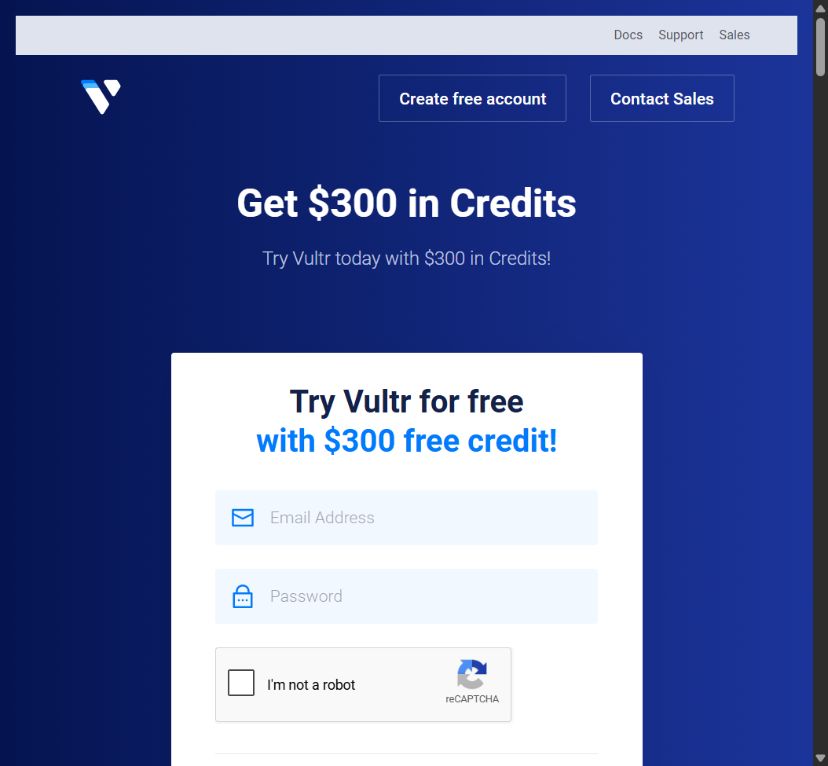
As checked on 6 October 2026, Vultr’s official coupons page lists new-customer offers of $200, $250 and $300. The $300 offer links to Vultr’s own registration page. These are conditional promotional credits, not cash or lifetime hosting. Vultr’s account documentation describes free credits lasting up to 30 days; confirm your actual expiry and eligible services before creating anything. A payment method is normally required.
What to know first
- New customer means new customer. Do not create duplicate accounts to get around eligibility rules.
- Credit is not a spending cap. Do not assume your instance will disappear when the trial ends. Track usage and remove resources yourself.
- Stopped is not deleted. An instance can still incur charges while powered off because its resources remain allocated.
- Software costs are separate. A covered VPS does not make paid AI APIs, domains or commercial software free.
- This is a documentation-based guide. Techmixer checked public offer pages and setup documentation, but did not redeem a promotion or deploy a server for this article.
If your real goal is an ongoing free-tier server rather than a short trial, compare the restrictions in our Oracle Cloud Always Free setup guide. Neither option should be treated as guaranteed infrastructure for a business-critical service.
Which Vultr offer should you check?
| Official listing | Listed credit | Best fit | Important restriction |
|---|---|---|---|
| FLYTWOHUNDRED | $200 | Small trial if accepted | New customers; eligible products only |
| 250VULTRFLY | $250 | Another official trial option | New customers; cannot combine offers |
| FLY300VULTR | $300 | The largest credit listed when checked | Account acceptance and expiry must be verified |
| VULTRMATCH | Deposit match up to $100 | Users already planning a paid deposit | Not a no-deposit free VPS trial |
These listings can change. Follow the offer link from Vultr rather than assuming a copied coupon still works. The larger number is useful only if your account qualifies and the services you need are covered.
8 steps to start a Vultr free VPS trial safely
1. Read the official offer before registering
Open the official coupons page and follow the promotion you want to use. Read its restrictions and the terms shown during registration. Record the offer amount, expiry, eligible products and any required payment verification. Do not rely on a third-party promise of “free forever” or assume the credit applies to GPUs, premium services or every region.
Use Vultr’s current pricing page to compare product types. For a small website or Linux practice server, Shared CPU Cloud Compute is a sensible starting point. There is no need to start with a dedicated CPU or multiple instances just because the promotional balance looks large.
2. Create and secure your account
Register with your own email address, verify it and enable account security controls, including two-factor authentication where available. Use a unique password and save recovery information somewhere private. See Vultr’s account creation instructions for the registration and billing-verification process.
The documentation includes a $0 deposit option for card verification, but that is not a guarantee that every account or payment method will see the same flow. Check the amount before approving payment. A deposit, a verification hold and a promotional credit are different things; ask support if the checkout does not match what you expected.
3. Confirm the credit before deploying
Check the billing area for the promotional balance and its expiry. If needed, follow Vultr’s instructions to add a promotional code. Vultr requires a valid linked payment method for this process and limits code use; a visible coupon on a website is not evidence that it has been applied to your account.
Stop here if the balance is missing. Contact support rather than deploying a paid server and hoping the offer will be added later. Save a private record of the accepted offer and set calendar reminders several days before it expires.
4. Choose a small Linux server and check its total cost
In the console, go to Products, Compute and Deploy, then choose Shared CPU if that fits your trial. Vultr’s Cloud Compute provisioning guide explains the deployment options. Pick a nearby available region; readers in Malaysia can compare Singapore with other available locations rather than choosing on distance alone.
A minimal Ubuntu LTS server is easier to follow than a Windows instance for this walkthrough. Choose an OS version available in the console and supported by the software you plan to install. A simple SSH exercise has very different memory needs from a database or a Docker stack. Check application requirements before selecting a plan.
Review the estimate for the instance, storage, networking and optional services. IPv6-only plans are not interchangeable with public IPv4 access: your connection and clients must support IPv6. Avoid adding resources you do not need. For production data, plan proper backups rather than removing protection simply to lower the estimate.
5. Add an SSH key and plan access
Create an SSH key on your own computer if you do not already have a suitable one. For example, on Windows PowerShell, macOS or Linux with OpenSSH installed:
ssh-keygen -t ed25519Choose a new filename if the suggested key already exists; do not overwrite an existing private key. Use a passphrase. Add only the public key, normally the file ending in .pub, following Vultr’s SSH key instructions. Never upload your private key to a blog, chat or support ticket.
Select the key during deployment. If using a firewall group, permit SSH from your own public IP where practical, and account for your IP changing. Do not open database ports to the entire internet. Vultr warns that reinstalling an existing instance to change its SSH-key setup wipes data; it is not a harmless access reset.
6. Deploy one instance and record the details
Review the final configuration and estimated charges before clicking Deploy. Give the instance a recognizable label such as vps-trial-learning. Where the Linux deployment offers Limited User Login, it provides a non-root sudo user named linuxuser; otherwise check the instance overview for the actual username.
Record the instance ID, region, IP address and teardown date. Keep this information private. Do not deploy extra servers while waiting for the first one to finish. A single small test is easier to budget, secure and remove.
7. Connect and check the server
Use the username and IP from your instance overview. The placeholder values below must be replaced:
ssh -i /path/to/private-key username@SERVER-IPOn Windows, use your actual local key path. Verify the server’s host-key fingerprint through an independent trusted route before accepting the first connection; do not blindly bypass a host-key warning. Vultr’s OpenSSH connection guide covers its connection workflow.
Once connected, inspect the machine before installing applications:
whoami
hostnamectl
free -h
df -h
On Ubuntu, update package information and review the proposed upgrades:
sudo apt update
sudo apt upgrade
These are suggested commands, not the results of a Techmixer test deployment. Begin with a low-risk task, such as learning SSH or running a small development service. Our VS Code guide for Linux and Mac can help with the editor side of a development workflow.
8. Check usage, export your work and delete trial resources
Check billing after your first session and regularly during the trial. Set a personal budget and a cleanup date before the displayed expiry. Do not assume an account limit or notification is a hard spending stop.
Before teardown, copy out the files you want to keep and verify that they open on another machine. Use an encrypted transfer method such as SFTP; our free FTP and SFTP software comparison explains suitable clients. For longer-term protection, review our backup and sync guides.
Then follow Vultr’s instance destruction instructions. Confirm the exact server first: deletion is destructive. Also review separately billed resources such as volumes, snapshots, reserved networking or other services. In particular, Vultr’s VX1 deletion documentation says its boot block-storage volume is not automatically removed with the instance. Check the remaining resource inventory and billing afterwards; closing your browser is not cleanup.
How to estimate the trial cost
Use the current rate shown for your selected region and product, not an old blog’s monthly price. A basic planning calculation is hourly rate × hours used, plus separately billed items. Billing details differ between product families, so read the estimate and applicable terms.
For illustration only, a hypothetical $0.01-per-hour resource used for seven days would cost $1.68 before additional charges. This is not a quoted Vultr plan. Credit expiry still matters: a large balance does not mean it can fund many months of use. Check the invoice for storage, backups, bandwidth overages and other services rather than watching only the headline instance price.
Common problems and what to check
- The offer is rejected: check new-customer eligibility, existing promotions and payment verification. Ask support; do not try to bypass account restrictions.
- SSH times out: confirm the server is ready, the address is correct and the relevant firewall allows your connection. An IPv6-only address needs a working IPv6 route.
- Permission denied: check the username and selected key. Do not reinstall a server containing useful data just to experiment with login settings.
- An unexpected bill appears: inspect all resources and your credit expiry. A powered-off server is not necessarily free; Vultr explains this in its server billing documentation.
- The application runs out of memory: check its requirements and logs. Reduce the workload or choose an appropriate plan after checking the cost. A small trial VPS is not automatically suitable for a large local AI model.
FAQ
Is a Vultr free VPS trial permanently free?
No. The current offers checked for this guide are promotional credits with eligibility restrictions and an expiry. Historical free-tier announcements do not establish that an ongoing free VPS is available to every new user today.
Do I need a payment method?
Normally, yes. Vultr documents payment verification and requires a valid linked payment method for adding promotional codes. Check any deposit or verification amount before approving it.
How long do the credits last?
Vultr account documentation describes free credits lasting up to 30 days. Confirm the exact expiry and eligible services displayed for your accepted promotion before deploying.
Does turning the VPS off stop billing?
Not necessarily. A stopped instance still reserves resources. Export your work and destroy the instance when finished, then check separately billed volumes, snapshots and other resources.
Can I run n8n or an AI application on the trial?
Potentially, if the chosen server meets the application requirements and its charges are covered by the promotion. Paid model APIs and other services remain separate costs. A small VPS is not automatically suitable for large local models.
Related Techmixer guides
- Software guides: browse installation and setup tutorials.
- Free online storage and backup tools: compare places to keep an independent copy of your work.
Our take
The Vultr free VPS trial is useful for a short Linux learning project if you qualify and actively manage billing. It is a poor fit for someone who needs an unattended, permanently free production server. Start small, confirm the accepted offer, and treat cleanup as part of setup rather than an optional final step.
Last reviewed: 6 October 2026. Reviewed by km chia for Techmixer using Vultr’s official public promotions, pricing and documentation. No account was created, credit redeemed or VPS deployed during this review; the screenshot shows the public offer page, not a tested customer dashboard. See our editorial policy for our review standards.