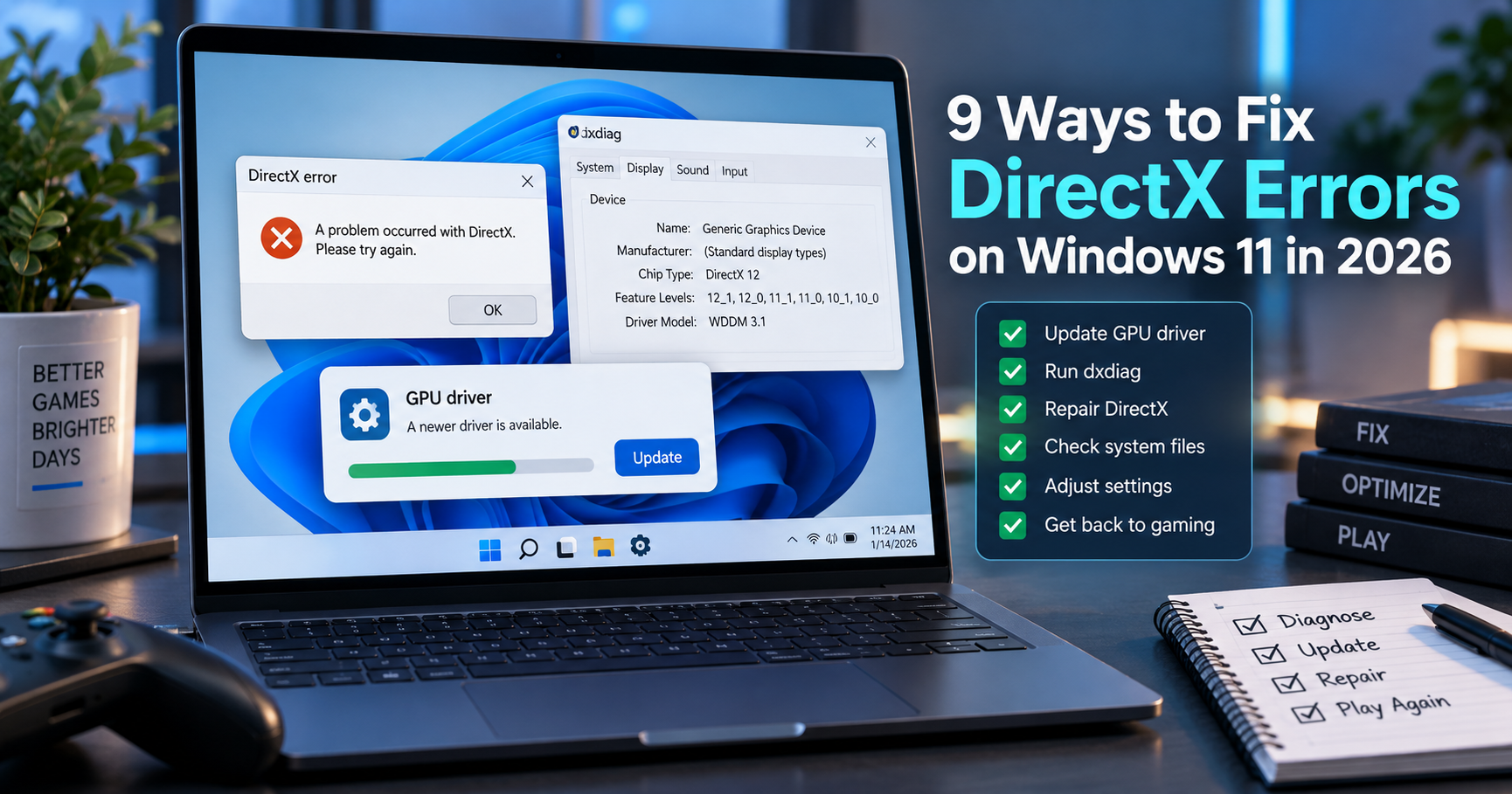
Fix DirectX errors on Windows 11 by checking the exact error message first, confirming your DirectX version with dxdiag, updating Windows and the graphics driver, repairing the affected game or app, and only then reinstalling Microsoft runtime components from official sources. Most DirectX problems are driver, missing runtime, game-file, or compatibility issues rather than a missing DirectX 12 download.
Quick answer
Start with dxdiag, Windows Update, the official GPU driver tool, and the game launcher repair option. Avoid random DLL download sites. If the error mentions older DirectX 9, 10, or 11 components, use Microsoft runtime installers only.
What to know first
Windows 11 already includes modern DirectX components, so downloading a random DirectX package is rarely the first fix. Many errors come from an outdated graphics driver, a broken game install, missing legacy runtime files, unsupported hardware feature levels, or a game trying to call an older DirectX component.
Write down the exact wording before changing anything. A message like “d3dx9_43.dll is missing” points to a different fix than “DXGI_ERROR_DEVICE_REMOVED” or “DirectX 12 is not supported.” The better the error note, the easier it is to choose the right repair path.
Symptoms you may see
DirectX problems usually show up as a missing DLL message, a game that closes at launch, a black screen, stuttering after a driver update, or an error saying the GPU does not support a required DirectX feature level. The exact wording matters because each symptom points to a different fix.
- Missing DLL: often a legacy DirectX runtime issue, especially with older games.
- DXGI device removed or hung: commonly driver, GPU stability, overlay, or tuning related.
- DirectX 12 not supported: check feature levels in dxdiag before reinstalling anything.
- One game fails but others work: repair the game files and redistributables before changing Windows.
Common causes
The most common causes are outdated GPU drivers, missing older DirectX runtime components, broken game files, unsupported hardware feature levels, overlays that hook into the graphics pipeline, aggressive overclocking, or a bad graphics setting saved by the game.
Before you start
- Write down the exact error message before changing settings.
- Create a restore point or at least back up saved games and important files.
- Use dxdiag to check the DirectX version, GPU name, driver date, and feature levels.
- Download runtimes, drivers, and support files only from Microsoft, the GPU vendor, or the official game launcher.
- Avoid standalone DLL download sites, registry cleaners, and unofficial driver updater tools.
Step-by-step fix checklist
If you only want the practical repair path, follow these steps in order. Stop when the game or app opens normally again.
- Copy the exact error message. Take a screenshot or write down the file name, error code, game name, and when it appears.
- Open dxdiag. Press Windows + R, type dxdiag, press Enter, then check the System and Display tabs.
- Restart once. A pending Windows, driver, or launcher update can leave graphics files half-applied until restart.
- Run Windows Update. Go to Settings > Windows Update > Check for updates, install available updates, then restart.
- Update the GPU driver from the official source. Use NVIDIA, AMD, or Intel support tools instead of third-party driver updater apps.
- Repair the affected game or app. In Steam, Epic, Xbox, Battle.net, or the app launcher, use the verify, repair, or scan option.
- Install Microsoft legacy DirectX runtime only when the error names old files. Use this for messages such as d3dx9_43.dll, xinput1_3.dll, or old XAudio errors.
- Disable overlays and tuning tools temporarily. Turn off FPS counters, recording overlays, shader injectors, and GPU overclock profiles while testing.
- Reset the game graphics settings. Use safe mode, delete the game graphics config, or lower DirectX/ray tracing settings if the game supports it.
- Reinstall only after backing up saves. If nothing works, back up saves and settings before reinstalling the game or rolling back the GPU driver.
Do not download a random missing DLL, run a registry cleaner, or replace files inside Windows manually. Those shortcuts can create security and stability problems.
DirectX error decision table
| Problem | Best first check | Why it helps | Risk level |
|---|---|---|---|
| Missing d3dx or xinput DLL | Install Microsoft DirectX End-User Runtime Web Installer | Older games often need legacy runtime files that are not bundled with the game. | Low if downloaded from Microsoft |
| Game crashes after launch | Update GPU driver and repair game files | Driver resets and broken game files are common launch problems. | Low |
| DirectX 12 not supported | Check dxdiag display feature levels | The GPU may not support the required feature level. | Low |
| Black screen or stutter | Reset graphics settings and update Windows | Bad settings, overlays, or old display components can break rendering. | Medium |
9 ways to fix DirectX errors on Windows 11
1. Confirm the error with dxdiag
Press Windows Search, type dxdiag, and open the DirectX Diagnostic Tool. Check the System tab for DirectX version and the Display tab for the GPU name, driver date, and feature levels. If the Display tab reports driver problems, fix that before changing game files.
2. Update Windows before installing anything else
Run Windows Update and restart the PC. This sounds basic, but Windows graphics components, .NET updates, Visual C++ dependencies, and driver delivery can all affect game and creative-app launch behavior.
3. Update the graphics driver from the official vendor
Use NVIDIA, AMD, or Intel official driver tools or support pages. Do not use unknown driver updater utilities for this. If the error appeared after a recent driver update, try a clean install option from the vendor installer or roll back to the previous stable driver.
4. Repair the game or app files
Steam, Epic Games, Xbox, Battle.net, and many launchers include verify or repair options. Use that before reinstalling the whole app. Broken shader files, missing redistributables, or damaged local files can trigger DirectX errors even when Windows is fine.
5. Install the official Microsoft DirectX runtime for legacy games
If the error mentions files such as d3dx9, d3dx10, d3dx11, XAudio, or XInput, use the official Microsoft DirectX End-User Runtime Web Installer. Avoid DLL download sites because they create security risk and rarely fix the real dependency chain.
6. Check GPU feature-level support
Some games require a specific Direct3D feature level. If dxdiag does not show the required level, the fix may be a hardware or game-settings limitation, not a software repair. Lowering graphics settings may help older titles, but it cannot add unsupported hardware features.
7. Disable overlays and aggressive tuning
Temporarily disable game overlays, screen recorders, FPS counters, overclocking profiles, and third-party shader tools. These can hook into the graphics pipeline and trigger crashes that look like DirectX failures.
8. Reset the game graphics configuration
If the game previously launched but now fails, reset its graphics config or launch it in safe mode if available. A bad resolution, HDR setting, ray tracing option, or display mode can cause a crash before the settings menu appears.
9. Back up saves before reinstalling
Reinstalling the game or graphics driver can help, but back up saves and settings first. Cloud saves are useful, but they are not always complete. For business or production workstations, create a restore point before major driver changes.
Official links to use
- Microsoft DirectX End-User Runtime Web Installer
- Microsoft Windows support
- Microsoft Direct3D feature levels documentation
- Intel Driver & Support Assistant
- Steam Support
Example workflow for a real DirectX error
If a game says “d3dx9_43.dll is missing,” do not search for that DLL file by itself. First, confirm the game came from a trusted source. Then run the game launcher repair option. If the same message appears, install the official Microsoft DirectX End-User Runtime Web Installer, restart Windows, and launch the game again. This keeps the fix tied to Microsoft runtime files instead of an unknown DLL download.
If a newer game says DirectX 12 is not supported, the workflow is different. Open dxdiag, check the Display tab, and compare the listed feature levels with the game requirement. If the hardware does not support the required feature level, reinstalling DirectX will not solve it. In that case, update the GPU driver, lower supported settings if the game allows it, or use hardware that supports the required feature level.
When to stop troubleshooting
Stop changing files if the error involves work devices, paid production software, repeated blue screens, BitLocker prompts, or storage warnings. At that point the problem may not be a simple DirectX issue. Back up important files first, record the exact error, and use the official vendor support route for the game, graphics card, or PC.
Also stop if a fix asks you to disable antivirus, download a patched DLL, run a registry cleaner, or replace system files manually. Those steps can create a larger problem than the original DirectX error. Safer repair usually comes from Windows Update, the official GPU driver installer, the game launcher repair tool, and Microsoft runtime installers. If the same error returns after those steps, keep the notes and screenshots because support teams will need the exact message, driver version, and game build.
Related Techmixer guides
- DirectX and Windows Fixes Hub
- Download DirectX 12 for Windows 10 and 11
- Download DirectX 11 for Windows 7
- Download DirectX 10 for Windows XP
- Backup and Sync Software Hub
- Fix Guides
FAQ
Do I need to download DirectX 12 for Windows 11?
Usually no. Windows 11 includes DirectX 12 components. If a game needs older runtime files, use the official Microsoft DirectX runtime installer instead of random DLL files.
Is it safe to download missing DirectX DLL files?
No. Use Microsoft installers or the game launcher repair tool. Standalone DLL download sites can introduce malware and often fail to fix the real problem.
Why does one game fail but others work?
That usually means the issue is tied to that game, its redistributables, graphics settings, launcher files, or required feature level rather than the entire Windows DirectX installation.
Our take
Techmixer keeps DirectX fix guides practical: what the reader should try first, what should be checked against official sources, where privacy or data-loss risk appears, and when human review matters more than a tool score.
Last reviewed: 15 September 2026.