

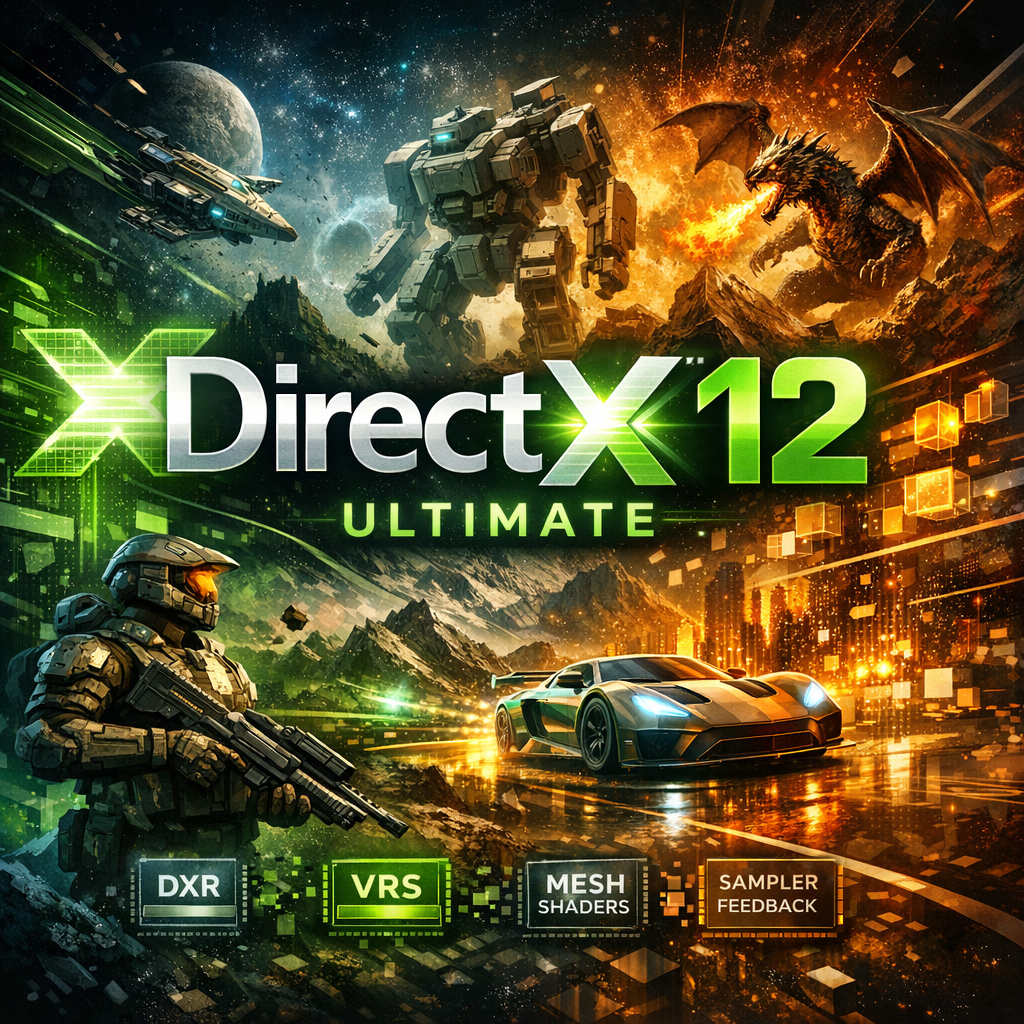
DirectX 12 for Windows 10 and 11 comes with Windows; there is no separate Microsoft installer that upgrades an incompatible computer to DX12. To resolve a game error, check the Windows runtime, GPU feature support and the exact missing component before changing anything. The steps below separate Windows updates from optional libraries for older games.
Quick Answer
Run dxdiag, check the System and Display information, then compare your GPU with the game’s requirements. Use Windows Update for Windows components and official driver sources for the graphics adapter. Use the legacy DirectX End-User Runtime only when a game requires its optional helper libraries; it does not repair or replace the core DirectX 12 runtime.
What to Know First
Write down the complete error message and the game name. “DirectX error” could mean a missing library, unsupported feature level, driver crash or damaged game installation. These do not share one universal fix.
Save your work before restarting, and keep a backup before broader repairs. Do not download individual DLLs, disable antivirus or use an unofficial DirectX upgrade pack. Windows 10’s ordinary support ended on 14 October 2025: consult Microsoft’s support and ESU guidance for your installation. A working game does not establish that the operating system is supported.
Step 1: Check DirectX and GPU Support
- Press Windows + R, enter
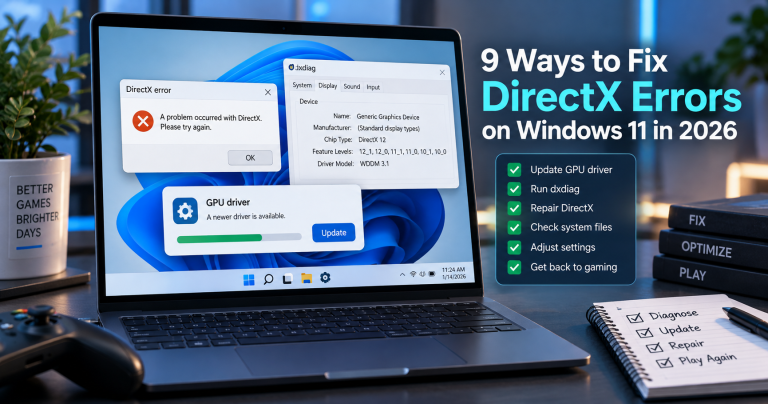
dxdiag, and press Enter. - On the System tab, note the operating system and DirectX Version. This describes the runtime, not a guarantee of game compatibility.
- On the Display tab, note the graphics adapter, driver details and Feature Levels, where shown. On a laptop, inspect the other graphics/display tabs too.
- Compare the actual adapter with the game publisher’s required GPU and feature level. Microsoft explains how feature levels differ from API versions.
For example, a machine can report DirectX 12 on System while its graphics hardware does not meet a particular game’s feature requirement. Installing the June 2010 runtime will not change that. For background rather than setup instructions, see what DX12 means for games and GPU compatibility.
Step 2: Update Windows Components
On Windows 11, open Settings > Windows Update. On Windows 10, open Settings > Update & Security > Windows Update. Check for applicable updates, review them and restart when prompted. Availability depends on your Windows edition, version and support status.
Microsoft’s DirectX update guidance identifies Windows Update as the route for the Windows 10 DX12 core; it does not offer a standalone core installer. Do not interpret every crash as proof that DirectX needs a reinstall.
Step 3: Check the Graphics Driver and Adapter
Start with the PC manufacturer’s support page for a laptop or prebuilt system, especially where it specifies customised graphics drivers. Otherwise use the official NVIDIA, AMD or Intel download pages. Match the adapter and operating system rather than installing a generic driver bundle.
If the issue began immediately after a driver change, review the manufacturer and game support notes before making another change. On a multi-GPU laptop, confirm that the game is using the intended graphics adapter. Retest after one change at a time so you can tell what helped.
Step 4: Install Legacy Libraries Only When Needed
Errors involving d3dx9_43.dll, d3dx11_43.dll or xinput1_3.dll can point to optional legacy libraries. Verify the game installation and follow its official prerequisite guidance first.
Microsoft’s DirectX End-User Runtime Web Installer adds legacy helper components. If you need the full redistribution package, Microsoft also provides DirectX End-User Runtimes (June 2010). The old date describes the legacy package, not a downgrade of your Windows DX12 core.
- Open the official Microsoft page, review its notes and download the required package.
- For the web installer, run
dxwebsetup.exeand follow the prompts. - For the full redistribution package, run
directx_Jun2010_redist.exeto extract it into a dedicated folder, then runDXSETUP.exeinside that folder. Extraction alone does not install the libraries. - Retest the affected game. The DirectX Version shown in
dxdiagis not expected to change because of these optional components.
Do not use these packages as a catch-all fix for GPU crashes or unsupported features. Microsoft explicitly distinguishes legacy side-by-side libraries from the operating system’s runtime.
Step 5: Use the Error to Choose the Next Action
- Missing legacy DLL: verify game files and prerequisites; use the official legacy package when appropriate.
- Required feature level unavailable: check hardware requirements and driver support. No downloadable library adds GPU features the hardware lacks.
- Device removed/hung or repeated graphics crashes: review the game’s support notes, graphics driver, recent updates and hardware stability. Restore stock settings if you have been tuning or overclocking; do not assume the legacy installer is the answer.
- Only one game fails: use its launcher’s file verification and publisher support. Check whether it offers a supported DX11 mode for diagnosis.
- Several Windows components fail: investigate Windows corruption rather than repeatedly reinstalling game prerequisites.
For the last case, Microsoft’s System File Checker instructions describe running these commands from an administrator terminal, in this order:
DISM.exe /Online /Cleanup-Image /RestoreHealth
sfc /scannow
Wait for DISM to complete successfully before running SFC. If either reports a failure, record the output and follow Microsoft’s recovery guidance. These commands target Windows components; they are not a promise to fix every game or unsupported GPU.
Do You Need DirectX 12 Ultimate?
Only if the game or feature you want requires that capability. Microsoft’s DirectX 12 Ultimate explanation describes a supported feature bundle, not a separate “12.1” download. Check the GPU’s official specifications and game requirements. Ray-tracing support or the card’s age alone is not enough to establish full Ultimate compatibility.
FAQ
Where can I download DirectX 12 for Windows 10 and 11?
The core runtime is included with Windows and maintained through applicable Windows updates. Microsoft does not provide a standalone installer that upgrades an incompatible PC to DirectX 12.
Why does dxdiag say DirectX 12 but my game will not run?
The System tab reports the Windows runtime. Your graphics hardware, driver, feature levels or game prerequisites may still fail the game’s requirements. Check the Display information and exact error.
Does the June 2010 runtime replace DirectX 12?
No. It adds optional legacy helper libraries needed by some older games. It does not replace, downgrade or repair the Windows DirectX 12 core.
Can I install DirectX 12 Ultimate on any GPU?
No. Ultimate requires compatible graphics hardware, drivers and software. An installer cannot add missing physical GPU capabilities.
Is Windows 7 a general DirectX 12 upgrade option?
No. Microsoft provided a developer-specific path for selected D3D12 games on Windows 7, not a universal upgrade for all applications. Use a supported operating system for a current setup.
Our Take
Start with the exact error, not a download button. Core Windows updates, graphics drivers, legacy game libraries and hardware requirements solve different problems. This workflow was checked against Microsoft documentation; it is not a claim that Techmixer reproduced every error or tested every GPU.
Last reviewed: 4 October 2026.


As a content creator, this post really resonated with me. I’ve been using Pixwit (https://pixwit.ai) to speed up my video workflow — the text-to-video feature understands complex prompts really well, and the long-form video tool lets me create multi-minute narratives interactively. Game changer for solo creators.