

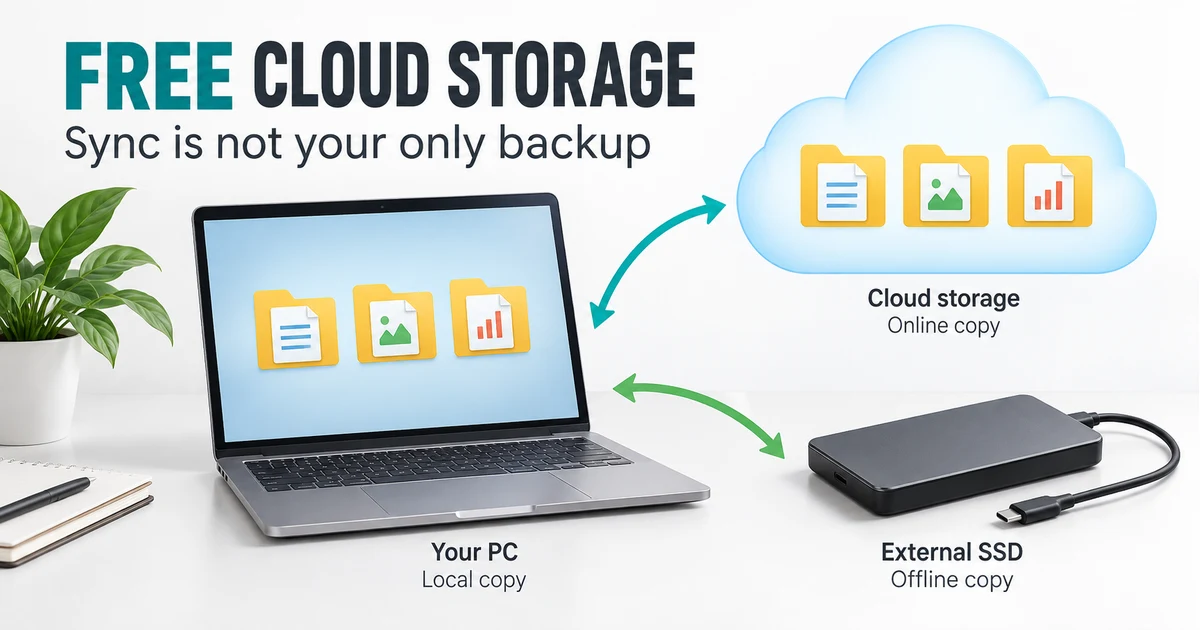
Free online storage and backup tools can protect a small collection of files, but they do different jobs. OneDrive and Google Drive are convenient for everyday access, Dropbox suits a small shared folder, Proton Drive offers encrypted storage, and IDrive provides a backup-oriented option. None should be the only copy of documents you cannot replace.
Quick answer
For a Windows user with a few gigabytes of important documents, start with the cloud account you already use, check its actual remaining space, and keep a separate offline copy. Choose IDrive if you specifically want scheduled backup and restore controls rather than just a synchronized folder. Before moving real work, prove that you can download or restore a harmless test file.
What to know first: storage, sync and backup
The useful question is not just “How much free space do I get?” It is “What happens when I accidentally delete or overwrite something?” A cloud folder may make files available everywhere while also propagating the mistake everywhere.
- Storage gives you somewhere to put a file. A manual upload is useful only as long as you keep that copy current.
- Sync keeps selected locations aligned. Check how changes, deletions and conflicts are handled before including an important folder.
- Backup aims to give you a recoverable copy. Check the selection, schedule, retention and restore destination; a successful-looking job is not a substitute for opening the recovered file.
An online-only placeholder is not an independent offline copy. Download the actual contents before copying a cloud folder to an external drive. For the broader workflow, see our backup and sync software hub.
This guide replaces an older list containing SkyDrive-era allowances, GMail Drive and other historical recommendations. Those old figures are not the basis for the comparison below. Allowances were checked against official sources on 4 October 2026; your existing account, promotions and local availability can differ.
5 free online storage and backup tools compared
These are five practical starting points, not a ranking of every cloud provider. The comparison separates the free allowance from the recovery job so that a large storage headline does not decide the whole purchase.
| Tool | Best for | Free allowance | Workflow | Setup effort | Main limit |
|---|---|---|---|---|---|
| OneDrive | Small Windows document folders | 5 GB of Microsoft cloud storage | File access and sync | Low if already signed in | Shared allowance; not a full-PC image |
| Google Drive | Google-account users and shared documents | Up to 15 GB, shared with Gmail and Photos | Web access and desktop sync | Low for web; more decisions for desktop | Existing mail/photos reduce available space |
| Dropbox Basic | A small collaboration folder | 2 GB starting space | File sharing and sync | Low | Small capacity; check current device/plan limits |
| Proton Drive Free | Encrypted storage for a small file set | 2 GB initially; up to 5 GB after eligible welcome actions | Encrypted file storage and sharing | Low for upload; recovery setup matters | Do not assume the 5 GB headline is already unlocked |
| IDrive Basic | Learning a scheduled backup/restore workflow | 10 GB advertised on its pricing page | Backup selection, scheduling and restore | Moderate | A small selective backup, not room for a typical whole PC |
Paid upgrades exist for all five. We have deliberately left out temporary discounts: the relevant question here is whether the free allowance covers your selected files without depending on a trial or paid upgrade.
Best choice by use case
- Already working in Windows and Microsoft apps: consider OneDrive first, provided your documents fit comfortably in the space remaining.
- Already sharing Google documents: consider Google Drive, but count existing Gmail and Photos usage before adding a folder.
- A few files shared with someone who uses Dropbox: Basic may be enough; do not move a photo library into a 2 GB plan.
- Privacy is your main selection criterion: review Proton Drive and its account/data recovery options together.
- You want a scheduled backup rather than a live mirror: start by examining IDrive Basic’s backup and restore controls.
These are documentation-based choices, not upload-speed or recovery-test winners. If you need to recover Windows itself after a drive failure, use a separate system-backup approach; our free Windows backup software comparison addresses that different task.
1. OneDrive: a straightforward Windows starting point
Best for: a small working document folder when you already use a Microsoft account. OneDrive puts those files within reach on other devices, which is useful when the laptop is unavailable and you need a document rather than a complete system restore.
Microsoft’s storage FAQ lists 5 GB of free cloud storage shared across OneDrive files/photos, Outlook.com attachments and Microsoft 365 apps. Check the account’s remaining space instead of treating the full allowance as empty.
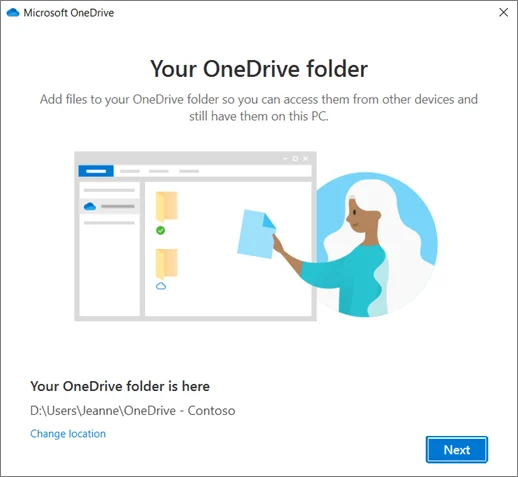
Where it helps: keeping a modest set of documents accessible without adopting another account. Follow Microsoft’s sync setup instructions and inspect which folders are included. Folder selection matters more than clicking through the setup quickly.
Limitation: synchronized files are not a Windows installation image. Microsoft documents individual-file version history, but do not assume every larger recovery feature is included in the free plan. Keep an offline copy and test the recovery option you actually intend to use.
2. Google Drive: useful when your work already lives in Google
Best for: people who regularly share documents through a Google account. The useful advantage is keeping the workflow in one place, not a promise that every file on your computer is backed up automatically.
Google’s storage policy says each account includes up to 15 GB shared across Drive, Gmail and Photos. A large inbox or photo collection can leave little room for new uploads. Check your own quota before planning around the headline figure.
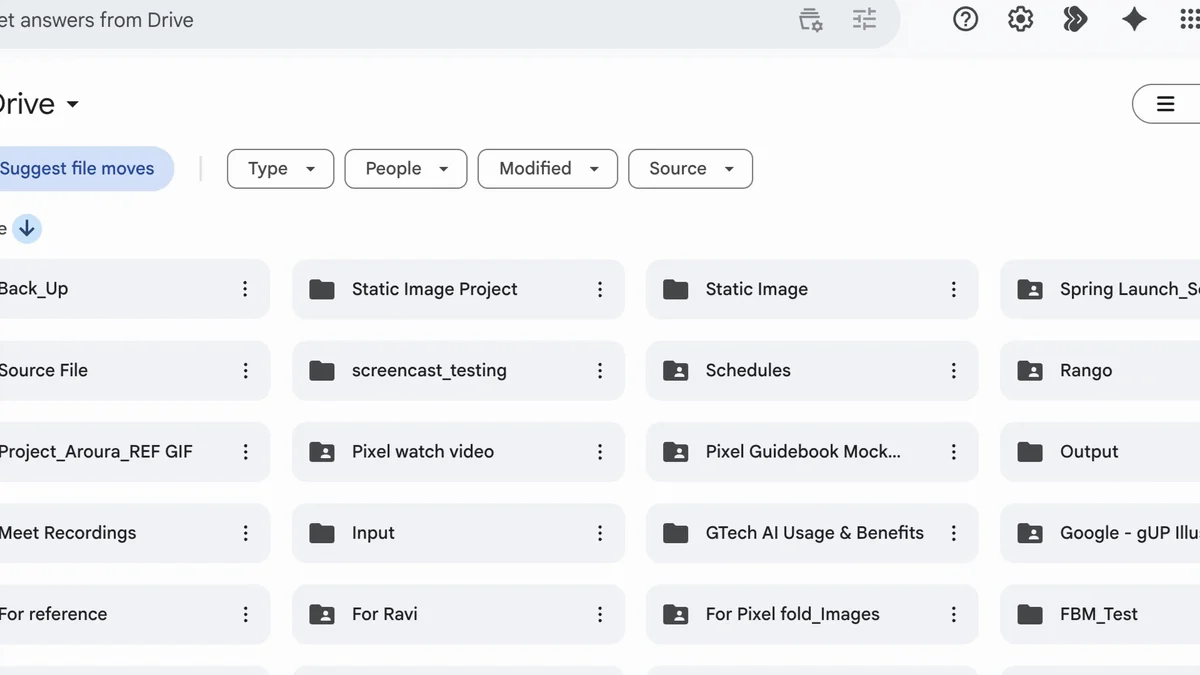
Where it helps: accessing a project folder in the browser and collaborating on working documents. If you add the desktop app, read Google’s Drive for desktop guide. Streaming and mirroring have different local-storage implications; neither removes the need for a separate recovery copy.
Limitation: Google Docs history is different from version handling for uploaded files such as PDFs. Google’s file-version help says an older uploaded-file version may be removed after 30 days or 100 newer versions unless kept. Check the relevant file type instead of assuming unlimited history.
3. Dropbox Basic: keep the folder small
Best for: exchanging a limited collection of files with someone who already uses Dropbox. A handful of PDFs and working documents is a more realistic free-plan task than backing up years of video.
The Dropbox Basic help page confirms 2 GB and describes sharing and syncing features. Start by checking how much space the shared material uses, along with the device restrictions shown for your account.
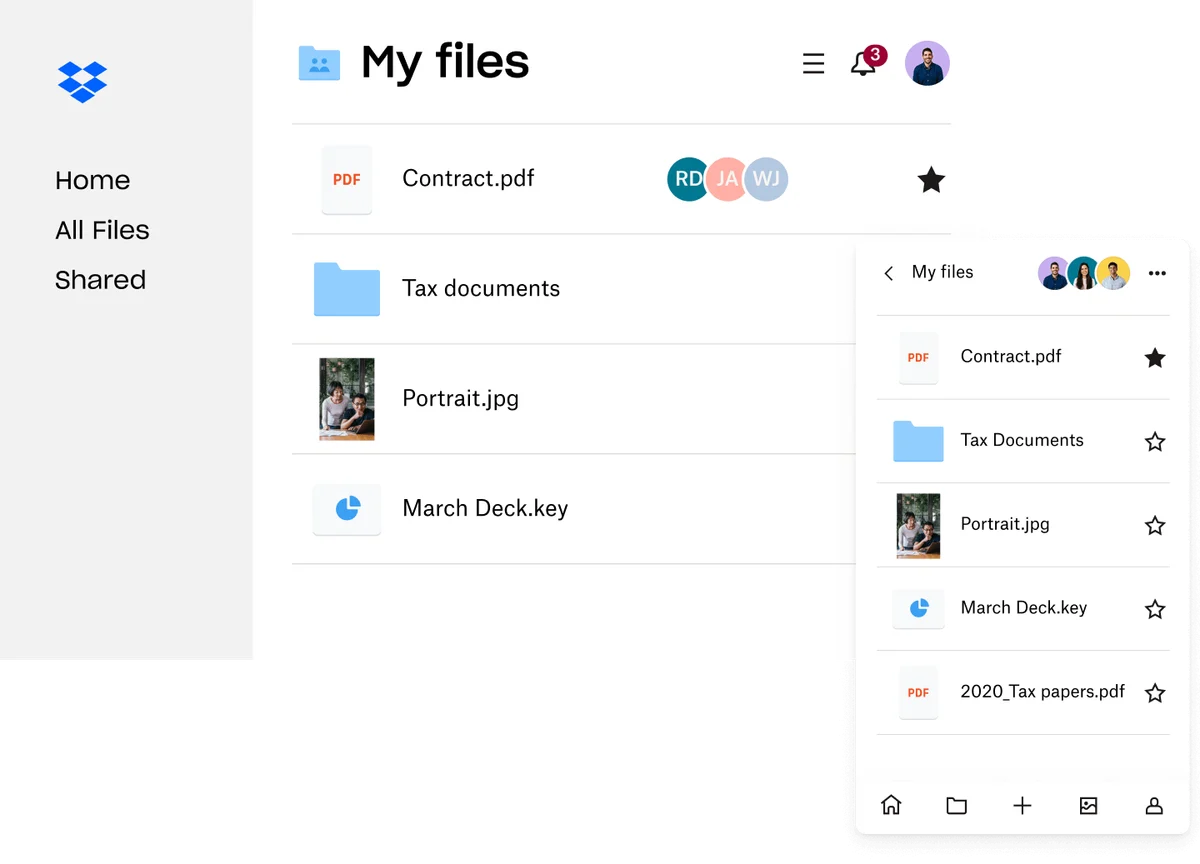
Where it helps: a small shared working folder with a familiar desktop/web workflow. Use the official Basic page to review the current offer rather than following an advertisement straight into a paid-plan trial.
Limitation: an over-quota account is not a stable long-term archive. Dropbox’s Basic storage-limit guidance describes restrictions and possible deletion after notices. Fully download important files before downgrading or depending on an online-only folder.
4. Proton Drive: encryption with a small-account caveat
Best for: a small collection of files where the provider’s end-to-end encryption model is a priority. Proton describes its file storage and sharing as encrypted; that does not prevent a recipient from copying a document you share.
The product page advertises 5 GB, while the more specific welcome-storage instructions say new free accounts start at 2 GB and can unlock another 3 GB through eligible actions in the first 30 days. Use the allowance displayed in your account.
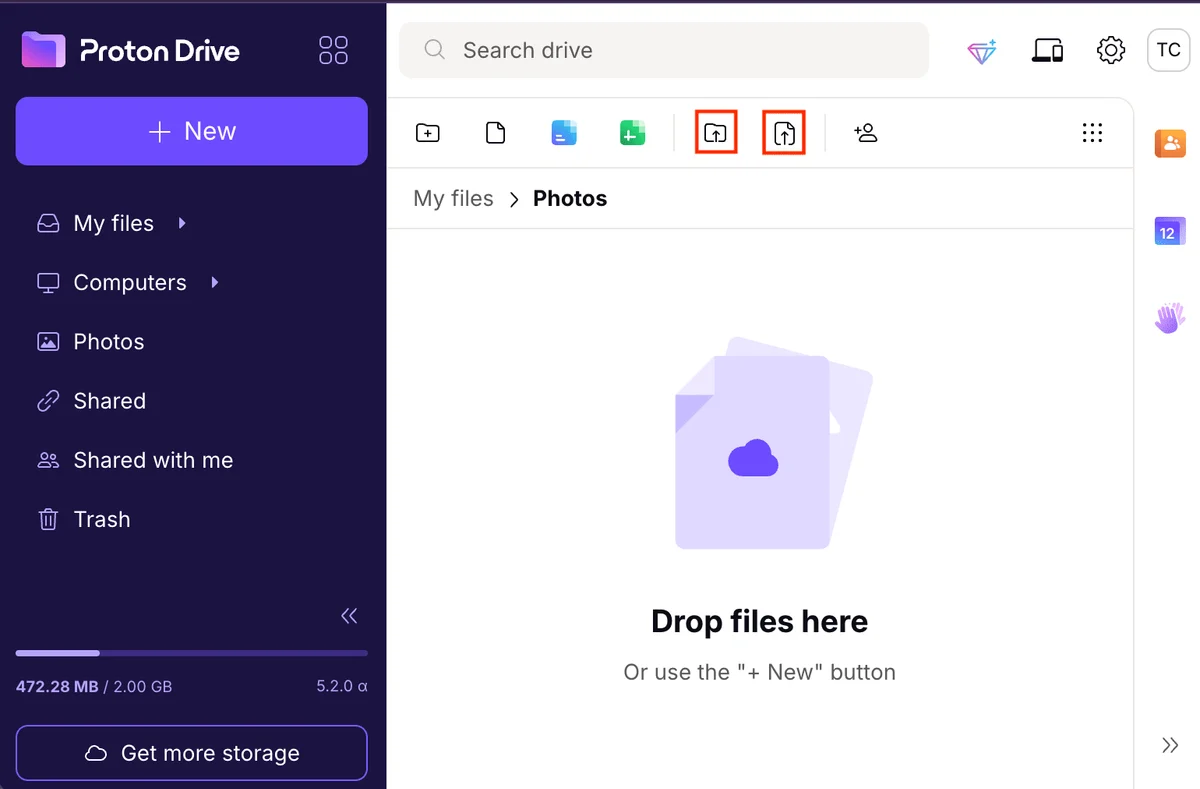
Where it helps: uploading a deliberate selection of documents rather than automatically sending every folder to the cloud. The official setup guide explains the web upload and download controls shown above.
Limitation: privacy does not make recovery automatic. Set up account and data recovery before storing the only copy of anything important, and keep the recovery material somewhere independent of that account. Treat a small free plan as a selective file store, not a whole-machine backup.
5. IDrive Basic: a backup-oriented option
Best for: learning to select files, schedule backups and restore a small data set. Unlike a general sharing folder, the desktop workflow separates backup selection from restore controls.
The official pricing page currently advertises IDrive Basic with 10 GB and no credit card required. That can be useful for selected documents, but it is not enough for an ordinary laptop’s entire drive. Confirm the Basic offer at signup rather than assuming a paid feature or add-on is included.
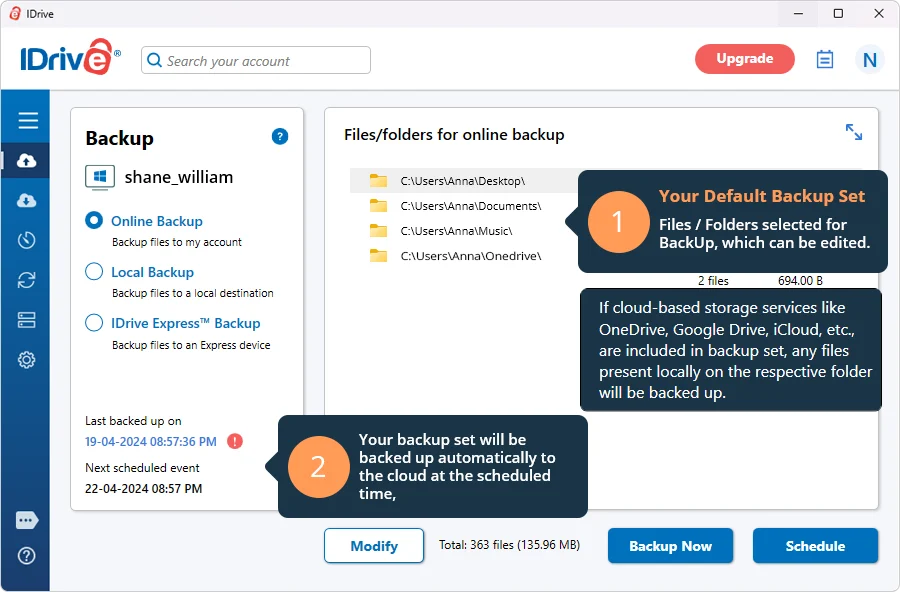
Where it helps: a defined backup set with an explicit schedule. IDrive’s Windows documentation covers the backup selection, scheduler and restore views. Review the preselected folders before starting; include only what you intended to protect.
Limitation: cleanup settings can remove saved data, and some features vary by account. Do not enable cleanup simply to clear a warning. Read the logs, resolve exclusions, and restore into a separate test folder before trusting the setup. The screenshot is a vendor walkthrough, not evidence that we restored a particular account successfully.
A practical cloud-and-offline workflow for important documents
Imagine a home office with 2 GB of invoices and project files, plus 80 GB of photos. This is an illustrative planning example, not a measured test. A free account may cover the documents if enough quota remains; it will not cover that entire collection. Separate the two jobs rather than spreading random pieces across accounts you may forget.
- Measure the folder first. On Windows, use folder Properties to check the selected data size. Include expected growth and allow headroom. Do not count cloud placeholders as downloaded contents.
- Choose the failure you want to recover from. Remote access when your laptop is unavailable is different from recovering an overwritten spreadsheet or a broken Windows installation.
- Check the account and permissions. Verify quota, recovery details and sharing settings. Enable the account’s available multi-factor protection. Keep confidential client files out until you have permission and an appropriate service.
- Start with disposable samples. Upload or back up a text file and PDF. Check them through the service’s web view, not only the local application’s status icon.
- Recover to another location. Download or restore the samples into a separate folder outside the synchronized tree. Open both, compare the contents, and record which recovery steps worked. If you want older-version recovery, test that separately with the disposable file.
- Add an offline copy. Copy the fully downloaded important files to an external drive, inspect them, then disconnect the drive. A second folder on the same laptop is not protection against that laptop failing.
- Make maintenance explicit. Choose a backup/copy frequency that matches how much recent work you can afford to lose. Recheck space, job failures and a sample recovery periodically, and after changing accounts or devices.
For the example above, the sensible free starting point is the selected 2 GB document set plus an offline copy. The photo archive needs its own capacity plan. Two cloud accounts can provide another location, but they are not independent if the same sync process carries deletion to both.
If copying folders is the job you need, our file synchronization software guide covers that separate category. Be especially careful with a mirror operation: removing a source file can be intentional input to the next copy job.
When a free plan is not enough
Stop trying to fit the workflow into a free quota when you need a large archive, whole-PC recovery, a business-wide retention policy or dependable support for a critical incident. The right next step may be local backup hardware, a paid service, or both. Hardware and internet access are costs even when the software account is free.
Before upgrading, check renewal pricing, file-version retention, export options and what happens if you cancel. Before deleting originals, confirm that the copy is complete and recoverable. If a real drive is failing or files are disappearing unexpectedly, avoid repeated cleanup or synchronization attempts that could reduce your recovery options.
FAQ
What is the best free online backup tool for Windows?
For a small scheduled backup, IDrive Basic is a candidate to review. For everyday file access, OneDrive or Google Drive may be more convenient. Choose by the recovery task and test a restore; this guide does not establish a universal performance winner.
Does Google Drive provide 15 GB of free backup space?
Google describes up to 15 GB of storage shared across Drive, Gmail and Photos. Your available space can be lower, and cloud storage is not automatically a complete Windows backup.
Is syncing a folder the same as backing it up?
No. Sync can propagate edits and deletions. A recovery plan also needs usable earlier copies or versions, account access and tested restore steps. Keep an independent offline copy of important files.
Can free cloud storage restore my entire Windows PC?
A normal file-storage folder cannot recreate the complete Windows installation, applications and settings. Use a separate system-backup solution for that job, alongside copies of important documents.
Why does my Proton Drive account show 2 GB instead of 5 GB?
Proton’s welcome-storage documentation says new free accounts start with 2 GB and can unlock 5 GB by completing eligible actions within 30 days. Check the current account offer and follow its official instructions.
Should I delete local files once they are in the cloud?
Not until you have confirmed what deletion does in that workflow and have another recoverable copy. An online-only placeholder and one cloud account are not two independent backups.
Related Techmixer guides
- Backup and sync software: choose the right workflow
- Free Windows backup software for local recovery
- Windows backup utilities and older alternatives
- File synchronization tools for folder copies
- More Techmixer software guides
Our take
Start with fewer files and a recovery plan you can explain. For a small personal document set, the cloud account you already maintain plus a checked offline copy is often more manageable than chasing the largest free allowance across several providers. A backup you cannot find, unlock or restore is not doing its job.
Last reviewed: 4 October 2026. Techmixer checked the linked official allowance, setup and recovery documentation. The comparison and worked example are editorial analysis; no new upload-speed benchmark, Windows installation or account restore was performed. Interface images are vendor-published examples reviewed on that date, not newly captured Techmixer account screenshots.



Thanks for the useful list. I’m a big fan of online backup services such as iDrive, and I recommend you Handy Backup (http://www.handybackup.net). It provides both backup software and online backup services. It’s the best backup solution I ever used.
5 GB for free.
Storing your most valued files online will certainly bring the greatest conveniences while making sure that the most common problems will be prevented.
Thank you for mentioning binfire.com in the list here. We just released the latest version of the software. We have added more project collaboration feature to the site including real-time interactive whiteboard, tagging of tasks and milestones, free form search , status reporting and group chat. One of great advantage we have compared to other services is file version and file locking for collaboration. Soon we will add more advance features for project collaboration and document management!