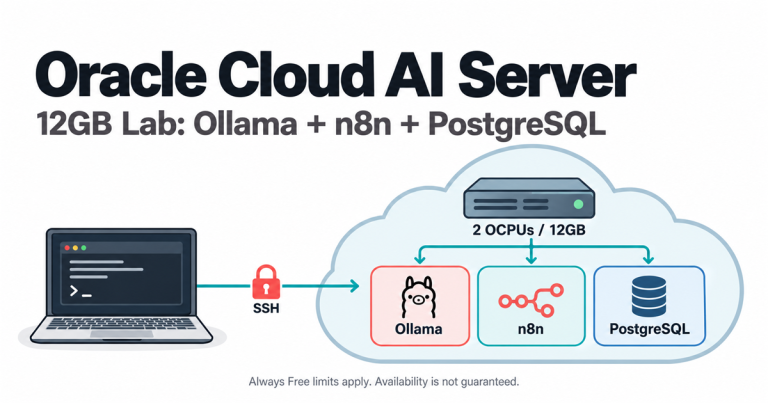
For a beginner comparing a free cloud GPU vs local GPU, start with short, permitted cloud experiments using public or synthetic data. Buy hardware only when a measured workload justifies it, or when a genuine requirement keeps processing inside your own network. If you need an always-on service, choose persistent infrastructure; that requirement alone does not prove you need a GPU.
Quick Answer: Which Route Fits Your Work?
- Learning and occasional experiments: try an eligible free notebook and expect interruptions.
- Data forbidden from leaving your network: use an approved on-premises workflow, including its logs, backups and connected tools.
- A service that must answer overnight: use a managed or self-hosted persistent service with monitoring and recovery, not a disposable notebook.
- Frequent GPU-heavy work: measure model fit, useful running hours and total cost before buying a card.
What to Know Before Choosing Cloud or Local AI
Three decisions often get tangled together: where the model runs, who operates the service, and whether you need acceleration. A remote virtual machine is still cloud infrastructure even if you install Ollama yourself. A small local model may work without a dedicated GPU. And a scheduler can be online all day while making very few model requests.
This guide is for people learning AI, prototyping software or planning a small-team workflow. It is not a recommendation to move confidential documents into a free account. Where a contract, policy or law sets a data boundary, have the responsible security or compliance owner approve the architecture before testing with real records. The word private on a sharing menu is not that approval.
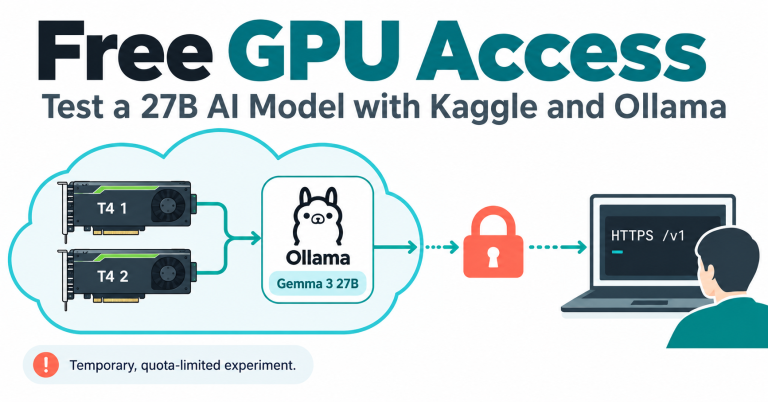
It is also a decision guide, not another installation walkthrough. Techmixer’s Kaggle and Ollama experiment covers a specific notebook approach. Check current platform rules before following any remote-access recipe; a technically working connection does not establish permission to operate a public service.
Free Cloud GPU vs Local GPU: The Practical Differences
| Route | Useful for | Main constraint | What you must check |
|---|---|---|---|
| Free hosted notebook | Interactive learning and small, restartable experiments | Access, duration and permitted use depend on the provider | Current quota, data permissions, export and restart process |
| Existing local computer | Small-model trials and work that must stay on an approved device | Available memory, compatibility and acceptable response time | Actual model fit and every outbound integration |
| New local GPU workstation | Repeated workloads that benefit from suitable acceleration | Upfront cost and responsibility for the entire machine | VRAM, power, cooling, drivers and recovery |
| Persistent paid cloud compute | Remote workloads needing selected hardware or service continuity | Recurring charges and an external processing boundary | Service terms, data controls, billing and availability design |
These are architectural trade-offs, not benchmark results. A free notebook is a sensible starting point only when its rules and interruptions fit the task. Local hardware is useful when it solves a specific constraint, not simply because a video makes a large model look impressive.
Two Free Cloud GPU Options to Try Before Buying Hardware
Kaggle Notebooks and Google Colab are useful starting points for interactive, restartable experiments with public or synthetic data. Neither is a free 24/7 production server. Check the actual accelerator and allowance in your account before committing to a project; avoid paid upgrades and linked billing services if your goal is a no-cost test.
| Platform | Best starting task | Setup route | Free-access caveat | Data and review risk |
|---|---|---|---|---|
| Kaggle Notebooks | Dataset exploration and short Python experiments | Create a notebook; choose an available GPU in session settings | Account eligibility, quota and capacity still apply | Notebook and dataset sharing need separate review; do not upload restricted records |
| Google Colab | A small Python test in a familiar notebook | New notebook; Runtime > Change runtime type | A selectable GPU is not a guarantee of allocation or duration | Review notebook sharing and outputs; keep secrets and confidential inputs out |
Which would we start with? Use Kaggle when your permitted dataset is already there; use Colab when you want a quick standalone notebook. Our Colab session completed the tiny CUDA check below on 19 October 2026. Kaggle’s signed-in editor and GPU allocation were not tested for this update.
How to Use a Free GPU on Kaggle, Step by Step
Start at Kaggle Code. The first screenshot is the real public entry page, not a running notebook. The menu path below follows Kaggle’s official notebook documentation; account-specific controls still need a signed-in check.
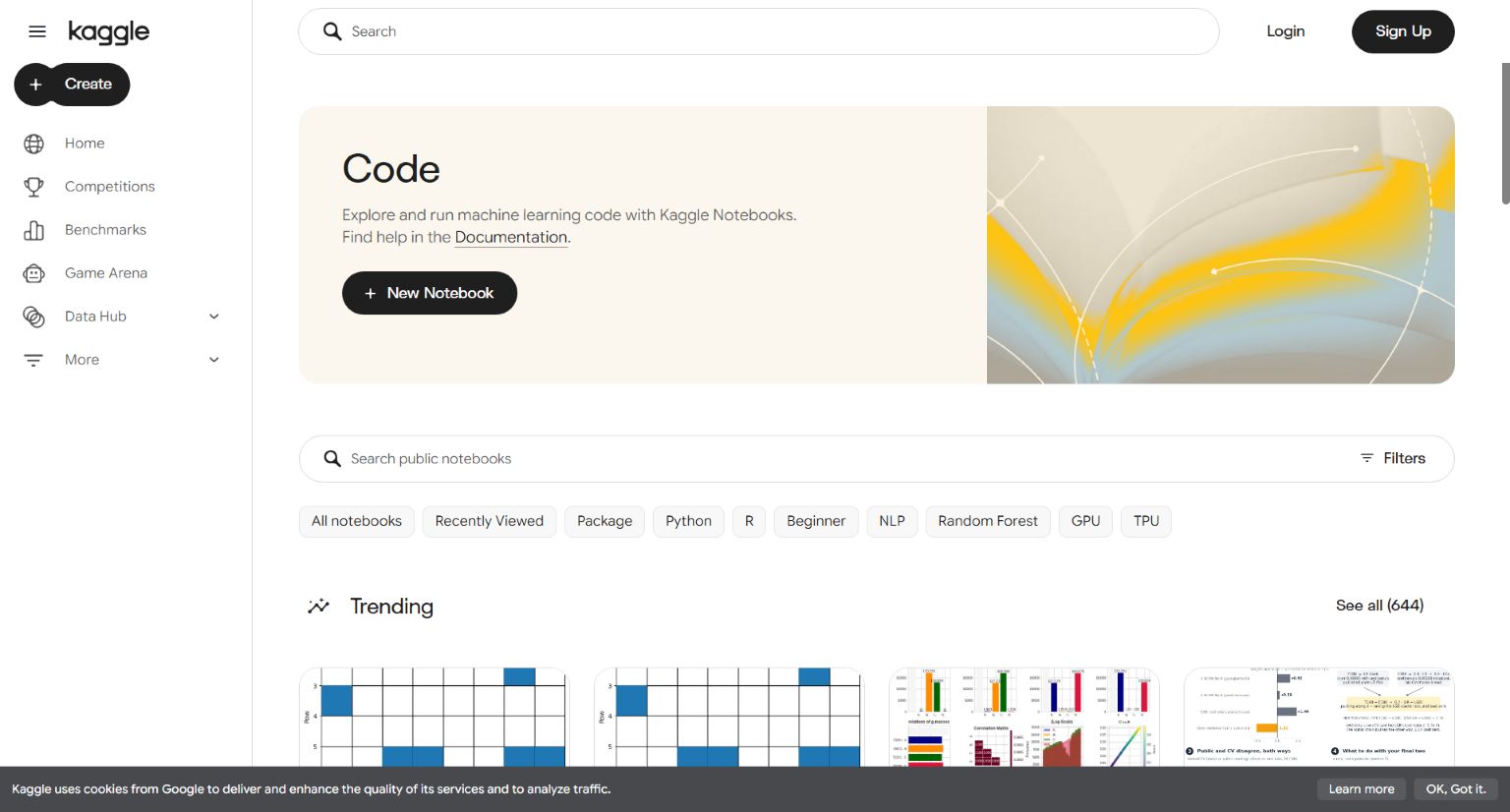
- Sign in, then choose New Notebook. If creating an account or verifying it is required, complete that yourself and review the terms. Do not publish a notebook just to unlock the editor.
- Use a Python notebook with harmless inputs. Name it something recognizable, such as
GPU check - public sample. This example needs no uploaded dataset, API key or external drive. - Open session settings and select an available GPU. Kaggle documents Settings > Accelerator > GPU; controls may appear under Session options. Review the displayed quota. If access is disabled, follow the account’s verification guidance or wait for capacity rather than creating extra accounts. GPU types such as P100 or T4 x2 may be offered; do not assume either will be assigned.
- Start the session and check its device. Add a code cell containing
!nvidia-smiand run it. A device table confirms visibility, not that your program uses it. If two GPUs appear, the sample below uses onlycuda:0; it does not pool their memory. - Run the shared CUDA check below. It should print a passed result and save
/kaggle/working/techmixer-gpu-check.json. If CUDA is unavailable, stop and inspect the accelerator/session before installing random packages. - Save the notebook, export outputs, then stop the session. Review Save Version: Quick Save and Save & Run All have different execution behavior. Confirm output persistence and download the JSON; do not assume every temporary file is preserved. Stop the interactive session when finished and check that it is no longer running.
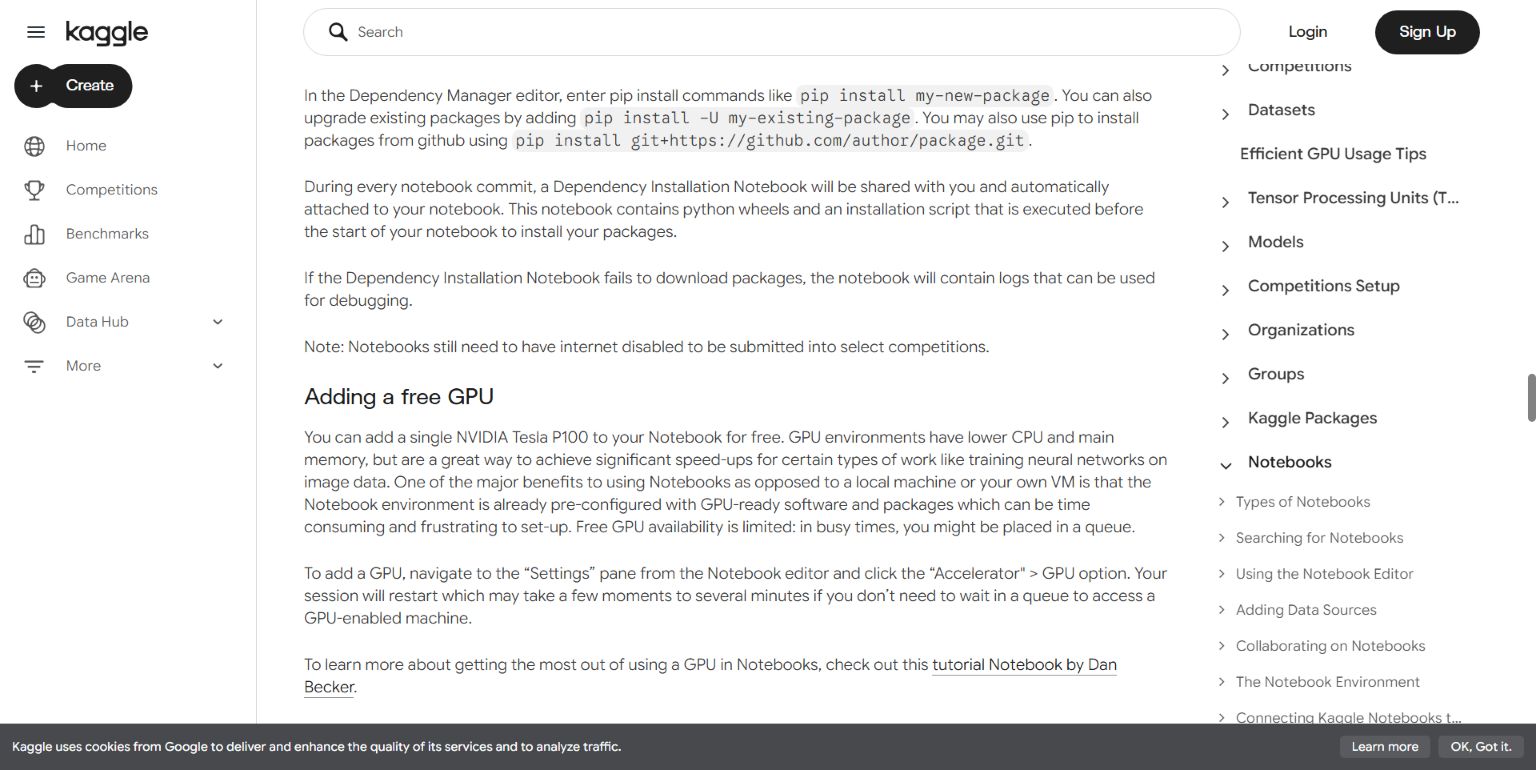
Important: adding a dataset, linking Google Cloud billing or using an external API changes the data and cost boundary. None is needed for this sample. Check sharing permissions separately for the notebook and any attached dataset.
How to Use a Free GPU on Google Colab, Step by Step
Open Google Colab and use its hosted notebook interface. The screenshots show the actual setup and output from a small Techmixer demonstration, not a generated mockup. That session’s success does not establish access for another account.
- Sign in and create a New notebook. Give it a descriptive name. A notebook saved to your Drive is separate from files on the temporary runtime. Keep sharing restricted and use only the public sample code here.
- Choose Runtime > Change runtime type. Keep Python 3, select an available no-cost GPU option and save. Our screen offered T4 GPU; premium options were disabled. Do not choose an upgrade, a billed Google Cloud runtime or a paid plan for this walkthrough.
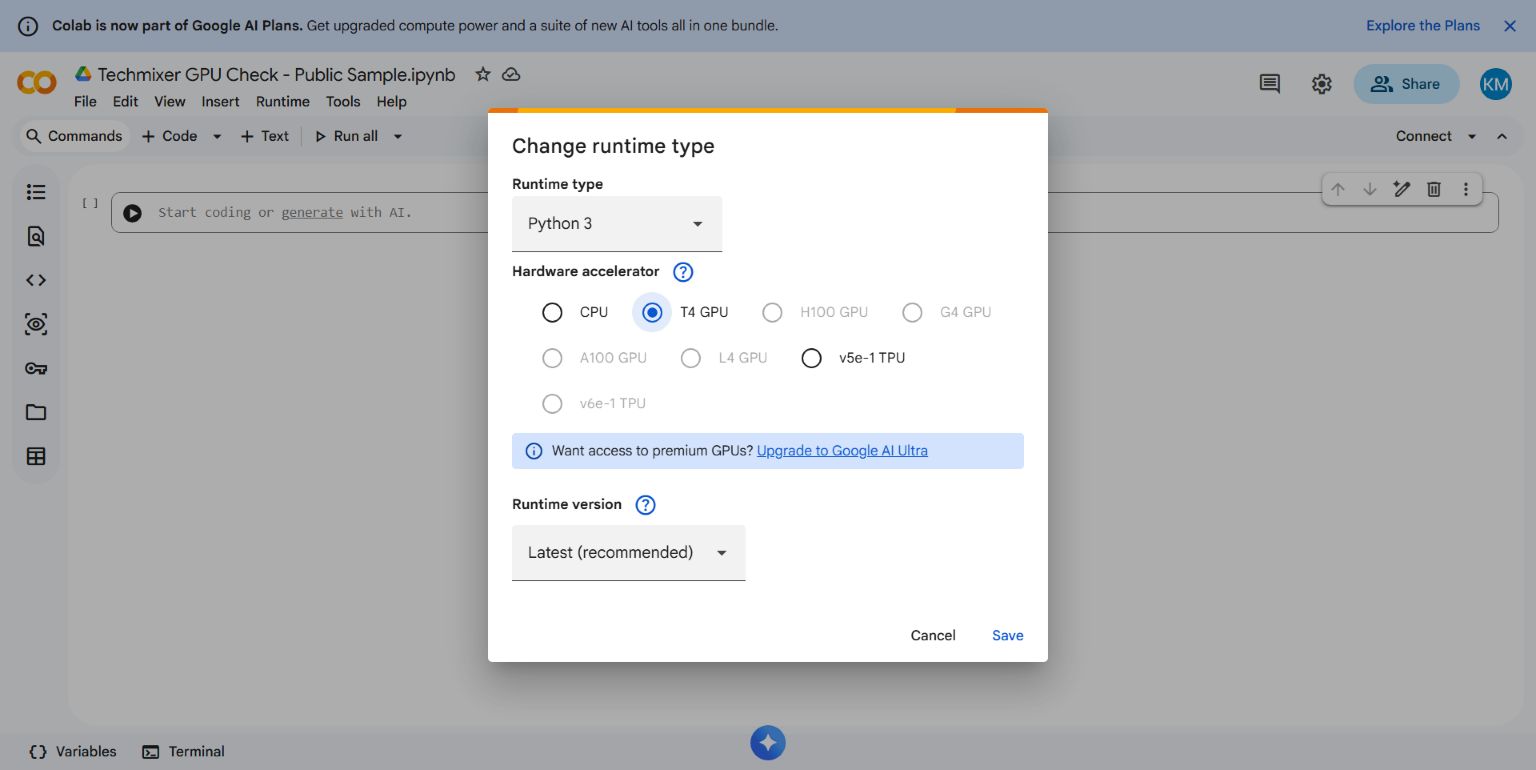
- Connect and run a device check. In a code cell, enter
!nvidia-smiand click Run cell. If verification is requested, complete it yourself. Quota, capacity or connection errors are reasons to stop and retry later, not bypass platform protections. - Run the shared CUDA check in another code cell. Look for
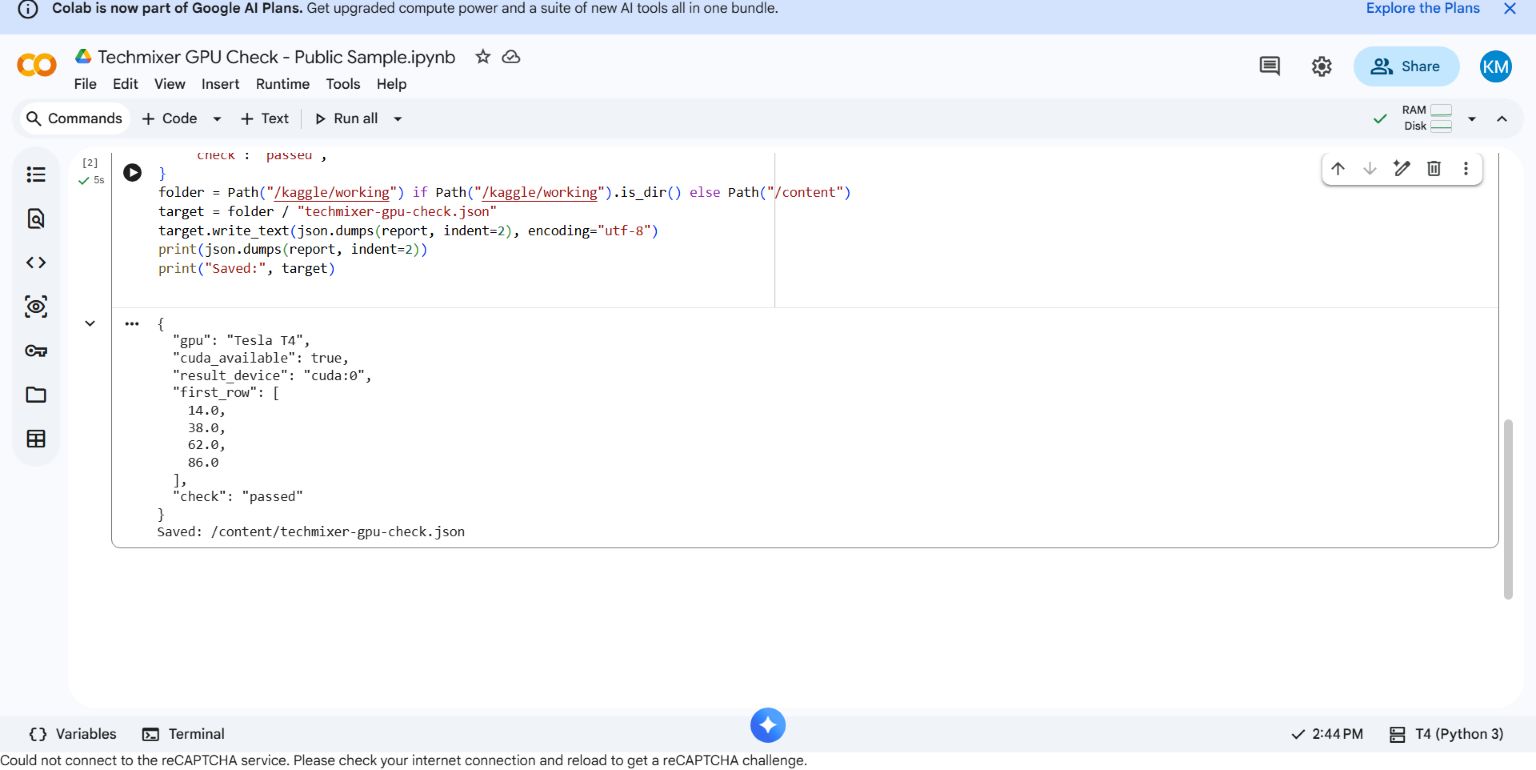
result_device: cuda:0andcheck: passed, not just a selected GPU icon. This demonstration reported a Tesla T4 with 15,360MiB innvidia-smi; those values describe one observed session. - Download the result and keep the notebook. Open Files, refresh if necessary, then use the file’s menu > Download for
techmixer-gpu-check.json. Save or download the notebook separately. Do not grant broad Drive access merely to retrieve this tiny result. - Release the runtime when finished. After saving needed outputs, use Runtime > Disconnect and delete runtime. Read the warning: temporary files and memory are lost. A saved notebook is not a backup of everything in
/content.
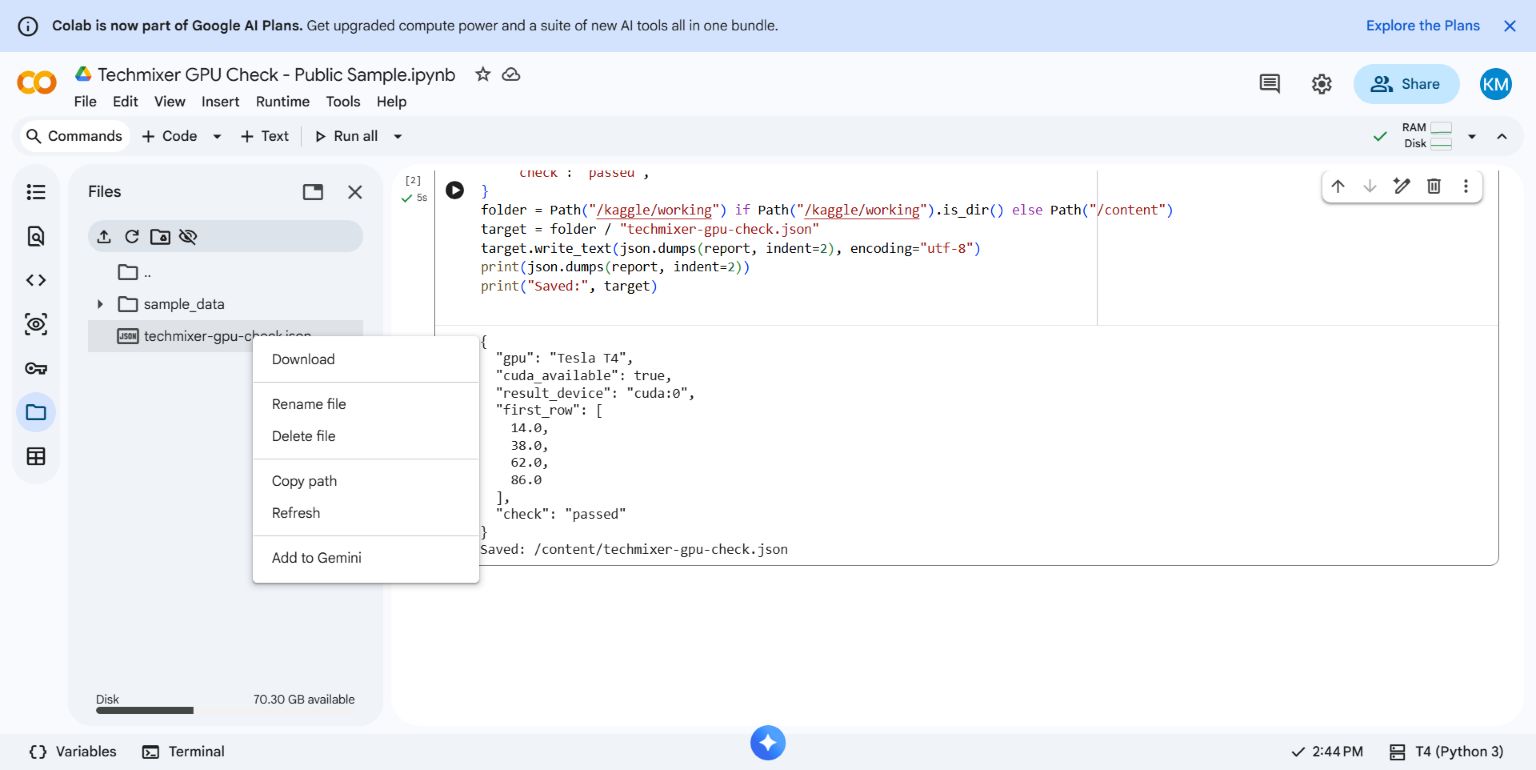
Use Colab for its permitted interactive tasks, not an unattended public inference endpoint. See the official Colab FAQ for current availability, runtime and usage restrictions.
Run the Same Small GPU Check on Either Platform
This test confirms a tiny calculation actually ran on a CUDA device and produced the expected answer. It does not download model weights, benchmark an LLM, prove multi-GPU support or show that a large model fits. Run it after selecting a GPU, with the platform’s provided PyTorch environment.
import json
from pathlib import Path

import torch

if not torch.cuda.is_available():
    raise RuntimeError("No CUDA GPU detected. Check the accelerator and session.")

x = torch.arange(16, dtype=torch.float32, device="cuda").reshape(4, 4)
y = x @ x.T
first_row = y[0].cpu().tolist()
assert first_row == [14.0, 38.0, 62.0, 86.0], first_row

report = {
    "gpu": torch.cuda.get_device_name(0),
    "cuda_available": True,
    "result_device": str(y.device),
    "first_row": first_row,
    "check": "passed",
}
folder = Path("/kaggle/working") if Path("/kaggle/working").is_dir() else Path("/content")
target = folder / "techmixer-gpu-check.json"
target.write_text(json.dumps(report, indent=2), encoding="utf-8")
print(json.dumps(report, indent=2))
print("Saved:", target)
The expected first row is [14.0, 38.0, 62.0, 86.0]. The script checks that answer and reports the device before saving a small JSON file. In our Colab run, the result was Tesla T4, cuda:0 and passed. The same snippet is supplied for Kaggle, but we have not executed it there in this update. The PyTorch CUDA check documents how availability is detected.
What If the GPU Check Fails?
- No GPU or no CUDA: check that the session was restarted after changing its accelerator. A TPU is not a CUDA GPU and will not pass this sample.
- Quota, queue or verification message: use the account’s current guidance. Do not loop retries, manufacture activity or create extra accounts.
- PyTorch missing or incompatible: check the provider’s current environment and official package instructions. Do not install an arbitrary CUDA driver inside the notebook.
- Result file missing after disconnect: the runtime may have been reset. Rerun the harmless check and export the output while the session is available; do not trust session storage as your only copy.
Once the small check works, move on to one short, permitted workload. Record its model, input size, peak memory and useful output quality. That is the evidence you need for the five hardware decisions below, rather than just a successful GPU allocation.
Check 1: Is the Data Allowed to Leave Your Network?
If the approved requirement says documents must never leave your local network, do not upload them to a hosted notebook. Encryption in transit and a non-public notebook do not change where remote computation happens. Whether an enterprise cloud service is acceptable is a separate policy decision; do not assume that all cloud services are prohibited or all local tools are compliant.
Map the whole path: source file, extracted text, embeddings, prompts, generated answers, logs and backups. A local chat window can still call a remote model or send text to an external search tool. Conversely, keeping inference local does not remove risks from a compromised computer, shared folder or exposed API.
LM Studio’s offline documentation says downloaded models, document chat and its local inference server can operate without internet access. Model discovery, downloads and updates use connectivity. That supports an offline design, not a blanket certification of your complete environment.
Ollama’s FAQ distinguishes local inference from cloud-hosted models. Its documented local-only setting is OLLAMA_NO_CLOUD=1, followed by a restart and checking the disabled-cloud log message. That switch does not disable network activity in your browser, agent plugins or other applications.
Example: a team wants to search internal contracts that its approved policy confines to the office network. Begin with a synthetic contract on an approved machine, a downloaded model and local document processing. Have the security owner inspect outbound connections, access controls and backup destinations. Do not send an original contract to a free service merely to see whether the answer is better.
Check 2: Does the Workflow Need to Survive Overnight?
A 24/7 agent needs persistent operation and recovery, not automatically a powerful graphics card. Split its work into orchestration, storage and inference. A queue listener may spend most of its time waiting. The model might run locally, on an approved remote endpoint, or only during scheduled bursts.
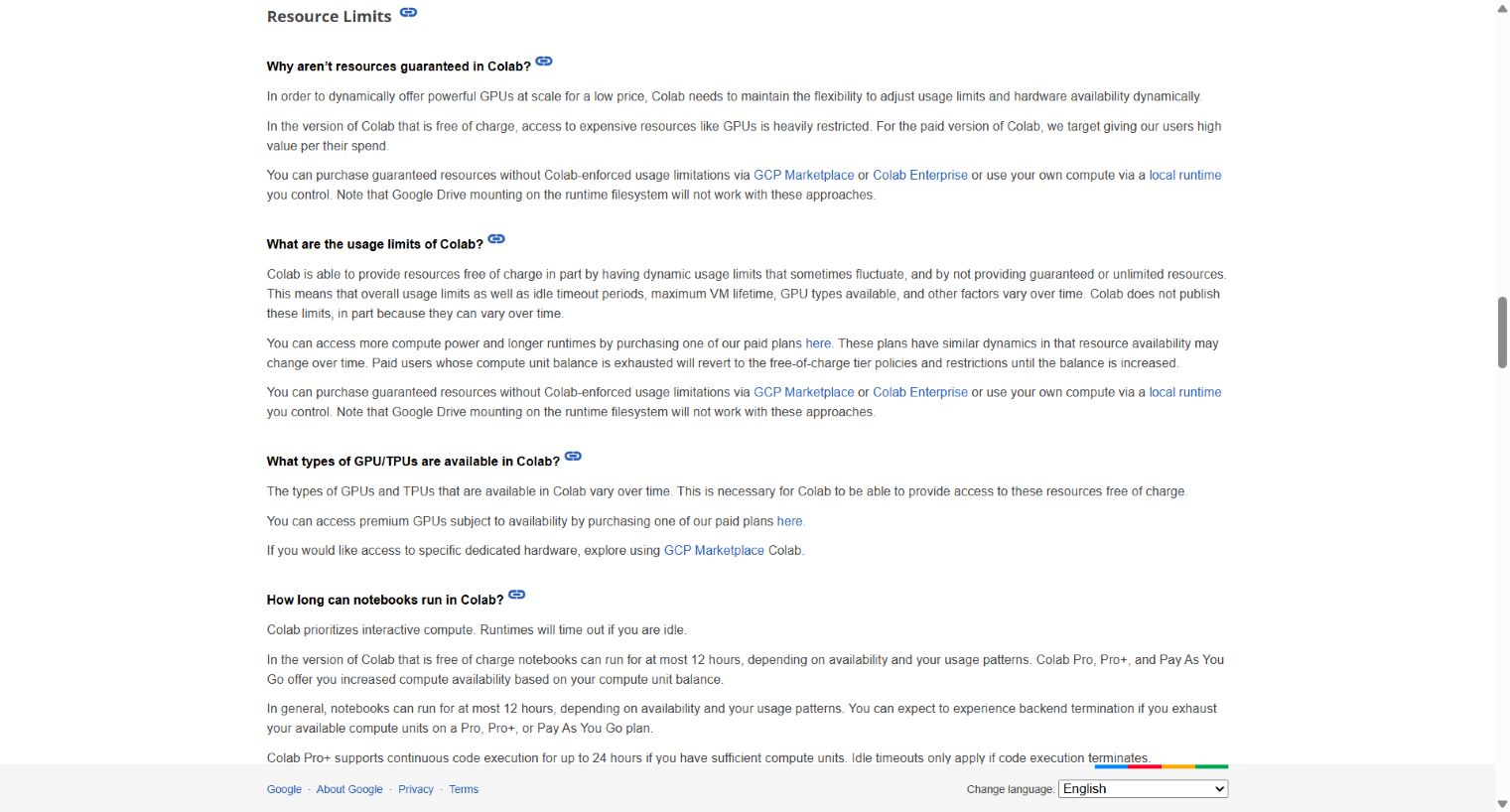
Google’s Colab FAQ describes variable resources and idle timeouts; free notebooks run for at most 12 hours, subject to availability and usage. It also restricts unrelated web-service hosting and certain remote-control uses on free managed runtimes. Do not treat that ceiling as a guaranteed session or defeat timeouts with synthetic activity.
A local desktop avoids a notebook provider’s session limit, but it can still sleep, reboot, overheat, lose power or fill its disk. A cloud instance can also fail. Design a restart path and a place to keep unfinished work before promising anyone continuous service.
- Persist job state outside the worker process, and record which jobs completed.
- Use bounded retries with backoff; make repeated execution safe where possible.
- Keep credentials out of prompts and logs, and give each worker only needed permissions.
- Monitor failures, disk usage and queue growth, with a person responsible for alerts.
- Test a restart and recovery using harmless input before trusting unattended operation.
For an automation that prepares article drafts, losing a process should not create five duplicate posts. Use a stable job identifier, check whether its draft already exists, and require approval before publication. The infrastructure decision should support that behavior, rather than just keeping a terminal window open.
Techmixer’s no-code AI workflow comparison can help separate the automation layer from the model. A lightweight controller may be enough even when a separate job occasionally needs GPU acceleration.
Check 3: Does Your Actual Model Fit the Hardware?
Choose memory and compatible software for a named workload, not a parameter-count headline. Record the model version, quantization, input length, output length and number of simultaneous requests. Inference, fine-tuning and training from scratch are different workloads; success with one does not establish capacity for the others.
As a rough lower-bound calculation, eight billion weights stored at four bits each represent about four billion bytes before overhead. That is not a claim that an 8B model runs in 4GB of VRAM. Runtime allocations, context, quantization metadata and other software need additional memory. The model file’s download size is not a complete hardware specification.
Ollama’s documentation notes that concurrency and context affect memory use. Verify the exact backend’s hardware support before shopping. Two GPUs do not automatically behave like a single larger card for every program; the software must support the distribution you intend.
Try a smaller baseline first. If a small model on your existing computer produces an acceptable classification result in the time your workflow allows, a new GPU may solve no immediate problem. If quality fails, test a better-suited model on approved compute before assuming more hardware fixes the task.
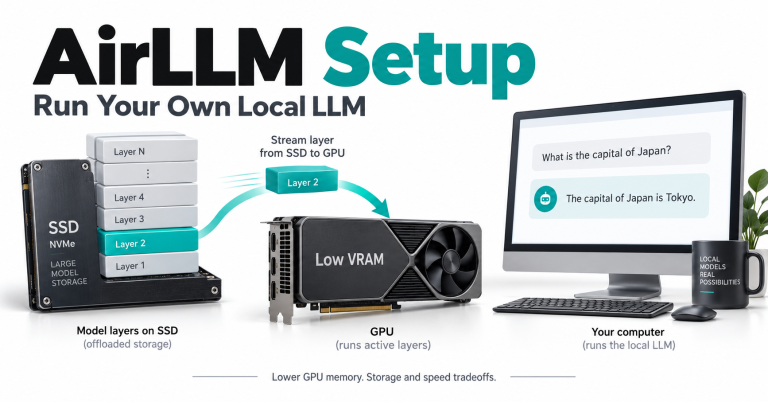
Memory-saving approaches also have trade-offs. Our AirLLM setup guide explains a different approach to running models with constrained GPU memory. Do not translate a low-memory demonstration into a promise of fast interactive responses on your own machine.
Check 4: How Many Useful GPU Hours Will You Really Use?
Compare completed work at acceptable quality, not just advertised hourly prices. A computer switched on for 200 hours is not necessarily doing 200 hours of useful GPU work. Include setup, repeated downloads, interrupted runs, storage and your own maintenance time in the comparison.
Here is a deliberately simplified illustration, not a vendor quote: suppose a hardware upgrade costs US$1,200 and an otherwise comparable rental costs US$0.60 per billed hour. Dividing the upgrade price by that rate gives 2,000 billed hours. At 20 hours a month that is 100 months; at 200 hours it is ten. Neither figure is a genuine break-even forecast: performance, usable life, resale value, power and ongoing cloud charges have been left out.
For an electricity example, assume a measured whole-system draw of 300 watts while working. Six hours a day for 30 days is 54kWh. At a hypothetical US$0.20/kWh that is US$10.80, excluding idle consumption and additional cooling. Use your measured consumption and applicable tariff, not these sample numbers, for a real budget.
The important result is how strongly utilization changes the decision. Someone experimenting twice a month faces a different purchase question from someone running a validated batch every working day. A free trial can reveal that difference, provided the experiment is permitted and does not contain restricted data.
If your task is learning rather than serving customers, the AI engineering learning guide offers a useful next step before committing money to a workstation. Knowing what to measure is more valuable than buying capacity for an undefined future project.
Check 5: Can You Restart, Recover and Keep Outputs Under Control?
The cheapest environment is a poor fit if you cannot recover useful work or stop a bad action. Notebook users need durable outputs; local owners need backups and maintenance. Both need a clear boundary between generating a suggestion and executing it.
For training experiments, save resumable state rather than only the final model file. The PyTorch checkpoint guide covers model and optimizer state plus progress information for resuming training. Verify that your actual training code can resume from a saved checkpoint; creating a file alone does not prove recovery.
For inference batches, a simpler approach can work: store a job ID, input version, model/settings, completion status and output for each record. Resume only unfinished items. Start with public sample inputs, then deliberately stop the process and check that restarting does not silently skip work or duplicate side effects.
Keep model suggestions separate from consequential actions. A continuously running agent should not gain unrestricted file deletion, customer messaging or payment authority just because it is hosted locally. Use a review queue, restricted credentials and a visible stop mechanism. Hardware ownership does not make an autonomous decision reliable.
A Short Test Plan Before You Spend
Use this worksheet for one representative task. The rows are a proposed evaluation method, not results from a Techmixer benchmark. Set your success condition first, then run the same permitted sample on each candidate environment.
| Record | Example of a useful entry | Decision it supports |
|---|---|---|
| Task and acceptance rule | Classify 50 synthetic support notes; manually inspect every answer against labels | Whether model quality is adequate at all |
| Model and configuration | Exact model/revision, quantization, context and concurrency | Whether environments are reasonably comparable |
| Hardware and memory | Assigned device, available memory and observed peak use | What local hardware would actually need |
| Time to useful output | Setup/download time separately from inference and human correction | Whether convenience or speed justifies spending |
| Interruption and recovery | Stopped job resumed without lost outputs or duplicate actions | Whether a session-based platform fits |
| Data and cost boundary | Approved input location, storage destinations and total observed charges | Whether the route is permitted and affordable |
If you choose Kaggle Notebooks, verify the accelerator, current account allowance and persistence settings in the service before starting. Do not copy a quota or GPU promise from an old screenshot. This guide has not redeemed an offer or measured an allocation on your account.
A cloud test with public data can help identify memory requirements, but it cannot validate an on-premises compliance requirement. Equally, a successful offline answer does not validate 24/7 reliability. Keep those acceptance checks separate.
Three Scenarios: What Would We Choose?
A student exploring public datasets: start with a permitted interactive notebook, small jobs and exported results. Do not buy a card simply to reproduce one screenshot. If interruptions become the bottleneck, compare a paid session with measured local requirements.
A small business searching restricted internal files: establish the approved data boundary first. Try a suitably small model on existing approved equipment, with every connector reviewed. Buy acceleration only after a real workload demonstrates the need; do not use cloud testing as an excuse to upload prohibited documents.
A team running an overnight draft-preparation queue: choose persistent orchestration, recoverable job state and publication approval. Estimate how often inference is needed and where inputs may be processed. A GPU is an optional component of that design, not its definition.
FAQ
Can I keep my agent local but use cloud inference?
Yes, if your data policy permits the remote processing. A local controller can call an approved remote model, but the transmitted prompts, attached documents and returned content cross that service boundary. Keep restricted steps local and review logs, retries and connected tools. A local interface alone does not make the whole workflow local.
Does downloading model weights give me permission to use them commercially?
Not automatically. Check the exact model license and any applicable acceptable-use conditions, as well as the licenses for software and datasets. A no-cost download or publicly visible repository does not by itself establish commercial permission. Hardware ownership does not change those terms.
The Hugging Face license documentation explains repository license metadata. Read the actual license for your chosen model, not just its download button.
Related Techmixer Guides
- AI tools and practical workflows for finding a useful task.
- Kaggle and Ollama GPU experiment for a specific notebook example.
- AirLLM local-model setup for another memory-management approach.
- Training an LLM from scratch for a different, more demanding learning task.
Our Take
The useful question in a free cloud GPU vs local GPU decision is not which side wins. It is which constraint you have actually reached. Start small when your data and provider rules allow it. Move to approved local compute for a real local-only boundary, persistent hosting for service continuity, and new GPU hardware for a measured acceleration need. Those are three different reasons to change your setup.
Last reviewed: 19 October 2026. By km chia. Techmixer reviewed official Colab, Kaggle, Ollama, LM Studio and PyTorch documentation and prepared the comparison, worksheet and explicitly hypothetical calculations. For this update, Techmixer also captured the real Colab runtime and export controls and completed a tiny PyTorch CUDA calculation on one Tesla T4. We did not run an LLM benchmark or test Kaggle GPU allocation, private-network isolation, a compliance program or an always-on service. Confirm account-specific access and current terms before use.