Windows 11 drive compression can save storage without turning your files into ZIP archives, but it is worth testing on a folder before applying it to an entire drive. The result depends on the files you have and the work your PC does. A folder of repetitive text may shrink considerably; an already-compressed archive may barely change.
The sensible question is not whether somebody else recovered 60 GB. It is whether compression saves enough space on your files to justify the extra processing. Here is a reversible way to find out.
Quick Answer
Start with copies of a few files in a new folder on an NTFS drive. Record its size, enable compression, check the saving, open the files in their usual apps, then undo the change if the trade-off is poor. Windows also exposes a whole-drive checkbox, but you do not need to start there.
In Techmixer’s small Windows 11 test, a generated text file used fewer stored bytes after compression, while a ZIP containing random data showed no further reduction. Both files retained identical SHA-256 hashes through compression and decompression. We did not benchmark app performance or compress the Windows installation.
What to Know First
NTFS compression is transparent: applications normally receive the original file contents when they open a compressed file. It is lossless, not the kind of compression that reduces photo quality. The file’s normal name and path remain usable. Microsoft’s file-compression explanation describes that distinction.
- Check the filesystem. This guide uses NTFS. A USB drive formatted as exFAT or FAT32 is not the same setup. NTFS compression also has allocation-unit restrictions.
- Keep a backup. Compression does not create another copy of your data and does not repair a failing drive.
- Choose ordinary local files. Avoid system folders, live databases, virtual-machine disks and files actively used by another process for your first experiment.
- Leave room to reverse it. Uncompressed data needs more space. Do not fill every newly freed byte and assume decompression will always fit later.
- Do not disable encryption to make this work. If a file is EFS-encrypted or managed by an employer, skip it and ask the administrator about the supported storage policy.
For a beginner, the best candidate is a backed-up, mostly static folder that contains compressible data and is not performance-critical. That recommendation is a cautious starting rule, not a claim that every document folder will shrink.
| File or workload | First-test choice | Reason |
|---|---|---|
| Plain-text logs, CSV exports, repetitive text | Reasonable candidates, using copies | Repeated patterns may leave room for useful compression. |
| ZIP/7z archives, JPEGs, MP4 video | Usually a lower priority | They are already compressed; inspect a sample rather than expecting a large second saving. |
| Office documents and PDFs | Measure individually | The contents and existing compression vary. A familiar extension does not predict the result reliably. |
| Running databases, VM disks, frequently rewritten work files | Leave out of a beginner test | Writes and application support complicate the trade-off. |
| Windows, boot files and protected application folders | Do not target manually in this walkthrough | A whole-system change is a different decision from testing a data folder. |
Step 1: Check what is actually using the space
Open Settings > System > Storage. If the largest category is unused apps or temporary files, deal with that first. Compression preserves data in less space; it is not a substitute for deciding what you still need.
Review each cleanup category before deleting anything. An old Windows installation can be your rollback option, and a Downloads folder may contain files you still want. Microsoft’s free-up-space guide explains the built-in choices and their consequences.
Next, open File Explorer > This PC, right-click the drive containing your test files and select Properties. Confirm that its filesystem is NTFS. Do not format or convert a drive just to make a compression option appear.
If you prefer a read-only PowerShell check, this reports the filesystem and allocation-unit size for C:
Get-Volume -DriveLetter C |
    Select-Object DriveLetter, FileSystem, AllocationUnitSize
The lab machine reported NTFS with 4,096-byte allocation units. Microsoft notes that traditional NTFS compression is not supported with allocation units above 4,096 bytes in its filesystem format reference. That is a compatibility check, not an instruction to reformat.
Step 2: Back up the originals and make a test folder
Use copies, not the only version of an important file. Our Windows backup software guide can help you choose a separate backup workflow. Verify that your backup opens before changing the originals.
Create a new folder on the NTFS drive and copy in a small, representative selection. Include something you expect to compress and something you expect not to. Keep the first batch small enough that you can easily restore or discard the test copies.
For a local folder outside common OneDrive-synced Desktop/Documents locations, the following PowerShell example creates a fresh directory. It stops if that name already exists:
$test = Join-Path $env:LOCALAPPDATA 'Techmixer-Compression-Test'
if (Test-Path -LiteralPath $test) {
    throw 'That test folder already exists. Choose a new name.'
}
New-Item -ItemType Directory -Path $test
Invoke-Item -LiteralPath $test
Copy your sample files into the folder that opens. Keep the PowerShell window open if you use the optional hash checks below. This is an example location; Techmixer’s actual lab used a separate workspace folder on the same type of filesystem.
Step 3: Record a baseline before compression
Right-click the test folder and open Properties. Record the file count, Size and Size on disk. The logical size describes the file contents; the storage figure is the one you are trying to reduce. Small-file allocation and metadata can affect the comparison.
Also record the drive’s available space, but do not use that number alone. Downloads, updates, caches and other running apps may change it while you test.
Optional: capture hashes of the files before making the change. A hash lets you compare file contents, not just a filename or icon:
$beforeHashes = Get-ChildItem -LiteralPath $test -File -Recurse |
    Get-FileHash -Algorithm SHA256
Do not add, edit or rename the sample files between the before-and-after checks. Otherwise a changed hash may reflect your own edit rather than a compression problem.
Step 4: Enable compression for the test folder
In File Explorer, right-click the test folder, choose Properties > General > Advanced, select Compress contents to save disk space, and confirm with OK > Apply. When asked about scope, apply it to the folder, subfolders and files if you want the existing test files included.
There is an important difference between setting a folder’s default and compressing its existing contents. Microsoft’s compression-attribute documentation explains that newly created files inherit a folder’s compression setting. Existing files need the appropriate operation too.
Command-line alternative: the actual lab used Windows’ built-in compact.exe, not a third-party optimizer. With $test still pointing to your new sample folder, run:
Push-Location -LiteralPath $test
try {
    compact.exe /c /s
} finally {
    Pop-Location
}
This applies normal NTFS compression to the selected current folder and its subfolders. Verify the path first: do not run the recursive command from a drive root or a system directory. Do not add a switch that ignores errors just to force completion. The official compact command reference documents the options.
The screenshots below show actual command-output exports, not File Explorer dialog captures. The command route was tested; the Explorer instructions are an alternative UI route rather than a claim that we exercised those dialogs.
Step 5: Measure the result instead of trusting a headline
Reopen the folder’s Properties and compare it with your baseline. If the saving is tiny, that is a useful result: you have learned that this batch is not worth changing more broadly.
Here is what happened in our deliberately small test on Windows 11 Pro, build 26200, using an NTFS volume with 4 KiB allocation units:
| Generated sample | Logical bytes | Reported stored bytes before | Reported stored bytes after | What it showed |
|---|---|---|---|---|
| Repetitive text log | 8,820,000 | 8,820,000 | 1,105,920 | This highly repetitive sample compressed substantially. |
| ZIP containing random data | 4,195,702 | 4,195,702 | 4,195,702 | No further reduction, even though the compressed attribute was set. |
Measurement note: these per-file figures came from Microsoft’s GetCompressedFileSizeW API. They are reported stored-byte values, not a whole-drive free-space measurement or a promise to match Explorer’s allocation-rounded display exactly.
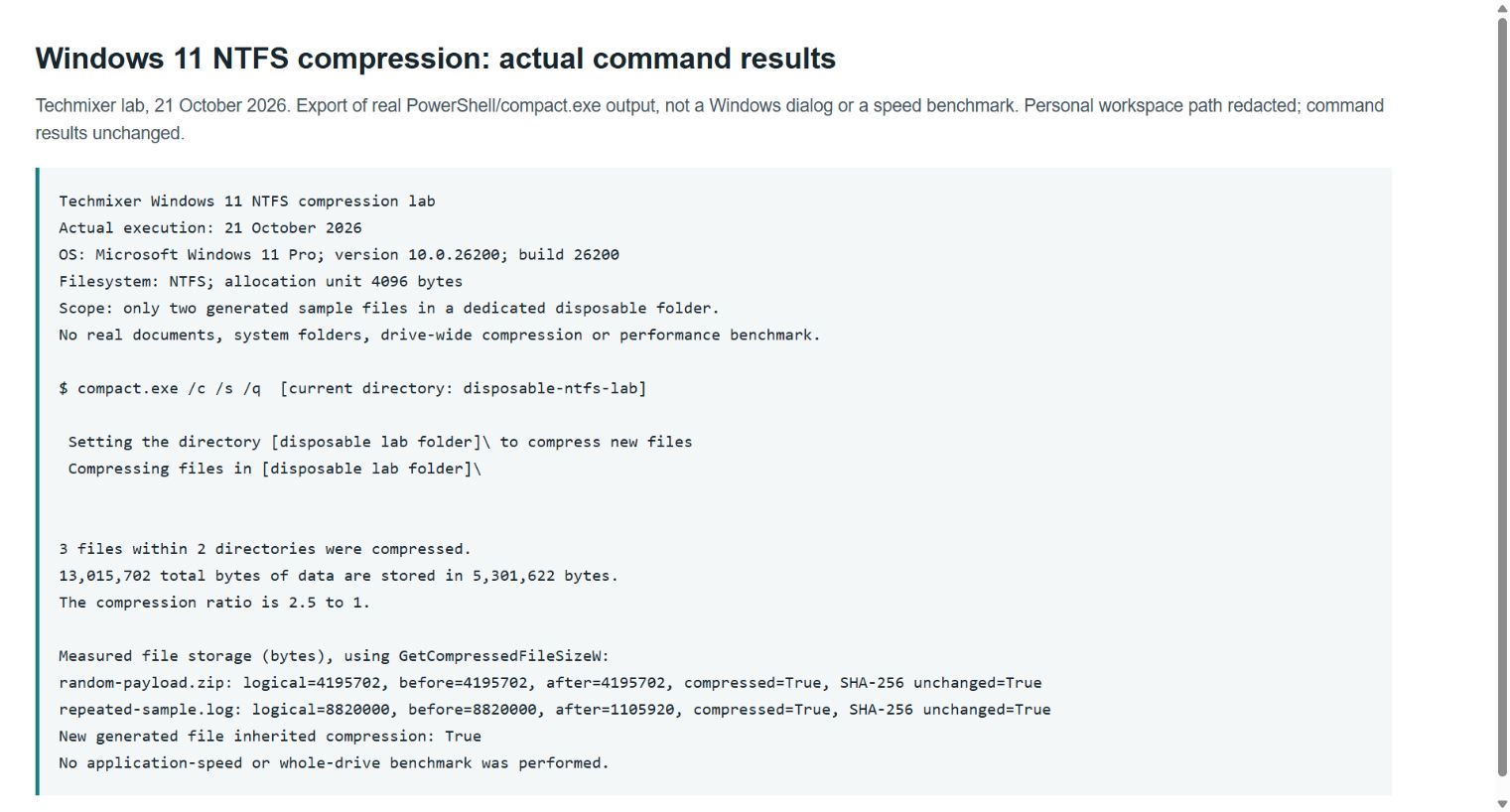
The text was generated to contain many repeated lines, so its result is not a prediction for a Documents folder. The ZIP was generated from random data to illustrate a poor candidate. These are controlled examples, not a survey of games, photos, work documents or every Windows application.
We also created a new sample file inside the compressed folder and verified that it inherited compression. That explains why enabling a folder’s default can affect files created there later. Check files individually rather than assuming every copied or moved item will behave identically.
Step 6: Check the files and your normal workload
Open the compressed copies in the apps you actually use. Read a document, search a log, or carry out a normal task. If the folder contains a supported editable document, test saving a disposable copy too. A storage saving alone does not establish that your workflow is unaffected.
For a more useful comparison, repeat the same task before and after, under similar conditions. Avoid comparing a cold first launch with a cached second launch, and do not treat a single stopwatch reading as a reliable benchmark.
Compression trades storage work against CPU work. Microsoft notes a higher overhead for traditional writable-file NTFS compression than its executable-optimized approaches in its Compact OS optimization guidance. The effect on your PC depends on the workload; a faster or slower outcome needs measurement, not an assumption.
If you recorded hashes in Step 3, this comparison should produce no output when the same paths still have the same hashes:
$afterHashes = Get-ChildItem -LiteralPath $test -File -Recurse |
    Get-FileHash -Algorithm SHA256
Compare-Object -ReferenceObject $beforeHashes `
    -DifferenceObject $afterHashes -Property Path, Hash
Techmixer’s two original samples retained matching hashes while compressed. That validates those files’ contents in this test, not the health of every file on a PC. We did not measure boot time, game frame rates, application launch speed or battery consumption.
Step 7: Undo compression if the saving is not worthwhile
To reverse the Explorer route, reopen the folder’s Advanced Attributes, clear Compress contents to save disk space and apply the change to the existing contents as well. Make sure there is enough free space for the expanded files before starting.
For files compressed using this guide’s ordinary NTFS command, use the matching reversal in the same test folder:
Push-Location -LiteralPath $test
try {
    compact.exe /u /s
} finally {
    Pop-Location
}
Check Properties again, read the command’s result, and reopen the files. In our lab, the original hashes still matched after decompression and the folder and files returned to an uncompressed state. We left the generated test folder uncompressed when finished.
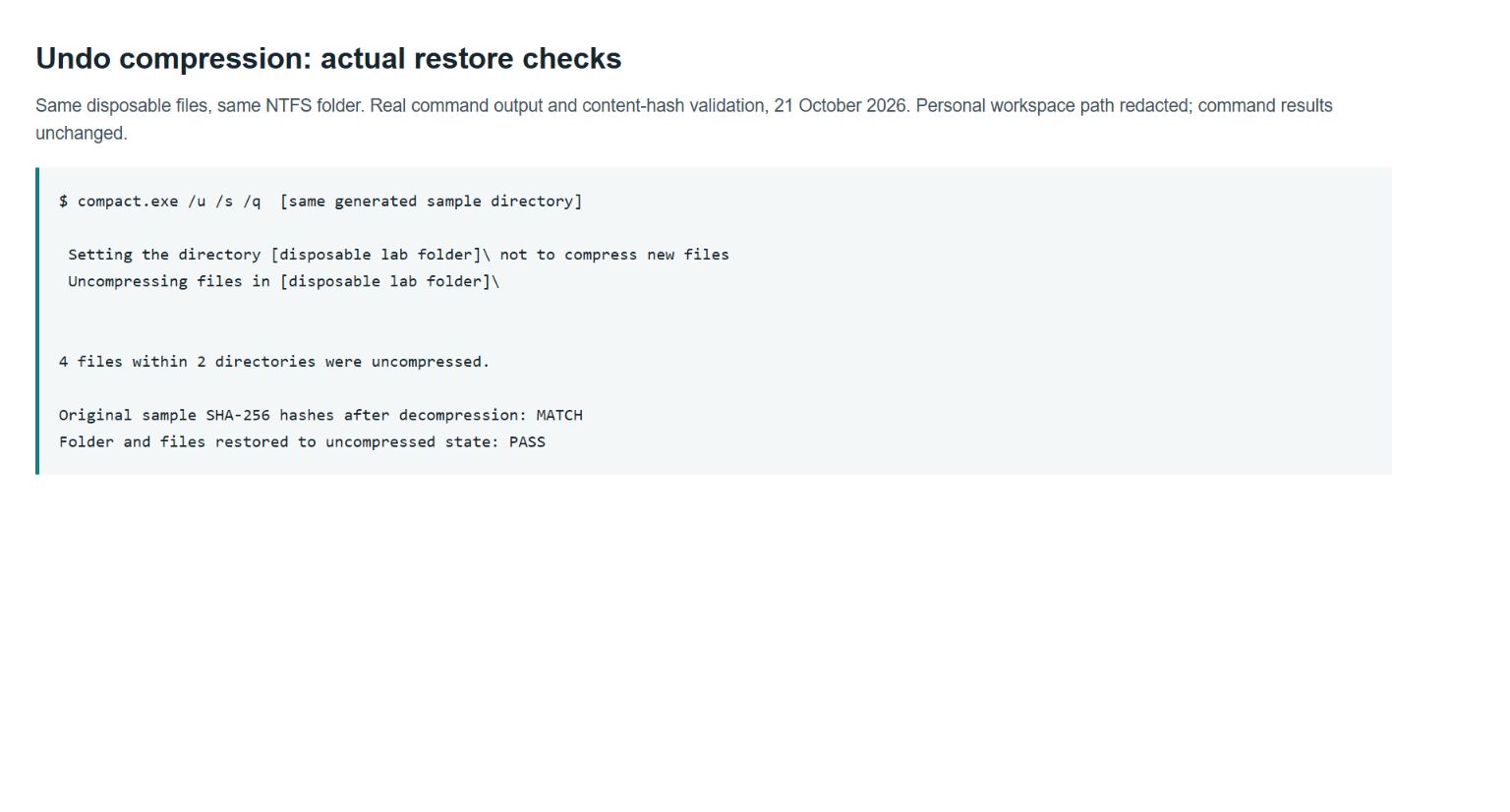
If an operation reports a failure, stop and read the affected path rather than repeatedly applying recursive commands. A drive with unexplained read errors is not a compression experiment; see our external-drive recovery mistakes guide before adding more writes.
Should you compress the whole Windows 11 drive?
Not as your first test. Windows does offer a drive-level option: File Explorer > This PC > drive Properties > General > Compress this drive to save disk space. Microsoft’s free-space support guide documents using it, including on the OS drive. That does not mean it is the right first move for every machine.
A whole drive contains a mixture of file types, permissions and workloads. Processing it can take time, some files may not be changed, and a broad operation is harder to evaluate than a selected data folder. A successful sample gives you a better basis for deciding whether any wider change is worth considering.
Our recommendation is to keep the scope narrow: compress a suitable, backed-up data folder when the measured saving is worthwhile. Leave a work-managed or mission-critical machine alone without its administrator’s approval. Do not infer a whole-drive recommendation from the synthetic text result above.
NTFS compression, ZIP and Compact OS are different choices
| Method | What you are changing | When it fits |
|---|---|---|
| Normal NTFS compression | How eligible files are stored on the NTFS volume; normal file access remains available. | Selected local folders you still want to use normally. |
| ZIP archive | A separate archive containing files. | Packaging and sharing files. See Microsoft’s ZIP instructions. |
| Compact OS / compact executable options | Specialized operating-system or executable-file compression. | A separate deployment or application-storage task, not the folder checkbox demonstrated here. |
Microsoft’s Compact OS documentation describes its role. Do not add Compact OS or executable-optimized switches to the commands in this guide: they change the operation and can change how reversal works.
When another storage fix is better
If temporary files or unused software are the problem, review cleanup options first. If most of your space is video and archives, moving a backed-up collection elsewhere may be more useful than another compression pass. Microsoft’s Storage Sense guide also explains cleanup and cloud-content settings; review those settings rather than enabling deletion rules blindly.
Cloud storage and a backup are separate decisions. Before removing local originals, check what your service actually retains and whether you can restore it. Our cloud storage and backup comparison explains the distinctions.
FAQ
For the file-encryption restriction below, see Microsoft’s EFS file-encryption reference.
Can the same file use EFS encryption and NTFS compression?
Not at the same time. Microsoft documents EFS file encryption and NTFS compression as mutually exclusive for a file. Do not turn off encryption to recover a little space; skip that file and follow your administrator’s policy. EFS is a file-level feature, not another name for every form of device encryption.
Will an NTFS-compressed file stay smaller when I email it?
Do not assume so. Applications normally read the original uncompressed contents of an NTFS-compressed file. Uploading or attaching it does not automatically package those contents as a smaller archive. If you need a compressed file for sharing, create a ZIP archive separately and check the resulting attachment size.
Related Techmixer guides
- Windows command-line tools for navigation and monitoring if you want to become more comfortable in a terminal.
- Techmixer Fix Guides for other Windows troubleshooting workflows.
Our take
Windows 11 drive compression is useful when you have the right files, not when you simply have a full drive. Try a small folder, record the result and keep the reversal straightforward. If the saving is negligible or the work becomes slower, leaving that folder uncompressed is a perfectly good outcome.
How we checked: Techmixer reviewed Microsoft’s documentation and ran the normal NTFS compression and decompression commands on generated files under Windows 11 Pro build 26200. We checked stored-byte values, compression attributes, inheritance for a newly created file and SHA-256 hashes. The screenshots are browser captures of exported real command output, with the private workspace path redacted. We did not compress user documents, modify the Windows drive’s global setting, exercise the Explorer dialogs or benchmark real applications.
Last reviewed: 21 October 2026.