The most useful VS Code alternatives solve different problems: Zed offers a native graphical editor with editable views across several files, Helix puts selection-first editing inside your terminal, and IntelliJ IDEA brings a project-aware Java and Kotlin IDE. Choose the one that fixes a recurring frustration in your work, not the one with the longest feature list.
Quick answer: Try Zed if you want to keep a graphical workflow, Helix if you already spend much of your day in a terminal, or IntelliJ IDEA if Java project navigation and refactoring are your main jobs. If your current debugger, remote setup and extensions work well, staying with VS Code is a reasonable outcome.
This comparison gives you a small trial for each editor and a migration checklist. It does not claim that any editor is faster on your computer.
What to know before trying VS Code alternatives
Separate the editor from the development environment. Opening a Python file does not install Python; opening a Java project does not necessarily select the correct Java Development Kit (JDK). Language servers, build tools, formatters and debuggers may still need their own setup.
Before moving, write down three things you cannot lose: perhaps a specific debugger, a remote development connection and a formatter your team requires. Those are your acceptance checks. A familiar theme is pleasant, but it will not fix a missing workflow.
Keep VS Code installed during the trial. Use a copied sample project or a clean branch, and avoid importing a large extension collection immediately. If your real problem is formatting or Git visibility, first check whether a smaller change to your VS Code extensions and built-in features would solve it.
Compare the 3 editors at a glance
| Editor | Best reason to try it | Platforms | Cost note | Main switching cost |
|---|---|---|---|---|
| Zed | Native GUI and editable cross-file views | Windows, macOS, Linux; check hardware requirements | Personal editor plan is free; hosted AI or your provider can cost extra | Verify replacement support for essential VS Code extensions and remote workflows |
| Helix | Terminal editing built around selections | Windows, macOS, Linux packages or binaries | Free, open-source editor; language tooling installed separately | Modal keys, language-server setup and no direct VS Code extension migration |
| IntelliJ IDEA | Java/Kotlin project analysis and refactoring | Windows, macOS, Linux; check current supported releases | Free core in the unified product; advanced Ultimate features require a subscription after the trial | Project/JDK configuration, feature-tier checks and a larger IDE environment |
Platform and cost details checked on 21 October 2026 against the official Zed installation guide, Zed plans, Helix installation guide and IntelliJ IDEA installation guide. These are not benchmark rankings.
Best choice by use case
- You want a different graphical editing experience: start with Zed and test one language before moving your daily work.
- You work through terminals and SSH: try Helix, provided you can allow time to learn its editing model.
- You maintain Java or Kotlin projects: evaluate IntelliJ IDEA using a real build and a small refactor.
- You rely on several specialist VS Code extensions: verify replacements first. Keeping VS Code for that project may be the better decision.
1. Zed: a graphical editor with a different cross-file workflow
Best for: developers who want a graphical editor and a practical reason to move beyond opening one file per tab. Zed’s multibuffers collect excerpts from different files into one editable view. For example, a project search can show several matching configuration entries together; edits affect the underlying files, so you still need to review every change.
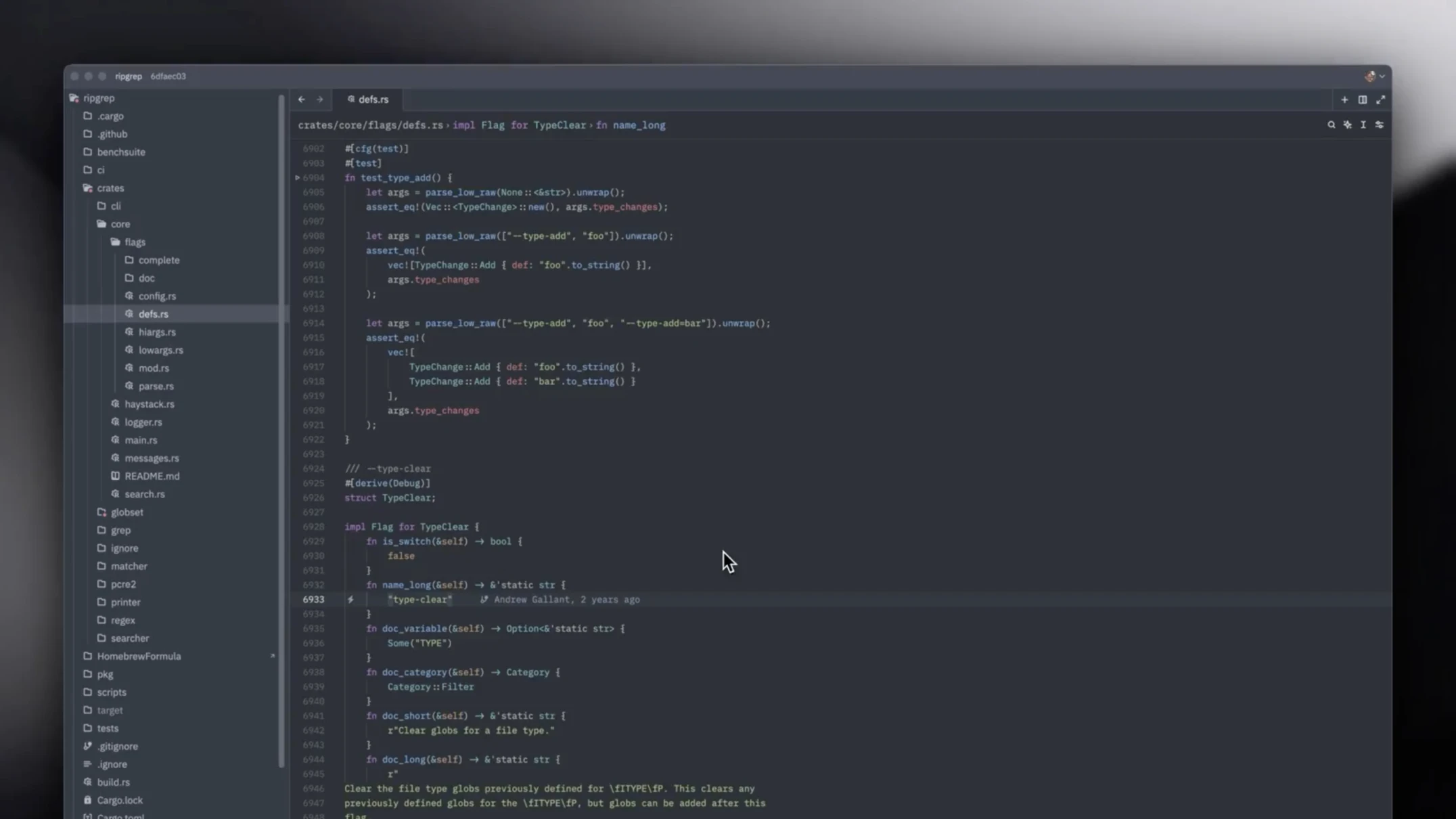
Zed’s attraction is not simply that it is written in Rust. A different implementation is not proof of better performance on your repository. The more useful question is whether its navigation, editing and project tools reduce the work you repeatedly do.
Where it helps: consider a small website where a product name appears in a configuration file, a component and a test. A multibuffer lets you inspect relevant excerpts together. That can make the task easier to understand than cycling between unrelated tabs, although textual matches are not automatically safe semantic renames.
How to try Zed without replacing your setup
- Download the stable build for your operating system from the official Zed download page. Windows is now supported; the installation guide lists supported versions and graphics requirements. Do not rely on older macOS-only comparisons.
- Open a disposable project folder. On Windows/Linux, the documented open-folder shortcut is
Ctrl+O; on macOS it isCmd+O. The getting-started guide lists the other main commands. - Set up the project’s language support, then search for a harmless phrase across two sample files. Inspect the excerpts, change only the intended occurrence and save.
- Check the saved files and your Git diff. Then try your actual formatter and debugger before calling the migration successful.
Limitation: Zed is not a drop-in host for your entire VS Code extension collection. Its migration guide documents settings import and workflow differences; importing preferences is not the same as transferring every extension or remote configuration.
Cost: the Personal editor plan is listed at $0. Zed-hosted AI plans and usage, external agent subscriptions or API providers are separate decisions. You can assess the editor without turning on a paid AI workflow. Check the current plan before connecting a billing account.
2. Helix: terminal editing that starts with a selection
Best for: developers comfortable in terminals who want an editing model built around selecting text and then acting on it. Helix’s usage guide explains normal, insert and select modes. This is a bigger change in habits than choosing a new theme or shortcut profile.
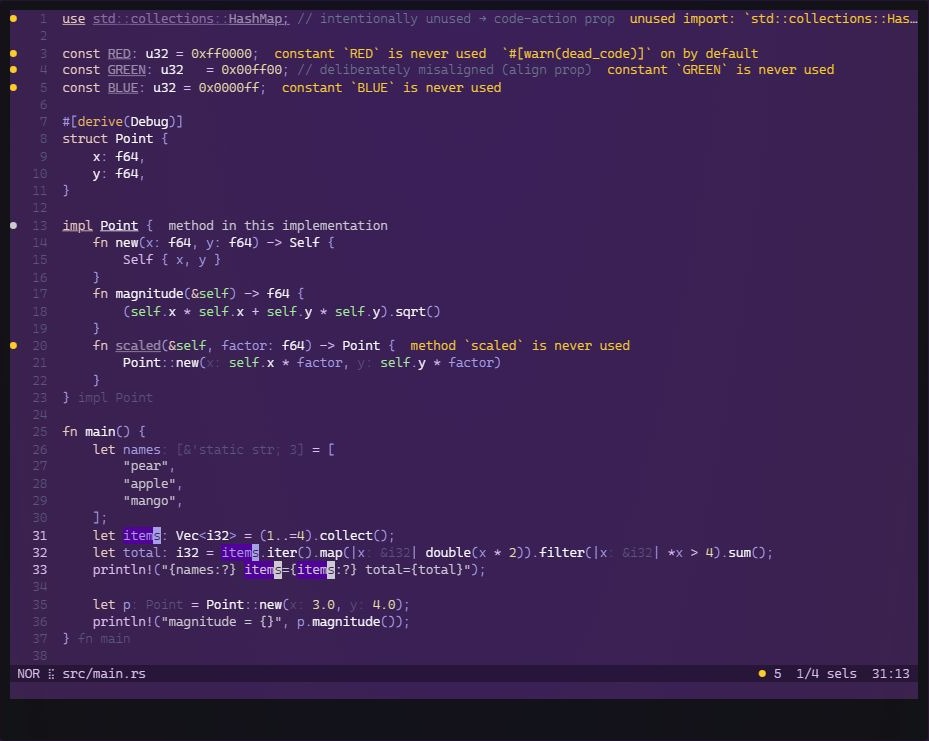
What it does: Helix combines multiple selections, syntax-aware navigation and language-server support in a terminal editor. A language server is a separate program that can provide features such as diagnostics and go-to-definition. Syntax colouring alone does not prove that this deeper support is working.
Where it helps: if you already connect to a development machine through SSH, a terminal editor can fit that environment without requiring a local graphical project window. It still needs to be installed and configured on the machine where you run it. Terminal, clipboard and language-tool behaviour deserve a check before using it for important work.
How to make a first Helix session manageable
- Follow the official installation guide for your operating system. If using a prebuilt archive, keep the matching
runtimefiles available as documented; copying only the executable can leave an incomplete setup. - Start the interactive tutorial with the command below. Learn how to enter insert mode, return to normal mode, save and quit before opening a work project.
- Run the health check. Install the language server your project needs, then check the relevant entry again. The language configuration documentation explains how server settings are resolved.
- Open a throwaway text file and practise selecting a word, changing it and undoing the change. Only then try a small source file and verify navigation and diagnostics.
hx --tutor
hx --health
Expected result: the first command opens Helix’s tutorial; the second reports language/tooling and runtime health. A missing language server is a setup issue to resolve, not evidence that the editor cannot highlight the language.
Limitation: the official Helix site still states that a plugin system is not currently available. Do not expect VS Code extensions to transfer or assume a favourite debugger and AI extension have direct replacements. Helix is free and open source, but the time spent changing editing habits is a real cost. Its official repository provides releases, source and the MPL-2.0 licence.
3. IntelliJ IDEA: a project-aware IDE for Java and Kotlin
Best for: Java and Kotlin developers whose recurring work involves understanding a project, navigating references and changing code safely. IntelliJ IDEA is an integrated development environment, or IDE: the project model, code analysis and development tools are central to the experience rather than an incidental collection of editor add-ons.
Where it helps: imagine renaming a Java method used in several classes. A refactoring operation can reason about references instead of blindly replacing every matching string. That distinction matters when an identical name also appears in comments or unrelated code. JetBrains documents a refactoring preview so you can inspect intended changes before applying them.
That is a reason to evaluate the IDE, not a claim that VS Code cannot refactor Java. Compare both tools on the language and project you actually use.
How to try IntelliJ IDEA with a small Java project
- Install IntelliJ IDEA from JetBrains’ official download page or its documented Toolbox route. Since version 2025.3, the current product uses one unified distribution; older Community-versus-Ultimate installation advice may be stale.
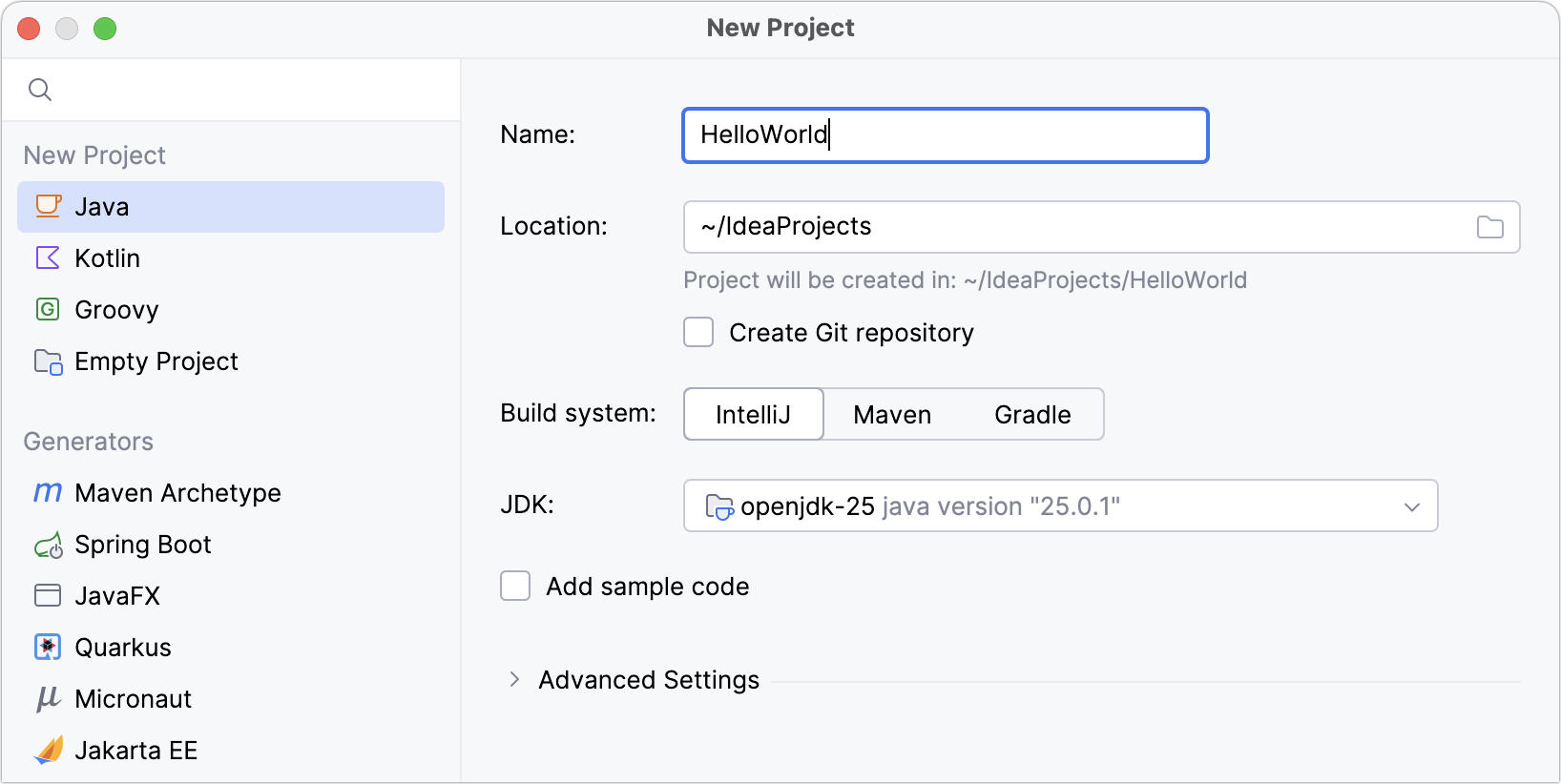
- Choose New Project, select Java and use a separate test directory. Select the JDK appropriate to the example or project. The IDE’s bundled runtime lets the IDE run, but Java development still needs a project JDK.
- Follow JetBrains’ first Java application tutorial. Its current compact-source example requires Java 25 or later. That requirement belongs to the tutorial, not every existing Java project.
- Run the example, inspect the output, then add a second reference to a method and preview a rename. Review the diff and run again. For an existing Maven or Gradle project, also check its own build and tests.
Cost and limits: the unified IntelliJ IDEA keeps core functionality free, while advanced Ultimate tooling is subscription-based after the trial. JetBrains’ unified release announcement explains the change. Check the exact framework and feature you need; a feature visible during a trial may not belong to the free core.
IntelliJ IDEA is also not the default answer for every language. If your job is mostly small scripts or quick configuration changes, adopting a Java-focused IDE may add more project setup than useful capability.
A small migration trial before you commit
Use the same modest task in your current editor and your chosen alternative. The worksheet below is a suggested evaluation method, not a set of Techmixer benchmark results.
| Check | Try this | What counts as useful evidence? |
|---|---|---|
| Navigation | Find a symbol, its definition and two references | The correct locations open without falling back to manual search |
| Safe editing | Make one small change across two files | The diff contains only intended edits, and tests still pass |
| Tooling | Run the required formatter, build and debugger | Your existing workflow works, not just the demonstration file |
| Recovery | Close, reopen and return to the same task | You can resume work and return to VS Code without losing changes |
For a concrete example, take a small web project: open its README, navigate to a function, change one display label, run its existing checks and inspect the diff. If you cannot complete a required action, record the blocker instead of spending the trial rebuilding your entire environment.
Keep a copy of settings you change. Before substantial project work, use a suitable backup approach such as the options in our Windows backup software guide. A Git commit is useful for tracked source, but it is not a backup of every local setting or untracked file.
Stop the migration if it depends on an unmaintained workaround for an essential tool, breaks a team requirement or takes more effort than the original problem warrants. You can use different editors for different projects.
Questions before switching
Do I need to convert my source files to use another editor?
Ordinary source files stay in their existing programming language and repository format. Changing editors does not require translating your application. Editor-specific workspace files, launch settings and extension configuration may not transfer, however. Test line endings, encoding and formatting on a small sample before letting a new editor rewrite a larger project.
Can teammates use different code editors on the same project?
Often, yes: agree on the project toolchain, formatter, lint rules and tests rather than requiring identical personal themes or shortcuts. Keep shared configuration in the repository where appropriate and avoid committing personal editor settings unintentionally. Follow any team policy that requires a particular IDE, security control or supported development environment.
Related Techmixer guides
- Install and set up VS Code on Linux and macOS
- Try three Windows CLI tools for a terminal workflow
- Explore Techmixer’s software guides
Our take
Start with the problem you can name. Zed deserves a look when its cross-file graphical workflow appeals to you; Helix makes more sense when terminal editing is already part of your day; IntelliJ IDEA has the clearest case when Java/Kotlin project tooling is the task. None needs to replace VS Code everywhere.
Method and limits: this is a documentation-led comparison by Techmixer. Official features, installation instructions and cost boundaries were checked, and the three interface examples were inspected. The screenshots are attributed maintainer examples, not our local installations. We did not benchmark memory, startup time, battery life or a production repository; the trial steps are suggested checks, not claimed completed tests.
Last reviewed: 21 October 2026.