
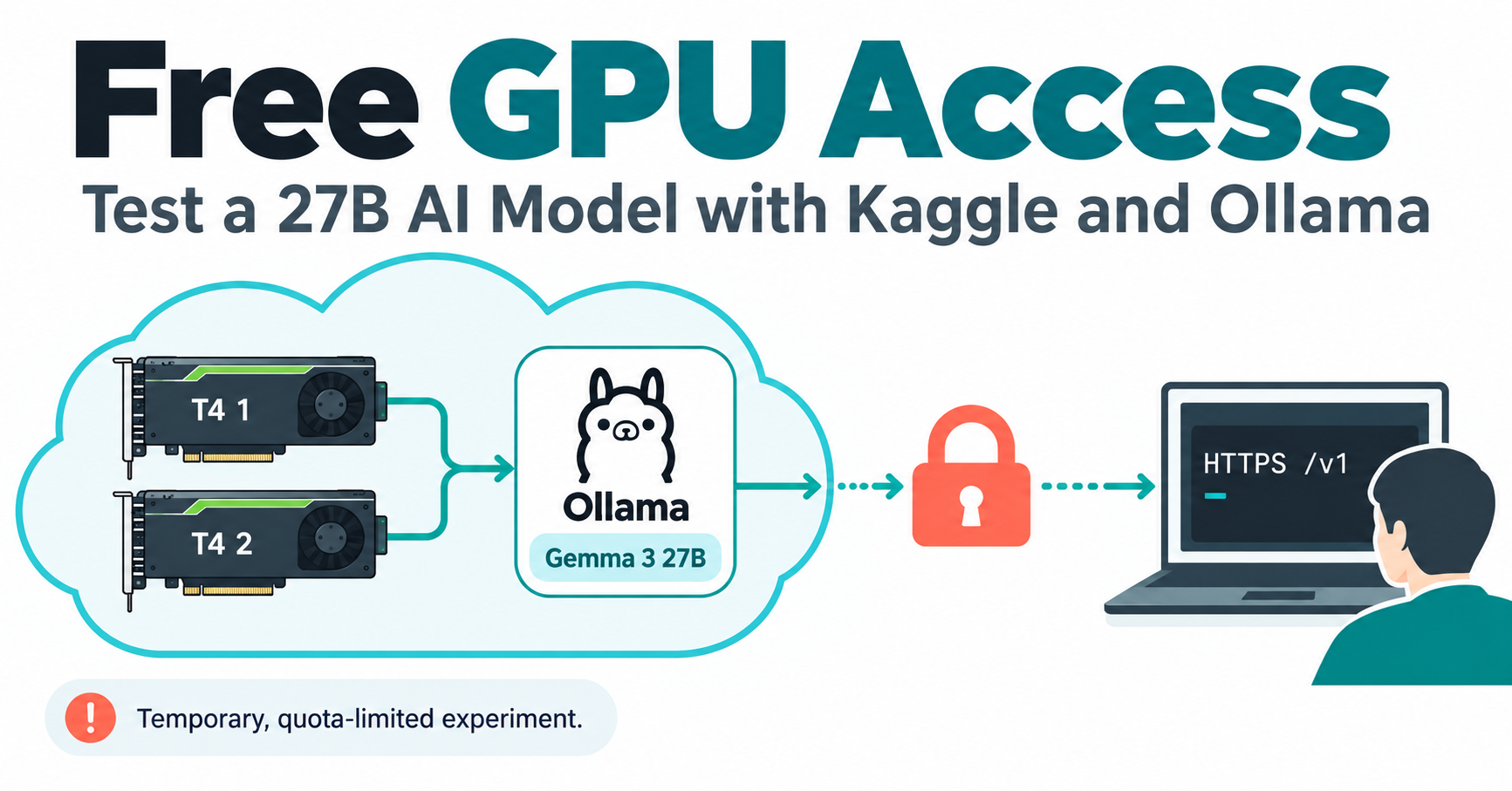
You can run Ollama on Kaggle using free GPU access for a short, personal AI experiment when your account has an available GPU allocation. A dual-T4 notebook may be able to run a quantized 27B AI model, but that needs a real memory check. It is not an unlimited AI server, guaranteed 24/7 hosting or a private replacement for your own workstation.
Quick Answer
Start with a small model, confirm GPU inference, then try gemma3:27b at a modest context length. Keep requests inside the notebook first. If you need access from your own computer, put an authenticated gateway in front of Ollama and use non-streaming requests. Do not expose port 11434 directly: its local API does not enforce a placeholder API key.
What to Know Before Using Free GPU Access
This guide is for personal, non-commercial learning. Kaggle’s terms describe personal, non-commercial use, while its acceptable-use policy prohibits resource abuse, server farming and circumventing the service. This is not a plan for a customer-facing SaaS backend. If your intended remote use is unclear, ask Kaggle before proceeding.
- Account access: complete verification if Kaggle requests it, including phone verification where applicable. GPU availability and remaining quota are determined by your account, not this article.
- Weekly limits: Kaggle’s GPU guidance describes a weekly quota of 30 hours or sometimes more depending on demand and resources. Check the actual allowance and session limits in the notebook. Availability is not guaranteed.
- Internet and disk: model downloads require permitted internet access and enough free disk for the download and working files. A model download is not the same thing as runtime VRAM usage.
- Privacy: inference happens on Kaggle infrastructure. Remote traffic also passes through Cloudflare. Use public or synthetic examples, not secrets, customer records or confidential source code.
- Budget: eligible notebook GPU time can be no-cost within the allowance. Paid APIs, different hosting plans and your internet connection remain separate. Do not select a paid upgrade just to complete this tutorial.
The instructions below combine official documentation with a small original gateway example. Techmixer tested the gateway locally against mock inference, but did not allocate Kaggle GPUs or measure a 27B model in this task. Treat the notebook commands as a reviewable setup recipe, not a tested performance guarantee.
How Free GPU Access Works with Kaggle and Ollama
The simplest useful setup is the notebook talking to Ollama on loopback. Remote access adds an optional layer: your computer sends a bearer-authenticated request through HTTPS to a restricted gateway, which forwards one permitted text-chat request to Ollama. The tunnel must target the gateway, not the unrestricted Ollama service.
| Component | Role | Important boundary |
|---|---|---|
| Kaggle notebook | Temporary GPU environment | Quota, availability, session limits and usage policy |
| Ollama | Download and run an open-weight model | Memory, driver compatibility and model license |
| Token gateway | Restrict remote requests | Single-user demo, not a production security perimeter |
| Cloudflare Quick Tunnel | Temporary HTTPS route | No uptime guarantee or SSE support |
| Local Python client | Send a short text-chat request | No promise of coding-agent or tool-calling compatibility |
Step 1: Check Kaggle Free GPU Access and Both GPUs
Create a private Python notebook on Kaggle. In the available settings, select Accelerator > GPU T4 x2 if offered. Enable internet access only through Kaggle’s supported controls. If the accelerator is unavailable, do not create extra accounts or use workarounds to evade the limit.

Run this in a notebook cell:
!nvidia-smi
!nvidia-smi --query-gpu=index,name,memory.total,memory.free,driver_version --format=csv
!df -h /kaggle/working
Look for two T4 rows and read their reported free memory. The often-quoted roughly 30 GB figure is the sum of two devices’ reported memory, not one shared 30 GB card. Other allocations and runtime overhead reduce the usable amount. Save the actual device and driver details with your experiment notes.
Stop here if: only one device appears, GPU time is exhausted, internet is blocked or there is insufficient disk space. NVIDIA’s Kaggle setup documentation illustrates the accelerator menu; it does not guarantee your account receives that hardware.
Step 2: Install Ollama from Its Official Source
Download the installer into the temporary workspace rather than immediately piping an unseen script into a shell:
!curl -fsSL https://ollama.com/install.sh -o /kaggle/working/install-ollama.shOpen and review the downloaded script before running it. Installation can change packages, create a service user and require suitable permissions. These commands belong in the disposable Kaggle notebook, not blindly in your own terminal.
!sh /kaggle/working/install-ollama.sh
!ollama --version
The official Linux guide documents the installer. A notebook is not necessarily a systemd host, so a service-manager warning does not prove inference is impossible; start the daemon explicitly in the next step. If installation exits with an error, read it before continuing.
Also compare the driver shown by nvidia-smi with Ollama’s current hardware requirements. T4 hardware support alone does not prove the managed notebook driver is compatible with the newest Ollama release. Do not replace Kaggle’s drivers to force this recipe to work.
Step 3: Run Ollama on Kaggle with a Loopback-Only Server
Run the following Python cell once in a fresh session. Environment variables must be set for the daemon before it starts; changing them later in an unrelated shell cell will not reconfigure an existing process.
import os
import subprocess
import time
import requests

env = os.environ.copy()
env.update({
    "OLLAMA_HOST": "127.0.0.1:11434",
    "OLLAMA_MODELS": "/kaggle/working/ollama-models",
    "OLLAMA_CONTEXT_LENGTH": "4096",
    "OLLAMA_NUM_PARALLEL": "1",
    "OLLAMA_MAX_LOADED_MODELS": "1",
    "OLLAMA_KEEP_ALIVE": "5m",
    "OLLAMA_NO_CLOUD": "1",
})
try:
    requests.get("http://127.0.0.1:11434/api/version", timeout=2).raise_for_status()
except requests.RequestException:
    pass
else:
    raise RuntimeError("Ollama already runs; stop that server before changing its settings")

ollama_log = open("/kaggle/working/ollama.log", "w")
ollama_proc = subprocess.Popen(["ollama", "serve"], env=env,
                               stdout=ollama_log, stderr=subprocess.STDOUT)
for _ in range(30):
    if ollama_proc.poll() is not None:
        raise RuntimeError("Ollama exited; inspect the private log")
    try:
        response = requests.get("http://127.0.0.1:11434/api/version", timeout=2)
        response.raise_for_status()
        print(response.json())
        break
    except requests.RequestException:
        time.sleep(1)
else:
    raise RuntimeError("Ollama did not become ready")
A successful check returns version information. The explicit small context and single-request setting are conservative starting choices, not a performance tuning formula. Ollama’s context documentation explains that larger context uses more memory. Keeping cloud features disabled avoids unintentionally selecting a hosted model; it does not make Kaggle local to your computer.
Step 4: Start Small, Then Download a Real 27B AI Model
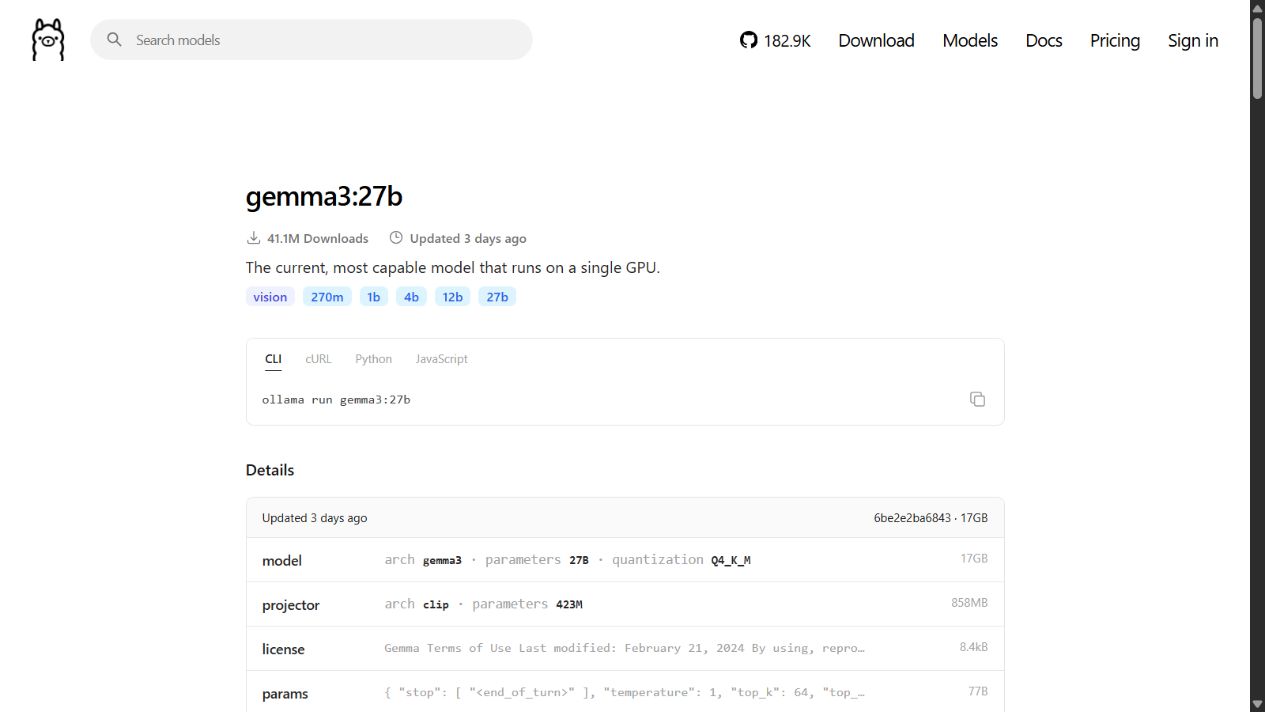
The supplied command qwen2.5:27b-instruct-q4_K_M is not an official Qwen 2.5 tag. Its published size list includes 32B, not 27B. For a 27B example, use Gemma 3 27B; its listing showed Q4_K_M and an approximately 17 GB download when reviewed.
First pull a smaller model to establish that downloading and inference work:
!ollama pull gemma3:4b
!ollama run gemma3:4b "Explain a GPU in one sentence."
!ollama stop gemma3:4b
Then, if the memory and disk checks support trying the larger model:
!ollama pull gemma3:27b
!ollama list
Expected result: the model appears in the local list. That does not yet prove it fits entirely on the GPUs. Weights, KV cache and other buffers all matter. Review the Gemma model terms before use; open weights do not mean unrestricted licensing.
Step 5: Generate Locally and Measure, Don’t Guess
Send a short request inside the notebook before adding any networking:
payload = {
    "model": "gemma3:27b",
    "prompt": "Explain why two GPUs do not behave like one larger GPU.",
    "stream": False,
    "keep_alive": "5m",
    "options": {"num_ctx": 4096, "num_predict": 128},
}
result = requests.post("http://127.0.0.1:11434/api/generate",
                       json=payload, timeout=300)
result.raise_for_status()
data = result.json()
print(data["response"])
duration = data.get("eval_duration", 0)
if duration:
    print("Decode tokens/sec:", round(data["eval_count"] * 1e9 / duration, 2))

!ollama ps
!nvidia-smi
Ollama’s generation response includes output-token counts and nanosecond durations. The calculation measures decoding, not complete user-visible latency. Record first-call loading separately, repeat a comparable prompt, and note the model, context, quantization and environment.
The Ollama FAQ describes spreading a model across available GPUs when it cannot fit on one. Inspect both GPUs and the private server logs rather than assuming that two listed devices prove two-device inference. ollama ps identifies CPU/GPU placement but is not a per-device throughput benchmark.
Keep-alive is not memory pinning or multi-token prediction. It controls how long a model remains loaded between requests. It does not prevent Kaggle from ending the session. There is no generic MTP switch established for this Gemma 3 recipe, and Techmixer has no measurement supporting 16.2 tokens/sec. If the model falls back to CPU or fails to load, reduce the context or use the smaller model instead of promising a comfortable fit.
Step 6: Add Authentication Before Any Remote Access
Skip Steps 6-8’s remote connection if notebook-only inference meets your needs. Ollama’s local API needs no authentication. A client sending api_key="ollama" has not protected that service.
For a short personal test, the example below adds a random bearer token, allows only a fixed model and two routes, rejects streaming and administrative calls, caps short text requests, and allows one inference at a time. It also limits accepted chat attempts to ten per minute. It is deliberately not a general-purpose coding-agent backend or production-grade server.
Generate a long random secret using a trusted password manager or a local Python command such as secrets.token_urlsafe(32). Keep it outside notebook source, outputs and public repositories. Enter it through a hidden prompt in your private notebook; do not use ollama or a memorable password.
If the notebook warns that password input cannot be hidden, cancel the prompt. Use Kaggle’s supported secret storage instead, or keep the experiment notebook-only. Never replace the hidden prompt with an ordinary visible input field.
import getpass
token = getpass.getpass("Paste a long random test token: ")
if len(token) < 32:
    raise ValueError("Use a long random token")
In a new notebook cell, save this gateway using %%writefile /kaggle/working/auth_proxy.py as the first line, followed by the code in the expandable block. Python’s HTTP server documentation explicitly warns that this server is not recommended for production.
Show the single-user test gateway code
"""Single-user, text-only experiment gateway. Not a production server."""
import json
import os
import secrets
import socket
import threading
import time
import urllib.error
import urllib.request
from http.server import BaseHTTPRequestHandler, ThreadingHTTPServer

MODEL = "gemma3:27b"
TOKEN = os.environ.get("AI_TEST_TOKEN", "")
UPSTREAM = "http://127.0.0.1:11434"
SLOT = threading.BoundedSemaphore(1)
LOCK = threading.Lock()
RECENT = []


class Handler(BaseHTTPRequestHandler):
    def setup(self):
        super().setup()
        self.connection.settimeout(10)

    def log_message(self, *args):
        pass  # Do not write prompts, headers or credentials into notebook logs.

    def send_json(self, status, payload):
        body = json.dumps(payload).encode()
        self.send_response(status)
        self.send_header("Content-Type", "application/json")
        self.send_header("Content-Length", str(len(body)))
        self.send_header("Cache-Control", "no-store")
        self.end_headers()
        self.wfile.write(body)

    def authorized(self):
        value = self.headers.get("Authorization", "")
        if not secrets.compare_digest(value.encode(), ("Bearer " + TOKEN).encode()):
            self.send_json(401, {"error": "Authentication required"})
            return False
        return True

    def do_GET(self):
        if not self.authorized():
            return
        if self.path != "/v1/models":
            self.send_json(404, {"error": "Route not available"})
            return
        self.send_json(200, {"object": "list", "data": [
            {"id": MODEL, "object": "model", "created": 0, "owned_by": "local"}
        ]})

    def do_POST(self):
        if not self.authorized():
            return
        if self.path != "/v1/chat/completions":
            self.send_json(404, {"error": "Route not available"})
            return
        try:
            length = int(self.headers.get("Content-Length", "0"))
            if not 0 < length <= 65536 or self.headers.get("Transfer-Encoding"):
                raise ValueError("Use a JSON body of at most 64 KiB")
            data = json.loads(self.rfile.read(length))
            if not isinstance(data, dict):
                raise ValueError("Expected a JSON object")
            if set(data) - {"model", "messages", "stream", "max_tokens"}:
                raise ValueError("This example accepts text chat only")
            if data.get("model") != MODEL or data.get("stream", False) is not False:
                raise ValueError("Use the listed model and stream=false")
            messages = data.get("messages")
            if not isinstance(messages, list) or not 1 <= len(messages) <= 16:
                raise ValueError("Use 1-16 text messages")
            for message in messages:
                if not isinstance(message, dict) or set(message) != {"role", "content"}:
                    raise ValueError("Each message needs role and content only")
                if message["role"] not in {"system", "user", "assistant"} or not isinstance(message["content"], str):
                    raise ValueError("Unsupported message")
            if sum(len(m["content"]) for m in messages) > 6000:
                raise ValueError("Shorten the text for this experiment")
            count = data.get("max_tokens", 256)
            if type(count) is not int or not 1 <= count <= 256:
                raise ValueError("max_tokens must be 1-256")
        except (ValueError, TypeError, socket.timeout) as exc:
            self.send_json(400, {"error": str(exc)})
            return
        with LOCK:
            now = time.monotonic()
            RECENT[:] = [t for t in RECENT if now - t < 60]
            allowed = len(RECENT) < 10
            if allowed:
                RECENT.append(now)
        if not allowed or not SLOT.acquire(blocking=False):
            self.send_json(429, {"error": "Busy; wait before retrying"})
            return
        try:
            payload = {"model": MODEL, "messages": messages, "stream": False, "max_tokens": count}
            request = urllib.request.Request(
                UPSTREAM + "/v1/chat/completions", json.dumps(payload).encode(),
                {"Content-Type": "application/json"}, method="POST"
            )
            with urllib.request.urlopen(request, timeout=90) as response:
                result = json.load(response)
            self.send_json(200, result)
        except (urllib.error.URLError, ValueError, socket.timeout):
            self.send_json(502, {"error": "Inference failed; check private Ollama logs"})
        finally:
            SLOT.release()


if __name__ == "__main__":
    if len(TOKEN) < 32 or TOKEN in {"ollama", "CHANGE_ME"}:
        raise SystemExit("Set a long random AI_TEST_TOKEN before starting")
    ThreadingHTTPServer(("127.0.0.1", 8000), Handler).serve_forever()
Start the gateway and verify that missing credentials are rejected locally:
proxy_env = os.environ.copy()
proxy_env["AI_TEST_TOKEN"] = token
proxy_log = open("/kaggle/working/proxy.log", "w")
proxy_proc = subprocess.Popen(
    ["python", "/kaggle/working/auth_proxy.py"], env=proxy_env,
    stdout=proxy_log, stderr=subprocess.STDOUT,
)
for _ in range(30):
    if proxy_proc.poll() is not None:
        raise RuntimeError("Gateway exited; inspect the private log")
    try:
        check = requests.get("http://127.0.0.1:8000/v1/models", timeout=2)
        assert check.status_code == 401, "Do not expose an unprotected gateway"
        break
    except requests.ConnectionError:
        time.sleep(1)
else:
    raise RuntimeError("Gateway did not become ready")
authorized = requests.get("http://127.0.0.1:8000/v1/models",
                         headers={"Authorization": "Bearer " + token}, timeout=5)
authorized.raise_for_status()
Verification boundary: Techmixer passed six local mock-test methods covering authentication, route restrictions, text forwarding, size/rate/concurrency limits and upstream failure. Mock responses are not model output, and these checks are not a security certification. A public URL can still receive hostile traffic; keep the test short and stop if anything unexpected occurs.
Step 7: Create an Optional Tunnel to the Gateway
Only proceed for your own permitted ML experiment. If Kaggle blocks the connection or your use is not allowed, stop; a tunnel is not a way around platform restrictions. Download cloudflared from its official 2026.10.0 release, checking the Linux amd64 checksum listed there before executing the binary.
!curl -fL https://github.com/cloudflare/cloudflared/releases/download/2026.10.0/cloudflared-linux-amd64 -o /kaggle/working/cloudflared
!sha256sum /kaggle/working/cloudflared
Do not continue if the checksum differs from the official release. After verifying it:
!chmod +x /kaggle/working/cloudflared
! /kaggle/working/cloudflared --version
Start the tunnel as a tracked process, targeting port 8000, not Ollama’s port 11434:
tunnel_log = open("/kaggle/working/tunnel.log", "w")
tunnel_proc = subprocess.Popen([
    "/kaggle/working/cloudflared", "tunnel", "--url", "http://127.0.0.1:8000"
], stdout=tunnel_log, stderr=subprocess.STDOUT)
Read the private tunnel log to find the generated https://...trycloudflare.com address. Keep it out of public notebook outputs and do not publish the token. An anonymous request to that URL’s /v1/models must return 401. Do not continue if it returns model data.
Cloudflare’s Quick Tunnel documentation states that the service has no uptime guarantee, changes hostname on a new run and does not support Server-Sent Events. Its email-protected mode requires an interactive browser, so it is not a drop-in authentication method for a headless API client. This recipe uses gateway bearer authentication and stream=False instead.
Step 8: Make One Client Request, Then Shut Down
Run this Python example on your own computer, not in a publicly shared notebook. Replace the URL with the gateway tunnel address and enter the same secret when prompted. This example needs the requests package; use your project’s virtual environment if it is not already installed.
import getpass
import requests

base = "https://YOUR-TUNNEL.trycloudflare.com"
key = getpass.getpass("Gateway token: ")
assert requests.get(base + "/v1/models", timeout=15).status_code == 401
response = requests.post(
    base + "/v1/chat/completions",
    headers={"Authorization": "Bearer " + key},
    json={
        "model": "gemma3:27b",
        "messages": [{"role": "user", "content": "Explain a Python list in two sentences."}],
        "stream": False,
        "max_tokens": 128,
    },
    timeout=100,
)
response.raise_for_status()
print(response.json()["choices"][0]["message"]["content"])
Expected result: an unauthorized request gets 401; the authorized request returns a normal text answer if the model is ready and networking works. A successful model-list response alone is not proof of inference.
Can OpenCode, Hermes or a VS Code assistant use it?
Do not assume so. Ollama offers a subset of OpenAI-compatible endpoints, but a client may also need SSE streaming, structured tool calls, longer context or other request fields. This deliberately restricted gateway rejects those features. Its client base URL is the tunnel address plus /v1, and its API key is the real gateway secret, not a placeholder. Only configure a tool after verifying it supports this exact non-streaming text-only mode; no such agent integration was tested here.
For an autonomous coding agent, choose a backend and model designed for its protocol and a supported hosting environment. A 27B parameter count alone does not establish coding reliability. Review proposed commands and changes before execution.
Stop every process you started
After the test, run this back in the notebook. Export useful non-secret notes first; a new session may require downloading models again.
for name in ("tunnel_proc", "proxy_proc"):
    process = globals().get(name)
    if process is not None and process.poll() is None:
        process.terminate()
        process.wait(timeout=15)

subprocess.run(["ollama", "stop", "gemma3:27b"], check=False)
if ollama_proc.poll() is None:
    ollama_proc.terminate()
    ollama_proc.wait(timeout=15)
for name in ("tunnel_log", "proxy_log", "ollama_log"):
    handle = globals().get(name)
    if handle is not None:
        handle.close()
token = None
globals().get("proxy_env", {}).pop("AI_TEST_TOKEN", None)
Then stop the Kaggle session in its UI and verify that the remote URL no longer reaches the gateway. Clear the saved secret from any password-manager entry you created solely for this test, or rotate it before another run. Do not run idle-prevention loops, repeated account switching or automatic restarts to bypass quota limits.
Troubleshooting and When to Stop
| Symptom | Check first | Next sensible action |
|---|---|---|
| GPU selector unavailable | Verification, allocation and remaining quota | Wait or use permitted different hardware; do not evade limits |
| Model tag not found | Exact official model name | Use a listed tag, not the nonexistent Qwen 2.5 27B example |
| CPU inference or memory error | Driver support, free VRAM, context and private logs | Try the smaller model or stop; don’t force driver changes |
| Unauthorized client | Real gateway token and bearer header | Re-enter the secret privately; never turn authentication off |
| 400 or 429 response | Text-only schema, stream=false, short input and concurrency | Reduce the request or wait; no immediate retry loop |
| 502 or timeout | Local inference, warm-up, session and tunnel logs | Fix the local problem before testing remote access again |
| Agent fails despite working text request | Streaming, tools, request fields and model capabilities | Use a supported backend instead of loosening the demo gateway |
Who Should Use This Setup?
Good fit: an individual learner comparing a short prompt on two model sizes, measuring inference or learning how loopback APIs and authentication fit together. Notebook-only use is the simplest choice.
Poor fit: commercial applications, shared public endpoints, confidential datasets, unattended agents and workloads requiring dependable uptime. If you need a longer-lived CPU service, our Oracle Cloud AI server guide covers a different tradeoff, not equivalent free GPU capacity.
FAQ
Can I train a 27B model with this inference setup?
Not with these instructions. Running quantized model weights for inference is a different workload from training or fine-tuning. Training needs its own memory planning, data preparation, optimizer setup and validation; successful inference does not establish that the same hardware can train the model.
Do I need a paid OpenAI API key for this example?
No. The example sends requests to your own restricted gateway and a downloaded Ollama model, not to OpenAI. Its bearer token is a secret you create for the gateway. Separate paid APIs used by another application would have their own credentials and costs.
Are two T4 GPUs automatically faster than one high-end GPU?
No. Combined memory capacity and generation speed are different questions. Model placement, device-to-device transfers, context and the inference runtime affect the result. Measure the actual workload; this guide contains no benchmark comparing dual T4s with a high-end desktop GPU.
Related Techmixer Guides
- AI tools and practical workflows.
- Learn AI engineering from scratch before moving to larger models.
- Train an LLM from scratch: training and inference are different workloads.
- FreeLLMAPI prototype guide for a separate API-based approach and its limits.
- Set up VS Code on Linux and macOS for local client development.
Our Take
Kaggle’s free GPU access is worth exploring before buying a GPU if your goal is to learn, not operate a business service. Start small, measure the actual session and keep your first requests inside the notebook. The optional remote path adds security and compatibility work; it is not a shortcut to a reliable coding-agent backend.
Last reviewed: 13 October 2026. Techmixer reviewed the official model listings, Kaggle policies, Ollama documentation and Cloudflare limits. The gateway passed local mock tests; the accelerator screenshot is from NVIDIA’s documentation. We did not run Kaggle GPU inference, create a real tunnel, benchmark throughput or validate agent integrations. Those checks remain necessary before presenting this as a hands-on success story.