
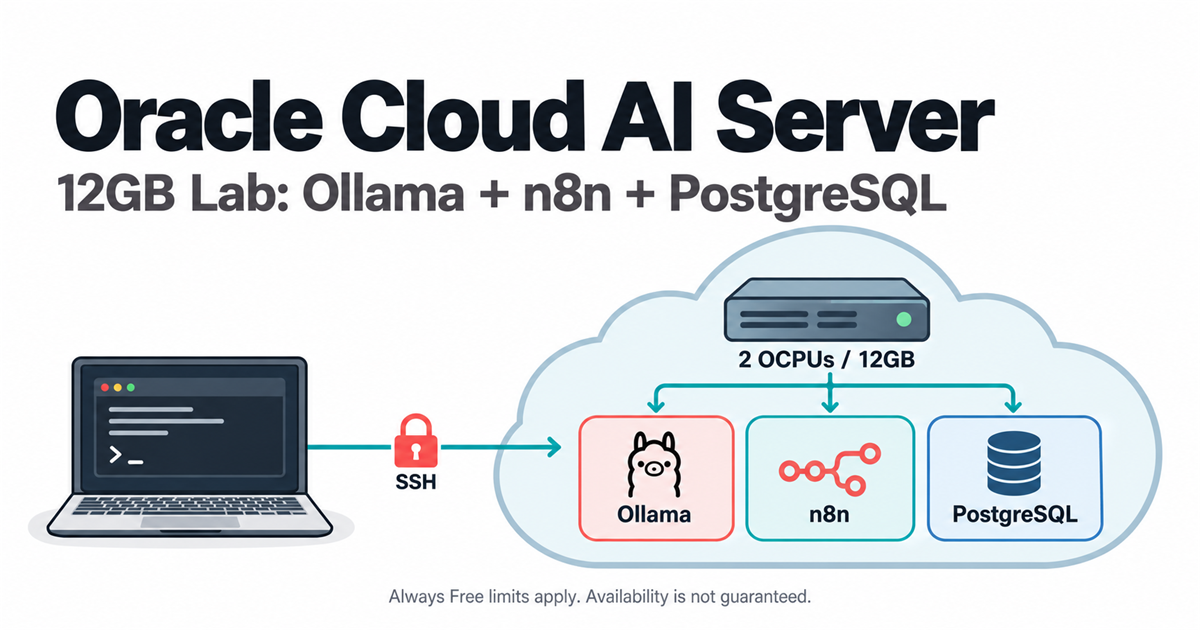
An Oracle Cloud Always Free AI server can be a useful 12GB lab for n8n automation, PostgreSQL and a small CPU-run Ollama model. It is not a guaranteed free-forever production server. Start with a private dashboard, a small model and a recoverable backup; then decide whether its speed and availability fit your work.
Quick Answer
Provision an eligible Arm A1 instance in your home region, install Docker, and run three connected containers. Publish n8n only on the server’s loopback address and reach it through an SSH tunnel. PostgreSQL and Ollama need no public ports. Test a 3B model before trying Llama 3.1 8B, and do not create artificial traffic to avoid Oracle’s idle-instance policy.
What to Know Before Building an Oracle Cloud Always Free AI Server
This is a fresh-instance learning recipe, not an upgrade procedure for an existing n8n deployment. Moving an existing SQLite installation to PostgreSQL, or changing an existing database password, needs a separate backup and migration plan. Do not point these files at valuable existing volumes.
Oracle’s Free Tier overview separates a time-limited trial from ongoing eligible resources. No-cost use depends on the account, region, selected services and allowances. A trial-funded resource is not automatically eligible after the trial ends. A paid upgrade can incur charges beyond free amounts; do not upgrade just to follow this tutorial.
You need an OCI account, an available eligible Arm instance, SSH access, and enough Linux experience to manage credentials and backups. Oracle documents identity/card verification and temporary authorization holds. The bank controls hold-release timing. Choose the home region carefully and check the final cost summary yourself.
Privacy boundary: inference runs on Oracle infrastructure, not on your own laptop. Avoid customer data and confidential documents in the first test. n8n execution records, logs and backups can retain input text even when no paid AI API is used.
Step 1: Check the Current Free Allowance, Not an Old Screenshot
On 19 October 2026, Oracle’s Always Free resource documentation lists 1,500 A1 OCPU-hours and 9,000 memory GB-hours per month, described as 2 OCPUs and 12GB total for Always Free tenancies. Older 4-OCPU/24GB tutorials do not reflect that current documented allowance.
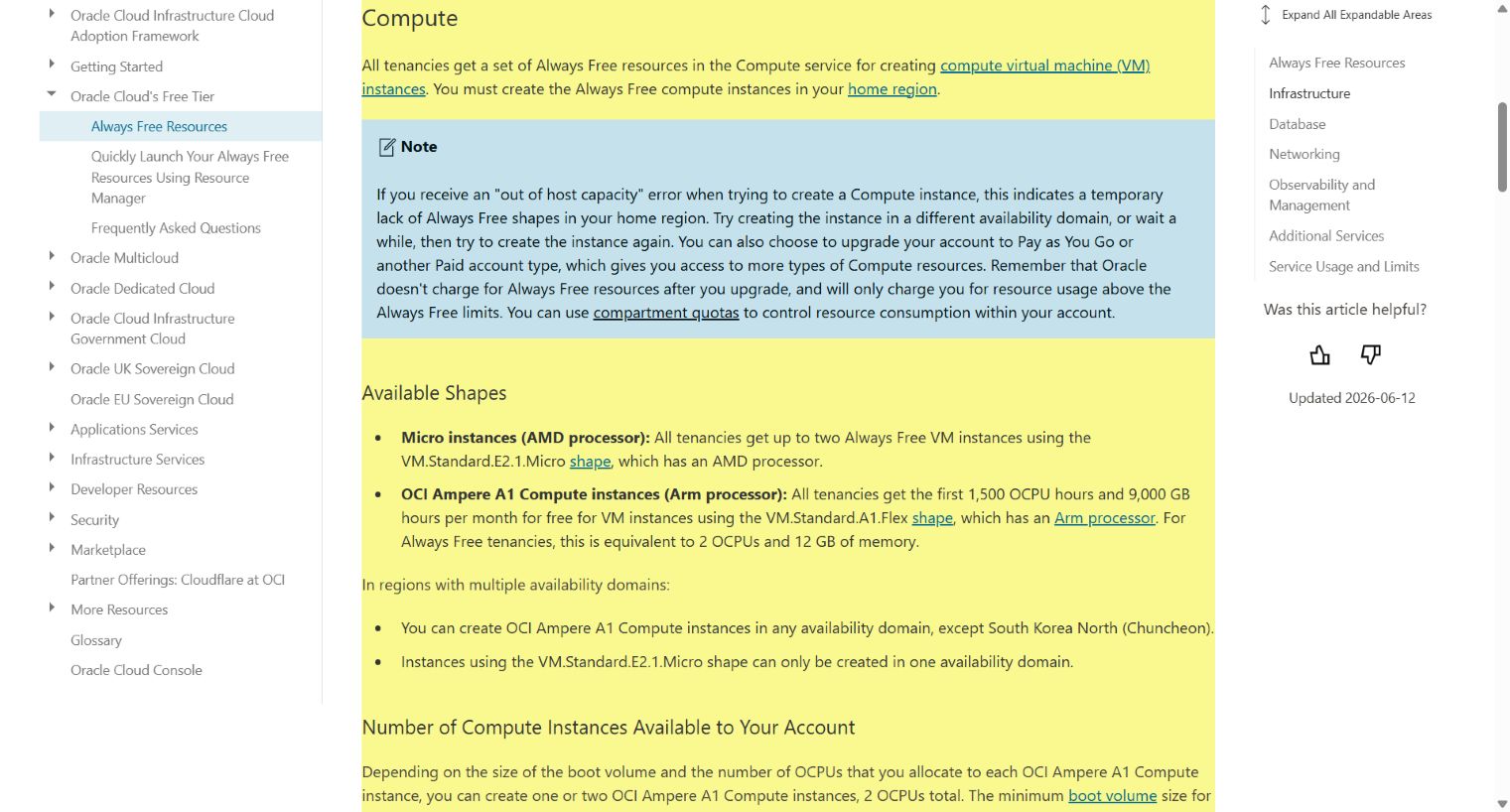
The same documentation lists 200GB of combined boot/block storage and five combined volume backups in the home region. A 150GB boot volume is an example allocation, not an additional 150GB on top of a separate free boot allowance. It is network-backed block storage; do not describe it as a dedicated local NVMe disk.
Planning calculation: a continuously allocated 2-OCPU/12GB VM in a 31-day month uses 1,488 OCPU-hours and 8,928 GB-hours. That leaves little room for overlapping A1 instances. This arithmetic is a capacity-planning aid, not a billing promise; inspect all tenancy resources and their current eligibility.
Before continuing, record the shape, allocated CPU/memory, total volumes, backup count and any other billable services. Set cost alerts if available, but do not mistake an alert for an automatic spending cap.
Step 2: Create an Eligible Arm VM and Protect Its SSH Key
In OCI Compute, create a fresh instance using VM.Standard.A1.Flex, 2 OCPUs and 12GB memory, if offered within your allowance. Select an eligible Ubuntu Arm image; Ubuntu 24.04 is the target for the commands below when available. Review Oracle’s instance creation instructions beside the current Console.
Choose a public subnet only if you need direct SSH, and check the internet gateway and route. Use your SSH public key and keep the private key on your computer with restricted permissions. For the Ubuntu image the login name is commonly ubuntu; verify the image instructions. Provisioning time is variable, not a guaranteed 60 seconds.
If the public IP is absent, inspect the primary VNIC’s IPv4 assignment and whether the subnet permits public addresses. Do not expose the database to solve an SSH problem. If capacity is unavailable, use permitted availability domains or wait rather than creating extra accounts or an unbounded provisioning loop.
Step 3: Restrict Inbound Access to SSH
This lab needs TCP 22 from your own public IP, not public ports 5678, 5432 or 11434. Review both OCI security lists/network security groups and the host firewall. Keep your working SSH session open while reviewing rules so a mistake does not immediately lock you out.
ssh -i /path/to/private-key ubuntu@VM_PUBLIC_IPReplace the key path and IP. Verify the SSH host fingerprint through a trusted source before accepting it. On a new VM, inspect and apply operating-system updates during a maintenance window:
sudo apt update
sudo apt upgrade
uname -m
free -h
df -h /
Expect aarch64 for the Arm machine. Review package changes and any reboot requirement. Do not insert a firewall rule at an arbitrary numeric position copied from another server, disable the firewall, or flush existing rules. No host ingress exception for n8n is necessary for the loopback-only design below.
Swap is optional, not a way to turn slow storage into RAM. If inference triggers memory pressure, begin with a smaller model and lower context. A swap file may prevent some abrupt failures, but can also cause severe latency and does not establish that a workload fits.
Step 4: Install Docker from Its Official Ubuntu Repository
Follow the official Docker Ubuntu guide for supported releases, conflicting packages and current repository instructions. The example below configures Docker’s signed repository; review it before execution on your fresh VM.
sudo apt install ca-certificates curl
sudo install -m 0755 -d /etc/apt/keyrings
sudo curl -fsSL https://download.docker.com/linux/ubuntu/gpg -o /etc/apt/keyrings/docker.asc
sudo chmod a+r /etc/apt/keyrings/docker.asc
echo "deb [arch=$(dpkg --print-architecture) signed-by=/etc/apt/keyrings/docker.asc] https://download.docker.com/linux/ubuntu $(. /etc/os-release && echo "$VERSION_CODENAME") stable" | sudo tee /etc/apt/sources.list.d/docker.list > /dev/null
sudo apt update
sudo apt install docker-ce docker-ce-cli containerd.io docker-buildx-plugin docker-compose-plugin
sudo docker version
sudo docker compose version
Both version commands should complete. This guide uses sudo docker rather than adding an everyday user to the Docker group, which grants powerful control of the host. Check Docker’s firewall guidance: published container ports deserve their own review, not an assumption that a host firewall will block them.
Image versions reviewed for this draft are n8n 2.43.7, Ollama 0.40.6 and PostgreSQL 16.15 Alpine. Official registry metadata confirmed Linux Arm64 variants for the Ollama and PostgreSQL images. The n8n registry returned a rate limit during inspection; verify its Arm64 manifest before deployment. No image was pulled or started for this article.
Step 5: Connect n8n, PostgreSQL and Ollama with Compose
Create a new directory. Keep its secrets private and never paste the finished .env into a public issue or screenshot:
mkdir -p ~/oracle-ai-lab
cd ~/oracle-ai-lab
umask 077
python3 -c 'import secrets; print("POSTGRES_PASSWORD=" + secrets.token_hex(32)); print("N8N_DB_PASSWORD=" + secrets.token_hex(32)); print("N8N_ENCRYPTION_KEY=" + secrets.token_hex(32))' > .env
chmod 600 .env
Run secret generation once. Replacing the encryption key can make stored n8n credentials unreadable, and changing an environment password does not automatically update a password in an initialized database.
Save the following as init-db.sh. It creates a dedicated, non-superuser database role on the first initialization of an empty PostgreSQL volume:
#!/bin/sh
set -eu
psql -v ON_ERROR_STOP=1 --username "$POSTGRES_USER" --dbname "$POSTGRES_DB" \
  -v app_password="$N8N_DB_PASSWORD" <<'SQL'
CREATE ROLE n8n_user WITH LOGIN PASSWORD :'app_password' NOSUPERUSER NOCREATEDB NOCREATEROLE;
CREATE DATABASE n8n OWNER n8n_user;
SQL
Save the following as compose.yaml in the same directory:
name: oracle-ai-lab

x-logging: &logging
  driver: json-file
  options:
    max-size: "10m"
    max-file: "3"

services:
  postgres:
    image: postgres:16.15-alpine
    restart: unless-stopped
    mem_limit: 1g
    environment:
      POSTGRES_USER: postgres
      POSTGRES_DB: postgres
      POSTGRES_PASSWORD: ${POSTGRES_PASSWORD:?Set POSTGRES_PASSWORD in .env}
      N8N_DB_PASSWORD: ${N8N_DB_PASSWORD:?Set N8N_DB_PASSWORD in .env}
    volumes:
      - postgres_data:/var/lib/postgresql/data
      - ./init-db.sh:/docker-entrypoint-initdb.d/10-n8n.sh:ro
    healthcheck:
      test: ["CMD-SHELL", "pg_isready -U postgres -d postgres"]
      interval: 10s
      timeout: 5s
      retries: 12
    logging: *logging

  ollama:
    image: ollama/ollama:0.40.6
    restart: unless-stopped
    mem_limit: 7g
    environment:
      OLLAMA_NUM_PARALLEL: "1"
      OLLAMA_MAX_LOADED_MODELS: "1"
      OLLAMA_CONTEXT_LENGTH: "2048"
      OLLAMA_KEEP_ALIVE: "5m"
      OLLAMA_NO_CLOUD: "1"
    volumes:
      - ollama_data:/root/.ollama
    logging: *logging

  n8n:
    image: docker.n8n.io/n8nio/n8n:2.43.7
    restart: unless-stopped
    mem_limit: 2g
    ports:
      - "127.0.0.1:5678:5678"
    environment:
      DB_TYPE: postgresdb
      DB_POSTGRESDB_HOST: postgres
      DB_POSTGRESDB_PORT: "5432"
      DB_POSTGRESDB_DATABASE: n8n
      DB_POSTGRESDB_USER: n8n_user
      DB_POSTGRESDB_PASSWORD: ${N8N_DB_PASSWORD:?Set N8N_DB_PASSWORD in .env}
      N8N_ENCRYPTION_KEY: ${N8N_ENCRYPTION_KEY:?Set N8N_ENCRYPTION_KEY in .env}
      N8N_ENFORCE_SETTINGS_FILE_PERMISSIONS: "true"
      N8N_BLOCK_ENV_ACCESS_IN_NODE: "true"
      N8N_DIAGNOSTICS_ENABLED: "false"
      N8N_SECURE_COOKIE: "false"
      GENERIC_TIMEZONE: Asia/Kuala_Lumpur
      TZ: Asia/Kuala_Lumpur
    depends_on:
      postgres:
        condition: service_healthy
      ollama:
        condition: service_started
    volumes:
      - n8n_data:/home/node/.n8n
    logging: *logging

volumes:
  postgres_data:
  ollama_data:
  n8n_data:
The important difference from two unrelated docker run commands is the explicit DB_TYPE=postgresdb connection and shared service-name networking. n8n reaches PostgreSQL at postgres:5432 and Ollama at ollama:11434. A container’s localhost is that container, not a neighboring service.
The database layout follows the official PostgreSQL image, while n8n’s database configuration explains its connection variables. The initialization script runs only for a new, empty data volume. Keep n8n’s data volume as well as PostgreSQL’s data; they serve different purposes.
The cookie exception is only for this single-user SSH lab. N8N_SECURE_COOKIE=false accommodates browser-to-loopback HTTP while SSH encrypts the network leg. Do not reuse it for a public HTTP dashboard. Public access requires HTTPS, secure cookies, authentication, correctly configured URLs and a separate security review. See n8n’s security settings.
The memory limits are ceilings, not reservations or a proof that an 8B workload fits. The three caps sum to 10GiB; check actual usable RAM and leave headroom for Ubuntu and Docker. There is no GPU in this A1 setup. The Ollama Docker guide documents the CPU route used here.
Step 6: Start Small and Verify an Actual Model Response
chmod 644 init-db.sh
sudo docker compose config --quiet
sudo docker compose pull
sudo docker compose up -d
sudo docker compose ps
sudo docker compose logs --tail=80 postgres n8n ollama
sudo docker compose exec ollama ollama list
Expect PostgreSQL to become healthy and the other services to start without repeated exits. If an image reports no matching Arm64 manifest, stop and choose a documented compatible release; do not force amd64 emulation and assume it will perform well. Logs and expanded Compose configuration can contain sensitive details, so redact before sharing.
Pull a smaller model first:
sudo docker compose exec ollama ollama pull llama3.2:3bThe official Llama 3.2 3B listing is the reference for that model and its license. A successful download is not evidence of inference. Test the API from inside n8n’s container, which also checks service-name connectivity:
sudo docker compose exec -T n8n node --input-type=module - <<'JS'
const reply = await fetch('http://ollama:11434/api/generate', {
  method: 'POST',
  headers: { 'Content-Type': 'application/json' },
  body: JSON.stringify({
    model: 'llama3.2:3b',
    prompt: 'Explain a backup in one sentence.',
    stream: false,
    keep_alive: '5m',
    options: { num_ctx: 2048, num_predict: 64 }
  }),
  signal: AbortSignal.timeout(300000)
});
if (!reply.ok) throw new Error(`HTTP ${reply.status}`);
const data = await reply.json();
if (!data.done || typeof data.response !== 'string' || !data.response.trim()) {
  throw new Error('No completed text answer; inspect model and server logs');
}
console.log(data.response);
JS
Expected result: a completed text answer, not a model-list response. The Ollama generation API documents the non-streaming response. The command explicitly selects Node’s module mode so the awaited requests work in this stdin example.
If the small test succeeds and memory allows it, try the requested 8B model separately:
sudo docker compose exec ollama ollama pull llama3.1:8b
sudo docker compose exec ollama ollama run llama3.1:8b "Explain a backup in one sentence."
sudo docker compose exec ollama ollama ps
sudo docker stats --no-stream
The Llama 3.1 8B listing shows an approximately 4.9GB model download. Runtime RAM includes more than the file size. Record loading time, complete-response latency and peak memory; do not promise four tokens per second on two Arm cores. If 8B times out or is killed, return to 3B rather than weakening safeguards.
Step 7: Open n8n Through an SSH Tunnel
On your own computer, open a second terminal and keep this connection running:
ssh -i /path/to/private-key -N -L 127.0.0.1:5678:127.0.0.1:5678 ubuntu@VM_PUBLIC_IPVisit http://localhost:5678 on that computer and create the n8n owner account with a strong, unique password. If the local port is occupied, use 127.0.0.1:15678:127.0.0.1:5678 in the forwarding option and browse to port 15678. Do not browse to the VM’s public IP on port 5678.
After n8n initializes, check that its tables exist in PostgreSQL:
sudo docker compose exec postgres psql -U n8n_user -d n8n -c "SELECT count(*) AS public_tables FROM pg_tables WHERE schemaname='public';"
sudo docker compose ps
A nonzero table count supports that n8n initialized the configured database; inspect logs too. The container port listing should show only n8n’s loopback mapping. From outside the VM, ports 5432, 5678 and 11434 must not be reachable. A restart policy does not guarantee service recovery after a provider reclaims the VM.
Step 8: Build One Useful n8n-to-Ollama Workflow
Use a Manual Trigger followed by an HTTP Request node. Configure POST to http://ollama:11434/api/generate, send a JSON body, and set a bounded timeout such as 300,000 milliseconds. Start without automatic retries:
{
  "model": "llama3.2:3b",
  "prompt": "Classify this public test note as backup, invoice or other. Return one label only: Please copy the project folder to the backup drive.",
  "stream": false,
  "options": { "num_ctx": 2048, "num_predict": 16 }
}
Run once, inspect the returned response and add a human-reviewed decision step. A plausible label does not establish accuracy across your documents. If your n8n release blocks private-network requests through an SSRF safeguard, review its documented narrow allowlist options instead of globally disabling the protection.
Useful starter jobs include summarizing public release notes, categorizing non-sensitive sample text and preparing drafts for review. Do not let an unvalidated model send customer messages, approve payments, delete files or execute generated shell commands.
n8n is source-available under its Sustainable Use License, not unrestricted software resale permission. Check the terms for client-facing or hosted commercial offerings. Self-hosting does not make paid third-party integrations free. Our no-code workflow comparison helps assess whether managing this stack is worthwhile.
Step 9: Back Up, Test Recovery and Maintain the Lab
Create a private PostgreSQL dump and check that its archive can be read:
umask 077
mkdir -p backups
stamp=$(date -u +%Y%m%dT%H%M%SZ)
sudo docker compose exec -T postgres pg_dump -U n8n_user -d n8n -Fc > "backups/n8n-$stamp.dump"
test -s "backups/n8n-$stamp.dump"
sudo docker compose exec -T postgres pg_restore --list < "backups/n8n-$stamp.dump" > /dev/null
A readable dump is not a tested recovery. Preserve the matching n8n state volume, Compose/init files and original encryption key as well. Store encrypted recovery copies outside this VM and test restoration into an isolated environment before relying on them. A copy left on the same boot volume is not protection against losing the machine.
Provider volume backups complement, rather than replace, an application-aware recovery plan. Review update notes, back up, change one image version at a time and re-run the database, model and workflow checks. Do not casually run docker compose down -v: it removes this project’s named volumes and data.
Oracle can reclaim idle A1 instances: its policy considers a seven-day period with CPU at the 95th percentile below 20%, network below 20%, and A1 memory below 20%. An occasional prompt is not a documented reset button. Do real permitted work, monitor capacity, and keep recovery copies; do not manufacture load or promise permanent retention.
Troubleshooting and When to Stop
| Symptom | Check | Safe next action |
|---|---|---|
| A1 capacity unavailable | Region, availability domain and eligible allocation | Wait or choose a permitted alternative; no account or retry abuse |
| SSH fails | Public IP, route, TCP 22 source rule, key and image login | Use provider recovery guidance; do not expose application ports |
| n8n cannot log into PostgreSQL | First-run init logs, app password and existing volume state | Repair credentials deliberately; do not delete data to force initialization |
| Ollama connection refused | Service status, logs and container URL | Use ollama:11434 inside n8n, not localhost |
| 8B process killed or requests time out | Memory caps, host RAM, context and execution concurrency | Use the smaller model; do not claim swap guarantees a fit |
| Browser cannot open dashboard | SSH tunnel, local port and n8n startup | Keep loopback binding; do not open 5678 to everyone |
Stop if the cost summary no longer shows eligible resources, the server is unstable, or recovery would require deleting unidentified files. Redact secrets before requesting support. If you need predictable uptime or heavy workloads, compare a suitable paid service rather than forcing a free lab into that role.
FAQ
Can public services send webhooks to this SSH-only n8n setup?
Not directly. This recipe deliberately provides no public n8n endpoint. Use a manual trigger or an appropriate polling workflow for the lab. Receiving external webhooks requires a separately secured HTTPS ingress and correct webhook URLs; do not solve it by exposing the dashboard over public HTTP.
Can I import my existing n8n workflows into the new lab?
Treat imports as a migration. Back up the original installation and encryption key, check version compatibility, and review every imported credential and external action. Test copied workflows with harmless input while the original system remains recoverable. Do not replace an existing database or its volumes with this fresh-install recipe.
Can I sell hosted n8n access using this server?
Do not assume the software license or a free hosting allowance permits the service you plan to sell. Review the n8n Sustainable Use License, applicable commercial terms, Oracle account terms and the model license before offering third-party access. This single-user lab recipe does not establish that a hosted service is licensed or production-ready.
Related Techmixer Guides
- AI tools and practical workflows for choosing a useful task first.
- Vultr VPS trial setup for a different, time-limited hosting offer.
- AirLLM local-model setup for a different memory-management approach.
- Kaggle and Ollama GPU experiment for temporary notebook compute, not an always-on VPS.
- Learn AI engineering from scratch for the skills behind the workflow.
Our Take
An Oracle Cloud Always Free AI server is appealing when you want a small learning environment and accept operational responsibility. The meaningful win is one useful, recoverable workflow with a private dashboard, not an impressive promise of free infrastructure forever. Prove the smaller model works, verify costs and recovery, and keep human review around anything consequential.
Last reviewed: 19 October 2026. By km chia. Techmixer checked current official allowances, component documentation and available image metadata, captured Oracle’s public documentation and validated the Compose file and script syntax locally. We did not provision an Oracle VM, run these services on Arm, complete n8n onboarding, test a live workflow or perform a restore. This is a reviewable setup recipe, not a benchmark or production-readiness certification.