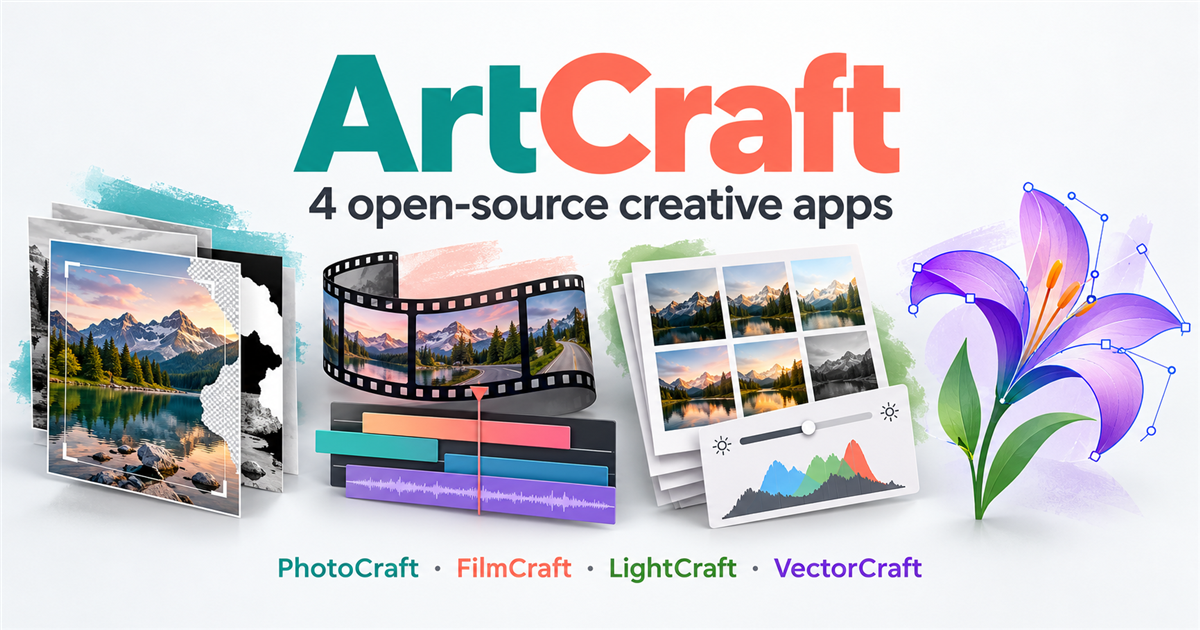
ArtCraft is building open-source alternatives to Photoshop, Premiere Pro, Lightroom and Illustrator, but calling it a complete Adobe Creative Cloud clone goes too far. PhotoCraft, FilmCraft, LightCraft and VectorCraft cover those four kinds of creative work. Their Rust code, familiar workspaces and agent-control interfaces make them interesting to explore; their alpha status makes a trial project a better first step than a wholesale migration.
Quick Answer
Start with PhotoCraft for layered images, FilmCraft for video timelines, LightCraft for photo development, or VectorCraft for editable vector artwork. Keep your current editor and original files until a copied project survives import, editing, saving and export. Compositor is a separate Mac image editor. Ego Lite is a browser for agents, not another Adobe replacement.
The official Crafting Apps directory lists these projects separately from the main ArtCraft AI studio. Do not confuse a free creative-app repository with a promise that every ArtCraft service, connected AI model or hosted feature costs nothing.
What to Know First
These are independent projects, not Adobe products or a verified drop-in replacement for an Adobe subscription. A matching toolbar is useful for learning the interface, but it does not establish compatible plug-ins, fonts, colour rendering, file round-trips or reliable delivery on your machine.
- Expect alpha software. The four ArtCraft repositories describe early or alpha-stage development. A release number does not mean production readiness.
- Separate code from AI costs. The Crafting Apps describe MIT/Apache-2.0 code licensing. Check each repository’s licence and asset notices. An external coding assistant, model API or generated asset can have separate costs and terms.
- Use copies. Put a disposable project and test media in a separate folder. Do not point an experimental editor or agent at your only client deliverable.
- Do not assume local editing means private AI. Check what an agent sends to its model provider before giving it confidential files.
This is a documentation and interface-image review checked on 19 October 2026, not a hands-on benchmark. We did not install these editors, validate exports or connect an editing agent. The screenshots below are attributed maintainer material, not Techmixer installation proof.
ArtCraft Apps Compared
The first four rows are the ArtCraft projects covered here. Compositor is an independent alternative included because the source video also mentions it. Learning curve and review risk are editorial assessments, not measured scores.
| Tool | Best for | AI/workflow strength | Learning curve | Pricing note | Human review risk |
|---|---|---|---|---|---|
| PhotoCraft | Layered image editing | Shared UI, CLI and MCP command paths | Moderate; familiar layout, new compatibility limits | Open-source code; external agent costs separate | Inspect masks, type, effects and PSD round-trips |
| FilmCraft | Timeline-based video projects | Commands for cuts, grading, mixing and export | Moderate to high; codec and delivery checks matter | Open-source code; compute and AI costs separate | Verify media decoding, audio sync and final renders |
| LightCraft | Photo libraries and non-destructive development | Batch adjustments and agent-accessible commands | Moderate; test your own cameras and library workflow | Open-source code; storage and AI costs separate | Check RAW rendering, metadata and exported colour |
| VectorCraft | Editable paths, type and illustration | Command API, CLI and MCP control | Moderate; imported artwork may behave differently | Open-source code; fonts/assets and AI costs separate | Inspect imported paths, fonts, effects and print output |
| Compositor | Mac compositing and post-processing | Agents can write its folder-based project format | Moderate; requires a supported Mac | MIT code; developer offers the app free | PSD import conversions; not a Windows or browser editor |
Best Choice by Use Case
For a blog thumbnail: try PhotoCraft on a copied image. For a short video: evaluate FilmCraft with a small source clip before a real edit. For a photo collection: start LightCraft with a temporary library. For a logo or poster: test VectorCraft and inspect the exported artwork. For Mac-only compositing: compare Compositor with PhotoCraft, after checking the Mac requirements below.
For more practical software comparisons and setup help, browse Techmixer’s Software Guides.
Install Preparation: App, CLI and Claude Code
You need the desktop application and its matching command-line tool to let Claude Code edit the open window. The MCP connection runs through the CLI; it is not an HTTP URL that you paste into a browser. These instructions were checked against the release-tag documentation and argument parsers on 19 October 2026, but not executed end to end.
- Install Claude Code using the official setup guide. Complete its sign-in yourself, check the applicable plan or API billing, then run
claude --versionin your terminal. The editors being open source does not make Claude usage free. - Choose a matching release pair. Do not mix an old desktop application with a newer CLI. Use the release’s
SHA256SUMS.txtto check downloaded files. Verify any published signature through your operating system and stop at unexpected security warnings. - Install only one app first. Follow that app’s steps below, verify a manual edit, and then enable its agent connection. You can repeat the process for the other apps later.
| App / reviewed release | Windows x64 portable ZIP | macOS | Linux x86_64 |
|---|---|---|---|
| PhotoCraft 0.10.0 | photocraft-0.10.0-windows-x64-portable.zip | Universal DMG plus photocraft-cli-0.10.0-macos-universal.zip | photocraft-0.10.0-linux-x86_64.deb or matching tarball |
| FilmCraft 0.9.0 | filmcraft-0.9.0-windows-x64-portable.zip | Universal DMG plus filmcraft-cli-0.9.0-macos-universal.zip | filmcraft-0.9.0-linux-x86_64.deb or matching tarball |
| LightCraft 0.9.1 | lightcraft-0.9.1-windows-x64-portable.zip | Universal DMG plus lightcraft-cli-0.9.1-macos-universal.zip | lightcraft-0.9.1-linux-x86_64.deb or matching tarball |
| VectorCraft 0.13.1 | vectorcraft-0.13.1-windows-x64-portable.zip | Universal DMG plus vectorcraft-cli-0.13.1-macos-universal.zip | vectorcraft-0.13.1-linux-x86_64.deb or matching tarball |
The release links in each app section are the source of these filenames. ARM PCs need the corresponding ARM build, not the x64 file. Windows MSI installers are another option, but the commands below deliberately use portable folders you choose yourself.
Prepare the Windows Test Folder
Use two PowerShell windows: Terminal A keeps the desktop app running; Terminal B registers MCP and runs Claude Code. Run this preparation block in both windows. It creates folders without deleting existing files. Put only disposable media in project.
$Lab = Join-Path $env:USERPROFILE "ArtCraftLab"
New-Item -ItemType Directory -Force -Path "$Lab\project", "$Lab\apps", "$Lab\lightcraft-library" | Out-Null
Set-Location "$Lab\project"
Extract each downloaded ZIP with File Explorer. Place all of its extracted contents in ArtCraftLab\apps\photocraft, filmcraft, lightcraft or vectorcraft, respectively. The app’s .exe and -cli.exe should be directly inside that folder; if the ZIP adds a wrapper folder, adjust the paths below. Preserve licence files and portable-mode markers.
Connection modes: headless MCP owns a separate engine session, so it may not change the desktop window at all. The walkthroughs below explicitly select the live window: PhotoCraft and FilmCraft use --bridge; LightCraft and VectorCraft use --connect. Do not interchange those flags.
Important permission boundary: PhotoCraft uses a token, and PhotoCraft/VectorCraft have documented automation file roots. The reviewed FilmCraft, LightCraft and VectorCraft live control ports have no authentication. Loopback is not a sandbox against other local programs. Use a separate test machine or disposable VM without private files for those trials, leave ports enabled only during the test, and do not expose them through a tunnel, router or public listener. Do not assume one app accepts another app’s security flags.
1. PhotoCraft: The Photoshop-Style Image Editor
Best for: creators who want layers, masks and editable text rather than a single flattened AI-generated image.
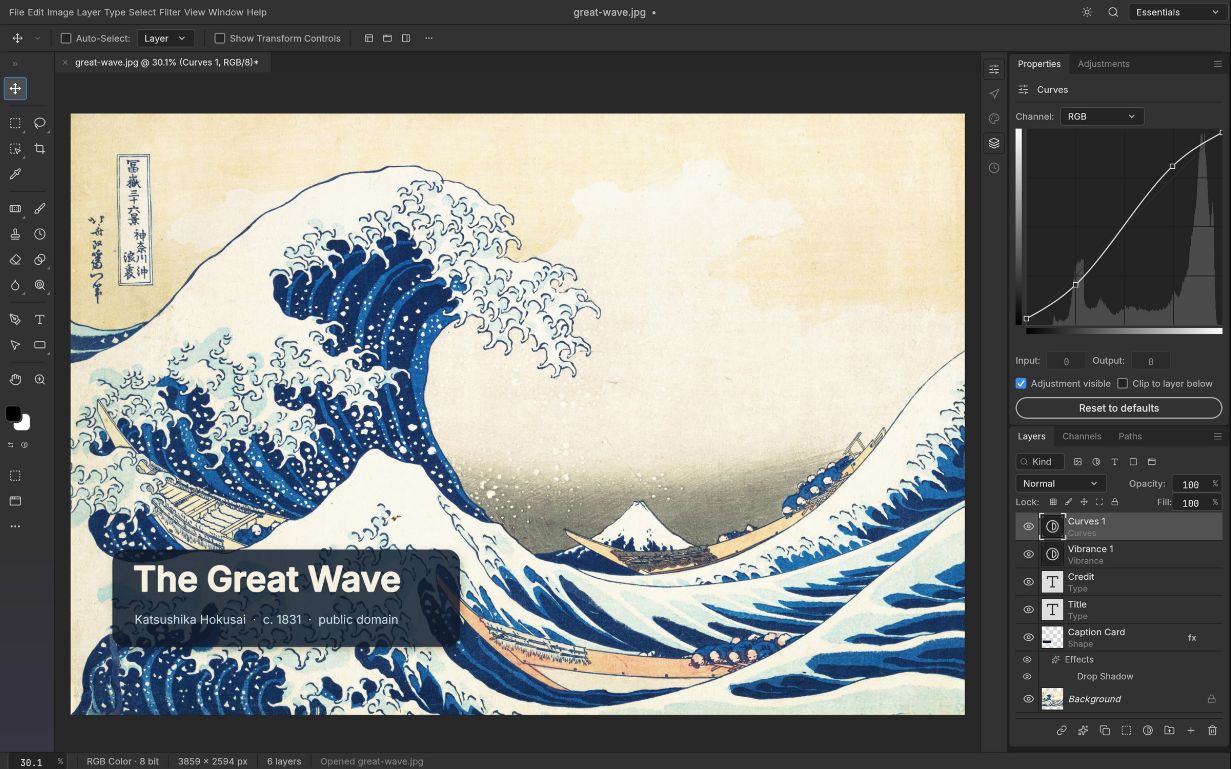
What it does: the official PhotoCraft repository documents layered editing, adjustment layers, styles, brushes, vectors and PSD/PSB support. Its UI, command-line tools and MCP server use a common command registry. That is a concrete automation interface, not merely a chatbot sitting beside a canvas.
Where it helps: consider a reusable article thumbnail with a background photo, headline, coloured label and logo. Keeping those as separate layers lets you change one element later without regenerating the whole image. An agent could help prepare variations, but the requested action still needs to be supported by the editor and your chosen integration.
Limitation: do not read the project’s PSD corpus results as a guarantee for your files. Test smart objects, fonts, masks and colour in your own copied document. The maintainer distinguishes document-model round-trips from byte-identical file handling. Check the current PSD compatibility notes before relying on an Adobe round-trip.
Release checked: PhotoCraft v0.10.0. For an initial test, save both an editable project and a flat PNG, reopen the project, and confirm that text and masks are still editable. That is a suggested test, not one we performed.
Install PhotoCraft and Connect Claude Code
- Install the reviewed portable release. Download the Windows x64 ZIP from the PhotoCraft release linked above, verify it, and extract all contents into
$Lab\apps\photocraft. Openphotocraft.exe, load a copied image, and make one manual layer edit. Save a separate project, then close the app before the controlled launch. - Create a private token location in Terminal A. This directory is separate from the artwork folder. The ACL command applies only to this named lab-token directory; inspect the displayed permissions and stop if it fails.
$Private = Join-Path $env:LOCALAPPDATA "ArtCraftLab-private"
New-Item -ItemType Directory -Force -Path $Private | Out-Null
$Me = [System.Security.Principal.WindowsIdentity]::GetCurrent().Name
icacls $Private /inheritance:r /grant:r "${Me}:(OI)(CI)F"
icacls $Private- Launch the live app with authentication and file roots. PhotoCraft creates the token file if it is missing and reuses it if it exists. Do not print, share or commit its contents. The automation roots apply to agent file operations, not to every activity of your OS user.
& "$Lab\apps\photocraft\photocraft.exe" --control 7878 --control-token-file "$Private\photocraft-control.token" --automation-read-root "$Lab\project" --automation-write-root "$Lab\project"- Register the CLI in Terminal B. Run the shared folder preparation there first. Supply the same token-file path, but put the read/write roots on the desktop process as shown above, not on the bridge CLI.
$Private = Join-Path $env:LOCALAPPDATA "ArtCraftLab-private"
claude mcp add --transport stdio --scope local artcraft-photocraft -- "$Lab\apps\photocraft\photocraft-cli.exe" mcp --bridge 127.0.0.1:7878 --control-token-file "$Private\photocraft-control.token"
claude mcp get artcraft-photocraft- Verify before editing. Start
claudefrom$Lab\project, open/mcp, and review the connection and tool permissions. Ask fordoc_inspectand a preview of the copied document. Confirm the file/layer names match the visible window. - Try one bounded edit. Ask Claude to add an editable text layer to the test image and save a new file inside the lab folder. Inspect the layer tree, reopen the saved copy and compare the preview. A connected server is not evidence of a successful save.
Use only artcraft-photocraft. Inspect the copied document first and list its layers. Add an editable text layer saying "ArtCraft test" without changing the original layers. Save a new copy inside the allowed project folder; do not overwrite the source. Show a preview and report the exact saved path. Stop if a required tool is unavailable.Expected result: the live window gains a text layer and a separate saved copy can be reopened. If authentication fails, check that the desktop and CLI use the same token file and Windows user. If a file operation is denied, check the desktop’s roots and use a path inside them; do not remove the restrictions to silence the error. Release-matched PhotoCraft bridge documentation.
2. FilmCraft: A Premiere-Style Video Timeline
Best for: people who want to cut footage, arrange audio and adjust a timeline, including work an AI agent can help prepare.
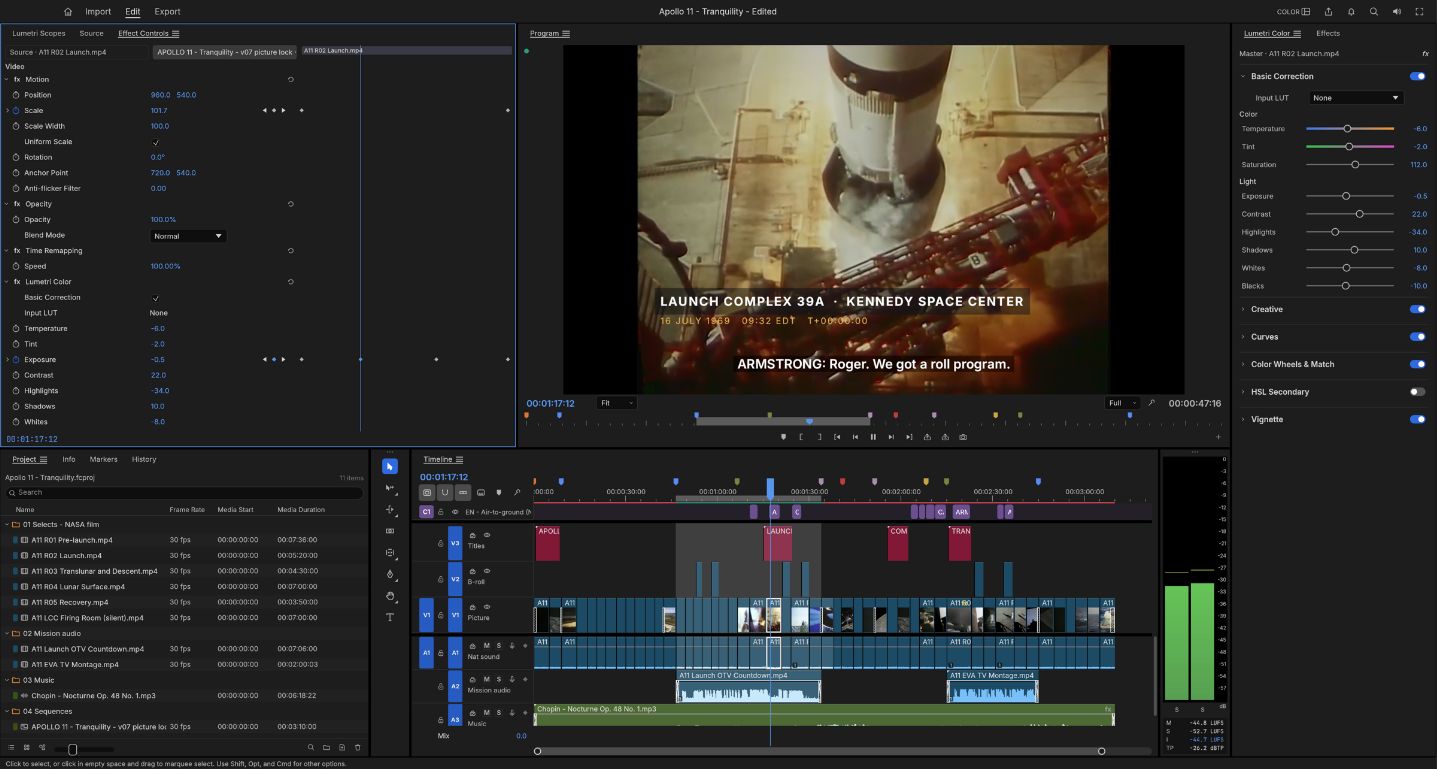
What it does: FilmCraft’s repository describes a nonlinear editor with workspaces, timeline operations, effects, colour controls and audio tools. Its command system is exposed through the UI, CLI, a control channel and MCP. The documentation also describes widget-level automation.
Where it helps: a small team could investigate a repeatable first pass: import a permitted product clip, make a short cut, add a title, lower the music under speech and export a review copy. The useful output is an editable timeline plus a render you can inspect, not just an agent saying the job is finished.
Limitation: the project explicitly calls itself alpha and says Windows/Linux receive less testing than macOS. Its codec notes distinguish software from hardware export paths; they do not promise identical delivery support on every computer. Check the current status section, play the entire exported file and confirm audio sync, frame rate and colour before delivery.
Release checked: FilmCraft v0.9.0. If you are looking for script-to-video automation rather than a traditional editor, the OpenMontage setup guide covers a different workflow. Do not assume the two applications share a project format.
Install FilmCraft and Connect Claude Code
- Install the reviewed portable release. Verify and extract the FilmCraft ZIP into
$Lab\apps\filmcraft. Open it manually and create a small project using a copied, permitted clip. Save the test project in$Lab\project, then close FilmCraft. - Start its live control mode in Terminal A. Use only a separate disposable test environment: the documented port is unauthenticated and this release’s MCP parser does not expose PhotoCraft’s token or root options.
& "$Lab\apps\filmcraft\filmcraft.exe" --control 9876- Register its CLI in Terminal B. Open the saved test project in the controlled FilmCraft window, then run these commands from the lab project directory.
claude mcp add --transport stdio --scope local artcraft-filmcraft -- "$Lab\apps\filmcraft\filmcraft-cli.exe" mcp --bridge 127.0.0.1:9876
claude mcp get artcraft-filmcraft- Inspect the correct project. In Claude Code, review
/mcp. Ask forproject_inspectandsequence_inspectbefore any edit. Confirm the media names, duration and active sequence match your test project. - Make one reversible timeline change. Ask Claude to add a short title to a duplicate/test sequence. Save under a new project name. Export a short review copy only after confirming the destination and settings.
Use only artcraft-filmcraft. Inspect the active test project and sequence. On a copied/test sequence, add a title saying "ArtCraft test" for the first three seconds. Keep source media unchanged. Save as a new project in the lab folder. Show the timeline state and ask before exporting; do not invent a successful render.Expected result: a title appears on the intended sequence, and a separate project reopens with the edit intact. If the desktop does not change, check that the MCP command includes --bridge; plain mcp uses a headless engine. After any timeout with an uncertain outcome, inspect the sequence before repeating an edit. Release-matched FilmCraft MCP documentation.
3. LightCraft: Photo Development and Library Work
Best for: photographers evaluating a non-destructive photo workflow, rather than layered graphic design.
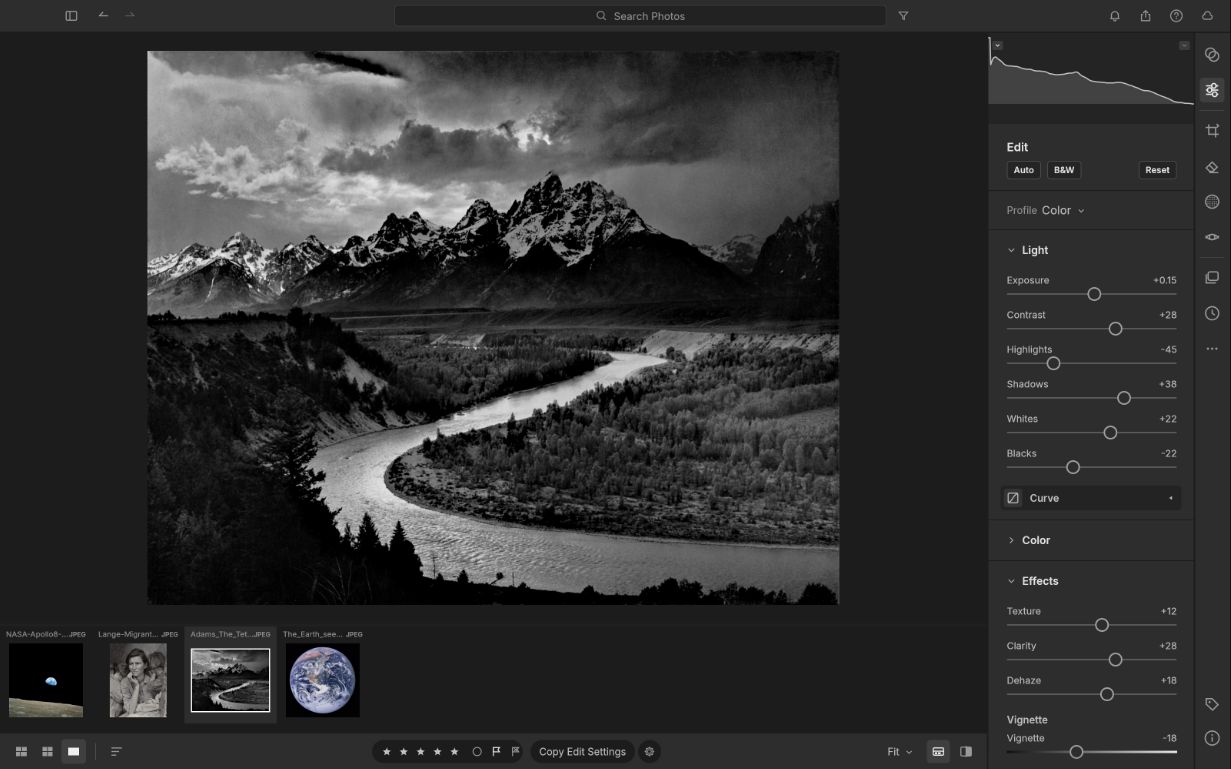
What it does: LightCraft documents photo organisation, RAW development, light and colour adjustments, masking and export. It also exposes commands to agents through CLI/MCP paths. These are maintainer-described features, not a camera-compatibility certification.
Where it helps: imagine importing ten copied product photos, applying a consistent exposure adjustment and exporting web-sized images. Batch commands could reduce repetitive work while keeping the edit settings available. Inspect every result; one exposure setting is unlikely to suit both a bright window scene and a dark interior.
Limitation: a Lightroom-like layout does not prove that an existing Lightroom catalogue, preset collection or camera profile will migrate correctly. Use a temporary library and confirm your exact RAW format, metadata, orientation and colour output. Do not move your master archive into an alpha application just because the demo photographs look good.
Release checked: LightCraft v0.9.1. Keep a backup of the original files and a record of the export settings so a useful result can be reproduced.
Install LightCraft and Connect Claude Code
- Install the reviewed portable release. Verify and extract the LightCraft ZIP into
$Lab\apps\lightcraft. Use the dedicated lab library below instead of your main photo catalogue. - Launch a separate library in Terminal A. Close any process already using that library before opening it. The local control port is unauthenticated; use the disposable test environment described above.
& "$Lab\apps\lightcraft\lightcraft.exe" --library "$Lab\lightcraft-library" --control 7980- Import a few copied images manually. Use a small disposable folder and choose copy/add as appropriate, not a move of your original archive. Select one test photograph in the controlled window.
- Register the live connection in Terminal B. Use
--connect, not FilmCraft’s--bridge. Do not give a separate headless MCP session the same library: a LightCraft library can be open in only one process at a time.
claude mcp add --transport stdio --scope local artcraft-lightcraft -- "$Lab\apps\lightcraft\lightcraft-cli.exe" mcp --connect 127.0.0.1:7980
claude mcp get artcraft-lightcraft- Read the selection first. Review
/mcp, then ask fordoc_inspect,query_photosandget_develop. Confirm the photograph ID and library correspond to the visible selection. - Adjust one test photo. Request a small exposure change, a preview and a new JPEG export. Compare the before/after values, inspect the export, and confirm the copied source file was not replaced.
Use only artcraft-lightcraft. Identify the selected test photo and read its current develop settings. Increase light.exposure by 0.3 from its current value, not by setting every slider to a guessed value. Show a preview. Export a new JPEG named lightcraft-test.jpg inside the lab project folder without moving or overwriting originals. Report the selected photo ID and final exposure value.Expected result: the selected photo’s exposure changes in the live library and the new JPEG opens. If you see a library-lock error, do not delete the lock file to force access: close the other process or use --connect to the already-open window. A library folder is not a filesystem sandbox; this release does not provide the scoped-root recipe used for PhotoCraft and VectorCraft. Release-matched LightCraft MCP guide.
4. VectorCraft: Illustrator-Style Paths and Artwork
Best for: people exploring editable shapes, paths, typography and vector compositions.
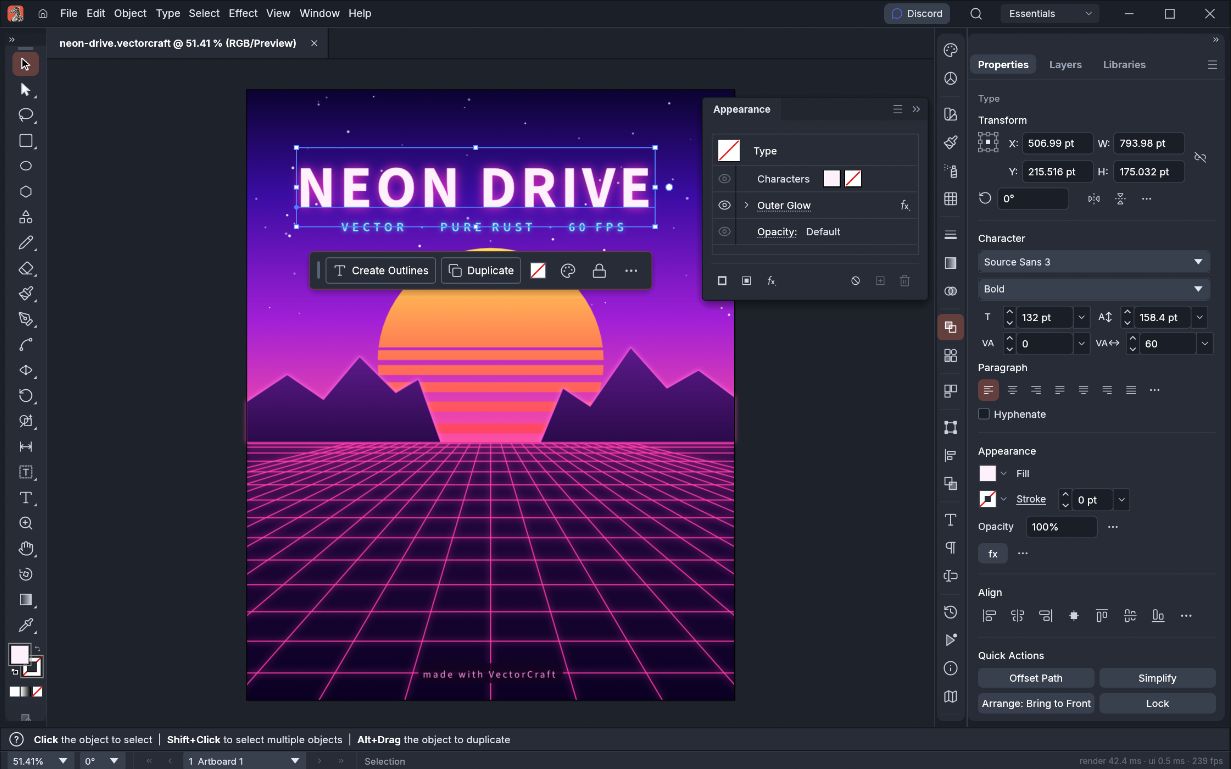
What it does: VectorCraft documents illustration tools, artboards, effects, file import/export and agent control over its command API. The repository describes both native desktop use and WebAssembly builds.
Where it helps: a simple event poster is a sensible trial: editable headline, a few vector shapes and a clear export size. A model can propose layout changes, but an editable file lets a person correct the spacing and wording afterwards.
Limitation: Illustrator compatibility depends on the actual format and content. The README specifically identifies PDF-compatible AI files and other supported paths; that is not a promise to preserve every Illustrator feature. Open a copied file, inspect fonts and effects, and test the exact SVG/PDF you need. For print work, check the output with the printer rather than assuming an on-screen match is enough.
Release checked: VectorCraft v0.13.1. Keep the editable source as well as the delivery export; a flat image is not a substitute for paths you still need to revise.
Install VectorCraft and Connect Claude Code
- Install the reviewed portable release. Verify and extract the VectorCraft ZIP into
$Lab\apps\vectorcraft. Try a small manual document, save it inside the lab project folder and close the app. - Launch the live app with scoped file access in Terminal A. The folders must already exist. File roots restrict automation file operations, but the loopback control port still has no authentication.
& "$Lab\apps\vectorcraft\vectorcraft.exe" --control 7979 --automation-read-root "$Lab\project" --automation-write-root "$Lab\project"- Connect its CLI in Terminal B. Force
--connectso a failed live connection cannot silently turn your test into an independent headless session. For live mode, keep the roots on the desktop process; combining CLI roots with--connectis rejected by this release.
claude mcp add --transport stdio --scope local artcraft-vectorcraft -- "$Lab\apps\vectorcraft\vectorcraft-cli.exe" mcp --connect 127.0.0.1:7979
claude mcp get artcraft-vectorcraft- Verify the window and document. Review
/mcpand ask Claude to inspect the current document and available commands before drawing. Open the saved test file inside the permitted folder. - Create one editable shape. Ask for a coloured rectangle and a text label, save a new native project and export an SVG. Reopen the native file and check that the shape and text remain editable. Inspect the SVG separately.
Use only artcraft-vectorcraft. Inspect the open test document. Add one teal rectangle and a separate editable text object saying "ArtCraft test". Keep them as vectors/text rather than a flattened image. Save a new native project and an SVG inside the allowed project folder. Report both output paths and show a preview; stop if a required command is unavailable.Expected result: the live document has two editable objects and the new files can be reopened. With no explicit mode, VectorCraft may fall back from its default live connection to headless, so verify the actual window instead of accepting a success message alone. Release-matched VectorCraft MCP guide.
macOS and Linux Installation Equivalents
The Windows examples above use PowerShell. On macOS/Linux, use a shell terminal and the same release-matched app/CLI pair. Do not paste PowerShell’s & launch syntax or Windows paths into a Unix shell.
- macOS: download each chosen app’s universal DMG, open it and drag the app to Applications. Download that app’s separate, matching
-cli-...-macos-universal.zip. Extract it, then place the CLI executable in~/ArtCraftLab/bin, preserving the supplied notices. The DMG alone is not the CLI installation. Follow normal signature/notarization checks; do not remove quarantine attributes or disable Gatekeeper to get past an unexpected warning. - Linux: choose a package suitable for your supported distribution and processor. On Debian/Ubuntu, the matching
.debinstalls the app and CLI; from your download folder, install only the chosen package with the appropriate line below. Other distributions should follow the official packaging notes instead of using these commands.
# Alternatives: run only the line for the app you are installing.
sudo apt install ./photocraft-0.10.0-linux-x86_64.deb
sudo apt install ./filmcraft-0.9.0-linux-x86_64.deb
sudo apt install ./lightcraft-0.9.1-linux-x86_64.deb
sudo apt install ./vectorcraft-0.13.1-linux-x86_64.deb- Prepare two terminals. Run this block in both, then choose the path block for your operating system. A private token directory is outside the project folder. The commands are examples for the stated install layout; change paths if you chose a different location.
Lab="$HOME/ArtCraftLab"
Private="$HOME/.local/share/artcraft-lab-private"
mkdir -p "$Lab/project" "$Lab/bin" "$Lab/lightcraft-library" "$Private"
chmod 700 "$Private"
cd "$Lab/project"
macOS paths after installing the DMGs and placing the separate CLI files as described:
PhotoApp="/Applications/PhotoCraft.app/Contents/MacOS/PhotoCraft"
FilmApp="/Applications/FilmCraft.app/Contents/MacOS/FilmCraft"
LightApp="/Applications/LightCraft.app/Contents/MacOS/LightCraft"
VectorApp="/Applications/VectorCraft.app/Contents/MacOS/VectorCraft"
PhotoCLI="$Lab/bin/photocraft-cli"
FilmCLI="$Lab/bin/filmcraft-cli"
LightCLI="$Lab/bin/lightcraft-cli"
VectorCLI="$Lab/bin/vectorcraft-cli"
Linux paths for the documented Debian/RPM package layout:
PhotoApp="/usr/bin/photocraft"
FilmApp="/usr/bin/filmcraft"
LightApp="/usr/bin/lightcraft"
VectorApp="/usr/bin/vectorcraft"
PhotoCLI="/usr/bin/photocraft-cli"
FilmCLI="/usr/bin/filmcraft-cli"
LightCLI="/usr/bin/lightcraft-cli"
VectorCLI="/usr/bin/vectorcraft-cli"- Launch the chosen desktop in Terminal A. These four lines are alternatives for individual trials, not a script that must launch every app. Keep that terminal/session available while you connect from Terminal B. The unauthenticated-port and file-root limits explained above still apply.
"$PhotoApp" --control 7878 --control-token-file "$Private/photocraft-control.token" --automation-read-root "$Lab/project" --automation-write-root "$Lab/project"
"$FilmApp" --control 9876
"$LightApp" --library "$Lab/lightcraft-library" --control 7980
"$VectorApp" --control 7979 --automation-read-root "$Lab/project" --automation-write-root "$Lab/project"- Register the matching CLI in Terminal B. Run the shared preparation and your OS path block there first. Register only the app you are testing, then use the corresponding inspection and edit prompt from its section above.
claude mcp add --transport stdio --scope local artcraft-photocraft -- "$PhotoCLI" mcp --bridge 127.0.0.1:7878 --control-token-file "$Private/photocraft-control.token"
claude mcp add --transport stdio --scope local artcraft-filmcraft -- "$FilmCLI" mcp --bridge 127.0.0.1:9876
claude mcp add --transport stdio --scope local artcraft-lightcraft -- "$LightCLI" mcp --connect 127.0.0.1:7980
claude mcp add --transport stdio --scope local artcraft-vectorcraft -- "$VectorCLI" mcp --connect 127.0.0.1:7979
If an executable is missing, find the actual file before registration. Do not point Claude at a ZIP, a DMG, an AppImage’s desktop launcher or a .app directory in place of the CLI. Use the matching CLI release or the project’s documented build route; source compilation is not required when a suitable CLI package is available.
Verify Claude Code Editing and Troubleshoot Failures
Configuration, connection, editing and saving are four different checks. Run these commands from the same lab project directory where you added the local-scoped server. Replace the example server name when checking a different app.
claude mcp list
claude mcp get artcraft-photocraft
claude
Inside Claude Code, use /mcp to review the server and permissions. An Added message confirms that configuration was written, not that the app can be edited. Start with a read-only inspection; compare the returned project/library name and selection with the visible window. Permit only the operations needed for your small test. A prompt saying “test files only” is not a sandbox, and these examples do not require bypassing Claude’s permission checks.
- Server appears in one folder but not another:
--scope localbinds registration to the project where it was added. Reopen Claude Code from that exact lab directory. The examples deliberately do not create a shared.mcp.jsonor put credentials in version control. - Failed to launch / executable not found: confirm the extracted CLI filename and quote its absolute path. Use
Test-Pathin PowerShell ortest -xin a Unix shell. Registration does not install a missing binary. - Connection refused: start the controlled desktop first, check the app-specific port and inspect for a port conflict. These are local JSON-lines control channels, not HTTP MCP endpoints; do not register
http://127.0.0.1:7878as an HTTP server. - Claude reports an edit but the window stays unchanged: check explicit live mode. PhotoCraft/FilmCraft need
--bridge; LightCraft/VectorCraft need--connect. VectorCraft without a forced mode can fall back to headless. Inspect the document again before assuming an edit was lost. - PhotoCraft authentication fails: verify the same private token file is available to both processes. Do not paste the token into chat, remove authentication or expose the port to solve it.
- File access denied in PhotoCraft/VectorCraft: use an existing file inside the desktop’s read root and a new output inside its write root. In live mode those roots belong on the desktop launch. A separate MCP file root is not automatically a restriction on every program Claude can run.
- LightCraft says the library is already open: use its live connect mode or close the other process normally. Do not delete a lock file while the library is in use.
- A batch times out or fails midway: inspect history and files before retrying. Earlier edits may already have succeeded; a failed batch does not necessarily roll them back. Undo is not a substitute for recovering an overwritten disk file.
When finished: save the disposable work and close each controlled desktop normally. End its Claude session, then remove the local registration if you do not need it. Removing the MCP entry alone does not close a desktop control port.
claude mcp remove artcraft-photocraft --scope local
claude mcp remove artcraft-filmcraft --scope local
claude mcp remove artcraft-lightcraft --scope local
claude mcp remove artcraft-vectorcraft --scope local
Remove only registrations you created for this trial. Keep backups and any needed project files; this guide does not require deleting a library or existing Claude configuration. See Anthropic’s MCP connection, scope and status reference for the client-side behaviour.
A Four-File Trial That Tells You More Than a Demo
Use this small acceptance checklist to decide whether to investigate further. These are proposed checks, not Techmixer test results.
- PhotoCraft: one layered image containing a mask and editable type. Pass only if the saved project reopens with those elements intact and the exported image looks right.
- FilmCraft: one short video with speech and a title. Check the beginning, end and transitions, then play the full export for sync and missing media.
- LightCraft: one RAW file from your own camera, copied for the test. Check development controls, metadata and exported orientation/colour.
- VectorCraft: one illustration with text and curved paths. Reopen the editable project and inspect the exported SVG/PDF in the application where it will actually be used.
Write down the release, operating system, input file, operation and visible failure. That makes a useful bug report. A screenshot of a finished canvas alone cannot prove that the editable project or exported file works.
Compositor: A Separate Photoshop Alternative for Mac
Best for: supported Mac users interested in compositing and post-processing. The project’s name is Compositor, not Composited, and it is not one of the four ArtCraft applications.
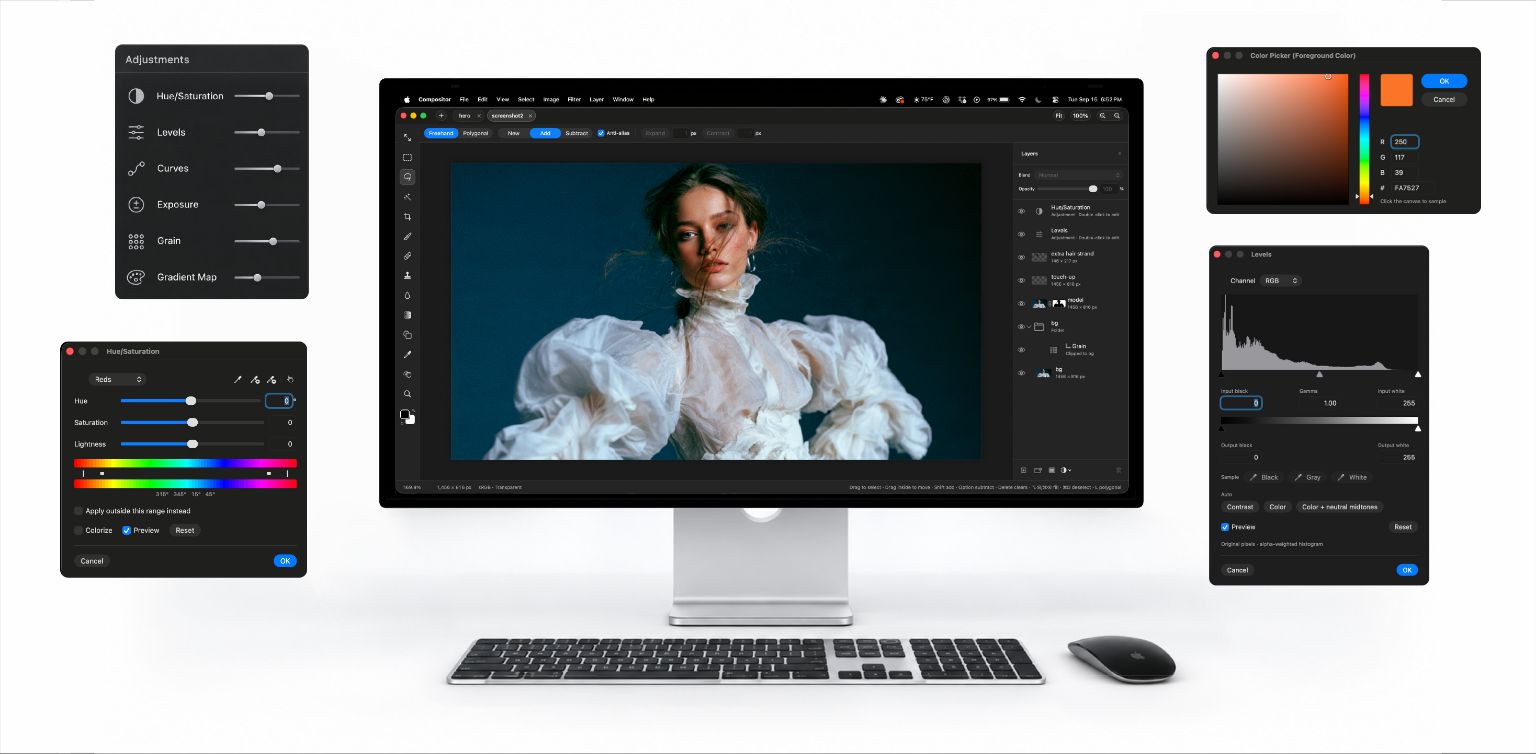
What it does: the official repository describes a native Mac editor with layers, masks, adjustments, selections and filters. Its .comp project is a folder containing PNG layers and a manifest, which agents and scripts can write. An open project can update as those files change. This is a file-based agent workflow; it should not be described as a verified built-in chatbot or a browser application.
Where it helps: an agent could prepare a layered composition that a person then refines manually. Review its project-format documentation before allowing writes, and keep a copy before changing a project that is already open.
Requirements and limitations: the reviewed README requires macOS 26.0 or later and Apple silicon. Source builds require Xcode 26+. PSD/PSB import is described for 8-bit RGB, not CMYK; some unsupported content becomes pixels and the app shows a conversion report. Import support is not a guarantee of editable PSD export. The code is MIT-licensed, and the developer offers the app free.
Use the developer’s download page or reviewed v1.5.3 release. We did not install it, so these are documented requirements and capabilities, not local test results.
Ego Lite: Useful Around the Workflow, Not an Adobe Clone
Best for: agent-assisted browser research or checking a website while you continue other work. The official name is ego (lite), commonly written Ego Lite, not Ego Light.
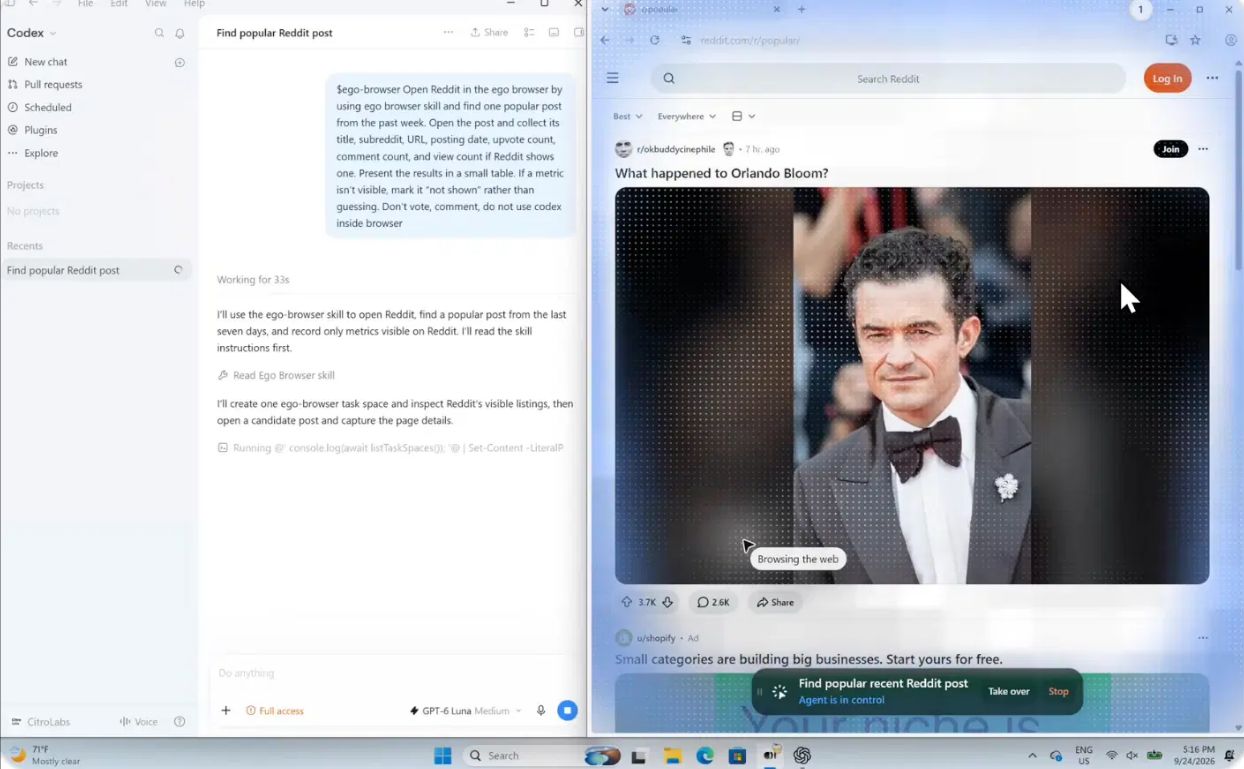
What it does: Citro Labs’ repository describes browser tasks running in separate Spaces while the human continues browsing. Its current platform list includes macOS and Windows, with Linux on the roadmap. It is a browser with an agent workflow, not simply a headless scraper, and it does not edit layers or replace Photoshop.
Where it helps: ask an agent to collect source links for a design brief or inspect a published preview. That can support creative work, but it belongs beside the editors rather than inside an Adobe-alternative feature table.
Cost, licence and risk: the repository is MIT-licensed, but its README explicitly says the browser is a separate, free download. That statement does not establish that the complete distributed browser is covered by the repository’s licence. Check the browser terms separately. Its ability to reuse signed-in browser state is a permission risk as well as a convenience: start with public pages, do not migrate sensitive sessions casually, and keep consequential actions subject to human approval.
The official Windows quick start contains the screenshot shown here. A separate browser Space is not proof that page contents cannot reach an external model provider. We did not install the browser, migrate sessions or benchmark its performance.
FAQ
Can an AI agent edit the same creative project while I work on it?
Avoid simultaneous writes during your first trial. Save a checkpoint, assign one small change to the agent, inspect the result and then resume manual editing. Compositor documents live updates from its project files, but that does not prove every competing edit will merge safely. Keep a recoverable copy and check the current app documentation before sharing a live project.
What should I do if an exported design looks different in another app?
Preserve the editable source and the unexpected export. Repeat with a small test containing one element at a time, such as text, a mask or an effect, and record the export settings and both application versions. Compare in the actual delivery application. Do not overwrite the original or treat a matching preview inside the editor as proof that the exported file is correct.
Related Techmixer Guides
Continue through the AI Tools hub or these focused guides:
- Software comparisons and setup guides
- OpenMontage AI video setup
- No-code AI workflow automation tools
- Learn how AI agents and workflows fit together
Our Take
ArtCraft is worth following because it aims to keep creative work editable and exposes more than a screenshot-driven interface to agents. The sensible test is small: can one copied project move through your actual workflow without losing the parts you need? If it can, expand the trial. If it cannot, retain the original files and report the failure. Cancelling a working toolchain before answering that question would be premature.
Last reviewed: 19 October 2026. Review method: Techmixer checked the official repositories, release metadata, licensing statements, compatibility notes and maintainer interface images. The reviewed releases are named in each section. Screenshots are attributed source material; we did not install the applications, exercise MCP control, verify file compatibility, audit privacy or benchmark performance. No claim of complete Adobe feature parity is made.