
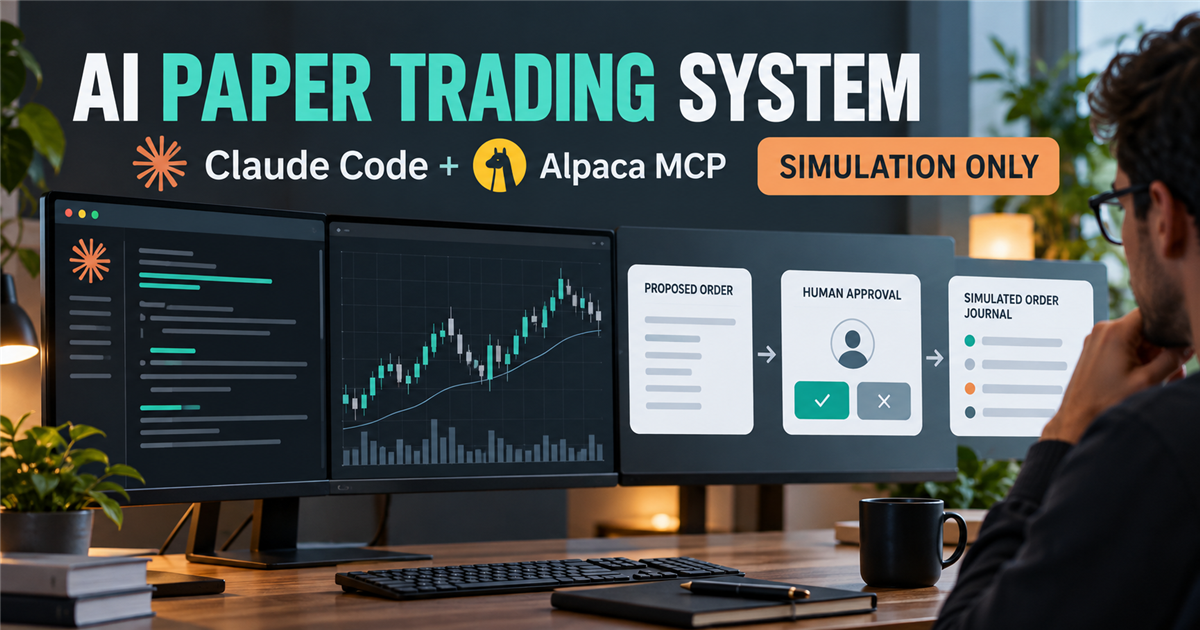
You can build an AI paper trading system with Claude Code and Alpaca MCP by connecting the assistant to market data, writing explicit trading rules, and reviewing simulated orders yourself. Start with a read-only MCP connection. Do not give a language model unrestricted order tools and assume a warning in its prompt will control them.
Quick answer: what are we building?
This guide builds a supervised research-to-paper-order workflow, not a hands-free money-making bot. Claude helps inspect data and explain a rule. Python checks a proposed plan. You make the final decision in Alpaca’s paper dashboard, then reconcile the simulated order and record what happened.
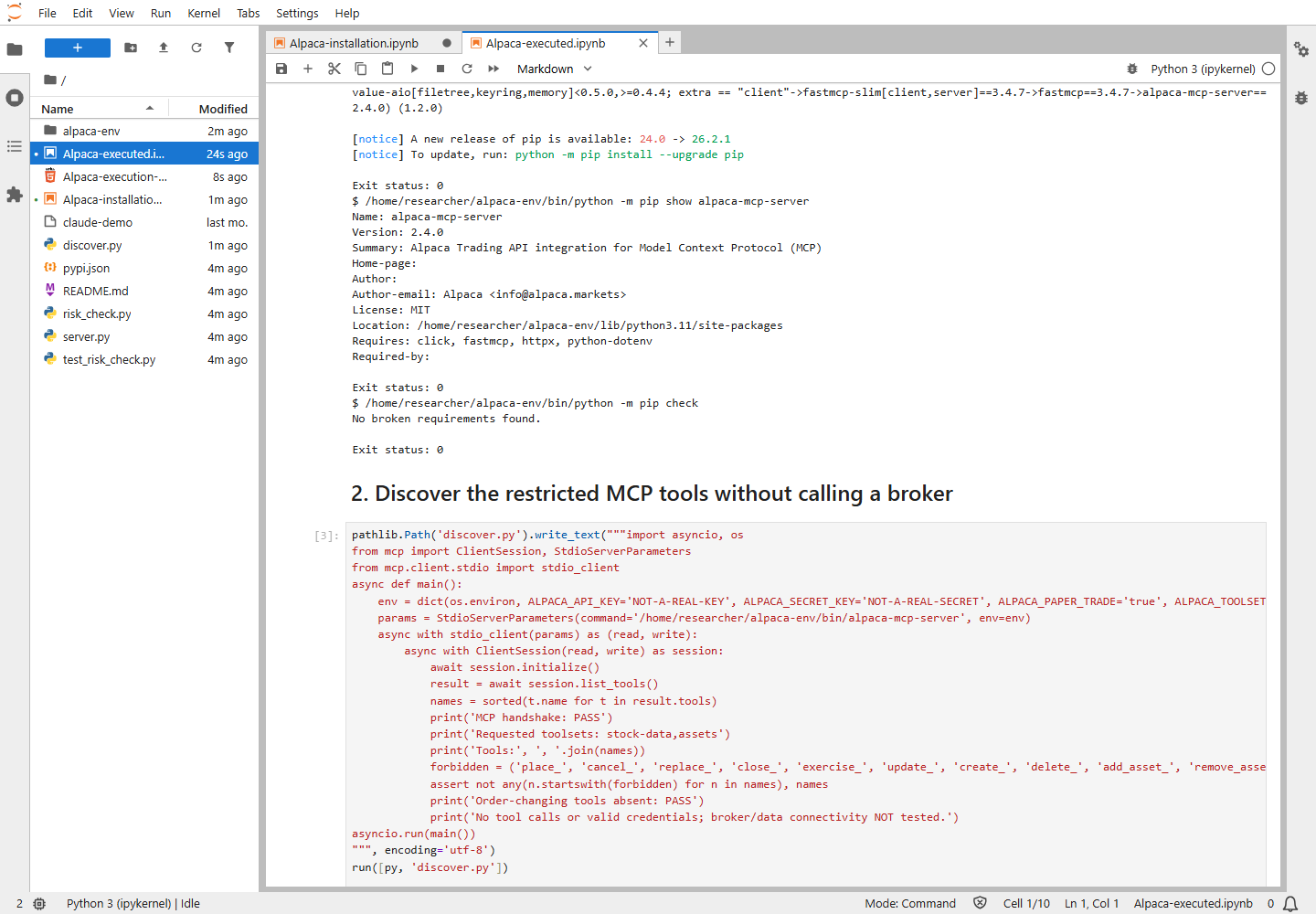
Test boundary: Techmixer installed Alpaca MCP 2.4.0, verified local MCP discovery and Claude Code registration, and ran offline safety fixtures on 20 October 2026. The screenshots below are from those real local checks. We did not authenticate an Alpaca account, retrieve authenticated market data, run a Claude conversation, or submit paper or live orders. Account-specific steps are documentation-based instructions.
What to know first
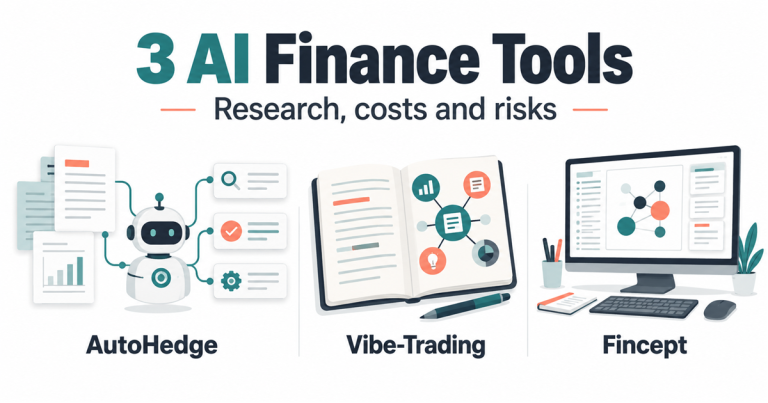
MCP, short for Model Context Protocol, connects an assistant to external tools. It does not provide a trading strategy, prove an advantage over the market, or turn a simulated fill into a reliable forecast. If you are still comparing products, begin with our AI finance tools research overview. This article focuses on connecting the pieces and checking their boundaries.
- Use paper credentials only. No funded account, real-money deposit, live API key, options, leverage or short selling is needed for this tutorial.
- Use a dedicated environment. The commands below target Bash on Linux, macOS or Windows WSL, with Python 3.10 or newer. Keep unrelated broker credentials out of that environment.
- Budget for the assistant. The MCP package is MIT-licensed. That does not make Claude usage, premium market data or hosting free. Check the account and usage limits you actually have.
- Understand the market. This example concerns U.S. stocks/ETFs. It is not a Bursa Malaysia integration or evidence of live-brokerage eligibility in your country.
Market data and account information sent to Claude leave your machine for the configured AI service. Keep private holdings and account details out of prompts unless you have checked the applicable privacy and organizational rules.
How this AI paper trading system fits together
| Component | Role in this build | Important limit |
|---|---|---|
| Claude Code | Explain the data, help write tests and produce a reviewable plan | A generated explanation can still be wrong; model access has its own cost |
| Official Alpaca MCP server | Expose selected market-data and asset-information tools locally over stdio | Default access is broader than this guide needs |
| Python | Calculate an explicit rule and run offline plan checks | The sample validator does not authenticate broker state or send orders |
| Alpaca paper dashboard | Human-reviewed simulated order entry and reconciliation | Paper results differ from real execution |
| CSV journal | Record decisions, order identifiers, state changes and errors | A journal is evidence, not an automatic risk engine |
The path is data ? explicit rule ? explanation ? offline checks ? human paper-order review ? reconciliation ? journal. No trading plugin is required. For this first build, leave scheduling and unattended execution out.
Step 1: create or select an Alpaca paper-only account
Open the official Alpaca paper dashboard, sign in yourself and confirm that you are in the paper environment before generating API keys. Save the key and secret through your own secure workflow. Do not paste either into Claude, screenshots, this site’s comments or a shared repository.
The documented trading host for this exercise is https://paper-api.alpaca.markets. Market-data requests use a separate data host, so a data URL alone does not verify paper execution. Check the dashboard environment and credentials, not just a key prefix.
Alpaca documents paper-only accounts and IEX data access, but paper fills omit important real-world effects. Treat fill quality and profit figures as simulation results, not investment evidence. See the official paper-trading account and simulation notes. We have not captured an authenticated dashboard or tested this account step.
Step 2: prepare Claude Code, Python and a clean project
If Claude Code is not installed, follow Anthropic’s official setup instructions. On Linux, macOS or WSL, its documented native installer is:
curl -fsSL https://claude.ai/install.sh | bash
claude --version
python3 --version
mkdir -p ~/techmixer-paper-lab
cd ~/techmixer-paper-lab
Read installation scripts before executing them. If a download returns 403 or another access error, stop and use the vendor’s support guidance; do not disable security controls. The installer download returned 403 in our disposable container. Our subsequent CLI check used a copy of an already installed Linux Claude Code 2.1.276 binary, without copying settings or account credentials. We are not claiming a fresh Claude installation succeeded there.
Run claude and complete your own sign-in if needed, then exit before continuing. The official Claude Code quickstart explains supported account access. A working --version command does not establish that you have model access. Windows users following the Bash commands should run the whole project inside WSL rather than mixing Windows and Linux executable paths.
Step 3: install a pinned Alpaca MCP server
Create a virtual environment so the connector’s dependencies do not replace another project’s packages. This pip route uses the same published server package without requiring an additional launcher:
python3 -m venv .venv
.venv/bin/python -m pip install "alpaca-mcp-server==2.4.0"
.venv/bin/python -m pip show alpaca-mcp-server
.venv/bin/python -m pip check
Expect the package report to show Version: 2.4.0 and the dependency check to finish without broken requirements. Check the published package and official Alpaca repository before changing versions. A pin improves repeatability; it is not a reason to ignore a later security fix. If dependencies fail, stop here instead of wiring a partially installed connector into Claude.
Step 4: connect Claude Code with restricted MCP tools
Use only stock-data,assets for this lab. Do not enable trading, watchlists or account just to make an example work: the account group also includes a configuration-changing method. The official MCP tool reference lists these capabilities.
Enter paper keys through masked prompts in your private Bash terminal. Their values are not typed into the command line or saved in the MCP configuration below. They remain environment variables, not a secret vault: processes with suitable access can still read them. Run this on a dedicated account or VM with no live credentials and do not grant the assistant blanket shell permissions.
read -r -s -p "Alpaca PAPER API key: " ALPACA_API_KEY
printf '\n'
read -r -s -p "Alpaca PAPER secret: " ALPACA_SECRET_KEY
printf '\n'
export ALPACA_API_KEY ALPACA_SECRET_KEY

claude mcp add alpaca-research --scope local --transport stdio \
  --env ALPACA_PAPER_TRADE=true \
  --env ALPACA_TOOLSETS=stock-data,assets \
  -- "$PWD/.venv/bin/alpaca-mcp-server"

claude mcp list
claude
Keep the same terminal open so the child process can inherit the paper credentials. In Claude, open /mcp and inspect the available tools and their inputs. Stop if you see order placement, cancellation, replacement, liquidation, account mutation or option-exercise capabilities. If the connector version changes, inspect again; group names are not a permanent security guarantee.
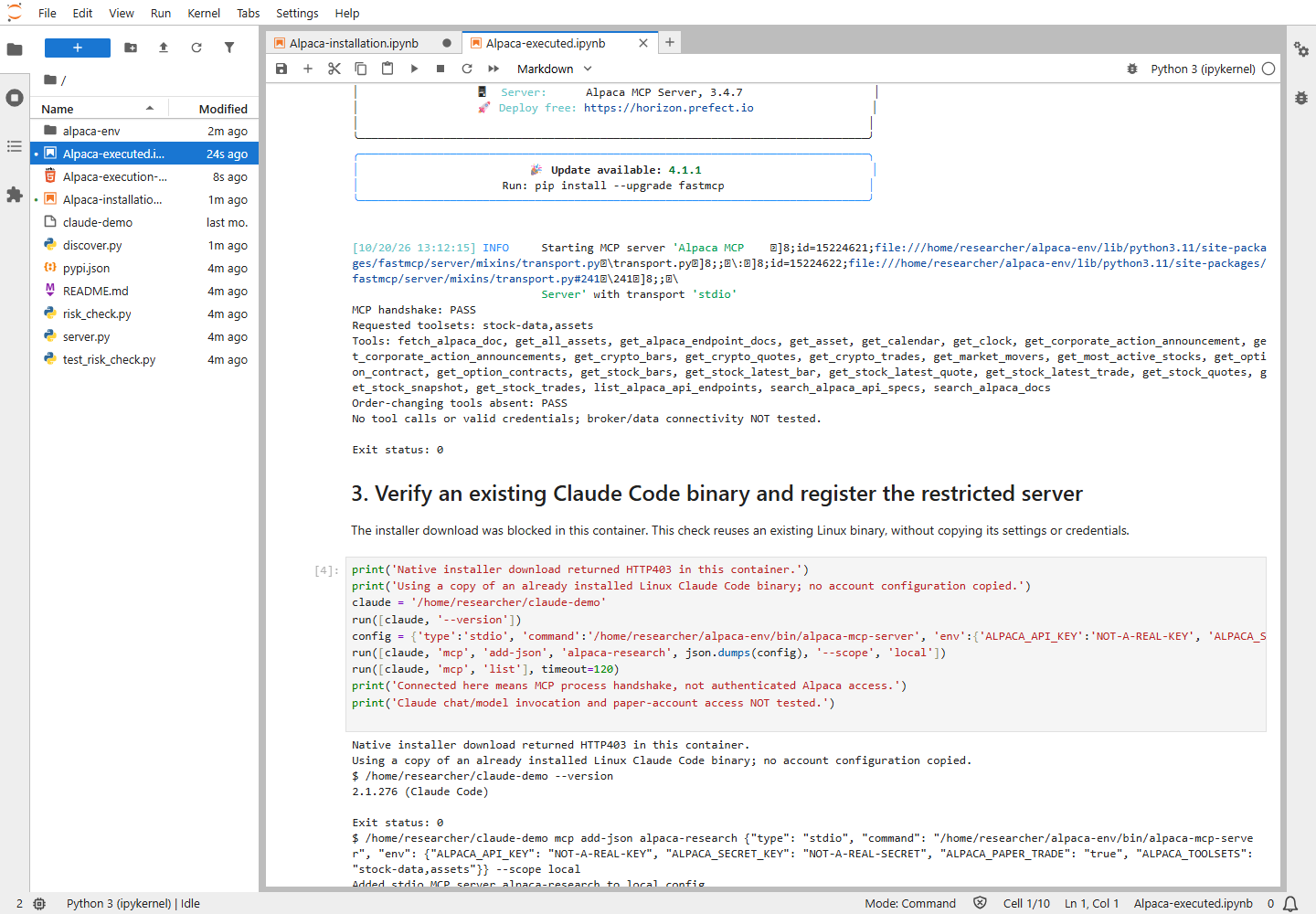
Our real discovery check returned 25 tools, including documentation helpers and some shared crypto-data methods, despite the two selected groups. We inspected the resulting list rather than assuming its contents from the group labels. It contained no order-changing methods. Restrict your requests to the stock-data exercise below.
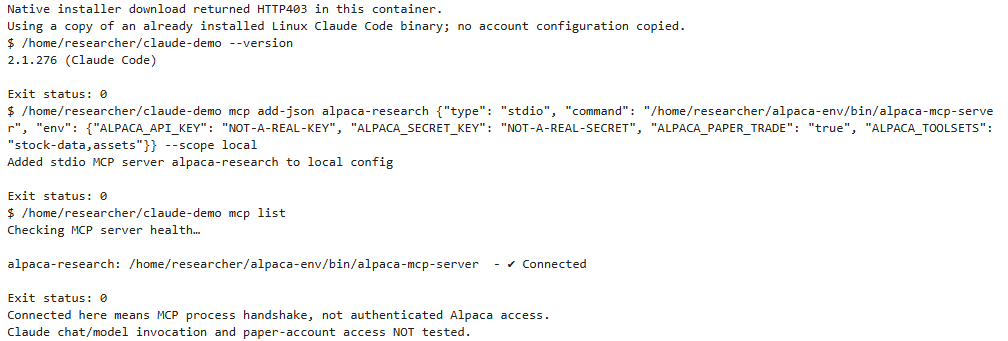
The green connection status in our screenshot used deliberately invalid placeholder keys. It proves local MCP communication, not a successful Alpaca login. Your first authenticated read is a separate check. Claude’s local configuration and management commands are documented in its MCP guide.
Security boundary: this restriction removes order tools from this MCP connection. It does not sandbox Claude’s shell or protect credentials from software running as the same OS user. Manual dashboard review is the operating procedure here, not a claim of an unbypassable execution gate. Do not approve commands that add broker write access or modify these restrictions.
Step 5: verify one market-data request before asking for a signal
Start with one symbol and one bounded request. SPY is used here as a widely identifiable test symbol, not a recommendation to buy it. In Claude, try this documentation-based prompt:
Use only the existing read-only Alpaca research connection.
For SPY, retrieve the latest available quote using the IEX feed
if the discovered tool schema supports that parameter.
Show the source timestamp in UTC, bid, ask, feed and any API error.
Then request the exchange clock. Do not infer missing values,
change the MCP configuration, or submit any order.
Inspect the tool’s current schema rather than copying an old parameter name. Verify that the symbol, source time, feed and returned fields match what you asked for. A value without a timestamp is not enough. If the tool cannot provide an authorized current quote, stop the order exercise; historical or delayed data may still support research, but not this freshness check.
An IEX quote is not the complete consolidated U.S. market. Subscription and recent-data access can differ by feed and endpoint. A 401 suggests checking authentication; a 403 needs investigation of the returned error and entitlement, not an invented price or an automatic paid-plan upgrade. See Alpaca’s market-data FAQ.
Step 6: define one rule that Python can reproduce
Do not start with “find profitable trades.” Start with a calculation whose inputs and outcome you can audit. For a teaching fixture, compare a five-session average with a twenty-session average, using 21 completed daily closes sorted from oldest to newest:
from statistics import mean

def crossed_above(closes):
    if len(closes) != 21:
        raise ValueError("Supply 21 completed, ordered daily closes")
    previous_fast = mean(closes[-6:-1])
    previous_slow = mean(closes[-21:-1])
    latest_fast = mean(closes[-5:])
    latest_slow = mean(closes[-20:])
    return previous_fast <= previous_slow and latest_fast > latest_slow

print(crossed_above([100.0] * 20 + [110.0]))  # True: synthetic fixture only
That example deliberately uses invented prices to test the arithmetic. It is not a backtest or observed market opportunity. With real bars, check completed sessions, timezone, missing dates and corporate-action adjustment consistently. Do not use today’s unfinished daily bar or future information. A signal calculated after a session closes cannot be assumed to receive that same closing price.
Ask Claude to explain the result and list missing evidence, not to override the calculation. A True result creates a candidate for review. Before even paper testing a strategy as a strategy, define an exit, holding-period limit, sizing rule and baseline, then evaluate out-of-sample results with costs. This article demonstrates the connection and review process; it does not validate that trading rule. Our TradingAgents setup guide covers a different, multi-agent research approach.
Step 7: run offline checks on a proposed paper plan
A plan is structured data, not authorization. This example permits one SPY share, a DAY limit order and a maximum planned notional of USD 1,000. Those are arbitrary lab bounds, not recommended sizing or a loss guarantee. If a symbol’s current price does not fit the cap, skip it rather than loosening the cap to force a trade.
The included validator checks paper mode, the expected host, a kill-switch state, symbol, side, order type, finite positive numbers, fresh timestamps, duplicate identifiers, open orders and an existing position. It never contains a broker client or submission function.
Download the offline Python examples and tests (ZIP). The archive contains only the validator, test file, fixed JSON fixtures and a README. It contains no broker credentials or trading program.
Extract the example into a separate folder and inspect risk_check.py and test_risk_check.py. Run the tests before editing the examples:
python3 -m unittest -v test_risk_check
python3 risk_check.py
The supplied plan.json and state.json are fixed teaching fixtures, not live data. The second command compares the fixture with your actual clock: a stale or future timestamp returns BLOCK. Do not change a timestamp to “now” to make a real plan pass. Real state must come from fresh, independently checked broker/data observations.
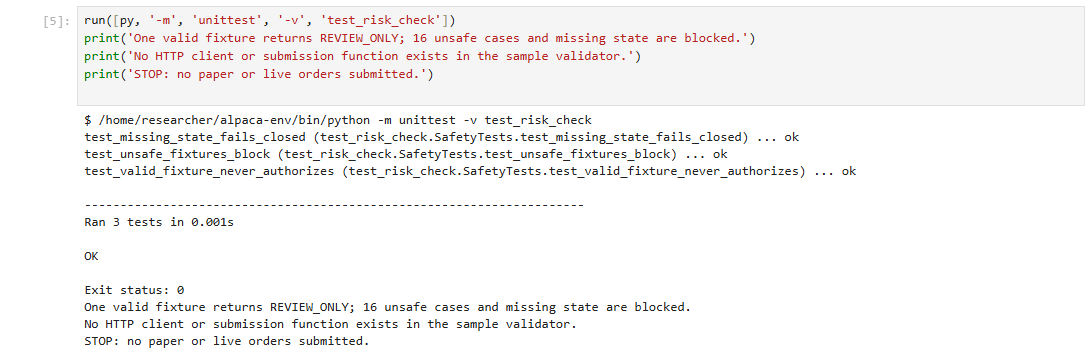
Our three test methods covered a valid review-only case, 16 unsafe variations and missing state. A passing plan returns REVIEW_ONLY, never APPROVED. The tests show those fixtures behave as expected, not that every possible failure is handled.
Do not treat this as an execution risk engine. It trusts the supplied state, does not check buying power, fetch authoritative positions, reserve exposure atomically or stop another process racing it. It cannot prevent a manual dashboard order. The current restrictions are useful for learning precisely because no automated execution path is attached.
Step 8: review a simulated order manually and reconcile it
This account-specific step was not performed in our test. Only continue in your own verified paper account after the previous checks, and only if you want to practice order handling. Doing nothing is a valid result; do not invent a signal to complete a tutorial.
- Open the official paper dashboard yourself. Reconfirm the paper environment and the symbol.
- Check authoritative cash/buying power, existing positions, outstanding orders, market hours and a fresh quote. Missing or conflicting state means stop.
- Review the exact side, quantity, limit price and time-in-force. Calculate quantity multiplied by limit price yourself. A limit order may never fill.
- If you choose to proceed, submit the simulated order manually. Record the broker’s returned order ID. A local plan identifier is not automatically the dashboard order’s client identifier.
- Reconcile the actual state: accepted, open, partially filled, filled, rejected or canceled. Record filled quantity and price separately from the requested quantity and limit.
- If the page times out, inspect existing orders before retrying. Never assume that a missing confirmation means the broker did not accept it. Verify a cancellation’s final state too; requesting cancellation does not prove nothing filled.
Keep a journal such as:
reviewed_at_utc,plan_id,symbol,rule_version,data_time_utc,decision,broker_order_id,status,filled_qty,filled_price,reason
2026-10-20T14:00:00Z,tm-paper-fixture-001,SPY,demo-v1,2026-10-20T13:58:00Z,BLOCK,,not_submitted,0,,stale_quote
The CSV row is an illustrative blocked plan, not an actual order or broker response. Include skipped plans and errors as well as fills. Otherwise your journal will hide the cases the system could not handle.
Step 9: stop cleanly and decide what needs testing next
Before ending a session, inspect outstanding paper orders and positions. Closing Claude or removing its connector does not cancel a broker order. If you request a paper-order cancellation, confirm its final state and any partial fills first.
Exit Claude, then remove this lab’s connection from the same project if you are finished:
claude mcp remove alpaca-research --scope local
unset ALPACA_API_KEY ALPACA_SECRET_KEY
Unsetting variables does not revoke a key or remove it from already running processes. Exit those processes, and revoke or rotate paper keys if exposed. Keep screenshots, logs and notebooks free of credentials.
The next useful milestone is reproducible data handling and paper-order reconciliation, not a daily scheduler. Our Vibe Trading system guide provides broader architectural context, but adding another agent does not replace these checks.
Common problems and when to stop
| Symptom | Check next | Stop condition |
|---|---|---|
| MCP failed to connect | Absolute executable path, virtual environment and dependency report | Do not change broker permissions to solve a process-launch error |
| Connected, but authenticated requests fail | Paper credentials in the launching shell and the returned API error | No verified data means no candidate order |
| Order or account-changing tools appear | Saved toolset filter, package version and the actual tool list | Disconnect until restricted access is restored |
| Old quote or closed market | Source timestamp, timezone, feed and exchange clock | Do not fabricate fresh state or force a trade |
| Order status is unclear after a timeout | Existing broker orders and fills | Do not submit again until reconciled |
Questions before extending the system
Can I replace Alpaca with another broker in this setup?
Not by changing a name or URL. Another broker needs its own supported connector, separate paper credentials, market-data checks and order-state handling. Recheck every exposed tool and the broker’s simulation rules. This tutorial validates local discovery for the official Alpaca MCP server only; it does not test another broker or authorize live execution.
Can I host this MCP connection on a public VPS?
Do not expose the local connector directly to the internet. This guide uses stdio between local processes and does not configure a public authenticated MCP service. A remote deployment needs separate access controls, credential isolation, network restrictions and operational monitoring. Hosting it continuously also does not make the demonstration strategy validated or suitable for unattended orders.
Related Techmixer guides
- AI tools and practical setup guides
- AI investment tools: compare research roles before adding services
- Vibe Trading explained for beginners
Our take
The useful first result is not an impressive-looking trading desk. It is a workflow that shows its data, explains its rule, refuses unsupported plans and leaves a trace you can inspect. Claude Code and Alpaca MCP can be useful parts of that workflow, but keeping the connector narrow matters more than adding plugins. This is an educational software lab, not personalized investment advice or evidence of expected returns.
Last reviewed: 20 October 2026. Method: official documentation/source review, isolated Linux/Python 3.11.17 package installation, local MCP discovery, an existing Claude Code 2.1.276 binary and offline tests. Screenshots show those actual checks only. Broker authentication, model responses, market-data retrieval, dashboard order entry, backtesting and paper/live fills were not tested.