

Forget your motherboard bios password? Here are three tutorial how to reset or remove Bios Password that allow clear your CMOS password. The first method is removing the battery on motherboard and second method is reset bios password on windows.
What is Bios Password?
Bios password information is normally store on a CMOS battery. Bios password is a type of security protection measure to stop unauthorized person making hardware configuration changes on system devices (Example: BIOS’s allow you to require a password to be entered before the BIOS setup may be accessed) Meanwhile, bios password also use security protection such as Some BIOS’s allow you to require a password be entered before the system will boot.
Tutorial One: Remove CMOS battery to reset bios password
This reset bios password is more suitable for desktop user. It is no recommended for laptop user unless you are experienced working with laptop hardware or the laptop warranty expired long time ago.

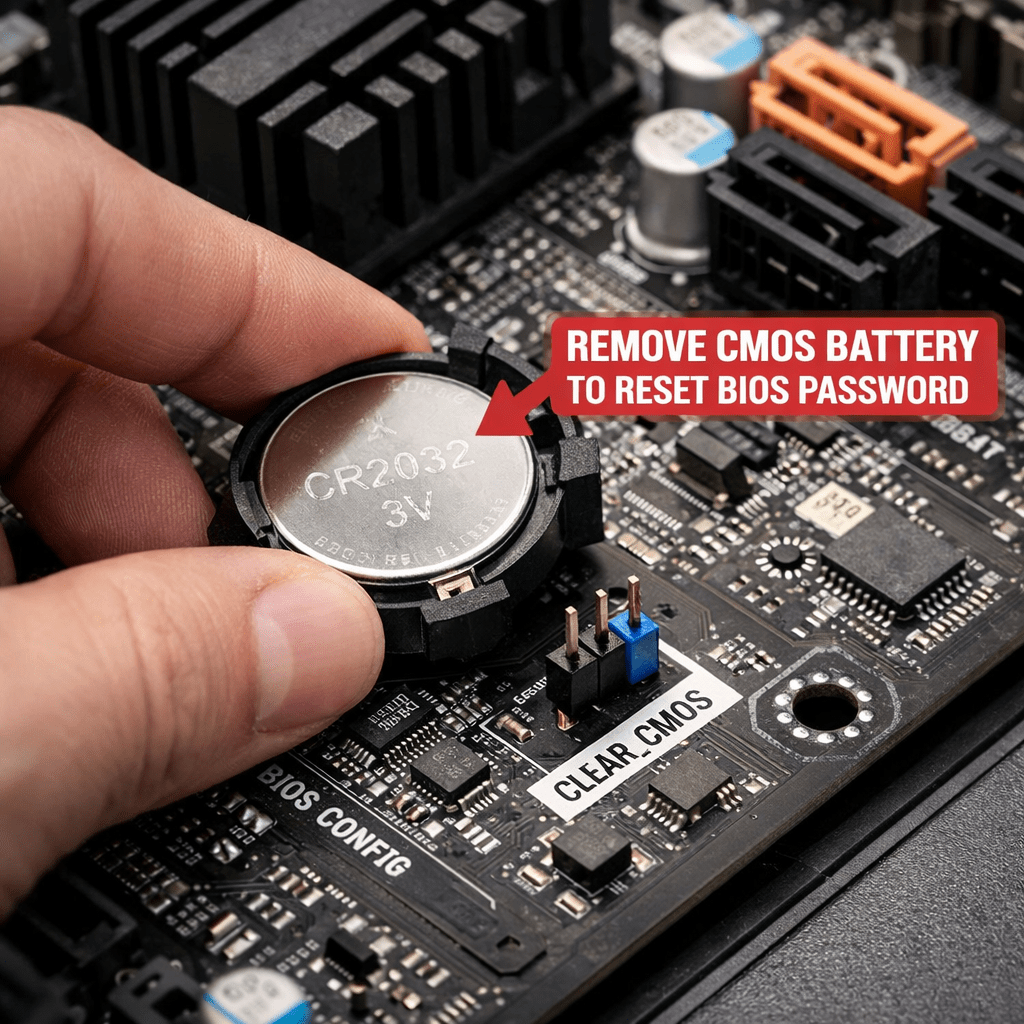
To remove the bios password on CMOS battery, first you need unplug all the power source and USB cable. Then open the desktop casing and allocate the flat, circular and metallic CMOS battery. It should look something like the picture to the right.
Once allocated, take out the CMOS battery and wait 10 – 25 minutes before putting it back in. The reason for this wait is because the computer can still store power in its capacitors even though everything is unplugged. The waiting period allows enough time for them to discharge.
After that, Plug back the CMOS battery. Then all bios password will be clear and all computer devices hardware setting will be set factory default setting. In some cases, if you get weird error messages during bootup now, you will need to goto “Load BIOS Defaults” in BIOS and save the changes to fix them.
Tutorial Two: Reset Bios Password with PC CMOS Cleaner
PC Cmos cleaner is the best bios password remover for all desktop, server and laptop. As PC CMOS Cleaner is bootable bios password remover tool that recover, delete, decode and display the superior passwords stored in BIOS whatever the motherboard brand is.

All you need is download-file is an ISO file named “PCCMOSCleaner_Free.ISO” which should be Burn into CD using ISO Image burner Software before using it. Once the bootable bios password remover loaded, the software will display ANY BIOS passwords or Set the BIOS to default state. It’s a useful tool for users to get their lost BIOS password back, or clean passwords from an old computer bought from others.
- Support all x86, x86_64 Personal Computers.
- Support most BIOS, such as: AWARD, AMI, Compaq, Phoenix, Samsung, IBM, Compaq, DTK, Thinkpad, Sony, Toshiba and so on.
- Display the superior passwords of the BIOS.
- Remove BIOS password (will set the BIOS to default status, need reset date).
- Set the BIOS to default state
Download PC Cmos Cleaner – Bios Password Remover Software
Tutorial Three: Bypass or Remove a BIOS Password using the manufacturer backdoor password
This tutorial normally is the last option if the above two tutorial can’t remove your password.
Some BIOS Manufactures implement a bios backdoor password for their own technicians to use so they can access the BIOS when the hardware is being serviced. However, BIOS manufacturers typically change the backdoor BIOS passwords from time to time. Plus more, these backdoor bios passwords are Case Sensitive.
AMI Backdoor BIOS Passwords
AMI backdoor BIOS passwords include A.M.I., AAAMMMIII, AMI?SW , AMI_SW, BIOS, CONDO, HEWITT RAND, LKWPETER, MI, and PASSWORD.
Award Backdoor BIOS Passwords
Award backdoor BIOS password includes is eight spaces. Other reported Award backdoor BIOS passwords include 01322222, 589589, 589721, 595595, 598598 , ALFAROME, ALLY, ALLy, aLLY, aLLy, aPAf, award, AWARD PW, AWARD SW, AWARD?SW, AWARD_PW, AWARD_SW, AWKWARD, awkward, BIOSTAR, CONCAT, CONDO, Condo, condo, d8on, djonet, HLT, J256, J262, j262, j322, j332, J64, KDD, LKWPETER, Lkwpeter, PINT, pint, SER, SKY_FOX, SYXZ, syxz, TTPTHA, ZAAAADA, ZAAADA, ZBAAACA, and ZJAAADC.
Phoenix Backdoor BIOS Passwords
Reported Phoenix BIOS backdoor passwords include BIOS, CMOS, phoenix, and PHOENIX.
Tutorial 4: Using the CMOS Jumper to Clear BIOS Password
If you’re not comfortable removing the CMOS battery—or can’t access it—you can reset the BIOS using a jumper on the motherboard.
Here’s a quick rundown:
- Find the CMOS jumper: It’s a set of 3 pins near the battery labeled as “CLR_CMOS,” “CLEAR,” or “PASSWORD.”
- Power off the PC and unplug it.
- Move the jumper from default pins (usually pins 1-2) to pins 2-3 for about 10 seconds.
- Move jumper back to original position and power up.
This method achieves the same result but doesn’t require removing the battery. Check your motherboard manual for exact instructions—jumper location varies.
Things to Keep in Mind
- Not all BIOS passwords can be reset this way. Some laptops and desktops store passwords in non-volatile memory chips, and they require specialized tools or professional help.
- Be gentle when handling motherboard components. Static electricity or forcibly removing parts can cause damage.
- After resetting BIOS, remember to enter BIOS setup during boot to reconfigure system time and preferred boot settings.
Conclusion
These tutorials provide ways to reset or remove BIOS passwords, potentially saving you from expensive service fees. Exercise caution, particularly when handling hardware, and ensure you have basic technical knowledge before proceeding. If uncertain, consider seeking professional assistance.


This information is intended for experienced users. It is not intended for basic users, hackers, or computer thieves. Please do not try any of following procedures if you are not familiar with computer hardware. I’ll not be responsible for the use or misuse of this information, including personal injury, loss of data or hardware damage. So use it at your own risk.
A. By Using the Motherboard Jumper:
In most motherboards CMOS battery is soldered, which makes it difficult to remove the battery. In this case we use another method.
Almost all motherboards contain a jumper that can clear all CMOS settings along with the BIOS password. The location of this jumper varies depending upon the motherboard brand. You should read your motherboard manual to check its location. If you don’t have the manual then look for the jumpers near the CMOS battery. Most of the manufacturer label the jumper as CLR, CLEAR, CLEAR CMOS, etc.
When you find the jumper, look carefully. There will be 3 pins and the jumper will be joining the center pin to either left or right pin. What you need to do, is remove the jumper and join the center pin to the opposite pin. e.g. if the jumper joins center pin to left pin, then remove it and join center pin to right pin. Now wait for a few seconds and then again remove the jumper and join the center pin to left pin.
Make sure to turn the PC off before opening the cabinet and resetting the jumper.
B. By Using Software:
I have found that BIOS/CMOS Password Recovery Tool is the most effective.:
BIOS/CMOS Password Recovery Tool is a program that works instantly to remove any lost or forgotten BIOS/CMOS password. Simply boot your PC to DOS and execute the program, and get access to forgotten BIOS/CMOS passwords in just seconds
BIOS/CMOS Password Recovery Tool Service: http://www.biospasswordrecovery.com/
Booting to a cd to remove the bios password is all fine and dandy IF the laptop (desktop too) is already set to boot from CD if not then that tool is useless until someone finds a way of forcing the cd to boot before the BIOS password prompt appears.
What you saying is correct. This bios password reset CD is only workable if CD booting setting is “On”.
However, you still can remove bios password by removing the CMOS battery.
hi, I am trying to download PCCMOS Cleaner but at 4% it loses connection with the server. where alse can i download it.
@Jimmy,
Here is alternative URL to download PCCMOS Cleaner
URL: http://www.brothersoft.com/pc-cmos-cleaner-155555.html
@Jimmy,
Here is alternative URL to download PCCMOS Cleaner
URL: http://www.brothersoft.com/pc-cmos-cleaner-155555.html
Useful tutorial you have shared to remove bios password, it do works..
Sounds good I, ll try. Thanks.
I was new for the site and not having complete details regarding this, Friends can any one please produce some attachment links regarding my request? Thanks in advance.