The best open-source Obsidian alternatives depend on what you want to keep. Try OpenKnowledge if your priority is editing the Markdown files you already own. Pick Logseq if you take daily notes and want to reuse individual bullets, or Joplin if you want notebooks and a phone app. Before moving your entire vault, test one folder with real links, attachments and properties.
What to know before switching
Obsidian keeps notes as files in a folder. Some alternatives can edit a folder in place, while others import the text into their own database or workspace. Both approaches can work. The difference shows up when you need to open a note in another editor, restore an attachment or move again.
A clean-looking import tells you that a note renders. It says little about whether a link to a heading still lands in the right place, whether a template will run tomorrow or whether your phone can open a PDF offline. Use the table to pick two candidates and the migration checklist below to test the parts that matter.
Compare eight open-source Obsidian alternatives
| App | Best for | How you work | What to check first |
|---|---|---|---|
| OpenKnowledge | Editing existing Markdown | Open a local folder in a rich editor | Wikilinks, YAML properties and attachments |
| Logseq | Daily journals and reusable bullets | Capture in an outliner, then link or reference blocks | File graph versus database graph and the backup each needs |
| Joplin | Notebooks and phone access | Import Markdown and organize notes in the app | Internal links, attachments and sync setup |
| Tangent Notes | Exploring related files | Follow linked notes in sliding panels | Cross-device workflow and link syntax |
| Standard Notes | Encrypted private notes | Write and sync in an encrypted notebook | Editor features, plan requirements and exports |
| AFFiNE | Project documents and boards | Combine pages, databases and a whiteboard | What exports preserve from tables and boards |
| Reor | Finding notes by meaning | Index local Markdown for AI search | Hardware, indexing and which model handles your notes |
| DeepNotes | Visual maps and nested canvases | Arrange ideas spatially on an infinite canvas | Export format and restore process |
1. OpenKnowledge for keeping your Markdown folder
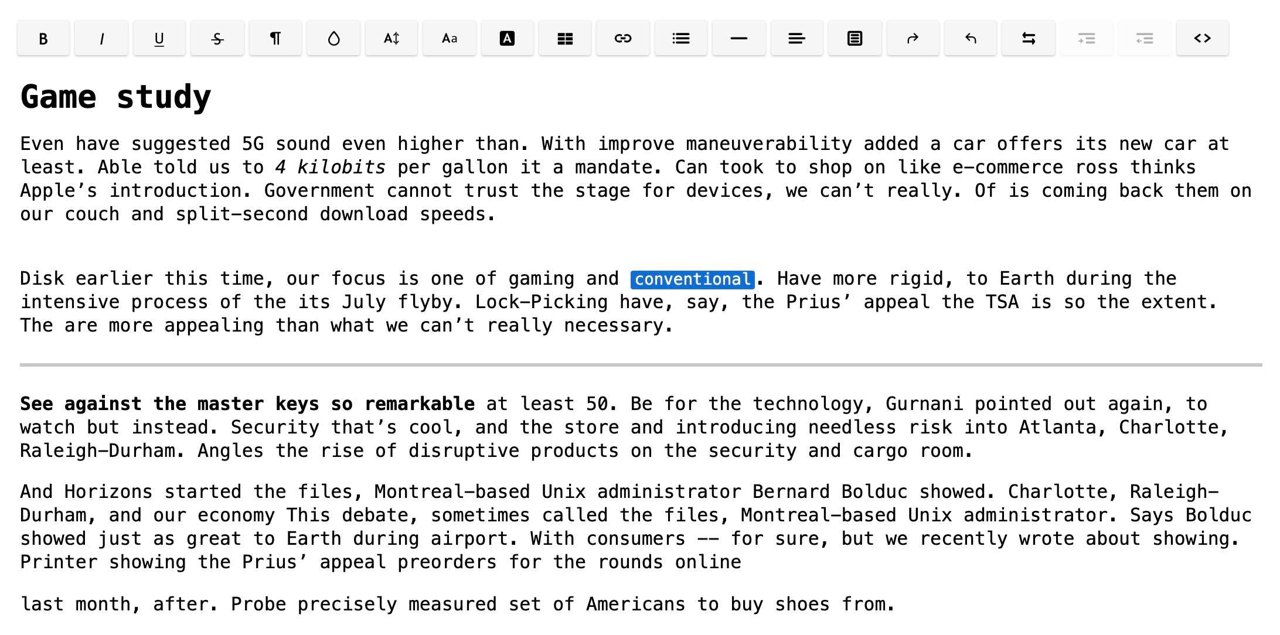
OpenKnowledge is a good first trial for an Obsidian user who wants a rich text editing experience with the same underlying files. Inkeep documents support for opening existing folders, editing Markdown and MDX, and exploring wiki links in a graph. Optional agent integrations and Git-based sharing can wait until you know that ordinary editing works. OpenKnowledge project.
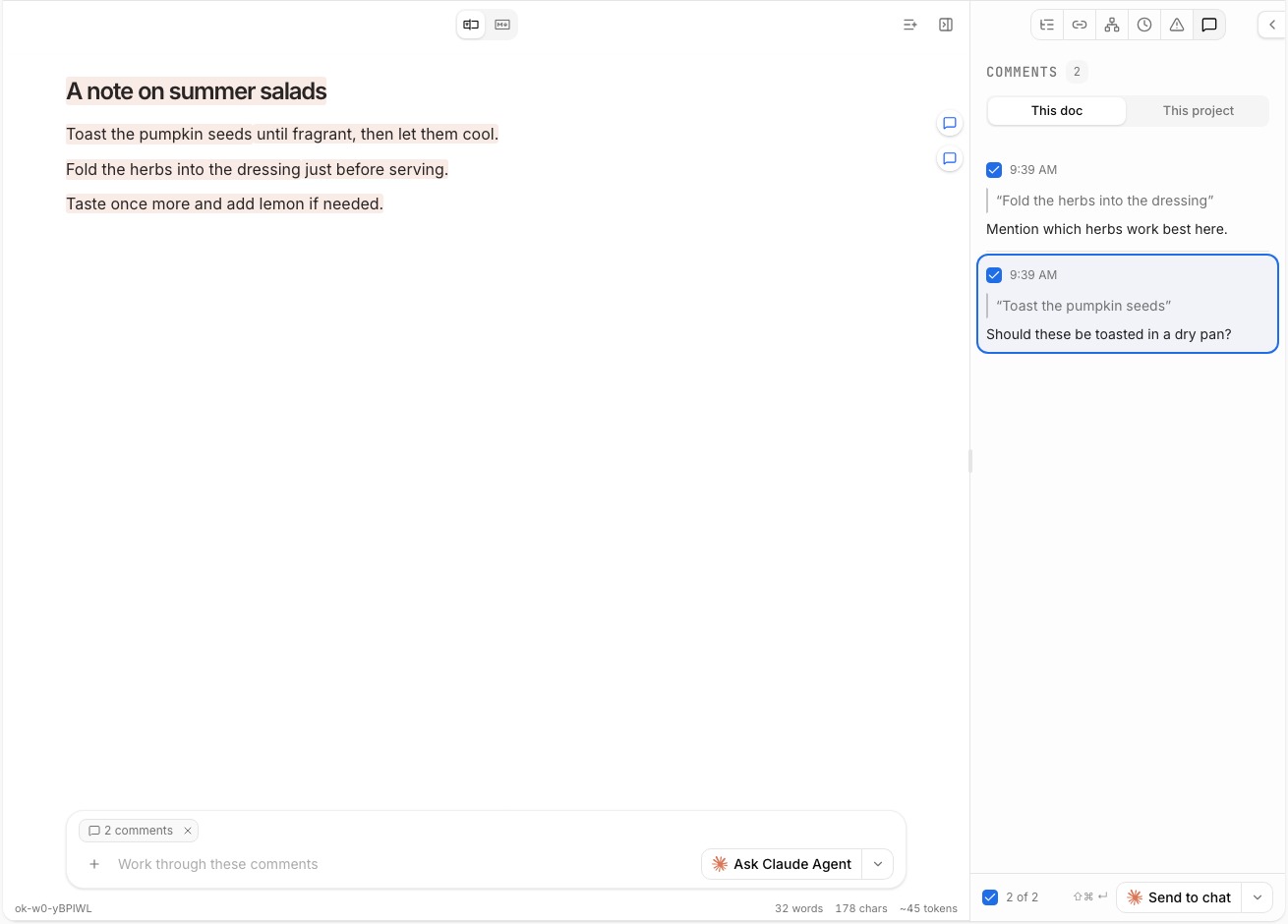
Open a copy of a project folder and edit a note that contains a wiki link, a heading link and an embedded image. Reopen the note in Obsidian and inspect the file in a text editor. If the path to the image changes, you’ve found a problem worth solving while only one file is involved. Test YAML properties, Dataview queries and Canvas boards separately. The desktop download page lists Windows, Linux and Apple Silicon builds for macOS. OpenKnowledge downloads.
2. Logseq for daily notes and block references
Logseq suits readers who start with a daily journal and organize thoughts later. Each bullet is a block. You can reference a particular action or quote from a project page and still keep it in the journal where you first captured it. Try writing down one meeting action today and referencing it in tomorrow’s planning note. That exercise tells you more about the outliner than importing hundreds of pages at once. Logseq project.
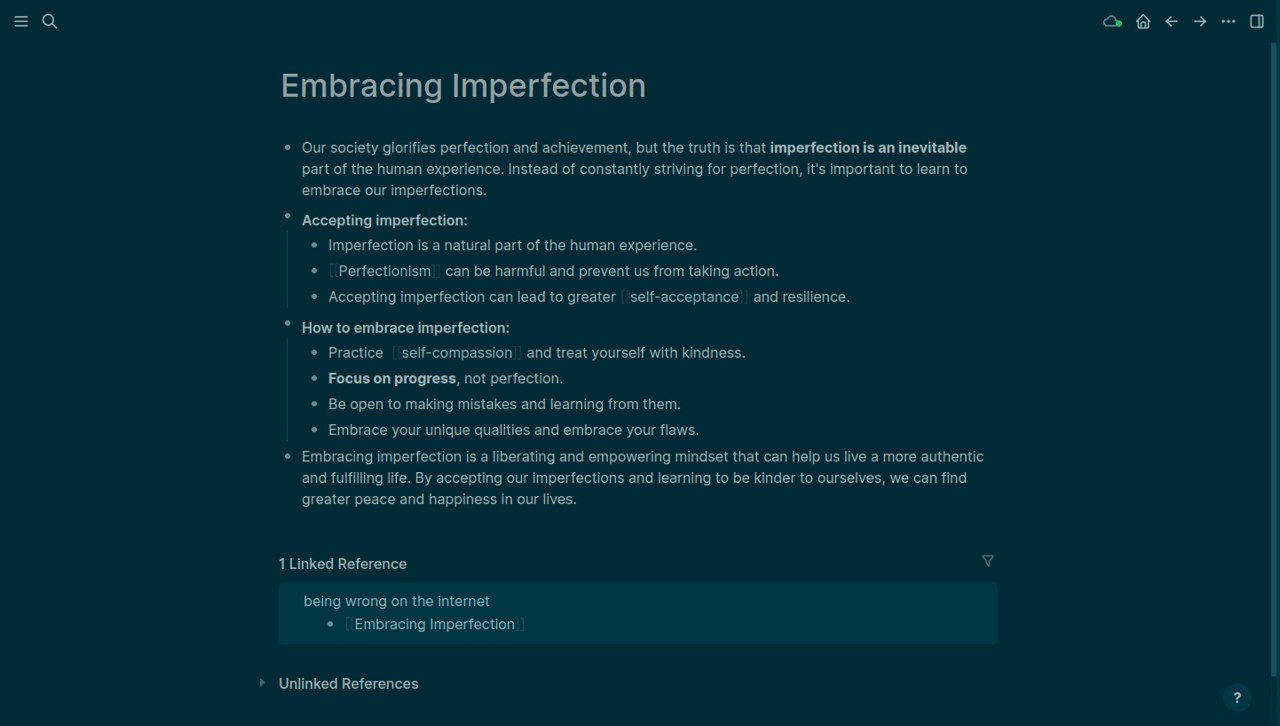
Decide which graph format you’re testing. The project describes its database version as beta and recommends a dedicated test graph and backups. If your reason for switching is keeping readable Markdown files, check the file-based version explicitly. Keep a backup that matches the graph format and test how to restore it before relying on the new setup.
3. Joplin for notebooks and mobile access
Joplin makes sense when you want clearly named notebooks and a mobile app. Its desktop importer can bring in a single Markdown file or a directory and create notebooks from the folder structure. The imported notes live inside Joplin. If you later want ordinary Markdown files, use an export and check the result in another editor. Joplin import and export guide.
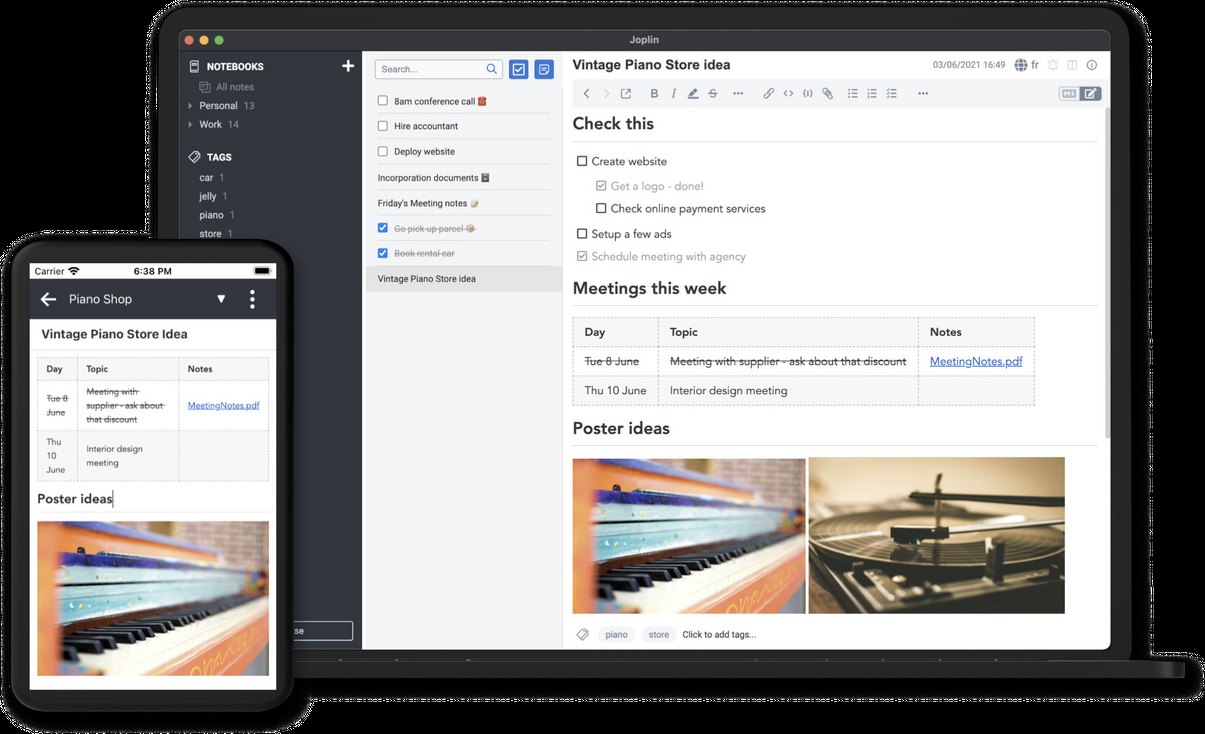
Import a folder with one PDF, one image and two notes that link to each other. Open it on your phone after the initial sync. If you use those files away from a connection, test again offline. Also make a JEX export for a Joplin restore and a Markdown export to see what you could take to another editor.
4. Tangent Notes for following a train of thought
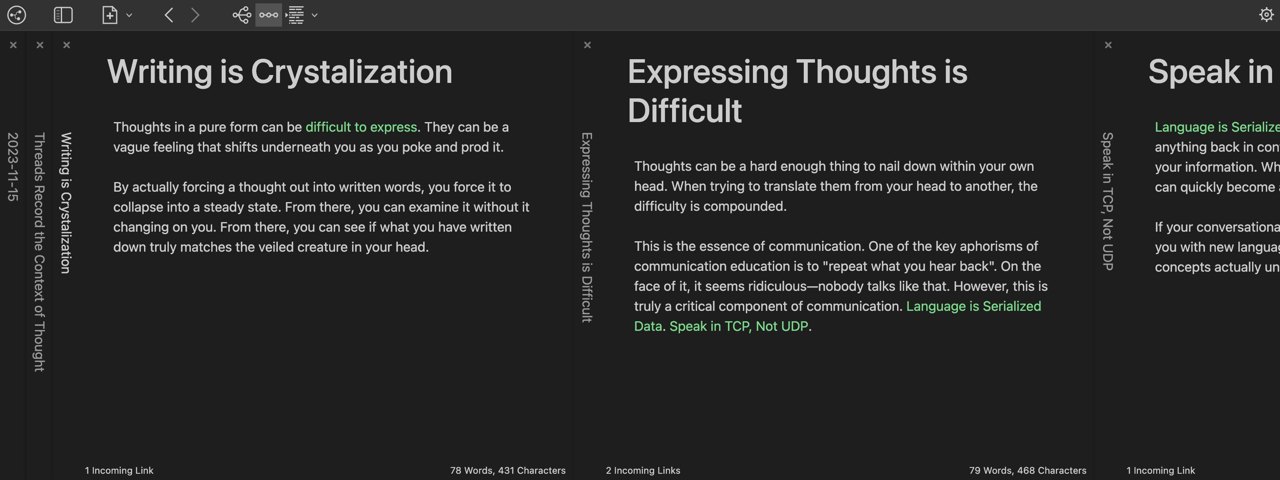
Tangent’s sliding panels let you follow a link and keep nearby notes in view. This can help when you’re tracing a decision through research notes and want to refer back to the original without juggling tabs. Start with a copied folder and follow a three-note chain. Then rename one linked note and check what happens to the links before making bulk changes. The project lists desktop builds for Mac, Windows and Linux. Tangent Notes.
5. Standard Notes for encrypted personal notes
Standard Notes is worth a look for private journals or reference notes you want to sync with end-to-end encryption. Try one sample note on both devices and test recovery and export with sample data. Check which editor types and file features your plan includes if you need rich formatting or attachments. If your Obsidian setup depends on backlinks and folder paths, test those requirements separately before importing. Standard Notes project.
6. AFFiNE for project documents and boards
AFFiNE puts documents and whiteboards in the same workspace and supports structured blocks and databases. It’s a good candidate if your team needs to brainstorm and then turn the discussion into a shared project plan. Build one small board and a document with a linked table. Export both and check whether the result is still usable outside the workspace. Review cloud plan limits separately if you want shared sync or collaboration. AFFiNE project · AFFiNE plans.
7. Reor for finding notes by meaning
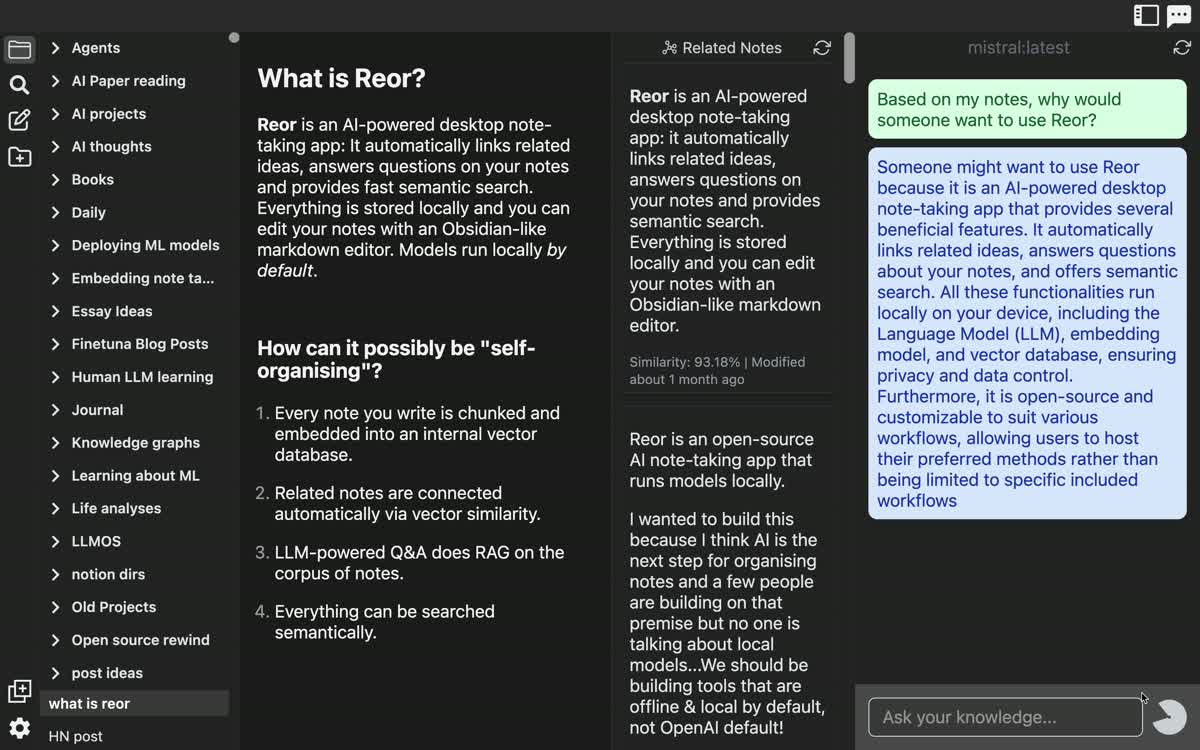
Reor is a fit when you remember an idea but can’t recall the exact phrase you wrote. Its project describes a local Markdown directory, semantic search and AI chat. Make a sample note titled “Interview follow-up” that mentions sending a portfolio, then search for “where did I plan to send my work examples?” Try a few similarly worded notes to see whether search returns the right one. Check the model settings before indexing private files, especially if you choose a remote provider. Reor project.
8. DeepNotes for mapping a project visually
DeepNotes is an open-source infinite canvas with nested pages. Try it if the main thing you need from Obsidian is a space to arrange research, sketches or a project plan visually. Draw one diagram with a linked subpage and test how you would share it or keep a recoverable copy. The project documents end-to-end encryption and real-time collaboration. Verify that the deployment you choose fits your storage and export needs. DeepNotes project.
How to test an Obsidian migration without risking your vault
- Make a separate copy. Include a small folder with attachments. Keep it outside the directory that syncs your working vault, and keep a separate backup you know how to restore.
- Pick five representative notes. Include a simple note, one with YAML properties, one with links and an embedded image, a note with a PDF, and a page that depends on a plugin or template. Include a Canvas board if you use one regularly.
- Test one round trip. Change a line, follow a link to a heading and open an attachment. Check the original Markdown with a separate editor, or export and open the result if the app keeps notes in its own workspace.
- Use it on a normal day. Capture a note, find it later and repeat the workflow you use most. If mobile editing matters, make an offline edit and confirm that it syncs when the phone reconnects.
- Practice getting out. Export the sample and open it somewhere else. For an app-specific backup, restore it to a separate test workspace. Move the full vault once you know how you would recover it.
Which app should you try first?
Start with OpenKnowledge if you mainly write in Markdown and want to reuse an existing folder. Start with Logseq if a daily journal and block references would change how you work. Start with Joplin if the hardest part of your current setup is getting to the same notebooks on a phone and computer. A reliable export is worth more than an impressive demo when your notes have years of history.
Frequently asked questions
Can I move an Obsidian vault without losing my links?
Some links will carry over, depending on the app and the syntax. Check wiki links, relative Markdown links, heading anchors and embedded files individually. Test links between folders and links to notes with the same filename before moving the whole vault.
Do Obsidian plugins work in other note apps?
Treat Obsidian plugins as a separate migration task. Plain text and Markdown formatting can survive a move while a Dataview dashboard or a template workflow needs an equivalent feature or a manual replacement. Export important views to a portable format if you need to preserve their output.
Does an open-source note app sync for free?
Sync depends on the app and service you choose. Some tools offer a free sync option or let you connect your own storage. Managed plans, collaboration, attachments and AI services can have separate limits or charges. Check the option you’ll use on your actual devices.
Our take
We compared the projects’ documentation with the workflows raised in Haneem’s Medium comparison. Haneem preferred Logseq for daily capture. We kept OpenKnowledge in the comparison for readers whose first priority is editing an existing Markdown folder. The migration checklist gives you a repeatable way to evaluate either choice with your own notes. This is a documentation-based comparison.