

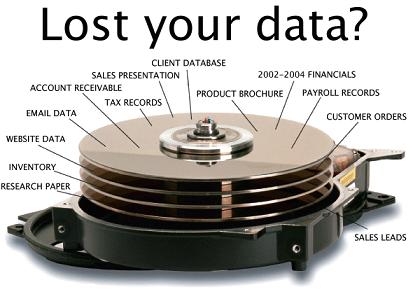
External hard drive recovery depends on the cause. If the drive is clicking, grinding, repeatedly disconnecting, or not detected after one careful cable/port check, stop powering it and seek professional help if the files matter. For accidentally deleted files on a healthy drive, stop writing to it and recover to a different physical drive.
Quick Answer
The safest first move is to stop using the affected drive, not to run a repair or format command. Check a backup first. Use recovery software only for a healthy, detected drive with logical loss, and save recovered files somewhere else. Noise, drops, liquid damage, or repeated I/O errors call for stopping and getting a recovery assessment.
What to Know First
- Recovery is never guaranteed. A tool cannot repair failed hardware or recreate overwritten data.
- Do not open a hard drive enclosure or expose its platters. Physical recovery requires a controlled environment.
- If the drive is encrypted, you may need its recovery key or original credentials.
- Warranty replacement and data recovery are separate: replacing a drive does not restore its files.
5 External Hard Drive Recovery Mistakes
1. Continuing to power a drive that is making unusual noises
Clicking, grinding, or repeated spin-up sounds can indicate physical trouble. Repeated attempts can worsen damage. Disconnect it once and avoid freeze/thaw tricks, tapping, or shaking.
2. Running CHKDSK, formatting, or initializing before preserving data
These actions change filesystem or partition information. They may be appropriate for a backed-up drive, but they are poor first steps when files are irreplaceable. Do not click Windows prompts to initialize or format a disk you are trying to recover.
3. Installing recovery software onto the affected drive
Installation and ordinary computer activity can overwrite space that deleted files occupied. Microsoft advises minimizing use of the computer and saving recovered files to a different drive.
4. Saving recovered files back to the same drive
Choose another physical disk as the destination. A second partition on the same failing device does not protect the source, and the recovered files could overwrite other recoverable data.
5. Treating every failure as a software problem
Recovery utilities work on some logical-loss cases; they cannot fix a dead USB bridge, damaged head, or failing motor. Stop if the device disappears, reports repeated read errors, becomes unusually hot, or the data is too valuable to risk.
Safer Recovery Workflow for a Healthy Drive
- Disconnect the drive and check whether the files already exist in a backup or cloud-synced folder.
- If there are no physical warning signs, make one cautious connection using a known-good cable and direct USB port. Avoid hubs and repeated reconnect cycles.
- If the files were deleted and Windows detects the drive normally, minimize use of the PC. Microsoft’s Windows File Recovery is a command-line option for supported local storage; its source and destination must be different drives.
- Recover only to separate storage and verify several recovered files before reorganizing or reformatting the original disk.
- For a failed disk or high-value data, power down and contact a qualified recovery provider before running more scans.
FAQ
Should I freeze an external hard drive to recover files?
No. Freezing can cause condensation and further damage. Keep the drive powered off and seek professional help if it shows physical failure signs.
Can CHKDSK recover deleted files?
CHKDSK repairs filesystem inconsistencies; it is not a deleted-file recovery tool. Preserve a copy or seek advice before running filesystem repair on the only copy of important data.
Can free recovery software guarantee recovery?
No. Results depend on drive health, filesystem state, and whether deleted data has been overwritten. Never treat a scan result as a guarantee.
Related Techmixer Guides
- Backup and Sync Software Hub
- Clonezilla Live disk backup guide
- SystemRescue recovery USB guide
- Fix Guides
Our Take
For an unstable drive, the most useful advice is often to stop and protect the remaining chance of recovery. For ordinary deleted-file cases, follow Microsoft’s separate-source/destination rule. This guide is documentation-based; we did not test recovery on a failing physical disk.
Last reviewed: September 29, 2026.


External hard drives operate as their internal counterparts but with the additional benefit of being portable. With this new found movement however comes additional problems, among them the damage that can be caused to the moving components if the external hard drive is moved with too much force. We recommend not moving the external hard drive while it is in use; power down and wait for the drive to settle before adjusting its position. The hardware inside an external hard drive,Advanced Data Recovery offers the best External Hard Drive Recovery service to all in and around the Barking, London area. If you want to know more about External Hard Drive Recovery please give the Advanced Data Recovery team a call today.