Rescuezilla is the first free disk cloning software I’d try for a healthy drive and a straightforward SSD upgrade. Choose Clonezilla Live if you prefer a menu-driven bootable tool, Hasleo Disk Clone Free if you want to work inside a supported Windows PC, or FOG Project if you need to deploy a prepared image to several computers.
Before you start, back up anything on the destination drive you want to keep. A whole-disk clone overwrites its partition layout and data. If the old drive clicks, disconnects or repeatedly throws read errors, switch to a recovery workflow before you attempt a routine clone.
What to know before choosing free disk cloning software
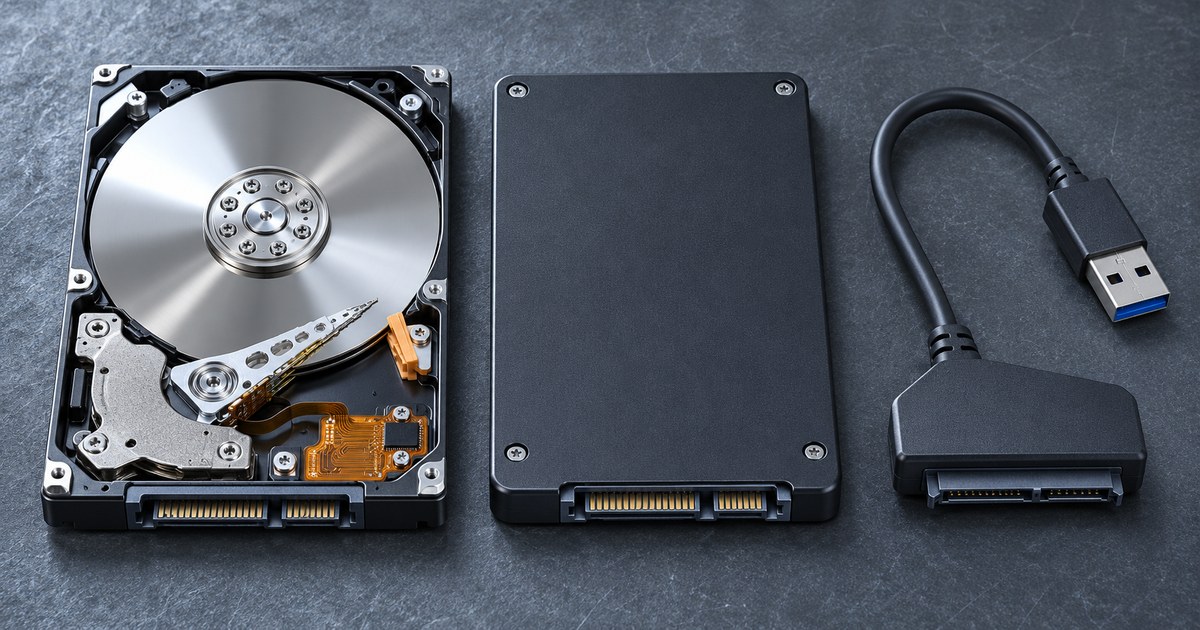
A disk clone copies a drive directly onto another drive. It’s usually what you want when replacing the storage in the same computer. A disk image saves the captured contents to files you can restore later. It’s useful when you want a rollback point or don’t have the new drive connected yet. Keep a separate file backup for important documents whichever route you choose.
If you want Windows to boot from the SSD, copy the required startup partitions along with the operating system. Copying the files you see in File Explorer leaves those partitions behind. A whole-disk clone usually makes the most sense for a drive with multiple partitions you want to keep. If Windows and its boot files span more than one physical disk, check the layout before assuming one drive contains everything.
Compare 4 free disk cloning tools
| Tool | Where it runs | Best use | Main limit |
|---|---|---|---|
| Rescuezilla | Bootable USB, graphical interface | One PC, easy source and destination selection | Smaller targets can require manual partition changes |
| Clonezilla Live | Bootable USB, text menus | Disk-to-disk copies and reusable images | Use an equal or larger destination for a normal clone |
| Hasleo Disk Clone Free | Supported x86/x64 Windows PCs | Windows migration with a partition layout preview | Free for personal/home use. ARM64, business use and rescue media creation are paid features. |
| FOG Project | Linux imaging server with network boot clients | Deploying the same image to several PCs | Requires server setup, storage and a suitable network |
1. Rescuezilla for a straightforward SSD upgrade
Rescuezilla is an open-source live environment for disk cloning, backup and restore. Boot it from USB and choose Clone when both drives are attached. Choose Backup if you want image files on separate storage. Its graphical menus help you identify the drives without typing Linux device names. Official Rescuezilla download · Rescuezilla help.
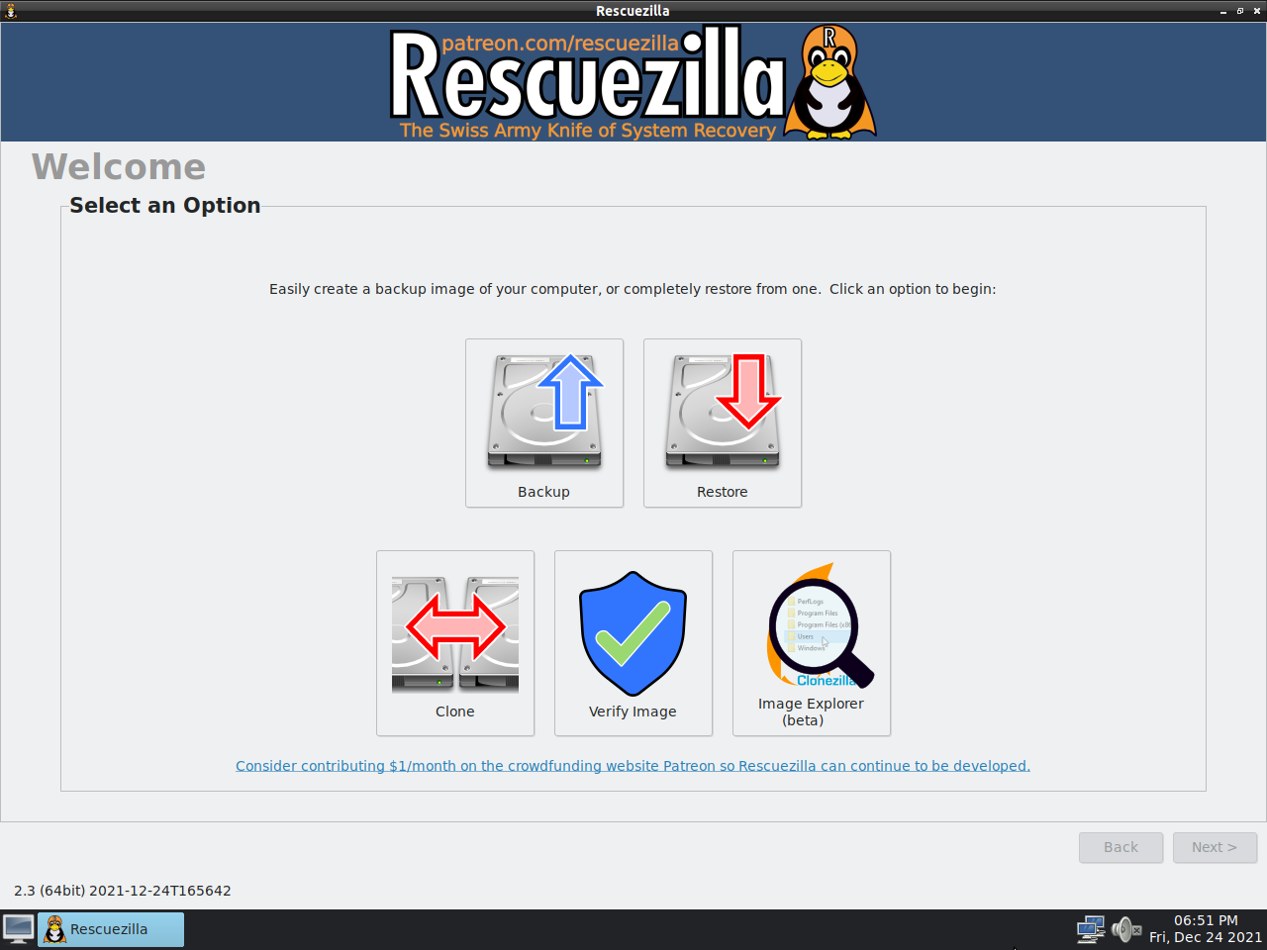
Check the screen for the source and target drive capacities before proceeding. If the USB boots to a blank screen, Rescuezilla documents a graphical fallback mode. If you’re going from a 1 TB drive to a 500 GB SSD, the project documents a manual resize workaround. Back up before changing source partitions and use a larger target if you can’t verify the new layout.
2. Clonezilla Live for offline clones and disk images
Clonezilla Live is free and open source. In its bootable environment, device-device is the direct drive-copy mode. Choose device-image when you want a backup you can restore later. For a one-time drive replacement, the project’s example walks through Beginner mode and disk_to_local_disk. Official Clonezilla Live download · Official disk-to-disk guide.
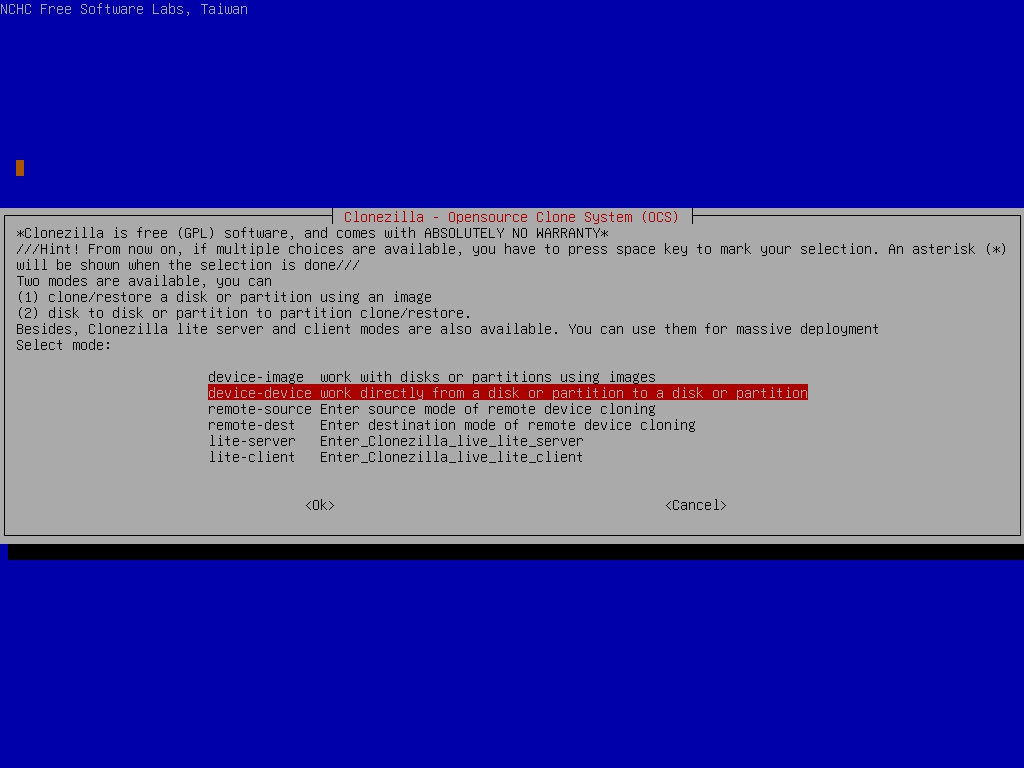
The text menus give you control, but drive labels can be easy to confuse. Write down the drive models and sizes in advance, especially if two drives have the same advertised capacity. The Techmixer Clonezilla walkthrough covers backup and restore choices in more detail.
3. Hasleo Disk Clone Free for Windows migration
Hasleo’s free edition lists system, disk and partition cloning for personal or home use. It’s a proprietary Windows app. Use System Clone to move Windows and its startup partitions. Use Disk Clone if you also need separate data partitions on that disk. Check the free-edition column on the vendor page, especially for Windows on ARM or a company PC. Hasleo Disk Clone editions.
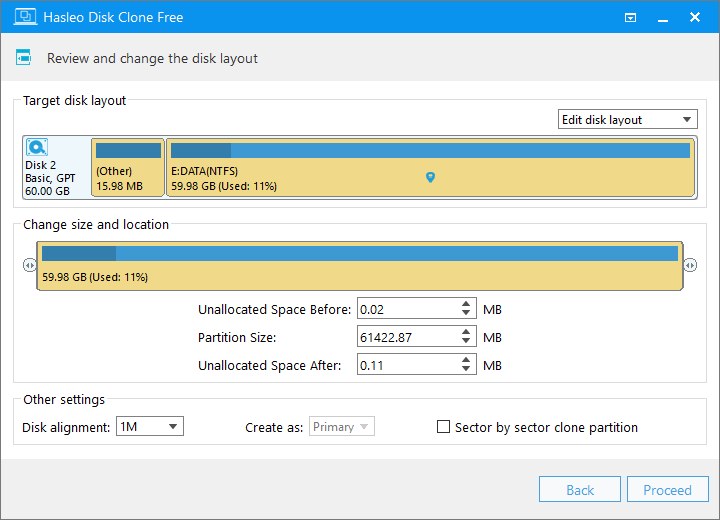
The destination layout preview is helpful when downsizing. Check that every partition you need fits and that the new Windows partition will still have room for updates and files. If a partition can’t be shrunk far enough, use a larger target or move data to a separately backed-up drive before revisiting the clone. Hasleo’s disk clone walkthrough.
4. FOG Project for deploying an image across a network
FOG is a free open-source imaging system for a lab, classroom or IT team. Set up a Linux FOG server, register a client, capture an image from a prepared machine, and deploy it to a test client before imaging the rest. Clients usually start through network boot, often called PXE. FOG’s web console is where you associate images with hosts and schedule tasks. FOG overview · FOG capture guide.
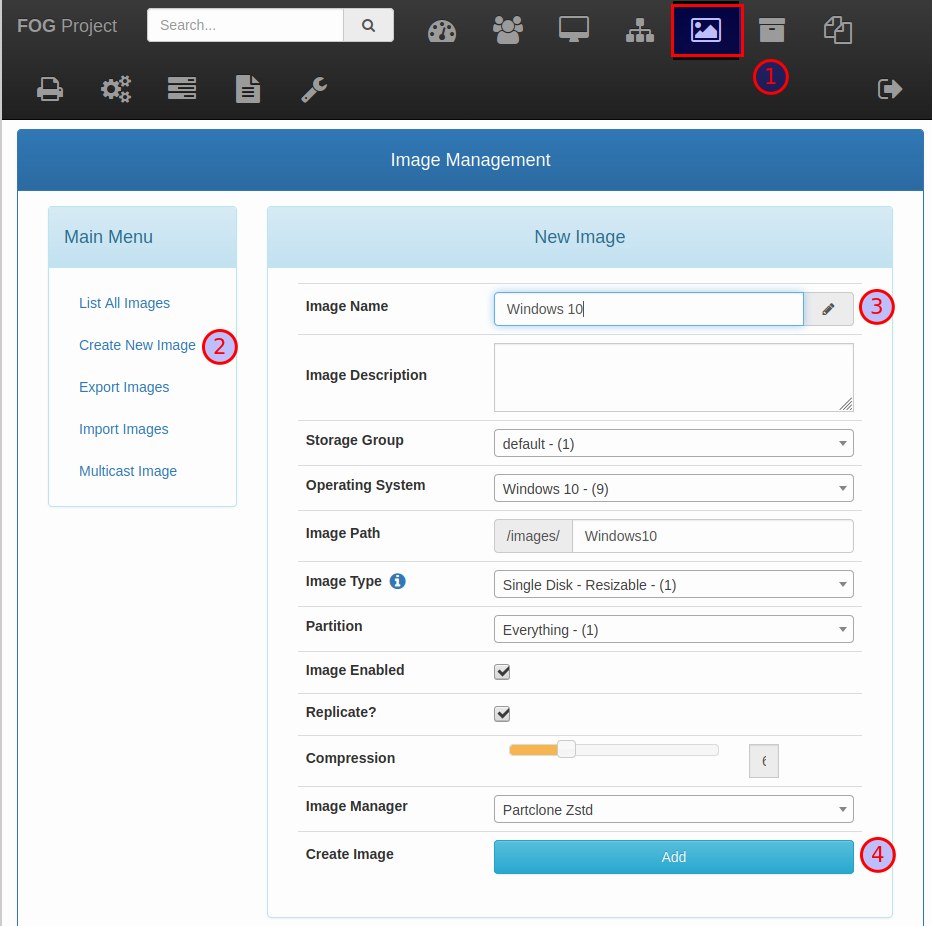
Use a spare test machine first. A deployment writes to the target disk, so confirm the registered host and drive before assigning a job. For a single SSD swap, a local bootable tool avoids the work of configuring network boot and maintaining an image server.
Can you clone a 1 TB HDD to a 500 GB SSD?
Sometimes. Suppose the old disk has 220 GB of files. That tells you the data might fit, but the existing Windows partition could still span almost the entire 1 TB disk. The new layout has to fit the SSD’s usable capacity, including the boot and recovery partitions. Hasleo documents resizing destination partitions during cloning. Rescuezilla documents resizing the source first for smaller targets. With Clonezilla’s ordinary workflow, use a target at least as large as the source.
Check the layout in Disk Management and in the cloning tool’s preview. Leave room for Windows updates and normal growth. If both drives say 500 GB on the box, compare their actual capacities as well. A small difference can matter to an exact-layout clone.
How to verify an SSD clone before erasing the old drive
- Back up important files and check encryption. Save the BitLocker recovery key somewhere you can reach from another device if Windows uses encryption. Follow the chosen tool’s encryption instructions. Microsoft’s recovery key guide.
- Identify the drives. Record the model and capacity of the old disk and the new SSD. Unplug unrelated removable drives. Compare both labels again on the final confirmation screen.
- Clone using the mode that matches your goal. A disk clone overwrites the target. Wait until the tool reports completion. If it reports read errors, keep the original and investigate before relying on the copy.
- Test the SSD in its intended slot. Shut down and disconnect the old drive where practical. Remove the bootable USB and start from the SSD. Confirm Windows or Linux reaches its normal login. Open a few real files and launch an app you use.
- Keep the old drive as a fallback. Confirm your independent backup is readable and keep the old drive intact until the SSD has handled normal use. If boot fails, verify the boot entry in firmware and switch back to the original disk if needed.
When to stop and use a recovery workflow
If the drive drops offline repeatedly, makes unusual mechanical sounds or contains irreplaceable data, stop and consider professional recovery. Avoid running filesystem repair on an unstable source as your first step. GNU ddrescue is a specialist option for someone equipped to image a failing disk. Its mapfile records what was read so the operator can resume without copying good regions again. Work from the image or clone after capture. GNU ddrescue manual.
Related Techmixer guides
- Compare backup and sync workflows
- Find free backup software for Windows
- Create a SystemRescue bootable USB
- Browse Techmixer’s software guides
Our take
For a healthy drive in one PC, choose the tool whose destination preview you can read confidently. Before repurposing the old disk, confirm the SSD starts on its own and your files open. Keep a separate backup so the next recovery doesn’t depend on one copy.
Last reviewed November 11, 2026. Techmixer checked the projects’ guides, editions and screenshots. This comparison is based on documentation. The 1 TB to 500 GB example is a planning example.