Google Colab and Kaggle are the first free cloud GPU services to try if you want to run your own Python notebook. Hugging Face ZeroGPU makes more sense for a short, shareable AI demo. Lightning AI and Modal offer another route when you need a persistent workspace or a scripted GPU job. They meter usage and apply credits to the bill.
Pick the platform based on what you need to take away: a notebook and its results, a demo link, or a script you can run again. The easiest GPU to get is often the one that lets you finish the job and keep the result before the session ends.
What to know before starting a free GPU session
Check the offer at the moment you start. For a notebook, look for the accelerator your account can select. For a credit-based service, check the current balance, the GPU rate and what happens when the balance runs out. For a shared demo, check the duration and visitor queue. A quota can tell you how much compute is included without telling you how long you’ll wait for it.
Also check what survives a restart. A saved notebook usually contains the code and text. A checkpoint written into a temporary runtime may disappear. Before a long run, write a small output file, save it somewhere durable, and confirm you can open it from a new session.
Compare 5 free cloud GPU options
| Service | Best for | What’s included | Main limit |
|---|---|---|---|
| Google Colab | Quick Python and PyTorch tests | Free hosted notebook with GPU access when available | GPU model, availability and usage limits vary |
| Kaggle Notebooks | Working with public datasets | Free notebook accelerators within the account quota | Check the live accelerator menu and remaining quota |
| Hugging Face ZeroGPU | Running or sharing short Gradio demos | Free account includes five GPU minutes per day for use, with hosting eligibility for some free personal accounts | Queue, daily quota and short GPU calls |
| Lightning AI Studio | Keeping code and dependencies between experiments | Promotional credits for eligible accounts | GPU and storage usage can consume credits |
| Modal | Scripted batch or serverless jobs | Starter includes $30 in monthly credits | Payment method required. Usage beyond applicable credits can be billed. |
1. Google Colab for a quick GPU notebook
Colab is the simplest starting point when you have an .ipynb file or a few cells of Python. Open a notebook, choose Runtime ? Change runtime type, select a GPU under Hardware accelerator if offered, then connect and run the check below. Google says the free tier’s GPU availability, limits, idle timeout and maximum runtime can change. Treat the device you see as the device for that session. Google Colab FAQ.
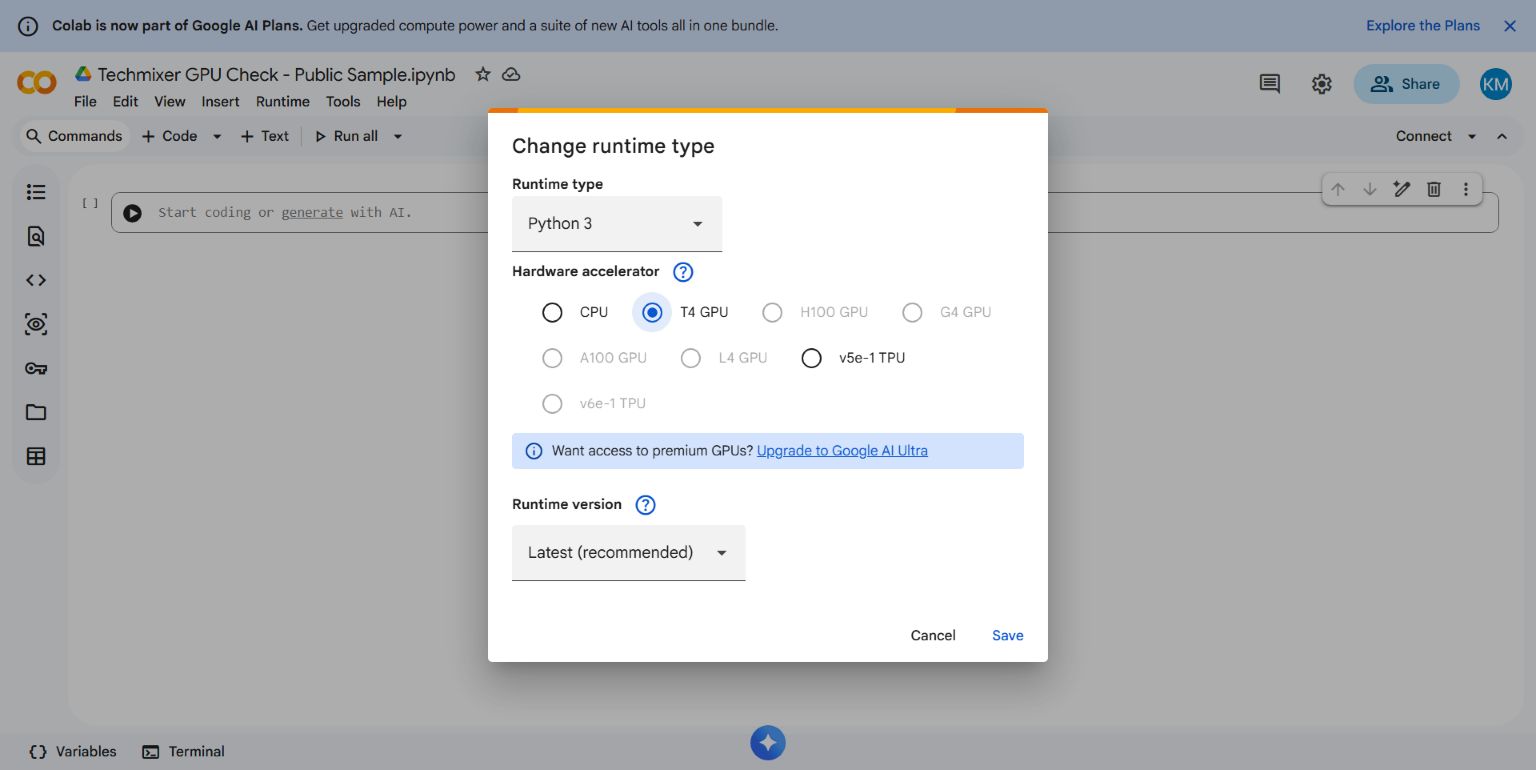
Try one forward pass or a few training batches before downloading a much larger model. If Colab offers only CPU, you can still check imports, data loading and file paths while waiting for a GPU. Keep a copy of the notebook and export the files you need before disconnecting.
2. Kaggle Notebooks for experiments with public data
Kaggle is a good pick when the notebook and dataset belong together. Sign in, start a notebook and add a small public dataset. In the notebook settings, choose a GPU accelerator if one is available. Check the notebook’s quota and confirm the assigned hardware in a cell. Kaggle has announced the retirement of the Tesla P100, so older tutorials that tell you to select one can be misleading. Kaggle Notebooks documentation · Kaggle’s P100 announcement.
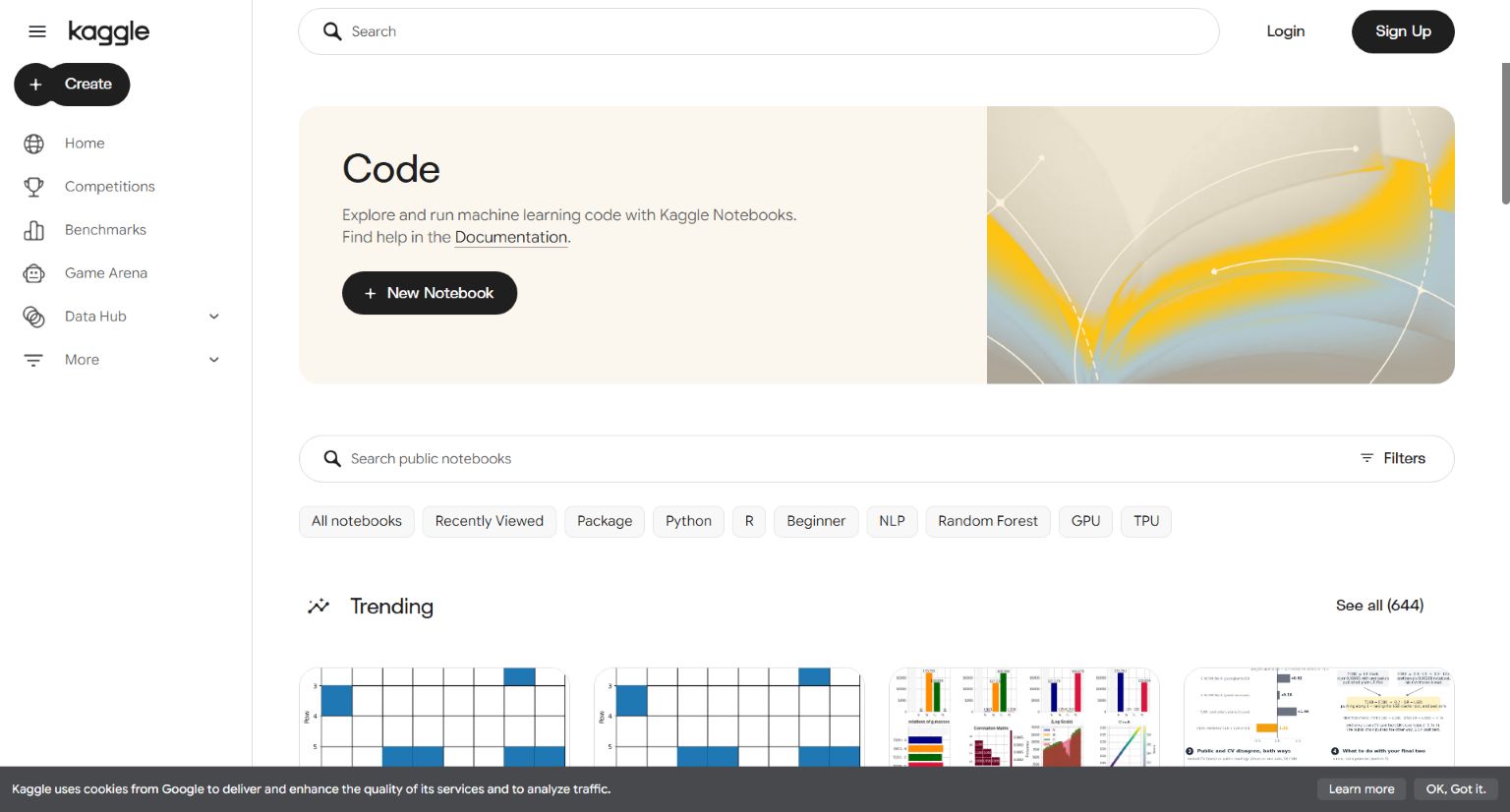
For a first run, read a few rows, run one GPU batch and save a result before committing to an entire training job. Open the result after saving the notebook version or exporting the file. If the accelerator control is unavailable, check account requirements and quota in Kaggle before changing any Python packages.
3. Hugging Face ZeroGPU for short Gradio demos
ZeroGPU is useful if you want to try someone else’s model through a web interface or share your own Gradio demo. Hugging Face documents two minutes of daily GPU quota for unauthenticated visitors and five for signed-in free users. It also says eligible free personal accounts can host up to two ZeroGPU Spaces after email verification and once the account is older than 30 days. GPU time is allocated to calls that need it. ZeroGPU usage tiers · Hosting eligibility.
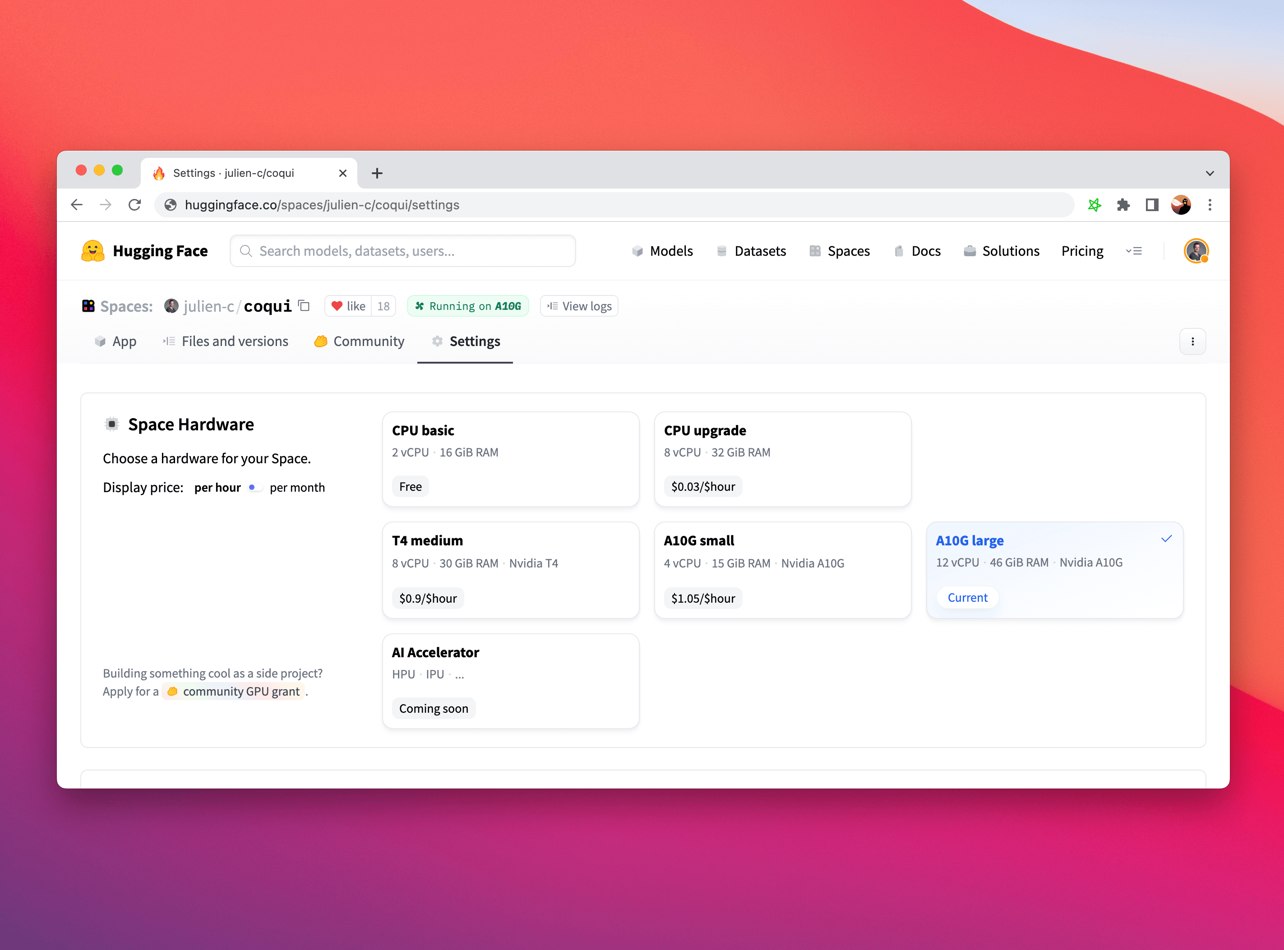
Start by trying a public demo with a sample prompt or image. If you want to host your own, move a single GPU-heavy operation into the documented Gradio workflow. Use a small model and short requests first. Record whether a visitor can get a result within the queue and call duration you can tolerate. Avoid uploading confidential inputs to a public demo unless you have checked who runs it and how it handles data.
4. Lightning AI Studio for a workspace you can return to
Lightning AI Studio gives you a browser-based development environment. It can start on CPU and switch to GPU after your code and dependencies are ready. Lightning’s pricing FAQ lists five initial credits and up to 25 more after adding a card. Its billing docs say free credits are promotional and eligibility can change. The GPU model and rate determine how long a balance lasts. Lightning Studio documentation · Lightning pricing FAQ.
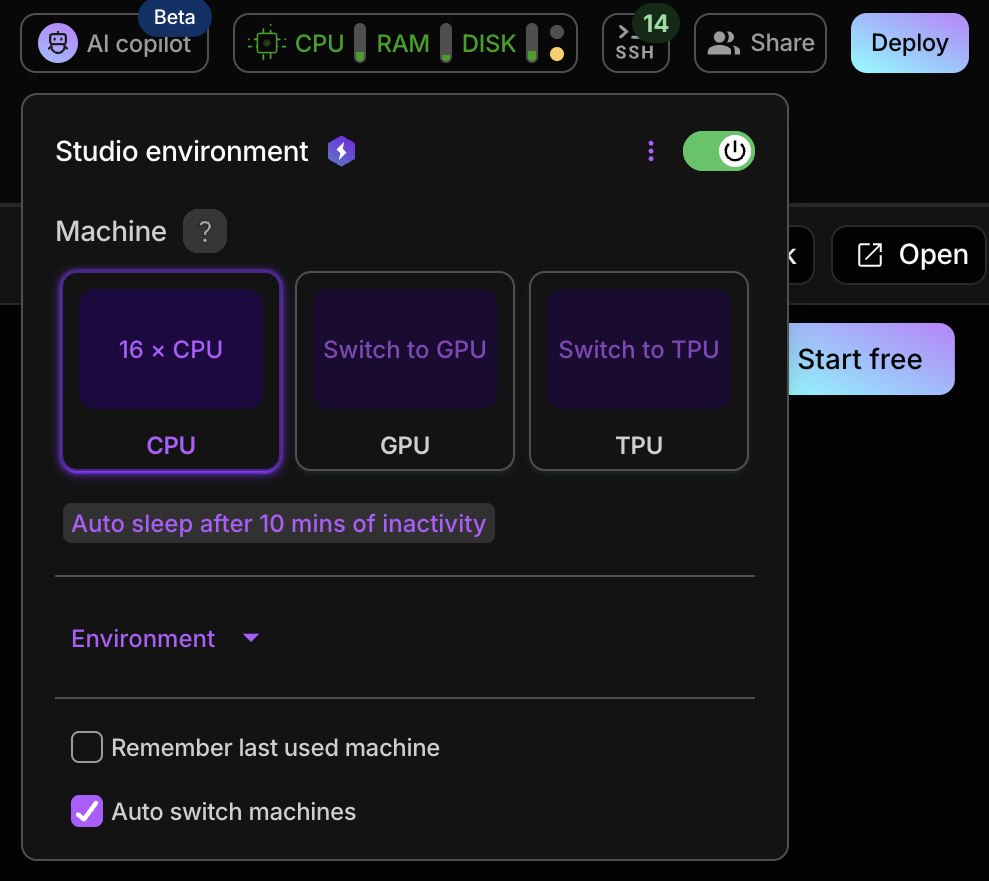
Use CPU time to install libraries and load the data. Switch hardware for one measured run, check the credit balance, then switch back or stop the GPU Studio. Keep an eye on storage too. Lightning’s billing guide says the first 10 GB across Drive and container images are free, with additional storage billed separately. Lightning billing details.
5. Modal for a repeatable GPU job
Modal is a fit when you can put the job in a Python function and want to run it again without reopening a notebook. Its Starter plan lists $30 of monthly credits and its billing guide requires a payment method. Check both the workspace usage budget and the separate spend limit. Modal describes the usage budget as a cap before credits and the spend limit as a cap on net charges after credits. Modal pricing · Modal billing · Modal budgets and spend limits.
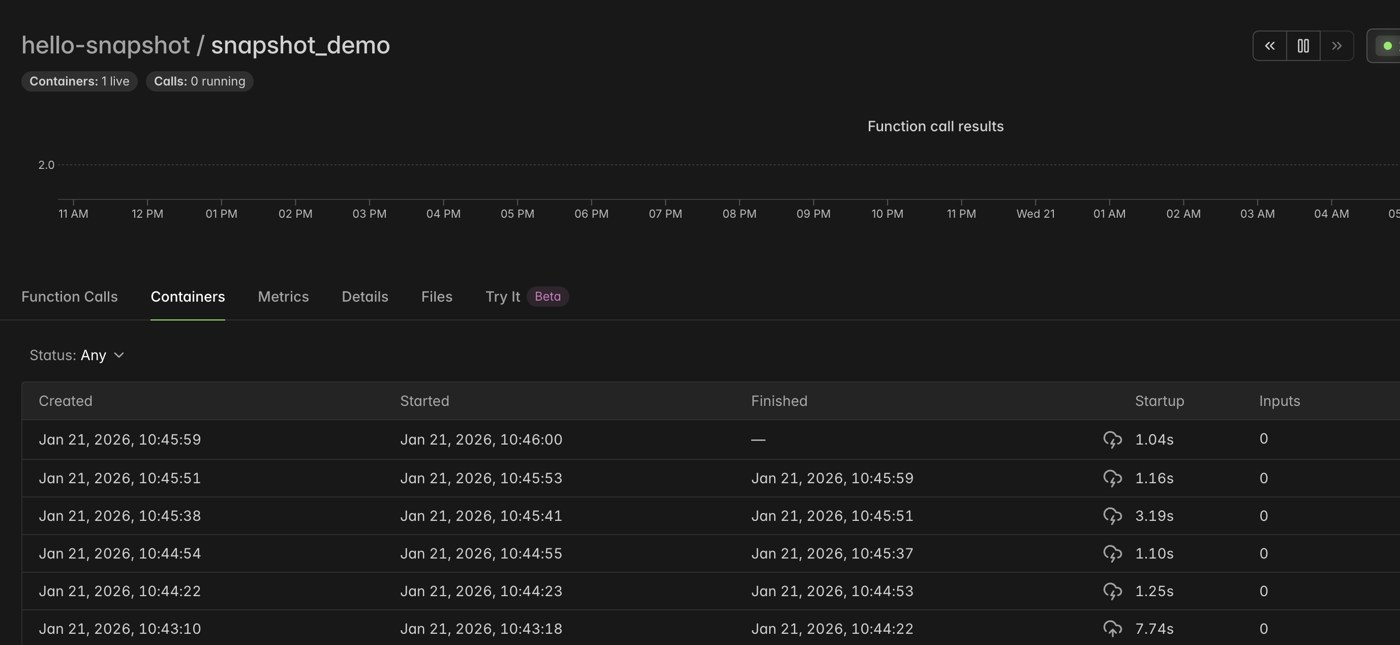
Run a small batch first and check what it used in the dashboard. As a worked example, the listed T4 rate of $0.000164 per second would cost about $0.10 in GPU time for ten billed minutes. The total can also include CPU, memory and any other applicable resources. Use that first usage record to decide how much data to send in the next batch.
Which option should you try first?
Use Colab when you want to know whether your code runs on a GPU at all. Choose Kaggle when you already know which public dataset you want to work with. If you want to send someone a demo link, try a public ZeroGPU Space first to see how queuing feels. If you spend more time rebuilding environments than running code, try Lightning. When the input, output and execution steps are stable, Modal is better suited to repeating the job.
Run a small CUDA check before loading your model
In a Colab or Kaggle notebook with a CUDA-enabled PyTorch install, run this small check after connecting to a GPU. It uses generated data and reports the actual GPU name. The expected calculation result is 42.0. Techmixer ran an equivalent check on a Colab Tesla T4 in October 2026. Use your own output to confirm this session’s hardware. PyTorch CUDA availability reference.
import torch

if not torch.cuda.is_available():
    raise RuntimeError("No CUDA GPU in this Python session")

print(torch.cuda.get_device_name(0))
a = torch.tensor([[2.0, 4.0]], device="cuda")
b = torch.tensor([[3.0], [9.0]], device="cuda")
result = (a @ b).item()
assert result == 42.0
print(result)
If CUDA is unavailable, confirm that the selected runtime has a GPU. Then run nvidia-smi in the terminal or !nvidia-smi in the notebook. If that lists a GPU while PyTorch reports no CUDA, check whether your installed PyTorch build supports CUDA. If the small calculation passes and the actual model runs out of memory, try a smaller model, batch size or context window before chasing a different provider.
Why some older free GPU lists differ
Amazon SageMaker Studio Lab remains available to existing users, but AWS has closed it to new customers. Paperspace Gradient still lists a free M4000 notebook machine, with limited availability. DigitalOcean’s pricing and machine-feature pages describe privacy differently, so verify visibility in the notebook setup before uploading anything. Also confirm you selected the free notebook machine instead of a billed GPU VM. AWS Studio Lab availability · Paperspace pricing · Paperspace machine features.
Can you run a free cloud GPU around the clock?
Plan for short sessions, quotas or metered usage. If an experiment has to survive interruptions, save checkpoints outside the temporary session and verify that a fresh run can resume. If a service needs predictable response times throughout the day, check the paid hosting terms or measure what the same model does on hardware you control.
Related Techmixer guides
- Compare cloud and local GPUs and follow the Colab and Kaggle walkthroughs
- Try running a language model locally with AirLLM
- Learn AI engineering with hands-on exercises
- Browse Techmixer’s AI tools and guides
Our take
Do one job you can finish in a short session. A notebook that loads data, runs on CUDA and leaves you with a usable result gives you a baseline for deciding whether you need more memory, longer runtime or easier deployment.
Last reviewed November 11, 2026. Techmixer cross-checked provider documentation and reused its October Colab test as a reproducible example. Availability and performance across providers were not benchmarked.