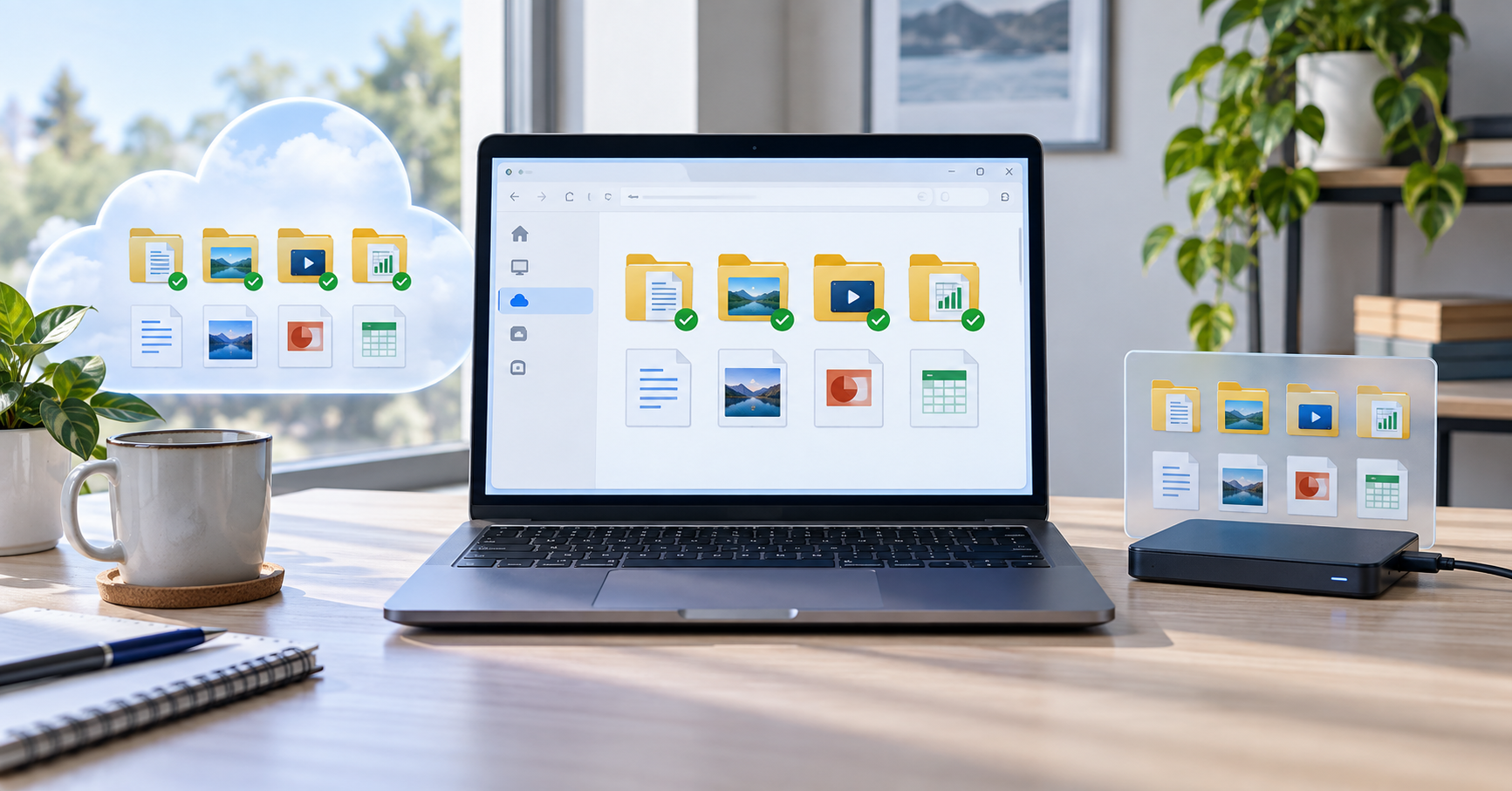
Free cloud storage is useful for a small file collection, but choose by the job rather than the biggest allowance. Google Drive suits shared documents, OneDrive fits Windows folders, and IDrive Basic offers a backup-oriented workflow. Dropbox, Box, Proton Drive and Sync.com provide other ways to store or share files. None should be the only copy of documents you cannot replace.
Quick answer
Start with the account you already use if its remaining space fits your files. For a separate scheduled backup, examine IDrive Basic. For encrypted storage, compare Proton Drive and Sync.com. For small document sharing, consider Dropbox or Box, but check device and per-file limits. The table below separates standard capacity from conditions and recovery risks.
What to know first
Sync keeps selected files available across devices. If you delete or change a synced file, that action may travel to the cloud and your other devices. A backup should let you recover an earlier copy after a mistake, failed drive, or damaged file. Cloud services vary in version history and restore rules, so the useful question is not only “did it upload?” but “can I recover the version I need?”
Check the account quota before you start. The headline allowance is not necessarily your remaining space. Google shares its quota with Gmail and Photos; Microsoft cloud storage also includes Outlook.com attachments. Proton starts at 2 GB, with eligible welcome actions required within 30 days to reach 5 GB. Free plans and eligibility were checked against official sources on 8 October 2026; your account can differ. See Microsoft storage rules and Google storage rules.
This guide focuses on personal Windows use. It does not treat a synced folder as a full system image, or a free plan as suitable for a growing business archive. If you need whole-PC recovery, start with our Windows backup software comparison and keep a separate copy away from the computer.
Compare 7 free cloud storage and backup tools
| Service | Best for | Free storage | Workflow | Main restriction |
|---|---|---|---|---|
| IDrive Basic | Small scheduled file backups | 10 GB | Backup and restore | Not enough for most whole-PC backups |
| OneDrive | Windows documents | 5 GB shared Microsoft cloud quota | Folder access and sync | Other Microsoft cloud data uses space |
| Google Drive | Shared documents | Up to 15 GB shared with Gmail and Photos | Web access and desktop sync | Mail and photos reduce remaining capacity |
| Proton Drive | Encrypted personal files | 2 GB; up to 5 GB after welcome actions | Encrypted storage and sync | Complete eligible actions within 30 days |
| Dropbox Basic | A small folder shared with other people | 2 GB starting space | File sharing and sync | Up to 3 connected devices; small quota |
| Box Individual | Many small documents | 10 GB | Web storage and sharing | 250 MB per file; only 1 file version |
| Sync.com Free | A small encrypted document folder | 5 GB | Encrypted sharing and sync | Free sharing/transfer restrictions; 30-day history |
IDrive Basic: a small, separate backup set
Best for: people who can identify a small group of irreplaceable files and want a restore-oriented service. IDrive lists Basic as a free 10 GB plan with no credit card required. Its Basic Client documentation shows backup scheduling and restoring files. That is a better fit for a true backup job than simply putting another copy in a sync folder.
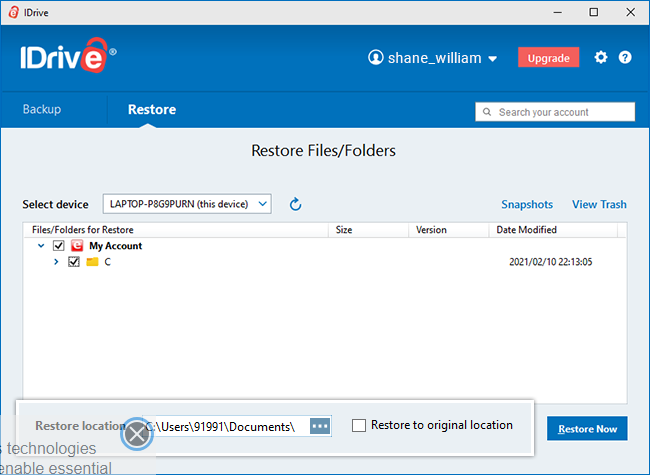
Where it helps: back up tax records, family photos, or work documents that fit inside the allowance. Start with a small folder, schedule the job, then restore one file into a different folder to confirm it works. Limit: 10 GB is not enough for most full PCs, and the plan, restore options, and device support should be checked before relying on them. See the official IDrive plans and Basic Client guide.
OneDrive: convenient Windows folder protection
Best for: Windows users who want selected personal folders to follow their Microsoft account. Microsoft says Windows Backup can sync chosen folders to OneDrive, and a free account includes 5 GB of cloud storage. That is convenient for a modest Documents folder or a few projects, especially when moving to a replacement PC.
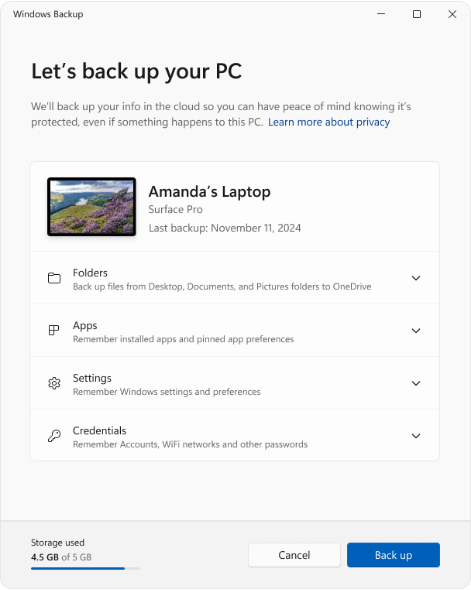
Where it helps: open Windows Backup, inspect which folders are switched on, wait for upload to finish, then sign in on the web to confirm the files are there. Limit: folder sync is not a complete disk image and 5 GB fills quickly. A deletion or unwanted edit can also sync. Read Microsoft’s Windows Backup instructions before treating it as your only recovery method.
Google Drive: flexible file access and sharing
Best for: documents that move between browsers, phones, and computers. Google Drive for desktop can stream files to conserve local disk space or mirror them so they are also stored locally. Google says a personal account has up to 15 GB shared across Drive, Gmail, and Photos.
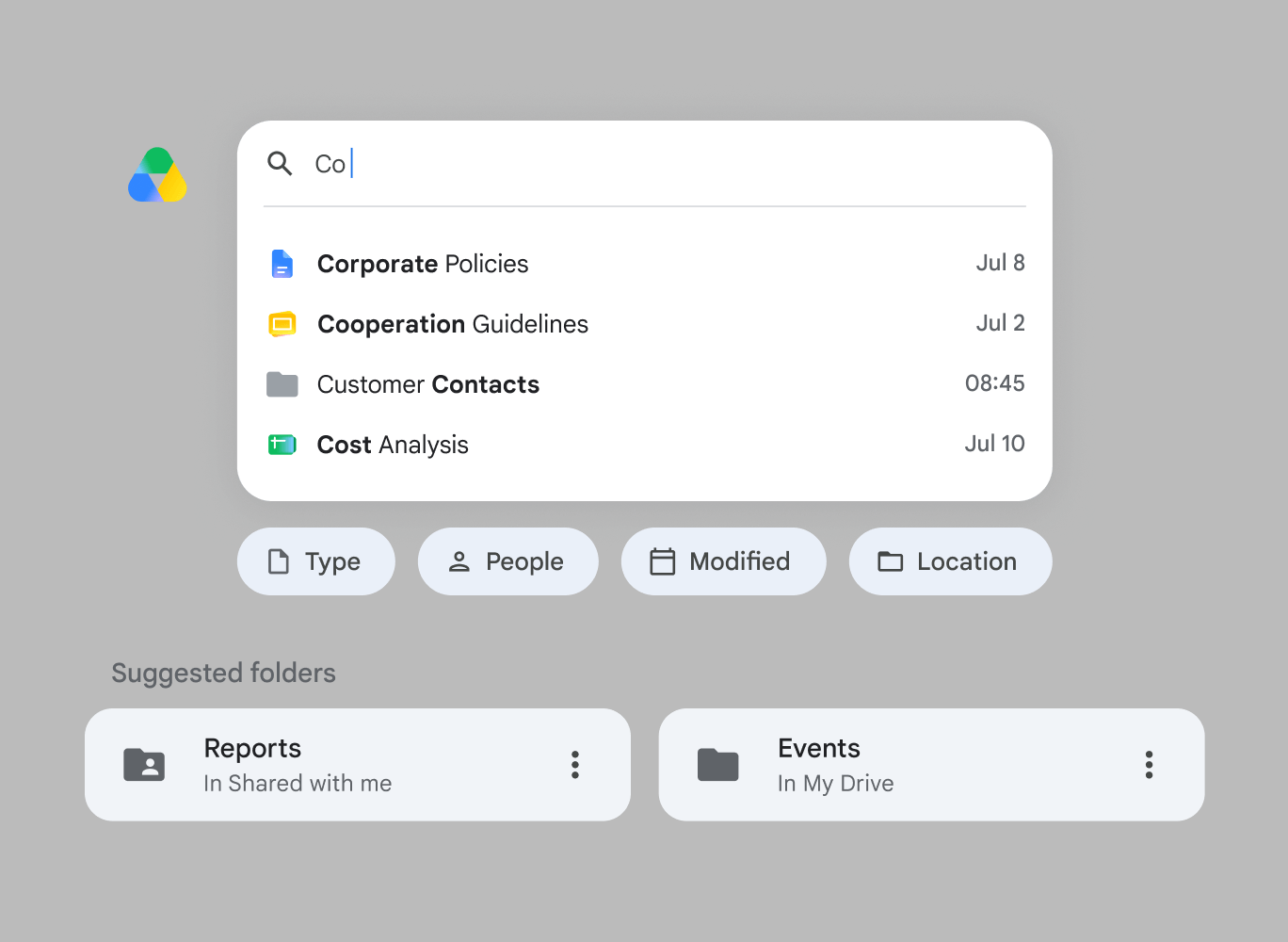
Where it helps: keep a working folder available across devices and share selected files with collaborators. Before using it for protection, check whether your desktop client is streaming or mirroring and whether the files you need will be available offline. Limit: the shared quota can be consumed by email and photos, while sync changes travel between devices. See Google’s storage explanation and streaming versus mirroring guide.
Proton Drive: encrypted cloud file sync
Best for: people who want private file storage and selected Windows folders in the cloud. Proton describes Drive as end-to-end encrypted and documents a Windows app for syncing chosen folders. Its free allowance starts at 2 GB and can reach 5 GB after completing the welcome actions within the stated period.
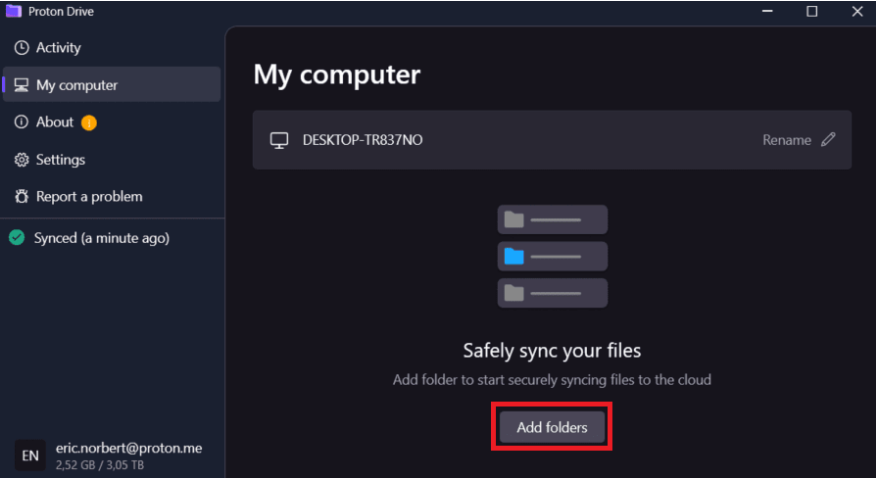
Where it helps: sync sensitive personal documents that fit comfortably inside the allowance. After setup, check the app’s sync status and confirm the files appear in the web account. Limit: this is still a sync service; keep a separate backup for accidental deletion or account access problems. Review Proton’s Windows sync steps and free-storage conditions.
Best for: a small shared working folder, especially when someone you collaborate with already uses Dropbox. Basic starts with 2 GB and supports up to three connected devices. That is enough for a modest collection of documents, not a large photo library.
Where it helps: imagine a 500 MB folder of PDF forms and project notes. Keeping that folder in Dropbox can be easier than sending a new email attachment after every edit. Name the current files clearly and review who can access the shared link.
Limit: your phone and two computers can already use the three-device allowance. Check account space and sharing permissions before adding another device or folder. Do not assume a feature shown in a product illustration is included in Basic; Dropbox advertises paid upgrades alongside its free plan. Keep a separate copy of irreplaceable work.
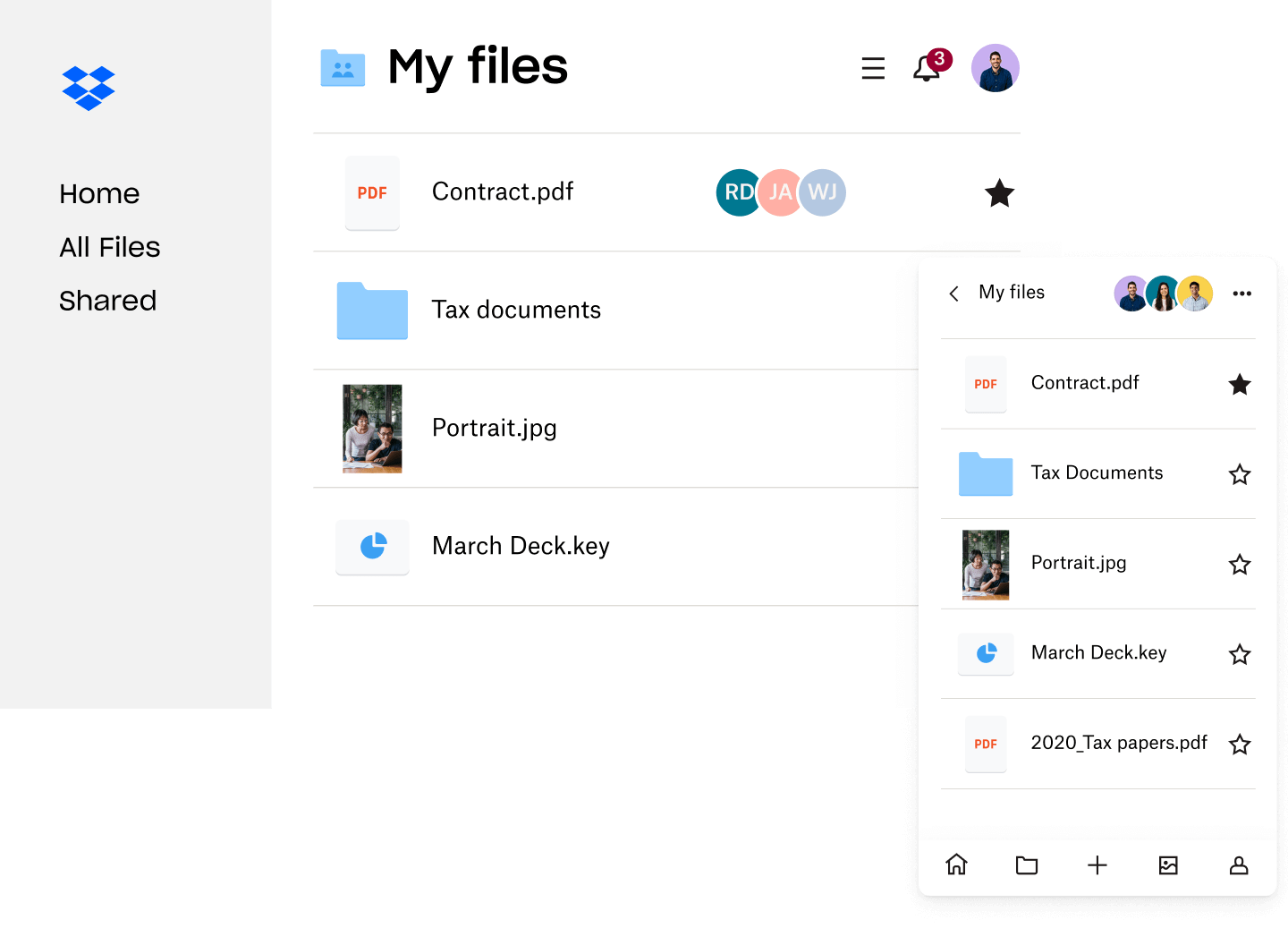
Official Dropbox Basic plan and restrictions.
Box Individual: many small documents
Best for: a collection of small documents rather than large videos or backup archives. Box lists a free single-user Individual plan with 10 GB of storage, a 250 MB upload limit per file and access to one file version. The upload limit is the important catch.
Where it helps: 100 PDFs at 5 MB each would occupy roughly 500 MB before any other account usage. Each file is comfortably below the stated upload limit. A single 800 MB ZIP archive would fail that size check even when your account has several gigabytes available.
Limit: one available file version is not a deep recovery history. Use Box for access and sharing, but keep an independent backup for overwritten documents. Also distinguish the ongoing free Individual plan from a paid business-plan trial; the pricing page presents both.
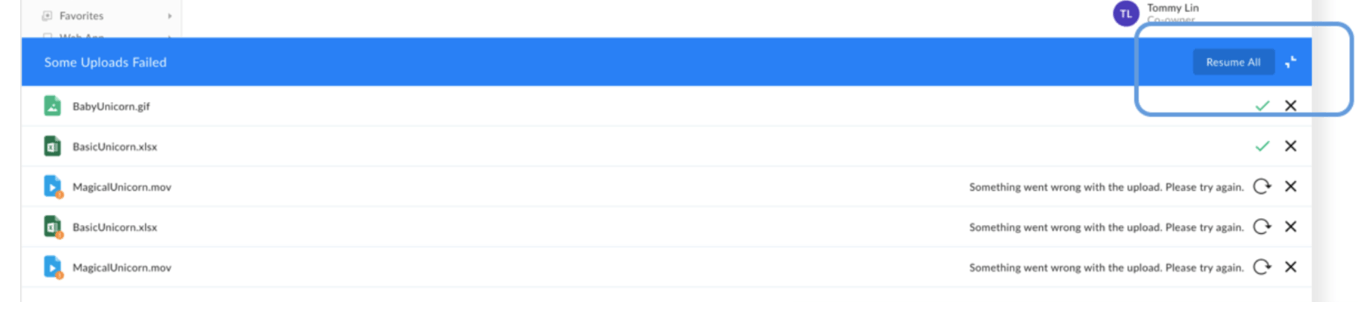
Official Box Individual plan and restrictions.
Sync.com Free: a small encrypted document folder
Best for: a small set of private files when you want an encrypted alternative to a general-purpose cloud folder. Sync lists 5 GB of free end-to-end encrypted storage. Its public free-plan page describes up to five devices, three password-protected links, three shared folders and 30-day file history.
Where it helps: use a 1 GB folder of personal records as a low-risk starting point, then check access on another device and rehearse downloading a copy. Encryption is useful, but account recovery and the way you share files still matter.
Limit: storage capacity and transfer allowance are separate. The free-plan comparison also lists a 5 GB data-transfer allowance; check its current rules before using shared links for repeated large downloads. Do not assume paid features such as CloudFiles are part of the free plan. See the official free-plan comparison for the current feature breakdown.
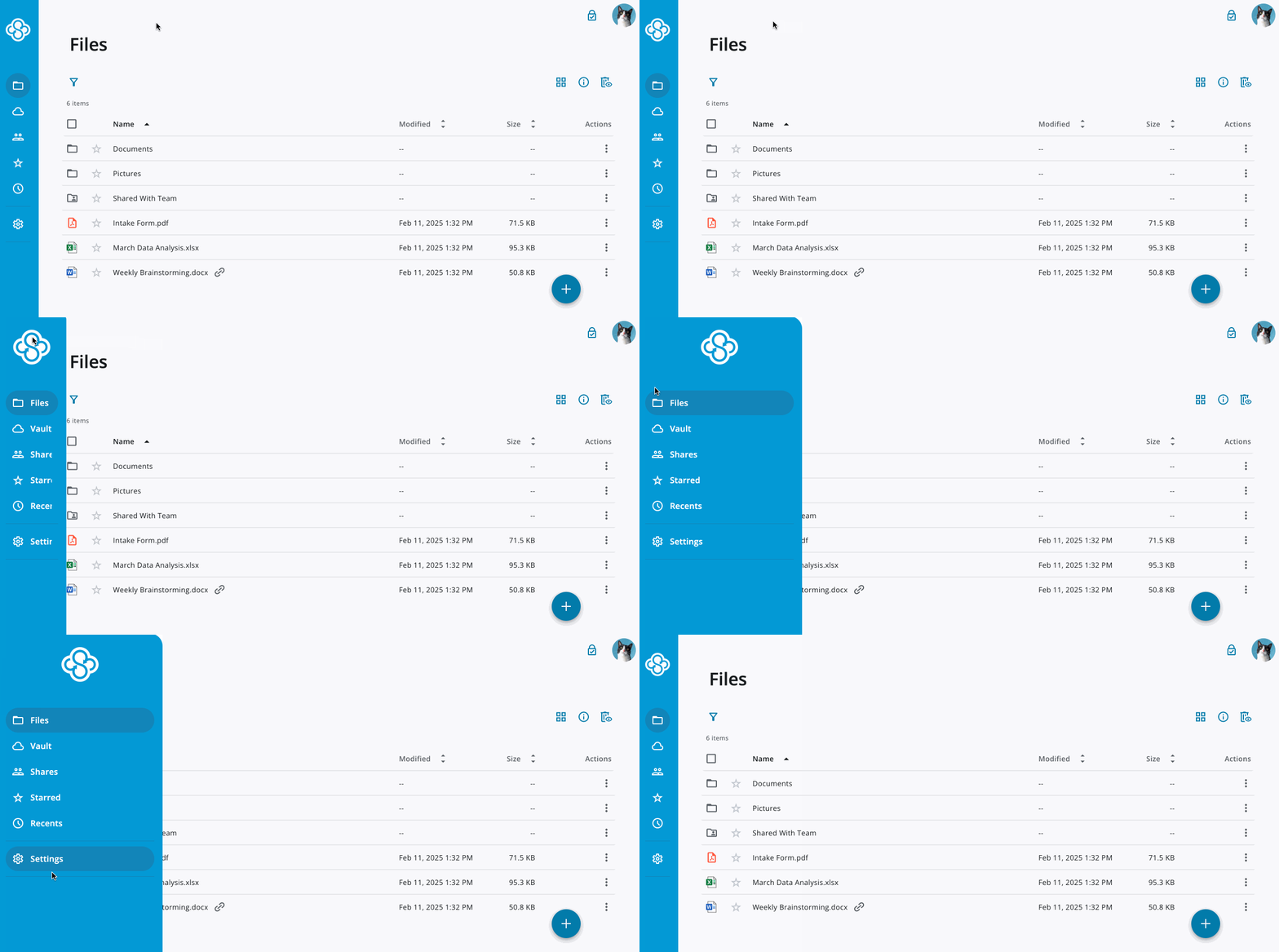
Official Sync.com Free plan and restrictions.
Practical examples: what fits in a free plan?
These are planning examples, not measured capacity tests. Actual file sizes, other account usage and retained versions can change the result.
- Documents: 200 PDFs at 2 MB each use roughly 400 MB. All seven allowances could fit that set if enough space remains; choose by sharing and recovery needs.
- Family photos: 1,000 photos at 5 MB each use roughly 5 GB. A 5 GB account leaves no useful headroom, and a Google account may already be occupied by email. A 2 GB plan will not fit this set.
- A large archive: a 1 GB ZIP might fit inside Box’s total 10 GB quota, but exceeds its 250 MB per-file upload limit. Total capacity alone is not the answer.
- 30 GB of video: none of the standard free allowances in this comparison fits the entire set. Use a suitable local backup or a plan with enough capacity rather than scattering irreplaceable files across many accounts.
Keep a simple record of where the authoritative copy lives. Multiple cloud accounts are not automatically a reliable backup system: they create more passwords, recovery procedures and quotas to manage.
A simple backup workflow for a small Windows folder
Imagine you have 6 GB of scanned documents, receipts, and photos. First, clean out duplicates and decide which files are truly irreplaceable. Choose a service with enough headroom for future changes. IDrive Basic can hold a small selected backup set; Google Drive may fit the 6 GB set if enough shared space remains. OneDrive and Proton Drive would need a smaller working subset within their free quota, or a suitable paid plan. Do not count two synchronized views of the same cloud account as two independent backups.
- Pick the source folder. Keep the important documents together, and confirm the cloud app actually includes it.
- Make a separate local copy. Use an external drive or other storage that is disconnected after the copy finishes. Our Backup and Sync Software hub links to local backup options.
- Upload a small test set. Wait until the service reports completion, then check the files from the web or another device.
- Restore one file. Put it in a different folder, open it, and compare it with the source. Repeat after major account or device changes.
- Review the quota. Leave room for version history and new files; revisit the plan before it fills up.
If the files are larger than a free allowance or you need to recover Windows itself, use a fuller local backup plan. Our Windows backup tools guide covers that route; file synchronization software is useful when your main goal is keeping folders matched across devices.
What this comparison does and does not verify
Techmixer checked the vendors’ public plan and support pages on 8 October 2026. The interface images above come from those vendors and are labeled accordingly. We did not create accounts, run timed uploads, or perform a hands-on restore test for all seven services, so this is a documented workflow comparison rather than a performance ranking. Free quotas and client behavior can change; check the linked official pages before signing up.
Best choice by use case
- One small backup job: IDrive Basic is the most direct fit when you need to select files, schedule backup, and later restore them.
- Everyday Windows documents: OneDrive is convenient if Desktop, Documents, and Pictures are the folders you want available on a replacement PC.
- Sharing across devices: Google Drive works well when the same files need to be opened by several people or from a browser.
- Privacy-first file sync: Proton Drive is the option to examine when end-to-end encryption matters more than maximum free space.
- Small shared working folder: Dropbox Basic, if 2 GB and its device limit suit you.
- Many small PDFs: Box Individual, provided every file stays below 250 MB.
- Another encrypted option: Sync.com Free, with sharing and transfer limits checked first.
FAQ
Does the largest free allowance make a service the best choice?
No. Check remaining capacity, per-file upload limits, sharing restrictions, recovery history and account access. For example, Box offers 10 GB but its free plan limits each upload to 250 MB.
Does cloud sync count as backup?
It can help you recover files in some situations, but it does not replace an independent backup. A synced deletion, account issue, or quota problem can affect all synchronized copies. Keep another copy and test how you would restore it.
Which free option is closest to a true file backup?
Of the seven discussed here, IDrive Basic has the clearest backup-and-restore workflow in its official client documentation. Its free 10 GB limit makes it suitable for a selected set of files, not an entire PC.
Can a free cloud plan restore my entire Windows computer?
Do not assume so. These free storage allowances are small, and file sync is different from a system image. If whole-PC recovery matters, create a separate backup and check that you can boot or restore from it.
How often should I test a restore?
Test once when you set up the service, then repeat after important changes such as a new PC, changed folders, or a full storage account. A successful upload notification is not proof that the file you need can be restored.
Related Techmixer guides
- Backup and Sync Software hub
- Free backup software for Windows
- File synchronization tools
- Software Guides
Our take
For a small number of important files, the safest free setup is usually a cloud service plus a separate local copy. Choose IDrive Basic when the priority is a selected backup and restore job. Choose OneDrive, Google Drive, or Proton Drive when daily access and sync are the priority, then add another backup path. Whatever you choose, the first restore test matters more than a high storage number on a plan page.
Last reviewed: 8 October 2026.