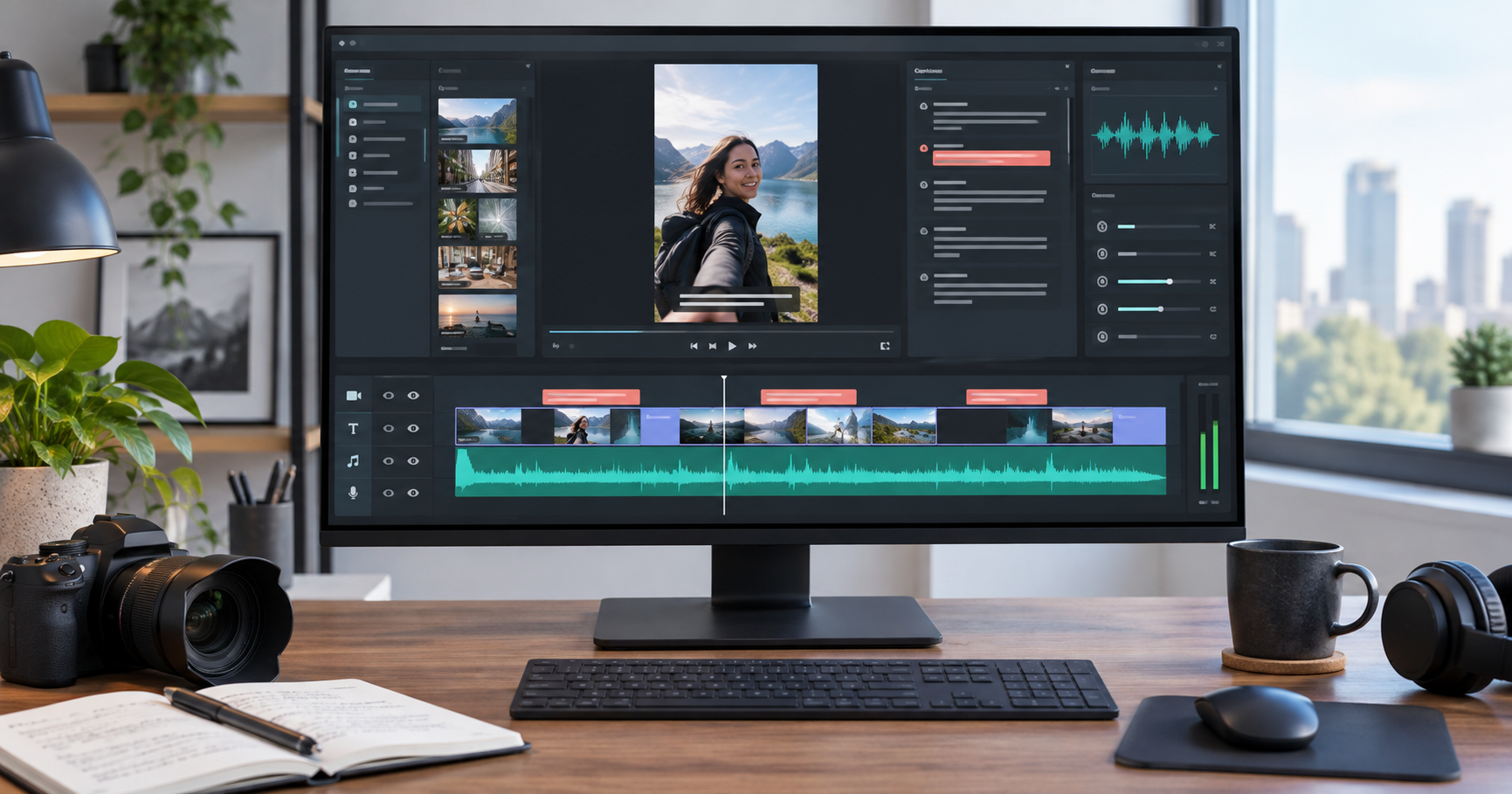
MoneyPrinterTurbo is an open-source video-generation project that can turn a topic or keyword into a short-video draft by coordinating script writing, footage selection, voice, subtitles, music, and rendering. It is worth testing if you want a repeatable production workflow, but it is not a magic free-video button: setup, provider accounts, API usage, media rights, and human review still matter.
Quick Answer
Quick answer: On Windows, use the project’s official one-click release package, extract it to a simple folder path, run update.bat, then start.bat. On macOS or Linux, use the official Docker Compose or Python/uv setup instructions. Configure only the model and media providers you intend to use, generate one short test, and review every line, shot, voice track, subtitle, and music choice before publishing.
What to Know First
- What it is: MoneyPrinterTurbo is a self-hostable, open-source project maintained at harry0703/MoneyPrinterTurbo on GitHub. Its README describes WebUI, API, CLI, and AI-agent workflows that can generate scripts, video materials, narration, subtitles, background music, and rendered videos.
- Popularity is not proof of quality: GitHub’s repository metadata showed roughly 127,000 stars and about 20,000 forks when checked on 1 October 2026; both counters move over time. That is evidence of interest, not a guarantee that every install works or every output is publishable.
- “Free” needs qualification: The project code is open source, but cloud LLM, text-to-speech, footage, or other provider usage may require accounts or cost money. Local processing still uses your computer, storage, and electricity.
- Rights remain your responsibility: Check each stock provider’s terms and the license for the specific footage, voice, and music. The repository warns that some bundled background music may come from YouTube videos; remove or replace tracks unless you have permission to use them.
- Do not publish blindly: AI can write inaccurate scripts, choose irrelevant stock clips, mispronounce names, or produce subtitle and timing errors.

What MoneyPrinterTurbo Can and Cannot Do
The current project supports more than a single “topic in, video out” path. You can use its WebUI, API, CLI, or an AI-agent workflow; provide a topic or a script; choose an aspect ratio; configure speech and subtitles; and generate multiple variants in a batch. The project documents integrations with different LLM, voice, and media providers, so the exact result depends on your configuration and provider availability.
That flexibility comes with setup decisions. A stock-footage workflow can assemble a coherent first draft, but it cannot guarantee that a chosen clip depicts the exact place, person, product, or event described in narration. Treat the first render as an editable draft, not a finished editorial product.
Who should try it?
It is a better fit for creators comfortable with installing desktop software or running Docker, and who want to produce explainers, social clips, or repeatable video drafts. It is a weaker fit if you need a polished browser editor with no configuration, licensed music included for every use, guaranteed accurate footage, or automatic approval and publishing.
How to Set Up MoneyPrinterTurbo on Windows
The project recommends its Windows package as the quickest local trial. Always use the official GitHub release page, not a re-upload or a shortened link.
- Open the official releases page. Go to MoneyPrinterTurbo Releases and inspect the latest release’s Assets section.
- Download the Windows package asset. The project documents a one-click Windows package. Do not mistake GitHub’s automatically generated “Source code” ZIP or TAR file for the complete launcher package; those source archives may not include
start.batorupdate.bat. - Extract to a simple path. Use a folder such as
C:\Tools\MoneyPrinterTurbo. The README advises avoiding spaces, special characters, and non-ASCII characters in the Windows path. - Update the bundled code. In the extracted project folder, run
update.batas documented. If Windows Security or your endpoint protection flags a file, stop and verify the release source and file before proceeding; do not disable protection to force it through. - Start the local WebUI. Run
start.bat. The project should open its WebUI in your browser. If it does not, follow the current release notes rather than guessing a port or downloading a second package. - Configure providers deliberately. In the WebUI’s basic settings, select an LLM provider and add only the API credentials needed for that workflow. Add a footage provider key if required. Never paste API keys into a public prompt, screenshot, or shared configuration file.
- Generate a small test. Use a short topic and one output first. Confirm script language, voice, aspect ratio, footage source, subtitle settings, and expected provider charges before you run a batch.
- Review and export. Watch the entire render, check claims and citations, confirm the stock/media license, listen for pronunciation and audio issues, proofread captions, and replace any mismatched footage or music before sharing.
If the package does not start, record the release version and the exact error. Check the project’s official Issues page and release notes; do not download unofficial DLLs or scripts offered in comment threads.
Docker Setup for macOS, Linux, or an Isolated Windows Install
Docker gives you a more isolated runtime, but it is not automatically simpler. On Windows, Docker Desktop uses WSL 2; install and configure those components using Microsoft’s WSL installation guide and the official Docker Desktop for Windows instructions.
- Install Docker Desktop or Docker Engine and confirm Docker Compose works.
- Clone the official repository:
git clone https://github.com/harry0703/MoneyPrinterTurbo.git - Change into the project folder:
cd MoneyPrinterTurbo - Before the first start, copy
config.example.tomltoconfig.tomlas the README instructs. Keep secrets private and avoid committing this file to a public repository. - Start the recommended release container:
docker compose -f docker-compose.release.yml up - Open the local WebUI at
http://127.0.0.1:8501. The API documentation is available locally athttp://127.0.0.1:8080/docs. - When finished, stop the foreground Compose process with
Ctrl+C. If you started it detached, usedocker compose -f docker-compose.release.yml downfrom the project directory.
For a manual install, the current README recommends Python 3.11 or later and uv. Follow the project’s pinned setup (uv sync --frozen) and launch script for your operating system; dependency and provider requirements can change, so use the README that matches the release you install.
A Practical First-Video Workflow
Start with a 30- to 60-second explainer, not a batch of dozens. For example, use a topic such as “three ways to protect a new laptop before travel.” Ask the model for a concise script with claims that can be checked, and specify the audience, tone, target duration, and vertical 9:16 format.
- Read the script before rendering. Remove unsupported statistics, dated advice, and claims that sound factual but have no source.
- Inspect the search terms and proposed visuals. Replace generic or misleading clips; a stock image of a laptop is not evidence for a specific product feature.
- Preview the voice and check names, technical terms, pacing, and pronunciation.
- Turn on subtitles, then proofread them against the actual narration. Check safe margins for TikTok, Reels, and Shorts controls.
- Listen with headphones and check music volume, clipping, silence, transitions, and the final frame.
- Export one version and watch it from beginning to end on a phone-sized screen. Only after this pass should you test variants or automate repeat production.
A useful prompt is: “Create a 45-second vertical explainer for first-time laptop owners. Use five short scenes, plain language, no unsourced statistics, and a clear closing action. Return the script and scene keywords for review before rendering.” You remain responsible for checking the final claims and assets.
Costs, Privacy, and Copyright Checks
MoneyPrinterTurbo is software, not a bundle of unlimited free AI services. Cloud providers can bill by token, character, minute, or generated asset; limits and prices vary. Confirm provider pricing and set a budget before entering keys. If a workflow offers local models or local media, that can reduce external API use, but it may need more compute and can run more slowly.
Keep API keys in local settings and restrict access to the local WebUI. Do not expose a development server directly to the public internet. Before publishing, verify stock footage permissions for the intended platform and commercial use, review model-generated voice or likeness restrictions, and replace music unless its license clearly covers your use. “Royalty-free” does not mean “no conditions” or “free for every purpose.”
MoneyPrinterTurbo vs. a Conventional Video Editor
Use MoneyPrinterTurbo when you want software to assemble a first draft from a topic or script. Use a conventional editor when exact shot selection, brand treatment, color, pacing, or fine audio control is the priority. A practical production workflow can use both: automate the rough cut, then make final changes in an editor you already trust.
For a more agent-heavy production system, see our OpenMontage setup guide. Browse the Techmixer AI Tools hub for related tools, or start with our Software Guides for conventional utilities and setup advice.
Frequently Asked Questions
Is MoneyPrinterTurbo free?
The project code is open source, but using it may involve paid LLM, voice, footage, or other provider services. Local operation also uses your own hardware and electricity. Check each provider’s current terms and billing before use.
Does it create a complete video from one prompt?
It can automate multiple production steps from a topic or keyword, but you still need to configure providers and review the script, media, narration, subtitles, music, and final render. The output is not guaranteed to be accurate or publication-ready.
Do I need a GPU?
The project documentation says a GPU is not required. It may improve performance for some local transcription or heavier processing workflows. Actual speed depends on your hardware, model, and provider choices.
Can I use its generated videos commercially?
Do not assume that you can. Review the project license and the separate terms for each model, stock-footage source, voice provider, and music track. Your rights to the generated output depend on those components and their terms.
Is MoneyPrinterTurbo the same as MoneyPrinterTurbo.cc?
The project site links to the harry0703/MoneyPrinterTurbo GitHub repository. For downloads and setup, use that repository’s own release and documentation pages so you can match instructions to the code version.
Related Techmixer Guides
- OpenMontage setup: an agentic AI video-production workflow
- AI tools for creators and practical workflows
- Free AI tools for work: privacy and workflow guidance
- Software guides and utility setup notes
Our Take
MoneyPrinterTurbo is worth a small, controlled trial if you are comfortable configuring software and reviewing media. Its practical value is automating repetitive assembly, not removing editorial judgment or production responsibility. We reviewed the project’s public website, GitHub README, and release information for this guide; Techmixer did not run a local installation or benchmark video-generation quality for this article.
Last reviewed: 1 October 2026.