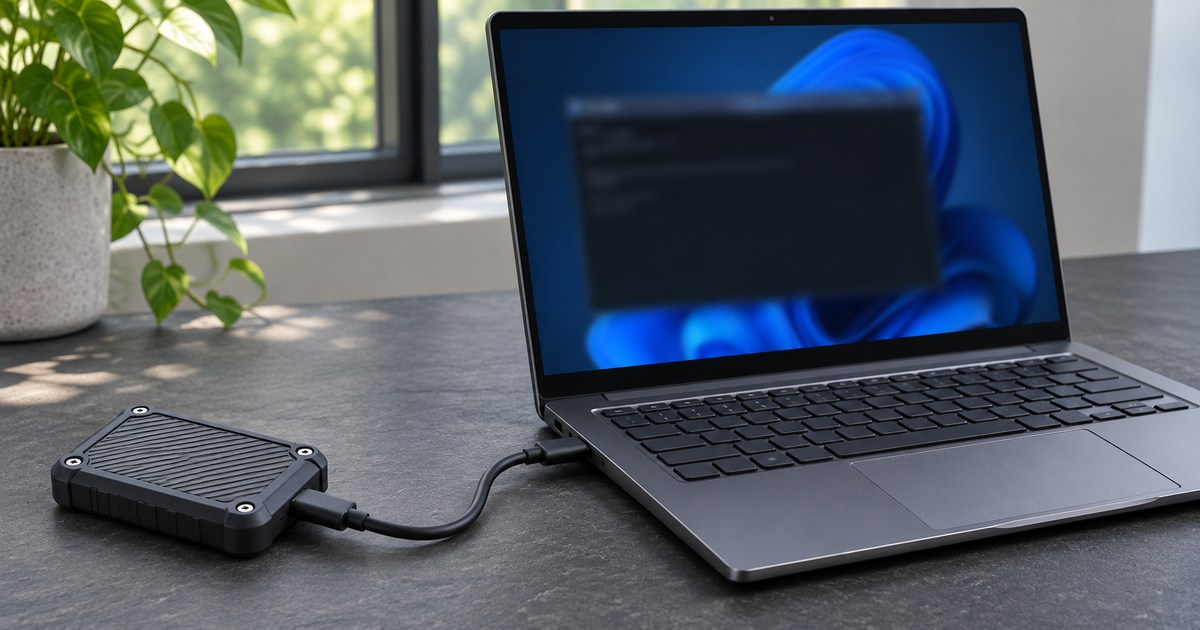
You can store Ollama models on a USB drive and run them without internet access on a Windows PC prepared in advance. Install Ollama on the PC, point it at a folder on the USB SSD, and download a local model while you’re online. Then start a fresh session with the network disconnected and check that the model still answers.
The USB SSD carries the model files. The host PC runs Ollama and supplies the memory and processing power. If your goal is to carry the runtime as well as the model, see Techmixer’s separate portable llamafile toolkit.
Before you start
Use a Windows PC that meets Ollama’s current requirements and a drive that already has enough free space. Ollama’s Windows documentation lists at least 4 GB for the application itself, which is separate from the model files. For this walkthrough, start with qwen2.5:0.5b, listed at about 398 MB. It’s a practical model for checking that the setup works. A larger model can give better answers, but needs more storage and may need more RAM or GPU memory. Ollama’s Windows requirements · Starter model details.
If you already use Ollama, changing its model directory can make your previous library disappear from ollama list until you switch back. Start with an empty folder for the first test and keep the original library in place.
1. Create a model folder on the USB drive
Before changing the model folder, record your current setting. Run [Environment]::GetEnvironmentVariable('OLLAMA_MODELS', 'User') in PowerShell and save the result. A blank result means this Windows user has no custom path set at user scope. Keep that note so you can undo the change after the test.
Connect the SSD and check its drive letter in File Explorer. Open PowerShell, replace E: with the actual drive letter, and run the following. These commands create the folder and set the model location for your Windows user account.
$modelDir = 'E:\AI\models'
New-Item -ItemType Directory -Path $modelDir -Force | Out-Null
[Environment]::SetEnvironmentVariable('OLLAMA_MODELS', $modelDir, 'User')
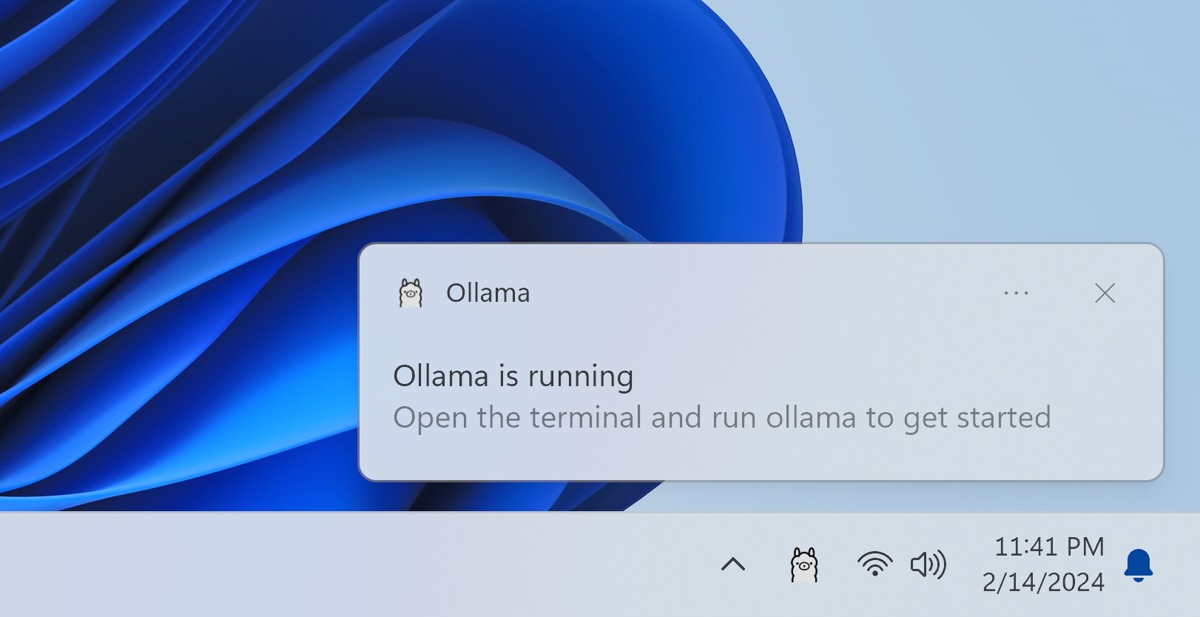
Quit Ollama from the system tray, then open it again from Start. The running process needs to read the new setting. To check what Windows saved, run [Environment]::GetEnvironmentVariable('OLLAMA_MODELS', 'User'). The path should point to the SSD. The next step checks where Ollama actually writes. Ollama’s local configuration FAQ.
2. Download Ollama models on a USB drive
While you’re online, download the starter model and list the models visible to the running Ollama server.
ollama pull qwen2.5:0.5b
ollama list
Get-ChildItem -LiteralPath 'E:\AI\models'
Look for qwen2.5:0.5b in the list and for blobs and manifests in the USB folder. You need both checks. The list tells you the server can see the model. The folder tells you where it was stored. If the list looks right but the folder is empty, verify the drive letter and restart the same Ollama process that serves the CLI before pulling again.
3. Test with the network disconnected
Set Ollama to local-only mode, quit the tray app, and relaunch it. This disables Ollama’s cloud models and web search. It applies to the Windows user account, so use it on a PC where that setting fits your workflow. Ollama’s local-only settings.
[Environment]::SetEnvironmentVariable('OLLAMA_NO_CLOUD', '1', 'User')Disconnect Wi-Fi and Ethernet on a PC you control. With the SSD still connected, open a fresh terminal and send a new prompt. An answer to a new prompt is more useful evidence than an old conversation on the screen.
ollama list
ollama run qwen2.5:0.5b "Reply with the number only: What is 2 + 3?"
The expected answer is 5. If Ollama tries to download a model, compare the exact tag with ollama list and check the USB path. If it loads and responds but the answer is wrong, the model can run locally. Check its output separately before trusting it for real tasks.
4. Prepare a second Windows PC
Install Ollama on the second PC before you travel. Plug in the SSD, check its drive letter, set OLLAMA_MODELS to that path and restart Ollama. Run ollama list before spending time on another download. If the model is listed, try the same fresh prompt with the network disconnected.
Quit Ollama before ejecting its model drive. If the second machine can read the USB but struggles to load a larger model, go back to the starter model and verify that the basic setup works. Moving a model to faster storage can help it load, while available memory and processing power still govern what the PC can run.
Troubleshoot the model folder
If you can see your Ollama models on a USB drive in File Explorer but ollama list is empty, compare the drive letter in File Explorer with the path saved under OLLAMA_MODELS. If Windows assigned a different letter, update the path and restart Ollama before downloading anything again. To return to an existing library, restore its previous model path and restart the app.
Restore your previous library after the test
If you wrote down a custom model path, set OLLAMA_MODELS back to that value. If the original result was blank, remove the test setting with the PowerShell command below. Quit Ollama and start it again, then run ollama list. Check that your previous models appear before disconnecting the drive. This change leaves the downloaded model files on the SSD.
[Environment]::SetEnvironmentVariable('OLLAMA_MODELS', $null, 'User')Check an actual offline task
Once the simple prompt works, paste a short function into the terminal and ask for two test cases, including an edge case. Compare the suggestions against the code yourself. If you plan to use a coding editor or a document tool with Ollama, repeat the test from that application with the network disconnected. The CLI test verifies model inference. The second test tells you whether your full workflow can run offline.
Related Techmixer guides
- Try another way to run a local language model
- Compare local hardware with a temporary cloud GPU
- Browse Techmixer’s AI tool guides
Our take
Start with one model and prove that both PCs can load it before building a larger USB library. Test any document interface or other integration separately. Keep private files on a trusted computer and encrypted storage when you need to carry them.
Last reviewed November 15, 2026. Techmixer checked Ollama’s Windows, storage and local-only documentation. The steps include checks you can repeat on your own hardware. We did not verify a run from a physical USB SSD with the network disconnected.